
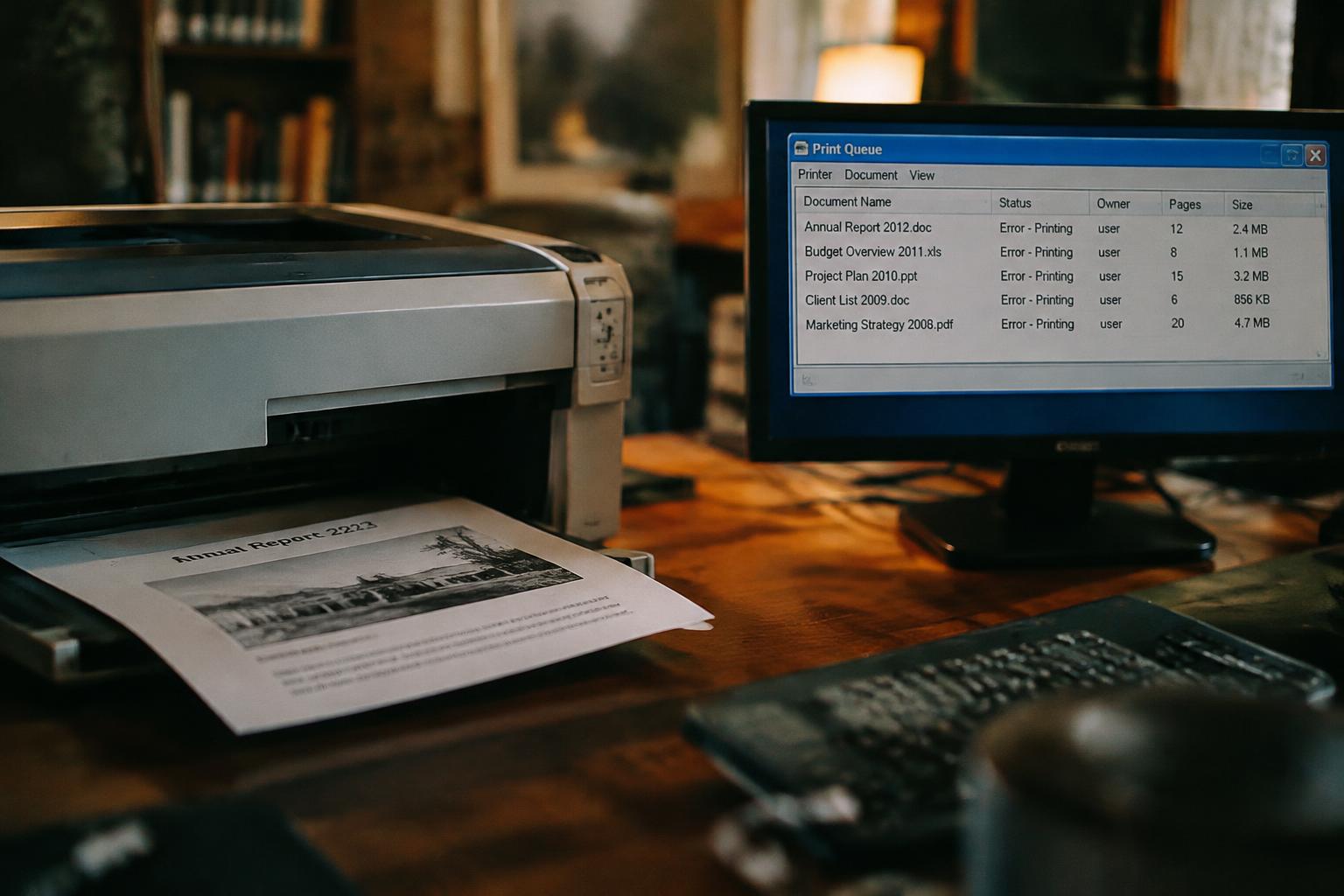
A printer that restarts a completed job can waste paper and expose private documents to anyone near the output tray. The cause is often a job left in the Windows print queue, a stalled spooler, or a printer reconnecting to an earlier request. When yesterday’s pages emerge after you send a new file, the queue may still hold the original job.
Key Takeaways:
- A stuck print job in the Windows print queue or macOS print Center can be sent again when the printer reconnects, restarts, or resumes processing.
- Common causes include a paused queue, an unresponsive spooler service, duplicate jobs, or a printer that did not confirm an earlier job completed.
- Cancel the old job in the computer’s queue, restart the Print Spooler on Windows if it remains stuck, then power-cycle the printer before sending a new test page.
How the Print Queue Retains Old Documents
Your operating system keeps a record of each submitted document so the print service can manage its progress and communicate with the printer. A job does not disappear simply because paper stops coming out: its status may remain pending until the service receives confirmation that the transfer or printing task has finished. That stored entry is the print queue record, which can outlast an interrupted session or a closed application.
How print jobs move from your device to the printer
When you select Print, your computer’s application sends the document to the operating system’s print service, which converts it into printer-ready data and places it in the queue. The service then passes the job through a printer driver and a connection such as USB or Wi-Fi. Queue status tracks progress through stages such as spooling and sending; the job remains listed until the system registers completion or removal.
Why a job may remain in the queue after printing stops
If a transfer is interrupted, the print service may retain the job because it has not received a completion signal. Closing the document or restarting the application does not necessarily remove the queued copy, and the service can resume sending it after the connection returns. A second submission can leave two entries for the same file. An unconfirmed job stays eligible for processing, including after you sign back in.
- Paused jobs remain listed until resumed or deleted.
- Spooling stores job data temporarily on your computer.
- Multiple copies can appear as separate queue entries.
Common Causes of Repeated Printing
Repeated output often begins with the software and actions that submit a job, rather than with the printer itself. A saved document opened from a recent-files list, a misconfigured application, or a click repeated while a print dialog appears unresponsive can send the same pages more than once. Check the source of each job in your operating system’s queue, where the document name and submitting application can point to the trigger.
Stuck jobs and print spooler errors
When a job becomes stuck in the Windows print spooler or macOS print queue, later submissions may remain behind it or reappear after the queue service restarts. A damaged temporary spool file can also cause the operating system to retry an earlier document. Look for repeated filenames and matching application names in the queue before clearing anything; an old PDF listed under a browser, for example, can identify the original source.
Duplicate submissions and connection interruptions
Repeated clicks on Print, or a second submission after an application stops responding, can create separate jobs with identical names. A brief Wi-Fi or USB interruption can leave the application uncertain whether the first job reached the queue, prompting you to send it again. Compare submission times and page counts: two entries created moments apart with the same document name usually indicate duplicate submissions, not a newly opened file.
| Cause | Where to look | Typical clue |
|---|---|---|
| Stuck spooler job | Operating system print queue | Old filename remains listed |
| Damaged spool file | Spooler or queue service | Job returns after a service restart |
| Repeated Print command | Application and queue history | Matching jobs appear close together |
| Connection interruption | Application submission history | A second job follows a timeout |
Printer and Network Issues That Can Resend Jobs
Repeated output can stem from a mismatch between what your computer reports and what the printer has actually received. A delayed status update, interrupted connection, or retained data inside the device can make a completed job appear unfinished. The printer or driver may then send the same pages again after communication resumes. Watch for duplicate output after a restart, a blinking connection indicator, or a printer status that changes between ready and offline.
Offline status, firmware, and printer memory
When your computer marks a printer offline, the driver may keep trying to deliver a job the device has already printed. Firmware faults or a brief power interruption can also leave stale print data in memory, causing pages to emerge after the printer reconnects or restarts. Some models retain jobs in internal storage, particularly when processing stops mid-document. Note whether repeat output follows a sleep cycle, firmware update, or power reset, and record the printer’s displayed job status.
USB, Wi-Fi, and network connection problems
Unstable USB links and Wi-Fi dropouts can interrupt the confirmation sent from printer to computer, even when the pages have already printed. A shared network printer can receive another transmission if the print server treats that missing response as a failed delivery. Connection interruptions during printing are especially likely with a loose USB cable, a weak wireless signal, or a router restart. Check whether the printer’s connection indicator changes when a duplicate job appears, and note whether other devices are printing to it.
- Check whether the printer’s IP address changes after a router restart.
- Look for a duplicate printer entry with a nearly identical name.
- Confirm that the selected port matches the printer’s current connection.
How to Clear the Queue and Stop Repeat Printing
Work from the computer to the printer, removing pending copies before sending a new test page. Confirm the correct printer is selected and that no other device is submitting jobs to a shared queue. Clear pending jobs first, then restart the printer connection in a controlled order so an old document is not released while you troubleshoot.
Cancel jobs and restart the print spooler
Open the printer’s queue and cancel every pending job, including paused or failed entries; wait until the list is empty before printing again. If jobs remain stuck on Windows, open the Services app, stop Print Spooler, clear the files in C:\Windows\System32\spool\PRINTERS, then start the service. Administrative access is required. On macOS, cancel jobs from the printer queue, then restart the printer or Mac if the queue will not clear.
Clear the queue on Windows, macOS, and the printer itself
On Windows, open Settings > Printers & scanners, select the printer, and choose its queue; on macOS, open System Settings, select Printers & Scanners, then open the queue and delete the jobs. If the printer’s control panel offers a job list, cancel its stored documents there too. Power the printer off, wait for it to stop, then turn it back on; menus differ by model, so use the panel’s cancel or job-management control.
| Location | Action | What to clear |
|---|---|---|
| Windows | Open the printer queue | Pending and failed jobs |
| Windows service | Restart Print Spooler | Stuck spool files |
| macOS | Open the printer queue | Queued documents |
| Printer panel | Cancel stored jobs | Documents held by the device |
How to Prevent Old Documents From Printing Again
Routine habits reduce the chance that a completed job resurfaces after a printer reconnects or a computer restarts. Give shared printers a clear naming convention, remove obsolete devices from your computer’s printer list, and close applications after submitting work so you can track each job’s source. For a practical example of queue confusion, see Unable to print, problem with printing queue. Consistent submission habits limit stray jobs.
Check the selected printer and confirm each submission
Before you select Print, verify the printer name in the application’s destination field, especially when Windows or macOS lists similarly named devices such as “Office” and “Office Copy.” Confirm the document title and page range in the print dialog, then watch for the job’s status in the queue. For shared devices, avoid submitting the same file again while the first copy is processing. A deliberate printer selection prevents duplicate jobs from being mistaken for old ones.
Keep printer software, drivers, and firmware current
Use your printer manufacturer’s support app or website to install compatible drivers and firmware for the exact model and operating system. Outdated print software can misreport job status or handle reconnects inconsistently, so enable update notifications and apply approved releases when the printer is idle. On managed workplace computers, ask your IT administrator before replacing a driver, since print servers often require a specific package. Keep the model-specific driver and firmware version aligned with the device.
- Remove unused printer entries from device settings.
- Set a clear default printer for routine work.
- Keep the printer connected to a stable network.
When the Problem Persists
Repeated output after the queue appears clear calls for a controlled test rather than another broad reset. By changing one variable at a time, you can determine whether the source is a particular document, a sending device, or the printer itself. Record what happens at each step, including whether a job reappears without a new print command; that distinction gives your support technician a useful starting point.
| Test | What to change | What the result indicates |
|---|---|---|
| Different document | Print a plain-text file | A single file or application may be resubmitting the job |
| Different device | Send a test page from another computer | The original device or its print configuration may be involved |
| Same device, different printer | Send the file to another printer | The printer, driver, or connection may be responsible |
Test with another device or document
Print a simple text file from a second computer or phone, then send the original document from that same device. If only one file repeats, inspect its application and saved print settings; if several files repeat from one computer, focus on that device’s print configuration. When every device triggers the same behavior, the printer or shared print server is more likely involved. Note which test reproduces the old job and the device used.
Gather error details for IT or printer support
Before contacting IT or the printer manufacturer, capture the exact error message, printer model, connection type, and the time the old job returns. Include the document name, sending device, application, and whether the queue shows a new job or restores an earlier one. A screenshot of the queue and the printer’s status display preserves useful evidence. Do not include document contents if they contain confidential information; the job name and error text are usually enough to begin diagnosis.
Summing up
A printer that repeats old documents is usually responding to a job retained in the print queue, a stalled spooler, or a device that has not cleared its stored data. Clear the queue on the computer that sent the job, restart the Print Spooler service if necessary, and remove saved jobs through the printer’s control panel when available. Then verify the selected printer and its network connection before sending a new test page. If the same document returns, identify the computer or application resubmitting it.
FAQ
Why does my printer keep printing old documents from the queue?
A stale or partially processed print job can remain in the queue and be sent again after a connection or spooler interruption. Duplicate submissions or a printer that reconnects after being offline can also trigger another print. If the document keeps returning after the queue is cleared, check the printer and connection as well as the computer.
How long does it take to stop a printer from reprinting old jobs?
Clearing a small queue and restarting the printer or spooler often takes only a few minutes. It can take longer if a job will not cancel, the computer needs a restart, or the printer is shared on a network. Avoid sending new jobs until the old one has disappeared from the queue.
Can clearing the print queue delete my document?
Clearing the queue removes pending print jobs, not the original files saved on your computer. You may need to submit a job again after the queue is empty. Check that you are removing the correct jobs, especially on a shared printer where another person may have documents waiting.
What should I check before printing again after clearing the queue?
Confirm that the correct printer is selected and that the old job no longer appears in its queue. Then send one test page or a short document before printing a large file. If the old document prints again, stop submitting jobs and check the printer connection, status, and spooler.
When should I contact IT or printer support about repeated print jobs?
Contact IT or printer support if jobs return after the queue is cleared and the printer and computer have been restarted. The problem may involve a shared print server, network connection, driver, or printer firmware. Share the error message, printer model, connection type, and steps already tried to help narrow it down.