
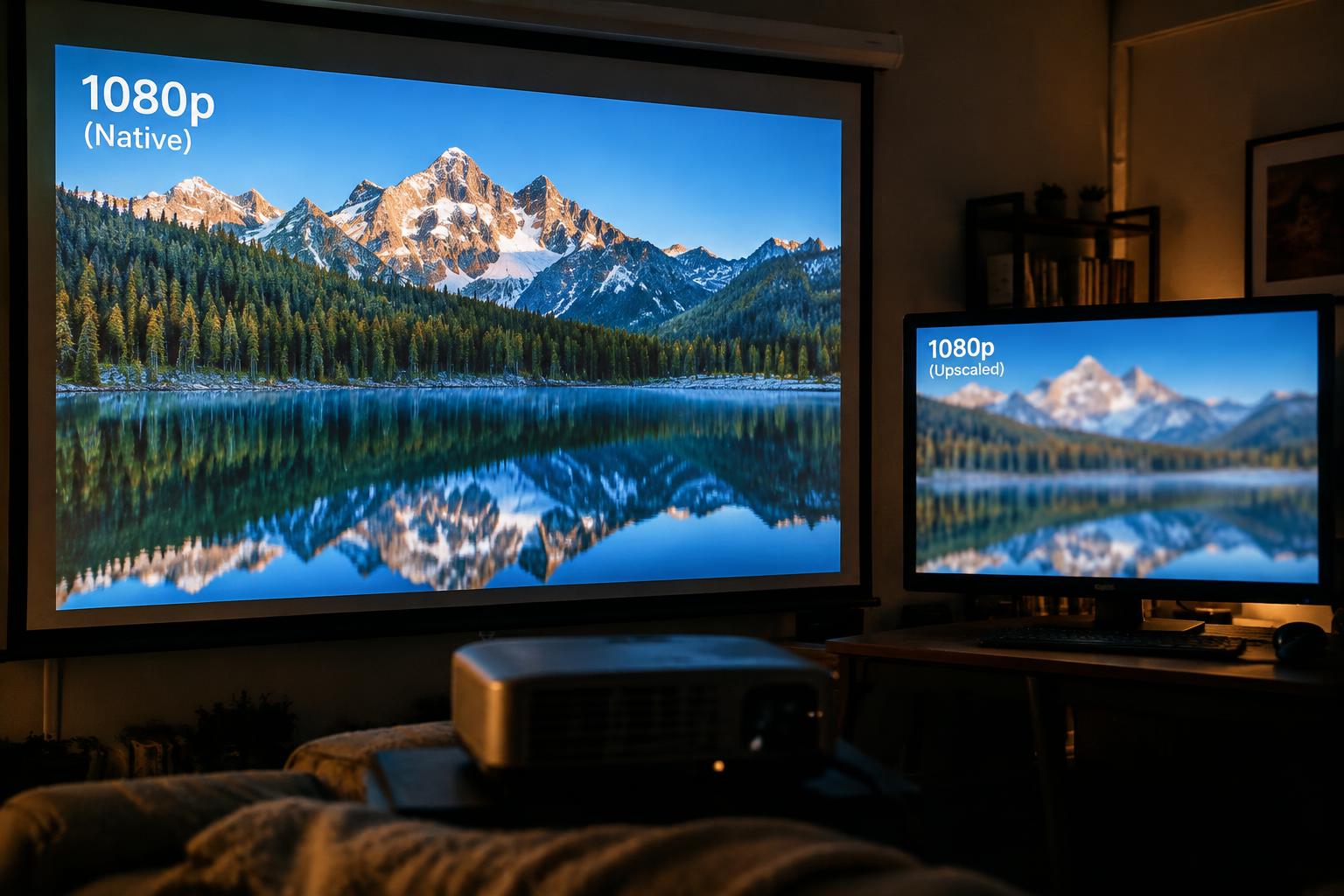
A projector’s resolution specifications describe two different things: the pixels its imaging chip displays and the video signals its electronics accept. Native resolution sets the actual image detail, while supported resolution indicates signal compatibility. If you connect a 4K source to a 1080p projector, the projector still displays the image at its native 1080p pixel count.
Key Takeaways:
- Native resolution is the projector’s physical pixel grid, such as 1920 × 1080. It determines the detail the imaging panel or chip can display.
- Supported resolution describes the video signal formats the projector accepts through an input such as HDMI. A projector can accept a 4K signal while having a lower native resolution.
- When an input exceeds native resolution, the projector scales it to fit its pixel grid; a 4K source on a 1080p projector is displayed at 1080p, not as 4K detail.
Native Resolution: The Projector’s True Pixel Count
Your projector’s native resolution describes the detail its imaging hardware can reproduce across the full picture. Each pixel in the image corresponds to a physical pixel grid inside the projector, so that grid sets the ceiling for fine edges, small text, and texture. Physical pixel count matters more than a resolution label alone: two projectors with different native grids cannot show the same level of detail, even when displaying the same scene.
What native resolution means
Inside a projector, an imaging chip or panel contains a fixed arrangement of pixels, and its horizontal and vertical counts define native resolution. A 1920-by-1080 panel, for instance, has 1,920 pixel positions across and 1,080 down. Each position contributes to the image rather than representing a software estimate of extra detail. The physical grid determines how finely the projector can render a narrow line, a character stroke, or a patterned surface.
Common native resolutions and their aspect ratios
Common native formats include 1280-by-720, 1920-by-1080, and 3840-by-2160. Their pixel dimensions correspond respectively to 16:9 widescreen grids, with the latter two commonly identified as Full HD and 4K UHD. Some business projectors use 1280-by-800, a 16:10 format suited to laptop screens and presentations. Aspect ratio follows pixel dimensions: a 1920-by-1200 grid, for example, is 16:10 rather than 16:9.
| Native resolution | Common format name | Aspect ratio |
|---|---|---|
| 1280 × 720 | HD | 16:9 |
| 1280 × 800 | WXGA | 16:10 |
| 1920 × 1080 | Full HD | 16:9 |
| 3840 × 2160 | 4K UHD | 16:9 |
How native resolution affects image sharpness
Fine detail appears sharpest when the image’s features align with the projector’s pixel grid. On a large screen, a higher native resolution places more pixels across the same image area, rendering small text and thin diagonal edges with finer steps. Lower pixel density makes those steps more visible, particularly in spreadsheets, subtitles, and computer interfaces. At typical viewing distances, a 1080p grid shows individual detail differently from a 4K grid of the same screen size.
Supported Resolution: The Signals a Projector Can Accept
In a projector’s specification sheet, supported resolution identifies the video formats its input electronics recognize. It describes the signal arriving from a computer, console, streaming device, or receiver, rather than the number of pixels built into the projection system. Signal compatibility is therefore distinct from the projector’s physical pixel count. A listed format also applies under specified conditions, such as a particular refresh rate or connection, so the full timing details matter.
Supported input resolutions and refresh rates
Manufacturers list accepted formats as combinations of image dimensions and refresh rates, such as 1920 × 1080 at 60 Hz. Your source device sends one of these timed signals through its video output, and the projector’s input circuitry must recognize that combination. Resolution and refresh rate work as a pair: a projector that accepts a format at one rate may not accept it at another. Check the specification’s supported timing list, not just its headline resolution.
Why a projector may accept higher-resolution signals
A projector can recognize a signal with more pixels than its imaging hardware contains because input processing and the projected pixel grid serve different roles. For example, a model with a 1080p imaging device may list 4K input support, meaning its electronics accept that source format. Input acceptance does not define pixel count; it identifies a signal the projector can process. The specification may also limit which refresh rates or color formats it accepts at that higher resolution.
The role of HDMI and other connection standards
HDMI version, cable capability, and the connected source all affect which formats reach the projector. A specification may list different supported timings for HDMI, USB-C, or a legacy VGA input, and an adapter can impose its own limits. The complete signal path matters: a source, cable, receiver, and projector must each handle the selected format. For HDMI, consult the projector’s port-specific timing information, particularly for high-refresh-rate signals.
- Check whether the listed input is HDMI 1, HDMI 2, or a labeled eARC port.
- Look for HDCP support if your source carries protected video.
- Confirm whether a USB-C port supports DisplayPort video, not charging alone.
What Happens When Input and Native Resolutions Differ
When the source signal does not match your projector’s native pixel grid, its processing circuitry maps the incoming image to the pixels available on the imaging chip. The result depends on the scaling method, the source format, and the projector’s signal processor. Accepted signal resolution is not displayed resolution: a projector can receive a format such as 4K while rendering it at a lower native resolution. That conversion changes how image information appears on screen.
Upscaling, downscaling, and image scaling
With upscaling, your projector expands a lower-resolution image across more native pixels, estimating values for pixels that were not present in the original signal. Downscaling compresses a higher-resolution signal into fewer pixels, combining or discarding some source information. Scaling filters control how sharply edges and fine patterns appear, so different processors can render the same input differently. Interpolation adds no original detail; a 1080p image enlarged to a 4K pixel grid remains limited by its source detail.
Sending a 4K signal to a lower-resolution projector
When you send a 4K signal to a projector with a 1080p native panel, the projector first accepts and decodes the input, then scales the image to fit its 1920-by-1080 pixel grid. Some signal processors preserve the overall composition while reducing fine texture and small text. The panel sets the final pixel count, so the projected image does not contain the full pixel-level detail of a native 4K display, even if the input connection reports a 4K signal.
Effects on detail, clarity, and latency
Fine lines, small interface text, and repeating patterns are the first details to show scaling artifacts, such as softened edges or moiré. A sharper filter can make boundaries look more defined, but it cannot restore information removed during downscaling. Scaling also takes processing time, and the added latency varies by projector and image mode. That delay is usually more noticeable in interactive games than in films, where a slight difference in frame timing is less apparent.
| Signal and native resolution | Processing | Typical visible effect |
|---|---|---|
| Lower-resolution signal to higher-resolution panel | Upscaling | Softened detail; no new source information |
| Higher-resolution signal to lower-resolution panel | Downscaling | Reduced fine detail and smaller text clarity |
| Signal matching native resolution | Little or no resolution scaling | Source detail maps more directly to panel pixels |
How to Choose the Right Resolution Specifications
Start with the image you expect to see, then match the specification to how and where you will use the projector. Native resolution sets the image-detail ceiling, while supported resolution describes which incoming signals the projector can accept. Treat these figures as separate criteria rather than interchangeable labels: a compatible signal does not change the projector’s physical pixel count. The right choice depends on viewing distance, content, room conditions, and the source devices you plan to connect.
Matching native resolution to viewing needs
Choose native resolution according to screen size and seating distance, since visible pixel structure becomes more apparent on a large image viewed from nearby. Higher native resolution preserves finer detail in small text, subtitles, and intricate graphics. A compact image in a dim room may not reveal the difference as clearly as a large screen in a bright living room. For a home theater, consider how closely you sit and whether the image regularly displays fine detail, such as a detailed landscape shot.
Choosing for movies, gaming, presentations, and sports
Movies benefit from native resolution that retains detail in high-quality video, while gaming also calls for checking whether your console or PC outputs a supported signal at the settings you intend to use. Presentation text needs legibility, so spreadsheets and slides with small labels favor higher native detail. Sports broadcasts often combine fast motion with wide camera shots, making clear player outlines and readable score graphics useful priorities for a large screen.
Balancing resolution, brightness, and budget
Higher resolution is not the only specification that shapes the image: brightness affects visibility in rooms with ambient light, and the projector’s price should fit your intended use. Balance pixel detail with usable brightness rather than paying for resolution that the room or content rarely reveals. A model used for daytime presentations may need stronger light output more than finer pixel detail, while a darkened movie room makes native resolution easier to appreciate. Account for the screen size and room lighting in your budget.
- Check whether the projector includes lens shift for flexible placement.
- Look for keystone correction limits if the projector cannot sit square to the screen.
- Confirm the available HDMI ports match the number of devices you will connect.
How to Verify a Projector’s Resolution
Start with the model’s official specification sheet, then confirm its figures against the manual and input-format table. These documents distinguish the projector’s physical pixel grid from the video signals its electronics accept. Record the exact model number, since similar models can use different imaging chips or format limits. For context on how resolution relates to viewing needs, see Resolution: How Much Is Needed? alongside the manufacturer’s listed pixel dimensions.
Reading manufacturer specifications
Look for a line labeled “native resolution,” “display resolution,” or “panel resolution,” and note the exact pixel dimensions, such as 1920 × 1080. Treat “maximum input resolution” and phrases such as “supports 4K” as signal-capability claims, not proof of a 4K imaging chip. Model-specific wording matters: a product family may include versions with different native panels, while a headline feature describes accepted formats across the range.
Checking manuals and input-format tables
Open the manual for your exact model and find its supported signals, input timing, or video-format table. Check the resolution and refresh rate listed for the HDMI input you plan to use; a format accepted at one refresh rate may not be listed at another. Input-format tables describe what the projector can receive, while the imaging specification identifies its native pixel grid. Confirm both against the same model number.
Questions to ask before buying
Ask the seller for the projector’s exact model code and the manufacturer’s stated native pixel dimensions. If the listing says “4K compatible,” ask which input formats and refresh rates are accepted, and whether the specification identifies a native 4K panel. Written confirmation tied to the model code is more useful than a general product-page headline. For a used unit, request a photo of its identification label and the relevant manual page.
| Specification source | What to verify | What it identifies |
|---|---|---|
| Product specification sheet | Native or panel resolution | Physical pixel dimensions |
| Manual input-format table | Resolution and refresh rate by input | Accepted signal timings |
| Seller response | Exact model code and written details | Whether claims match the unit |
Final Words
Native resolution tells you how many physical pixels a projector uses to form an image, while supported resolution describes the input signals it can receive. A projector that accepts a 4K signal does not necessarily display 4K detail if its native panel is lower resolution. For sharper text, finer image detail, or close viewing, match the source device’s output to the projector’s native resolution, such as 1920 × 1080 for a Full HD panel.
FAQ
What is the difference between a projector’s native resolution and supported resolution?
Native resolution is the number of physical pixels in a projector’s image, while supported resolution describes the input formats it can accept. A projector may accept a signal with more pixels than it can display, so the image must be scaled to fit its native pixel grid.
Is a projector that supports 4K the same as a native 4K projector?
No, a projector that supports 4K can accept a 4K signal, but it may not have a native 4K pixel grid. Check the manufacturer’s specifications for native resolution, since supported formats alone do not show how much detail the projector can display.
Will a higher-resolution video look better on a lower-resolution projector?
A higher-resolution video may look cleaner after the projector scales it, but it cannot display detail beyond the projector’s native pixel count. The result also depends on the source, the projector’s scaling, and the quality of the video.
Can a projector accept a resolution that its HDMI port does not support?
No, the projector’s input connection and processing must support the signal format for it to be accepted. Check the manual’s input-format table, because supported resolutions and refresh rates can differ by port and may depend on the connected device.
Is it worth paying more for a projector with higher native resolution?
Paying more for higher native resolution can be worthwhile if you watch detailed content on a large screen or sit close enough to notice finer detail. For presentations or casual viewing, brightness, contrast, and room conditions may matter more, so compare the whole specification rather than resolution alone.