
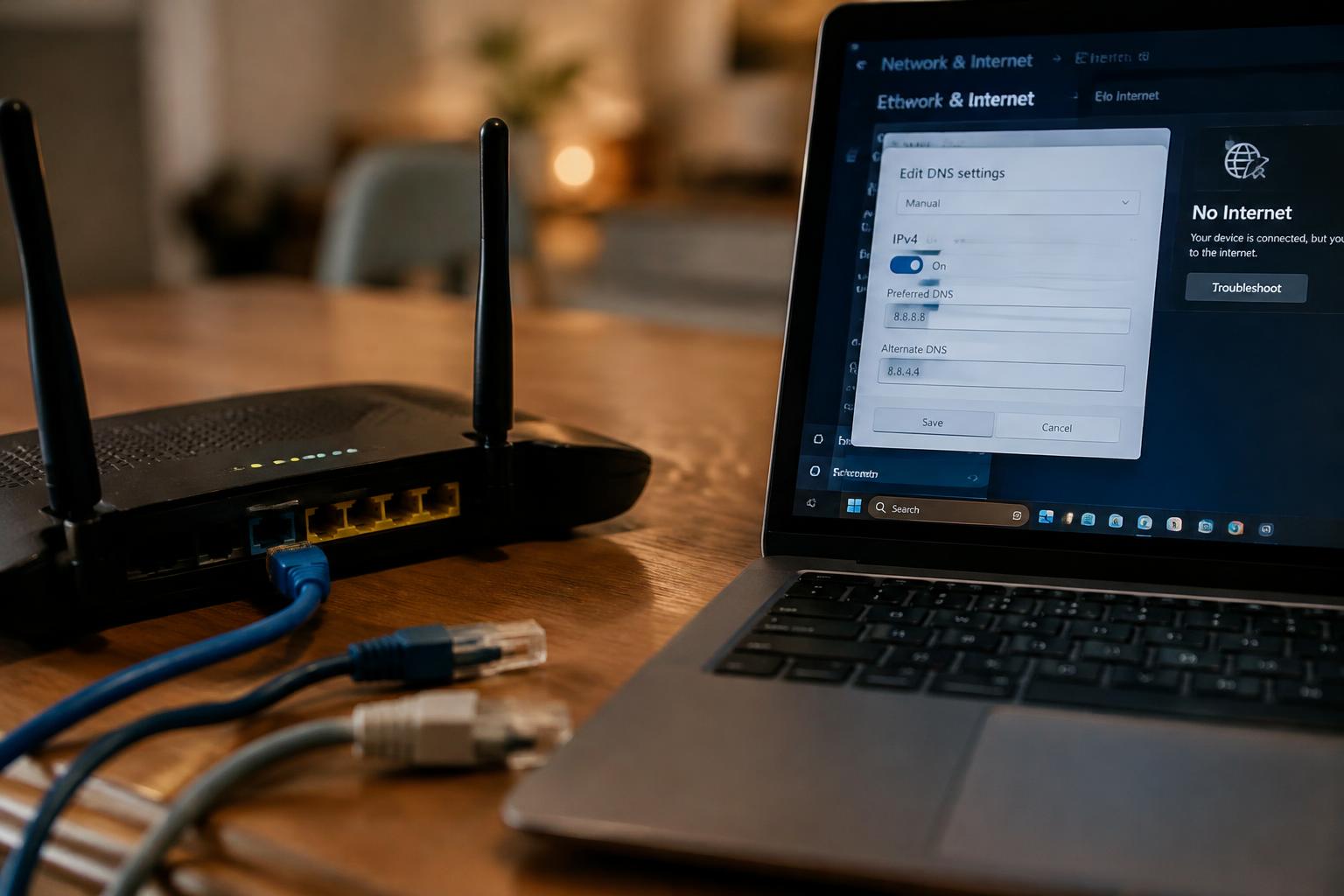
Changing your router’s DNS settings can stop websites from loading even while your Wi-Fi connection remains active. A mistyped server address, unreachable DNS provider, or router configuration error can prevent devices from translating domain names into IP addresses. The connection may still be online, while name lookups fail; learn about what a DNS error is and how to fix it.
Key Takeaways:
- Changing DNS on a router affects how devices translate website names into IP addresses. A typo, unreachable DNS server, or unsupported setting can stop name lookups even when the router still has an internet connection.
- Separate DNS failures from broader connection problems by testing a website by IP address and checking the router’s WAN status. If IP access works but website names do not, DNS resolution is the likely fault.
- Restore service by correcting the DNS addresses, returning the router to automatic DNS from the internet provider, or entering verified public DNS addresses. Reboot the router after saving the setting so connected devices receive updated network information.
How Changing DNS Settings Affects Your Router
Changing the DNS entries on your router sets which name-resolution servers your network uses, while leaving the router’s separate role in forwarding traffic intact. The setting often applies to every device that accepts network details automatically, so a laptop, phone, and smart television can receive the same DNS server addresses. The specific result depends on how the router distributes those details, including whether it uses DHCP or advertises DNS information through IPv6.
What DNS does for devices on your network
Each time you enter a domain such as example.com, your device needs its corresponding server address before it can request the page. DNS performs that lookup, returning an address that the device can use to contact the website. Your browser then sends web traffic to that address, while DNS handles the name-to-address translation, not the page itself. A phone and a computer can therefore reach the same site using the same DNS service, even though their connections are separate.
How router-level DNS settings are applied
Most home routers distribute DNS server addresses through DHCP alongside other network settings, such as the local gateway address. After you change the router’s DNS entries, devices that renew their DHCP leases receive the updated values; devices with manual DNS settings keep using their own. Some routers also provide DNS details through IPv6 router advertisements, so a router’s IPv4 setting alone does not necessarily define every device’s resolver. Automatic settings follow the router, while a manually configured laptop can retain a different DNS address.
- DHCP leases carry DNS addresses to clients.
- Manual device settings can override router-provided DNS.
- IPv4 and IPv6 may advertise DNS separately.
Why Your Internet May Stop Working
Your devices can remain connected to the router while websites fail to load because DNS translates domain names into server addresses. A change to the router’s DNS settings affects that lookup process, not necessarily the Wi-Fi or wired link itself. If the configured resolver does not respond or the router applies an unusable address, browsers can report name-resolution errors even as the connection indicator stays active. The distinction matters: network access and DNS service are separate functions.
Incorrect or unreachable DNS server addresses
An incorrect DNS address directs your router’s lookup requests to a server that cannot answer them. A typo, an address intended for a different service, or a resolver that is offline can prevent domain names from resolving, leaving sites inaccessible by name while local devices still reach the router. Some pages or apps may continue working temporarily because they retain cached addresses. A failed lookup often appears as a browser message such as “DNS address could not be found.”
Router settings that fail to save or apply
Router administration pages can accept a DNS entry without actually applying it, especially if a final save, apply, or reboot step is required. Firmware differences also affect whether DNS values apply to the router’s own connection or are handed to devices through DHCP. Your computer may therefore receive an old resolver address while the router displays the new one. A partially applied configuration can produce inconsistent browsing across devices, particularly after a router restart.
ISP restrictions, outages, and compatibility issues
Some internet providers intercept DNS requests or restrict the use of external resolvers, so a third-party address entered in your router may not behave as expected on that connection. Provider DNS outages can also interrupt name resolution even while the modem remains online. In addition, certain routers handle IPv4 and IPv6 DNS settings separately; changing only one set can leave devices using the other resolver. The result can vary by device, depending on its network configuration.
| Cause | What remains connected | DNS-related effect |
|---|---|---|
| Incorrect resolver address | Router and local network | Domain names fail to resolve |
| Settings not applied | Router interface or Wi-Fi | Devices may keep an old DNS address |
| Provider restriction or outage | Modem connection | DNS requests may be blocked or unanswered |
| IPv4 and IPv6 mismatch | Device network link | Lookups may use an unintended resolver |
How to Diagnose the Problem
Use targeted tests to separate a DNS lookup failure from a lost internet connection or a router problem. Record which devices are affected and whether the router reports an active connection to your internet provider. Then test local network access, reachability by IP address, and name resolution separately. These results provide a clearer picture than a browser error alone, which does not show whether the failure is in DNS resolution or the wider connection.
Check whether the router and modem are online
Start with the router’s status page or indicator lights, then inspect the modem or gateway for an active internet connection. A connected Wi-Fi signal only confirms a link between your device and router, not access to your provider. Check whether the router’s WAN status shows an assigned address and whether the modem indicates service. If the router reports no WAN link, the fault is broader than a DNS lookup, even if websites display name resolution errors.
Test access by IP address and domain name
Use a terminal command such as ping with a known public IP address, then try a domain name such as example.com. A response from the IP test alongside a failed domain test points toward DNS resolution; failures in both tests suggest a routing, provider, or broader connectivity issue. Ping replies are not guaranteed because some servers block them, so treat the result as one clue rather than proof, and note the exact error returned by each command.
Compare DNS behavior across devices
Test a phone, computer, and any wired device on the same network, keeping each device on the same Wi-Fi or Ethernet connection during testing. If every device fails to resolve names, the router’s DNS forwarding or its upstream resolver is a stronger suspect than an individual device setting. If only one device is affected, inspect its network configuration and browser behavior. A device using mobile data provides a useful contrast, but it does not test the router’s connection.
- Record the router’s WAN status and assigned address.
- Note whether the modem shows a service or signal fault.
- Capture the exact output from each network test.
How to Restore Your Connection
Start by undoing the change that interrupted name resolution, then apply each repair to the router and connected devices in sequence. A successful recovery restores access to the router’s administration page and lets you load websites by name, not just reach an IP address. Keep your previous DNS values available until browsing works across your devices, and note whether the router reports an active internet connection while pages remain unavailable.
| Recovery step | Action | What to verify |
|---|---|---|
| Restore DNS | Re-enable automatic DNS or enter the prior values | Router DNS fields match the saved settings |
| Restart router | Reboot through its administration page or power cycle | Internet and Wi-Fi indicators return to normal |
| Renew devices | Reconnect Wi-Fi or renew the network lease | Devices receive current network settings |
| Verify firmware | Install an available stable update | DNS settings remain saved after reboot |
Revert to automatic DNS or previous settings
Open the router’s administration page and find the internet or WAN DNS fields. Select automatic DNS to let your internet provider supply the addresses, or restore the exact primary and secondary values you recorded before the change. Apply the settings and confirm the router accepts them without an error. Avoid leaving one field blank if the interface requires both; a mistyped address such as an extra digit can prevent name lookups across the network.
Restart the router and renew device connections
After saving DNS values, restart the router from its control panel, or disconnect its power briefly and reconnect it. Wait for the internet indicator to settle before testing a website. Devices can retain network details from before the router change, so disconnect and rejoin Wi-Fi; on a computer, renew the network lease if reconnection does not refresh those details. Test a few websites by name, then confirm that multiple devices can browse.
Update router firmware and verify saved settings
Check the router’s firmware page for an update from its manufacturer, using a wired connection if Wi-Fi is unstable. Install only firmware intended for your exact model and hardware revision, and keep power connected during the update. Once the router restarts, revisit the DNS fields to confirm the restored values persisted. Some updates reset network options, so verify the WAN connection status and test a domain name from a connected device before closing the administration page.
How to Choose and Configure DNS Servers
Choose DNS servers that match your connection needs, then enter their addresses with care. A provider’s service quality and privacy terms matter, but so does compatibility with your router’s interface and internet connection. Configure the settings in the router’s WAN or internet section, not in unrelated DHCP or LAN fields, unless the router’s documentation specifies otherwise. Correct placement prevents a valid address from being applied to the wrong part of your network.
Compare provider reliability, privacy, and filtering
Review a provider’s published service status, privacy policy, and filtering options before changing your router. Public DNS services differ in how they handle query logs, block malicious domains, and support encrypted DNS, while some internet providers offer DNS tied to their own network. Choose a service whose terms and features suit your household, and verify that its addresses are listed on the provider’s official site. Privacy terms should explain whether queries are retained and for how long.
Enter primary and secondary addresses correctly
Copy the provider’s IPv4 or IPv6 addresses exactly into the matching primary and secondary fields; do not mix address types in a field that accepts only one. The secondary address should belong to the same provider or a deliberately chosen compatible service, since inconsistent filtering can produce different results across devices. Avoid adding commas, spaces inside an address, or a gateway address by mistake. One wrong digit can prevent name lookups across the network.
Test the settings before applying them network-wide
Save the new DNS values on a single test device first, or use a router’s preview or diagnostic function if available. Open several sites by domain name and test a service you use regularly; then check that the router reports an active internet connection. A command such as nslookup example.com can confirm that a DNS server returns an answer. Test before broad rollout, and note the previous values so you can restore them if lookups fail.
- Confirm whether the router requires a reboot after saving WAN settings.
- Check that parental controls do not depend on the original DNS service.
- Use the provider’s exact IPv6 addresses when IPv6 DNS is configured.
Preventing Future DNS Problems
Safer router changes follow a simple pattern: preserve a known working configuration, make a single edit, then verify the result before proceeding. Keep your notes somewhere accessible if the router becomes unreachable, such as in a password manager or an offline document. A documented baseline and a deliberate rollback plan reduce guesswork when a DNS change interrupts name resolution or router access.
Record the original router settings
Before editing DNS fields, save the router’s current configuration, including the WAN connection type, DNS mode, and any listed primary and secondary server addresses. Use the administration page’s export or backup function when available, then store the file securely; otherwise, take clear screenshots and record the router model and login address. Preserve the exact values, including whether DNS is assigned automatically by your internet provider or entered manually.
Change one setting at a time
Make one DNS-related adjustment per test cycle rather than changing server addresses, DHCP options, and IPv6 settings together. Apply the edit, reconnect a device, and test both a familiar website and a DNS lookup before making another change. A single-variable test makes the source of a failure easier to identify. Record the value changed and the result, such as whether a device receives the router’s address as its DNS server.
Keep a recovery method available
Before saving a change, confirm you know how to reach the router’s local administration page and have its login details available offline. Keep an Ethernet cable nearby if Wi-Fi access fails, and identify the router’s documented reset procedure without using it as a first response, since a factory reset erases customized settings. Local access details and a saved configuration backup give you a practical route back to the previous setup.
| Preparation | What to record or keep | Use during a problem |
|---|---|---|
| Configuration backup | Router settings export | Restore the saved setup |
| Manual record | DNS mode and server addresses | Re-enter the prior values |
| Staged test | One edit and its outcome | Identify the failing change |
| Recovery access | Login details and Ethernet cable | Reach local router controls |
Summing up
Changing your router’s DNS settings affects how domain names are translated into server addresses, not the physical internet connection itself. If websites stop loading afterward, an incorrect DNS address, a typing error, or a router that has not applied the new settings can interrupt name resolution. Restore the previous DNS values or enter verified server addresses, then restart the router and test a domain name. If the problem continues, inspect the router’s WAN connection and DNS configuration.
FAQ
Why does my internet stop working after changing my router’s DNS settings?
A wrong, unreachable, or incorrectly saved DNS address can stop devices from finding websites even while Wi-Fi remains connected. Restore automatic DNS or your previous settings to check whether DNS is the cause. If neither websites nor direct IP addresses are reachable, the problem may involve the router, modem, or internet service instead.
How long does it take to fix internet problems caused by a DNS change?
Restoring the previous DNS settings and reconnecting devices often takes only a few minutes. The time depends on the router interface and whether devices need to renew their network connections or the router needs a restart. If the connection still fails, further checks may be needed to separate DNS trouble from an outage or equipment fault.
Can changing DNS settings on my router cause security or privacy problems?
Changing DNS settings can expose browsing requests to a provider you do not trust, and an incorrect server can prevent sites from loading. Use a reputable provider and check its privacy practices before switching. DNS alone does not encrypt all internet traffic, so changing providers does not replace secure connections or other privacy protections.
What should I check if websites fail but my Wi-Fi is still connected?
Check whether the router and modem show an active internet connection, then try opening a website by name and accessing a known IP address. If IP access works but names do not resolve, DNS is a likely cause. If both fail, investigate the broader connection, router, modem, or internet service.
Is it better to use my internet provider’s DNS or a public DNS service?
Either can work; the better choice depends on reliability, privacy, filtering features, and compatibility with your network. Your provider’s DNS is often configured automatically, while public services may offer different controls or performance. Test any replacement on one device first, and keep the original settings so you can revert if browsing fails.