
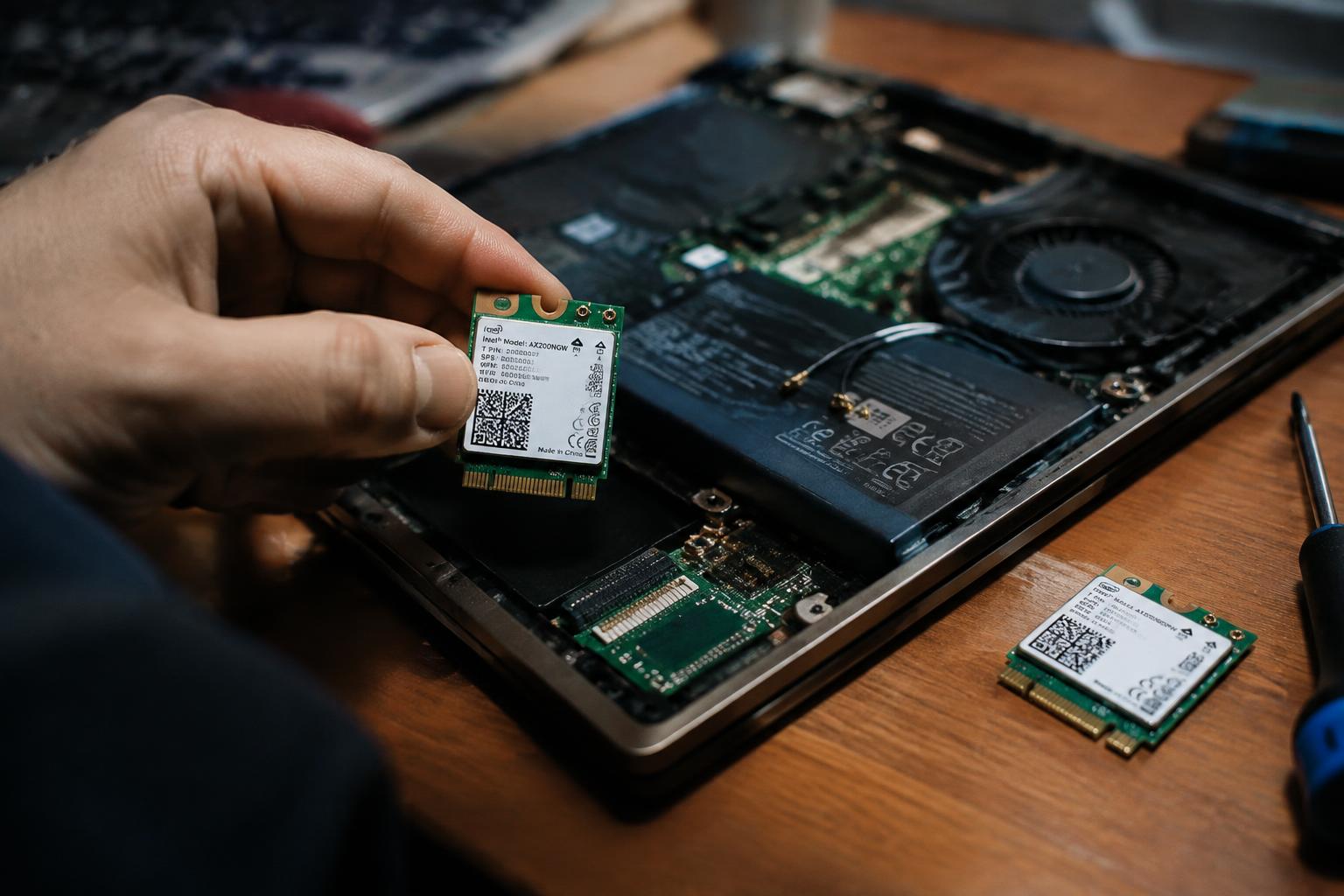
A newer Wi-Fi card can improve wireless speed, but a mismatched module may not work with your laptop. Before replacing it, verify the card’s physical interface, BIOS support, and antenna connections; compatibility matters more than the Wi-Fi generation. A hands-on account of swapping a laptop’s Wi-Fi 6E card for Wi-Fi 7 shows why the upgrade depends on more than the card itself.
Key Takeaways:
- Match the replacement Wi-Fi card to the laptop’s interface, physical size, antenna connectors, and manufacturer whitelist; an M.2 socket alone does not guarantee compatibility.
- Confirm that the BIOS and operating system support the card, and that the required drivers are available for your laptop’s version of Windows or Linux.
- Check antenna connections, supported Wi-Fi bands, Bluetooth needs, warranty terms, and the cost of the card before opening the laptop.
Check Compatibility With Your Laptop
Before choosing a replacement, identify the hardware your laptop was designed to accept. Wireless cards differ in physical format, connector, and supported WiFi generations, and a newer standard alone does not make a card compatible. Some laptops use a replaceable M.2 module, while others have a different card format or integrated wireless hardware. Match the replacement to the machine’s documented specifications, including the physical interface and listed WiFi standards, rather than relying on appearance alone.
Find the laptop’s exact model and service documentation
Locate the complete model number on the underside label, in the system information utility, or in your manufacturer’s support portal. Product families often include variants with different wireless hardware, so a series name is not enough. Use the service manual or parts list for your exact configuration to identify approved card types and interface details. If the documentation lists a factory-installed module, record its full part number, such as an M.2 card’s model identifier.
Verify card size, connector, and supported WiFi standards
Compare the documented slot with the candidate card’s format and keying: common laptop modules include M.2 2230, while older systems may use half-height Mini PCIe. Confirm the connector and card dimensions, since a similarly sized module can use a different interface. Then check which WiFi standards the laptop supports, such as 802.11ac or 802.11ax; a card’s newer standard does not override limitations in the host hardware. Match the specification, not just the product description.
| Compatibility detail | What to verify | Typical evidence |
|---|---|---|
| Card format | M.2 or Mini PCIe | Service manual |
| Module size | Length and width | Card specification |
| Connector | Interface and keying | Slot documentation |
| WiFi standard | Supported generation | Laptop specifications |
Confirm BIOS and Operating-System Support
Firmware and software support determine whether a replacement WiFi card will start correctly and connect to your network after installation. Before buying, identify the laptop’s exact model and current BIOS version, then look up supported wireless hardware and available drivers from the manufacturer. Verify support at both levels: a card recognized by the firmware still needs a compatible driver for your operating system, such as Windows or a Linux distribution.
Check for BIOS or manufacturer whitelists
Some laptop firmware accepts only wireless cards listed for that model, rejecting an unapproved card during startup with an error or disabled wireless function. Search the manufacturer’s service manual, support pages, and BIOS release notes using your complete model identifier, not just the product family name. Confirm the card’s exact model number against any supported-parts list; firmware restrictions can persist even when the card uses a standard interface.
Confirm drivers and operating-system compatibility
Check the card maker’s driver page and your operating system’s hardware support before selecting a model. Confirm that a maintained driver exists for your OS version and processor architecture, and note whether installation requires an internet connection or a separate package. Linux users should verify kernel support for the card’s chipset, while Windows users should check the listed Windows versions; a driver for a similarly named chipset is not proof of compatibility.
- Save the current BIOS version and configuration details.
- Download any replacement-card driver before removing the existing card.
- Check whether the manufacturer provides a BIOS recovery procedure.
Inspect Antennas and Wireless Features
Wireless performance depends on both the card’s radio capabilities and the antenna system already fitted inside your laptop. Match the replacement’s specifications to your typical use, such as a crowded office network or Bluetooth peripherals, rather than relying on a model’s headline speed alone. Check the laptop’s service documentation and the markings on the existing card for supported features; those details clarify whether its antenna leads and wireless standards suit the upgrade.
Check antenna connector type and cable count
Look at the existing card’s antenna sockets and count the attached coaxial leads before choosing a replacement. Laptop WiFi cards commonly use miniature snap-on connectors, but connector size and layout must match; a lead that does not fit securely can leave the radio without a usable antenna connection. A two-connector card typically uses separate main and auxiliary leads, while a one-connector model uses one. Match the connector type and count, and note each cable’s main or auxiliary label.
Compare WiFi bands, Bluetooth support, and channel features
Check which WiFi bands your router uses and whether the replacement supports them; a dual-band card covers 2.4 GHz and 5 GHz, while some newer models also support 6 GHz. Confirm Bluetooth support separately, since not every WiFi card includes it, and verify that your laptop’s antenna arrangement suits the bands you plan to use. Features such as wider channel support depend on both the card and network equipment. Prioritize compatible bands and Bluetooth over an unsupported top speed.
- Check the card’s printed model number.
- Confirm Bluetooth appears in its specifications.
- Match the card’s keying and edge-contact layout.
Weigh Performance, Cost, and Warranty
Set a practical spending limit before choosing a wireless card, then weigh its likely speed improvement against the cost of installation and any service risks. Faster specifications do not guarantee faster downloads if another part of your connection is the bottleneck. A replacement is most worthwhile when it addresses a measurable limitation, such as weak throughput during local file transfers, and its price remains proportionate to the laptop’s age and value. Real-world gains matter more than headline figures.
Match the card’s capabilities to your router and internet plan
Check the card’s supported WiFi standard and maximum link rate against your router’s capabilities and internet plan. Your connection cannot exceed the limits of the slowest relevant component, and advertised link rates are not the same as actual download speeds. A newer card can still improve local transfers or performance on a compatible router, but an entry-level broadband plan may leave internet speeds unchanged. Router support and plan limits determine whether an upgrade has practical value.
Compare costs and check warranty implications
Before buying, add the card’s price to any technician’s labor charge and weigh that total against the laptop’s remaining service life. Check the manufacturer’s warranty terms or ask an authorized service provider whether opening the case or replacing the wireless module affects coverage. Warranty restrictions can make a low-cost card an expensive choice if a later repair is denied. Keep the receipt and record the original card’s part number in case you need to restore the factory configuration.
Prepare for the Replacement
Plan the work before opening the laptop so you can complete the card swap without rushing or leaving the machine partly disassembled. Choose a clean, well-lit surface, allow enough time to follow the laptop’s service instructions, and make sure you can keep track of the small screws and antenna leads. A clear work area and a planned first boot give you room to spot a loose connection before returning the laptop to daily use.
| Consideration | What to assess | Cost implication |
|---|---|---|
| Connection speed | Expected performance with your router and plan | A faster card may bring little benefit if either is limiting |
| Card price | Purchase cost and any installation charge | Compare the total with the laptop’s age and value |
| Warranty terms | Whether opening the laptop affects coverage | Service costs could outweigh the card’s price |
| Preparation step | What to have ready | Why it matters |
|---|---|---|
| Protect your files | Current backup on external or cloud storage | Preserves important data if troubleshooting disrupts normal startup |
| Set up the workspace | Clean, stable, well-lit surface | Reduces the chance of losing screws or damaging components |
| Gather tools | Small Phillips screwdriver and plastic opening tool | Supports controlled access without prying with metal objects |
| Plan the test | Power adapter and known WiFi network | Lets you check startup, wireless connection, and antenna function |
Back up important data and gather the required tools
Before removing the bottom cover, copy your essential files to an external drive or a trusted cloud backup, then confirm that you can access the saved copy. Gather a correctly sized Phillips screwdriver, a plastic spudger for clips, and a small container for screws; avoid using a metal blade to pry near the battery or circuit board. Keep the laptop’s service manual nearby, along with the right-size screwdriver for its cover screws.
Review electrostatic-discharge precautions and installation instructions
Static electricity can damage exposed electronics, so work on a dry, uncluttered surface and disconnect the charger before opening the case. Use an antistatic wrist strap attached to an appropriate grounded point, or regularly discharge yourself by touching unpainted metal before handling internal parts. Read the manufacturer’s removal steps first, including how to disconnect the battery and release antenna connectors; follow the specified sequence and handle each antenna lead gently at its connector, not by pulling the wire.
Final Words
Before replacing your laptop’s WiFi card, verify the card’s physical format, connector, supported interface, and any BIOS restrictions. Confirm that your operating system has a compatible driver, and check whether the existing antenna leads support the new card’s bands and connector type. A newer model is a practical upgrade only if it fits the laptop and works with its hardware and software. After installation, confirm that the card appears in Device Manager or the equivalent system utility and connects to your network.
FAQ
Is replacing my laptop’s WiFi card worth it?
Replacing the card can be worthwhile if the current one is failing or lacks features your laptop and router support. A newer card will not guarantee faster internet, since speed also depends on the router, antennas, network conditions, and internet plan.
How long does it take to replace a laptop WiFi card?
The replacement may take under an hour for someone familiar with laptop repairs, but allow more time if the case is difficult to open or the card is hard to reach. Check the service instructions first, since some laptops require substantial disassembly or do not have a replaceable card.
What can go wrong when I replace my laptop’s WiFi card with a newer model?
The card may not work if it is incompatible with the laptop’s slot, firmware, or operating system, or if its drivers are unavailable. Opening the laptop can also damage delicate connectors or affect warranty coverage, so check the service documentation and warranty terms before starting.
Can I improve laptop WiFi without replacing the card?
Yes, updating the current card’s driver, improving router placement, or using a compatible USB WiFi adapter may address weak or outdated connectivity. These options may not help if the internal card is failing, and a USB adapter can occupy a port or have different performance limits.
How much does a replacement laptop WiFi card cost?
The card’s price varies by model, features, and availability, and repair labor adds to the total if a technician installs it. Confirm compatibility before buying, since the least expensive card may not work with the laptop’s firmware, antenna connections, or operating system.