
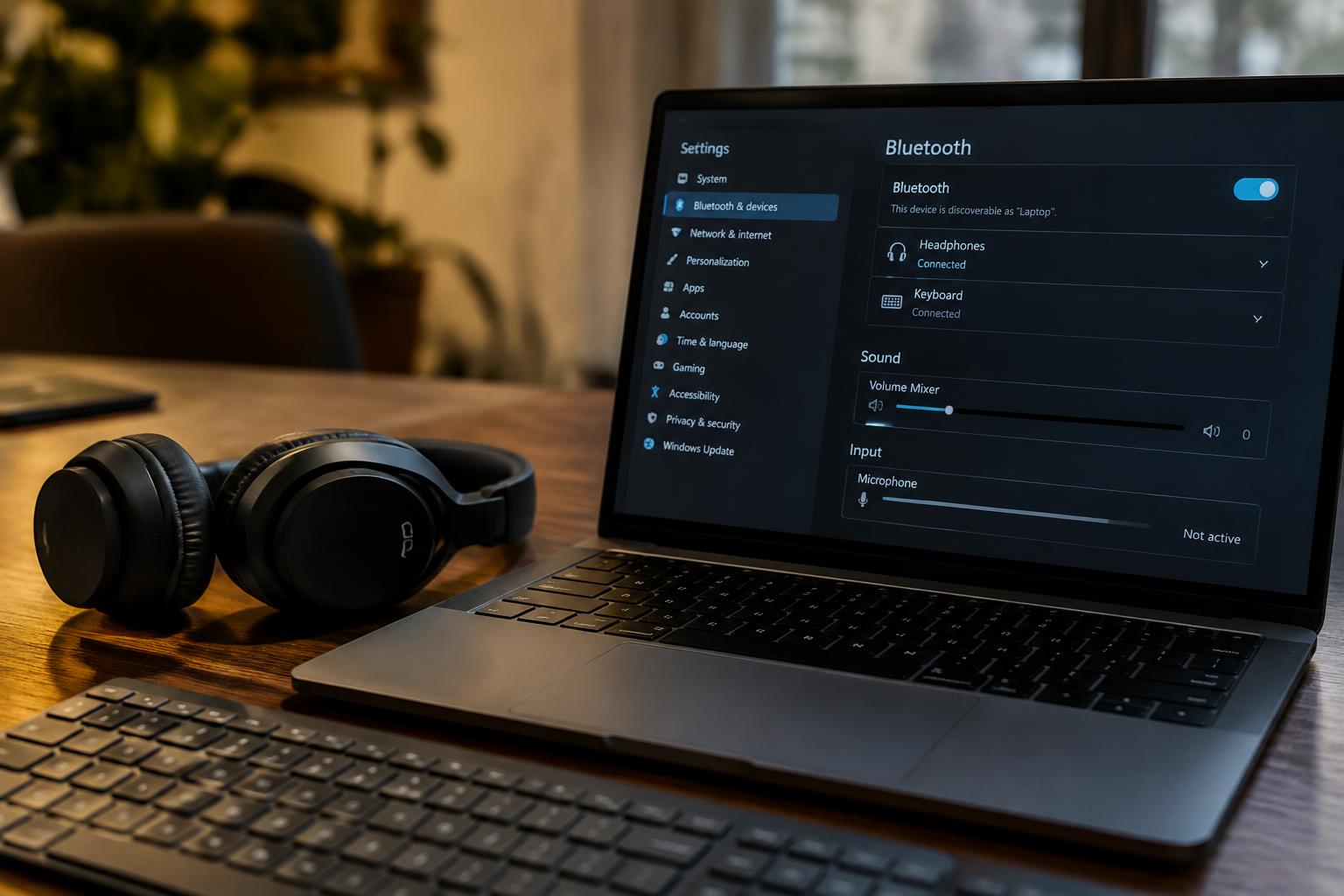
A Bluetooth pairing confirmation proves that two devices have exchanged connection details, not that your computer is using the right audio output or microphone. When headphones connect but stay silent, or a keyboard pairs without responding, the active device setting is often the missing link. Bluetooth status and usable sound or input are separate signals.
Key Takeaways:
- A successful Bluetooth pairing does not guarantee that the computer or phone has selected the device for audio output or microphone input. Check the active playback device and recording device in the operating system’s sound settings.
- Headphones, speakers, and headsets rely on supported Bluetooth profiles for different functions. A device connected for media playback may not expose its microphone if the headset profile is unavailable or disabled.
- Muted volume, app-specific audio selection, microphone permissions, outdated drivers, and Bluetooth service faults can block sound or input after pairing. Test the device in another app to distinguish an operating-system issue from an app setting.
Confirm the Bluetooth Device Is Connected as the Active Output or Input
A successful pairing only establishes a Bluetooth connection; it does not guarantee that your computer or phone routes sound through that device. Select the intended headphones, speaker, or microphone as the active audio device in the relevant system or app controls. A device can remain paired while built-in speakers or a laptop microphone stay selected, leaving Bluetooth connected but unused for the current audio stream.
Check the Operating System’s Sound Input and Output Selections
Open your operating system’s sound settings and inspect the separate output and input selectors. Choose the Bluetooth headphones or speaker for playback, then select the headset microphone if you need its input. Windows lists these choices under System sound settings, while macOS provides them in Sound settings. On a phone, check the audio output menu during playback or a call, since the active route can differ between media and call audio.
Confirm the App Uses the Intended Device
Some calling, recording, and conferencing apps keep their own device selections rather than following the system default. Open the app’s audio settings and set its speaker and microphone to the named Bluetooth device; a meeting app might still send playback to laptop speakers even after system output changes. For browser-based calls, inspect the site’s device selector as well. The app’s selected microphone should match the Bluetooth headset shown in its input menu.
| Selection | Where to check | What to select |
|---|---|---|
| System playback | Sound output settings | Bluetooth headphones or speaker |
| System recording | Sound input settings | Bluetooth headset microphone |
| App playback | App audio settings | Intended Bluetooth output |
| App recording | App or browser device menu | Intended Bluetooth microphone |
Check Device Modes and Supported Bluetooth Profiles
Pairing confirms that two devices have established a Bluetooth connection, but it does not confirm that they agree on how to exchange sound or input. Check the device’s selected mode and the profiles it advertises, since those determine whether it behaves as a stereo speaker, a call headset, or a microphone. A profile mismatch can leave a connection intact while the expected function is unavailable; the device manual or product specifications typically list supported profiles such as A2DP and HFP.
Switch Between Headset and Stereo Modes
Many Bluetooth headsets expose separate modes for music playback and calls. Stereo mode generally uses A2DP for higher-quality playback, while headset mode uses HFP or HSP to support two-way call audio, often with reduced playback quality. If sound disappears after a call or voice-chat session, use the headset’s controls or companion app to exit call mode, then reconnect it in stereo mode. Some models switch modes automatically when an application opens its microphone.
Check Microphone and Call-Audio Support
Microphone input over Bluetooth requires a profile that carries voice data, usually HFP or the older HSP; A2DP alone supports stereo playback, not microphone transmission. Profile support varies by device, so a speaker that plays music may not provide any microphone input, and some headphones support calls only through a designated device mode. Review the manufacturer’s specifications for HFP or HSP support and confirm that the selected model variant includes a built-in microphone.
- Look for A2DP in specifications for stereo playback.
- Look for HFP or HSP for Bluetooth call audio.
- Check whether a headset’s microphone is detachable.
Verify Volume, Mute, Permissions, and App Settings
Pairing confirms that devices have established a connection, but sound and input still depend on controls at several levels. A headset’s physical buttons, the operating system’s mixer, and an app’s own audio panel can each set separate levels or mute states. Check these controls while the affected app is active, since a call program and a media player can use different settings. Trace each control independently before treating silence as a connection fault.
Check System, App, and Device Volume
Start with the headset’s volume buttons, then inspect the system volume mixer and the active application’s audio controls. On Windows, the per-app mixer can mute a browser while system sound remains audible; macOS apps may provide their own playback sliders. Confirm that the correct output is selected inside the app and that neither its slider nor the system output is muted. Check all three levels, including the device’s physical mute control.
Allow Microphone Access and Select the Correct App Device
For a silent microphone, inspect privacy settings and grant microphone access to the operating system and the specific app. Then open the app’s audio preferences and choose the Bluetooth headset as its input, rather than relying on the system default. A conferencing app can retain a built-in microphone selection even after you connect a headset. Verify the input meter responds to speech, and confirm that any in-app mute button is off.
| Control | What to verify | Typical symptom |
|---|---|---|
| Device controls | Headset volume and mute buttons | No sound or muted input |
| System settings | Output level, mixer, microphone permission | System-wide silence or blocked access |
| App settings | App volume, selected input and output, mute state | One app has no sound or microphone signal |
Refresh the Connection and Bluetooth Audio Services
A pairing confirmation shows that devices have exchanged connection credentials, but it does not prove that the audio stream or input channel is active. Resetting the connection clears a stalled session, while restarting the operating system’s Bluetooth and audio services can restore the path between your device and its speakers or microphone. Use a clean reconnection before changing system settings, and note whether the connection drops during playback. A reported case describes My Bluetooth will connect but no sounds over the speakers ….
Disconnect and Reconnect the Device
Start by disconnecting the accessory from your computer or phone, then turn the accessory off briefly before powering it back on. Reconnect from the device’s Bluetooth settings rather than relying on an automatic link, which can resume a stale session. Keep the accessory nearby during reconnection and pause other active Bluetooth audio links. Once its status returns to connected, play a short audio clip or make a brief test recording to see whether the stream has resumed.
Restart Bluetooth, Audio Services, and the Computer or Phone
Toggle Bluetooth off, wait a few seconds, and turn it back on; then restart your computer or phone if sound or input remains unavailable. On Windows, restarting the Windows Audio and Bluetooth Support Service services through Services can clear a stalled audio session; save open work before restarting services. Phones generally refresh these background services during a full restart. After the system is back, reconnect the accessory and test it in a basic recorder or media player.
Remove and Re-pair the Device
Remove the accessory from the saved Bluetooth device list when ordinary reconnection fails, then place it in pairing mode and add it again. This replaces stored pairing credentials that may no longer match the accessory’s current connection state. Check the accessory’s own instructions before clearing its pairing memory, because that action can erase connections to other devices. After re-pairing, confirm that the operating system shows a fresh connection before starting playback or recording.
- Keep the accessory charged during the reset.
- Close unused audio and calling apps before testing.
- Disconnect the accessory from nearby devices that reconnect automatically.
Check Drivers, Firmware, Compatibility, and Interference
Successful pairing confirms that two devices can recognize each other, but it does not confirm that your computer supports the features needed for audio or input. Driver faults, mismatched Bluetooth profiles, outdated device firmware, and crowded radio frequencies can each leave a headset silent or a keyboard unresponsive. Trace the problem to its source by reviewing software versions, supported operating-system features, and nearby wireless activity; a Bluetooth mouse and a Wi-Fi router operating close together provide a useful interference test.
Update or Reinstall Bluetooth and Audio Drivers
Open Device Manager on Windows or Software Update on macOS to identify available system and driver updates, then install Bluetooth and audio components from your computer manufacturer when possible. A generic Bluetooth driver can establish a connection while lacking support for a headset’s audio profile. If an update does not resolve missing sound or input, uninstall the affected Bluetooth adapter or audio device in Device Manager and restart so Windows can reinstall its driver; check the adapter’s status for an error icon afterward.
Check Device Firmware and Operating-System Compatibility
Use the manufacturer’s companion app or support page to check whether your headset, keyboard, or controller has a firmware update, following its instructions and keeping it powered during installation. Confirm that your operating system supports the device’s required profile or codec, since a successful Bluetooth connection does not guarantee support for every function. An older computer, for example, may recognize a headset but lack support for its preferred audio feature; verify the exact model and minimum OS version in the manufacturer’s specifications.
Reduce Wireless Interference and Test Nearby
Bluetooth shares the 2.4 GHz band with many Wi-Fi networks and wireless peripherals, so nearby radio traffic can disrupt audio or input even after pairing. Move the device closer to the computer, place both away from a router, and temporarily switch off other nearby Bluetooth accessories. Keep the test clear of USB 3 devices and unshielded hubs, which can add radio noise near a Bluetooth adapter. If performance improves after moving a USB hub away from the adapter, interference is likely affecting the connection.
| Area | What to inspect | Useful indicator |
|---|---|---|
| Drivers | Bluetooth adapter and audio-device software | Missing update or Device Manager error |
| Firmware | Device version in the manufacturer’s app | Available update or outdated version |
| Compatibility | Supported profiles and minimum OS version | Feature absent from model specifications |
| Interference | Router, USB 3 equipment, and nearby accessories | Improvement when devices are moved apart |
Summing up
Successful pairing confirms that your devices recognize each other, but it does not guarantee that audio or input is routed correctly. Check the active output or input, the device’s supported Bluetooth profile, volume and mute controls, app permissions, and any relevant driver or firmware settings. If the connection still produces no sound or input, disconnect and pair again, then verify the device in your operating system’s sound or input settings.
FAQ
Why do Bluetooth devices pair successfully but produce no sound or input?
Pairing confirms that devices have connected, but it does not guarantee that the computer or phone is using the Bluetooth device for sound or microphone input. Check the selected audio device, supported Bluetooth mode, volume, app permissions, and connection status.
How long does it usually take to fix Bluetooth audio that is not working?
A basic check of audio selections, volume, and app settings can take only a few minutes. Re-pairing, restarting devices, or updating drivers may take longer, especially if the device needs a firmware update or the cause is compatibility-related.
Can using the wrong Bluetooth mode stop my headphones from playing sound or using the microphone?
Yes, an incompatible or incorrect Bluetooth mode can prevent playback, microphone input, or both. Some devices use different profiles for stereo audio and calls, so check the device’s supported features and select the mode that matches how you want to use it.
Could outdated Bluetooth drivers or wireless interference cause pairing without audio?
Yes, outdated drivers, incompatible firmware, or wireless interference can disrupt Bluetooth audio even when pairing succeeds. Update software using the device or computer maker’s instructions, and test nearby with fewer active wireless devices to help identify interference.
Is it safe to remove and re-pair a Bluetooth device to fix missing audio?
Removing and re-pairing a Bluetooth device is generally a safe troubleshooting step and does not usually erase its stored files. You may need to pair it again and restore device settings, so check the manufacturer’s instructions first if it has special setup requirements.