
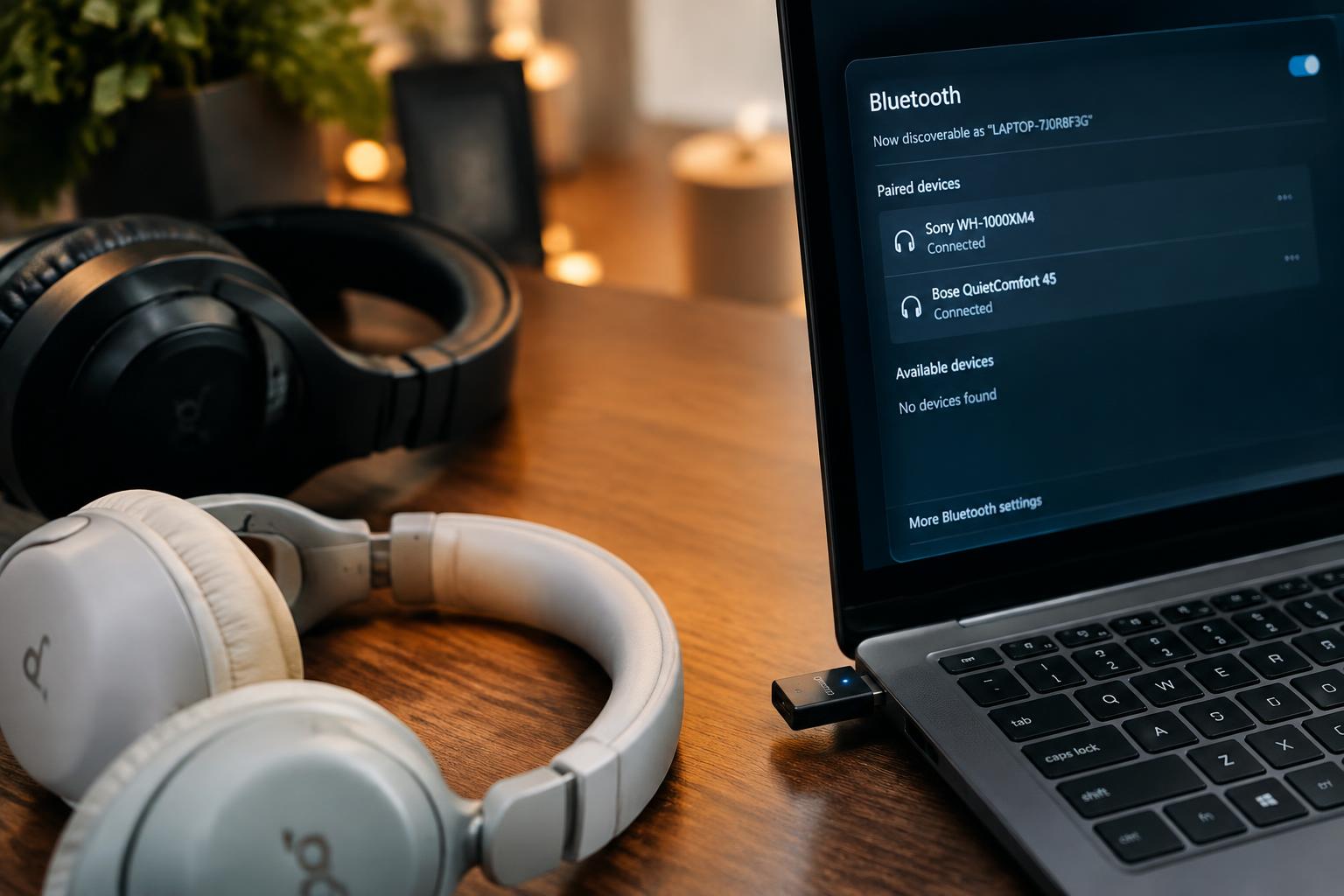
A Bluetooth adapter can pair with several devices yet maintain an active connection to only one at a time. To avoid buying the wrong hardware, distinguish paired devices from simultaneous connections, and check how the adapter handles audio, keyboards, mice, or other peripherals. The key detail is whether its specifications support multiple active connections for your intended devices.
Key Takeaways:
- Check the adapter’s specification sheet for its supported Bluetooth profiles and simultaneous connection limit; pairing multiple devices does not necessarily mean using them at the same time.
- Identify the connection type you need, such as two audio headphones or a keyboard and mouse, because an adapter’s multipoint support may apply only to specific device profiles.
- Confirm that the adapter works with your computer’s operating system and test the intended devices together, since host software and Bluetooth profiles affect simultaneous connections.
Check the Adapter’s Specifications
Product pages and technical manuals describe what the adapter is designed to handle, but their wording can distinguish simultaneous connections from devices merely paired in memory. Look for an explicit limit on active devices, then read the profile and mode details to see which functions those connections support. Paired does not mean connected: a saved headset may not be active alongside a mouse. Record the manufacturer’s exact terminology, such as “two simultaneous audio devices.”
Find the maximum number of connected devices
Start with the specification sheet’s connection limit, not the number of devices listed as pairable. Terms such as “supports multiple connections” are too vague unless the manufacturer states how many devices can remain active at once. Check whether the limit applies to all device types or only a defined group, such as two Bluetooth audio devices. Count active connections, and note any stated cap on simultaneous devices beside the adapter’s model number.
Check supported profiles and connection modes
Next, match listed Bluetooth profiles to the functions you need. A2DP identifies stereo audio streaming, HFP supports hands-free calling, and HID covers peripherals such as keyboards and mice; one profile does not guarantee every device role. Also look for connection-mode language, including multipoint, which typically refers to simultaneous links with more than one host device. Profile support is role-specific, so a page listing HID and A2DP describes different uses, not two audio streams.
| Specification detail | What it tells you | Example wording |
|---|---|---|
| Active-device limit | Maximum simultaneous connections | Two connected devices |
| Pairing capacity | Devices saved for later use | Multiple paired devices |
| A2DP | Stereo audio streaming support | Advanced Audio Distribution Profile |
| HID | Keyboard or mouse support | Human Interface Device |
Understand What “Multiple Connections” Means
Adapter descriptions use “multiple connections” for several different capabilities, so the phrase alone does not tell you what will happen during use. The distinction is between devices an adapter has stored, devices it maintains a live link with, and devices currently carrying audio or data. Simultaneous connections describe live links, while multipoint often refers specifically to switching between audio sources. A Bluetooth mouse and keyboard, for example, do not use multipoint audio.
Separate paired, connected, and active devices
Pairing stores credentials, such as a device’s Bluetooth address and security key, so reconnection is easier later. A paired headset is not necessarily connected, and a connected device is not necessarily transmitting at that moment. If an adapter lists many paired devices, that does not establish how many links it can keep open at once. Watch for wording such as “connected simultaneously” or a stated limit on active links.
Check whether multipoint applies to your device types
Multipoint audio usually describes a headset or speaker maintaining links to more than one source, such as a laptop and a phone, then switching audio between them. It does not automatically mean an adapter can serve multiple headphones, keyboards, or controllers at the same time. Your device roles matter: two audio sources are different from two audio output devices, and “dual connection” may refer only to the former.
- Source device: sends audio, such as a phone.
- Audio output: plays audio, such as headphones.
- Human interface device: sends input, such as a keyboard.
- Peripheral: exchanges data, such as a game controller.
Verify Compatibility with Your Devices
Match the adapter’s supported profiles and host requirements to the equipment you actually use. A computer that recognizes a Bluetooth radio does not automatically support every connected headset, controller, keyboard, or sensor. Check the operating system, driver package, and device profile for each combination, then confirm whether the adapter handles them together. For a practical compatibility question, see whether a Bluetooth adapter will work with multiple devices and assess the specific host and peripherals involved.
Check operating system and driver support
Start with the computer’s operating system version and the adapter’s documented driver support. Windows, macOS, and Linux can expose different Bluetooth features, while a generic driver may recognize the adapter without enabling every profile or connection mode. Check the manufacturer’s support page for your operating system and processor architecture, and verify that the driver remains available for your installed version. Host and driver support determine whether the adapter is detected and its functions are exposed to applications.
Confirm compatibility with audio, input, and other devices
Next, match each peripheral to a Bluetooth profile the adapter and operating system support. Headphones and speakers typically use audio profiles, while keyboards, mice, and game controllers rely on input profiles; sensors and printers can require different services. A headset that connects alongside a keyboard does not prove that two audio streams are supported at once. Check the devices’ profile requirements and the computer’s Bluetooth settings, especially for simultaneous audio connections.
- Confirm the computer has an available USB port if the adapter is USB-based.
- Check whether the peripheral requires a companion application.
- Verify that device pairing mode is supported by the operating system.
Compare Key Factors Before Buying
Choose an adapter according to the devices you plan to connect and the work they must do together. A keyboard and mouse place different demands on a radio link than headphones streaming audio while a controller remains connected. Check supported device capacity alongside Bluetooth version, but treat the version as one factor rather than a guarantee of performance. Your intended use, such as office input or shared audio, determines which specifications deserve the most weight.
| Factor | What to assess | Typical relevance |
|---|---|---|
| Device capacity | Simultaneous connections and supported device types | Several peripherals or mixed devices |
| Bluetooth version | Compatibility with your devices and feature support | Newer devices or specific functions |
| Bandwidth | Whether concurrent audio or data use is supported | Streaming alongside active peripherals |
| Range and latency | Operating distance, signal stability, and response delay | Room-scale use, calls, or gaming |
Assess connection limits and bandwidth
Check the manufacturer’s stated simultaneous connection limit, then confirm it covers the device mix you intend to use. A listed total does not necessarily mean every combination performs equally well: several low-data peripherals differ from multiple audio streams. Bluetooth profiles and the adapter’s controller affect which devices can operate together, while bandwidth is shared across active connections. For a laptop used with a mouse, keyboard, and headset, verify support for all three types, not just a headline connection count.
Consider range, stability, and latency
Evaluate the adapter’s operating range against the distance and obstacles in your workspace, since walls, metal surfaces, and nearby wireless equipment can weaken reception. A stable signal matters for calls and audio playback, while low latency is more relevant to gaming or watching video with wireless headphones. Bluetooth version alone does not guarantee a particular range or response time; antenna design and the connected device also influence performance. A desktop adapter placed behind a metal computer case faces different conditions from one with an external antenna.
Test and Troubleshoot Multiple Connections
Pairing tests show whether the adapter maintains simultaneous links in your actual setup, rather than merely storing several devices in its pairing history. Use the operating system’s Bluetooth controls to verify that each device appears as connected, then test its function while the others remain active. A headset, keyboard, and mouse place different demands on audio and input handling, so note any dropouts, delays, or devices that disconnect when another joins.
| Test step | What to check | What the result indicates |
|---|---|---|
| Pair one device | Connection status and basic function | Whether initial pairing works |
| Add another device | Both devices stay connected | Whether links coexist |
| Use devices together | Audio interruptions or input lag | How connections perform under use |
Connect devices one at a time
Start with a single device, such as a Bluetooth headset, and confirm that audio plays before pairing a second device. Add the keyboard or mouse through your computer’s Bluetooth settings, then verify that both devices still show as connected and respond while the headset is active. Repeat the test with each device combination you rely on. Pairing history is not proof of simultaneous operation; the operating system must show active connections during the test.
Update drivers and check adapter settings
Driver problems can make a capable adapter behave as if it supports fewer connections. Install the current Bluetooth driver provided by your computer or adapter manufacturer, restart the system, and run the pairing test again. In Windows, inspect Device Manager for adapter errors and open Bluetooth settings to confirm each device’s status; on macOS, check the Bluetooth pane in System Settings. Repeated disconnections after an update can point to interference, power management, or a device-specific issue.
To wrap up
To determine whether a Bluetooth adapter supports multiple connected devices, read its specifications for supported connection counts and distinguish simultaneous connections from saved pairings or multipoint audio. Confirm that the feature matches your intended use, since connecting a keyboard and mouse differs from streaming audio to two headphones. Check compatibility with your computer’s operating system and the devices’ Bluetooth profiles, then test the adapter with your actual setup. A successful test shows which devices stay connected and work at the same time.
FAQ
How can I tell if a Bluetooth adapter supports multiple connected devices?
Check the adapter’s specifications for a simultaneous connection limit and supported Bluetooth profiles. A list of compatible devices or saved pairings does not confirm that they can stay connected at the same time, so verify what the manufacturer means by its stated limit.
Can a Bluetooth adapter connect to two headphones at once?
Only if the adapter and both headphones support a compatible simultaneous audio mode. Ordinary Bluetooth multipoint usually lets headphones switch between source devices, rather than play audio from two sources at once.
How long does it take to test whether one adapter can connect to several devices?
A basic test usually takes a few minutes, depending on how quickly the devices pair and whether drivers need updating. Pair and connect devices one at a time, then check that earlier devices remain connected while you use the intended functions.
Why does my Bluetooth adapter disconnect when I connect another device?
The adapter may have a connection limit, or its driver and settings may not support the devices’ profiles together. Check the specifications and update the driver; nearby interference, range, and device-specific compatibility can also affect stability.
Is it worth buying a Bluetooth adapter for several devices?
It can be worthwhile if its supported simultaneous connections and profiles match the devices you plan to use. Check the operating system and driver requirements before buying, and look for an adapter designed for your use, especially if you need simultaneous audio.