
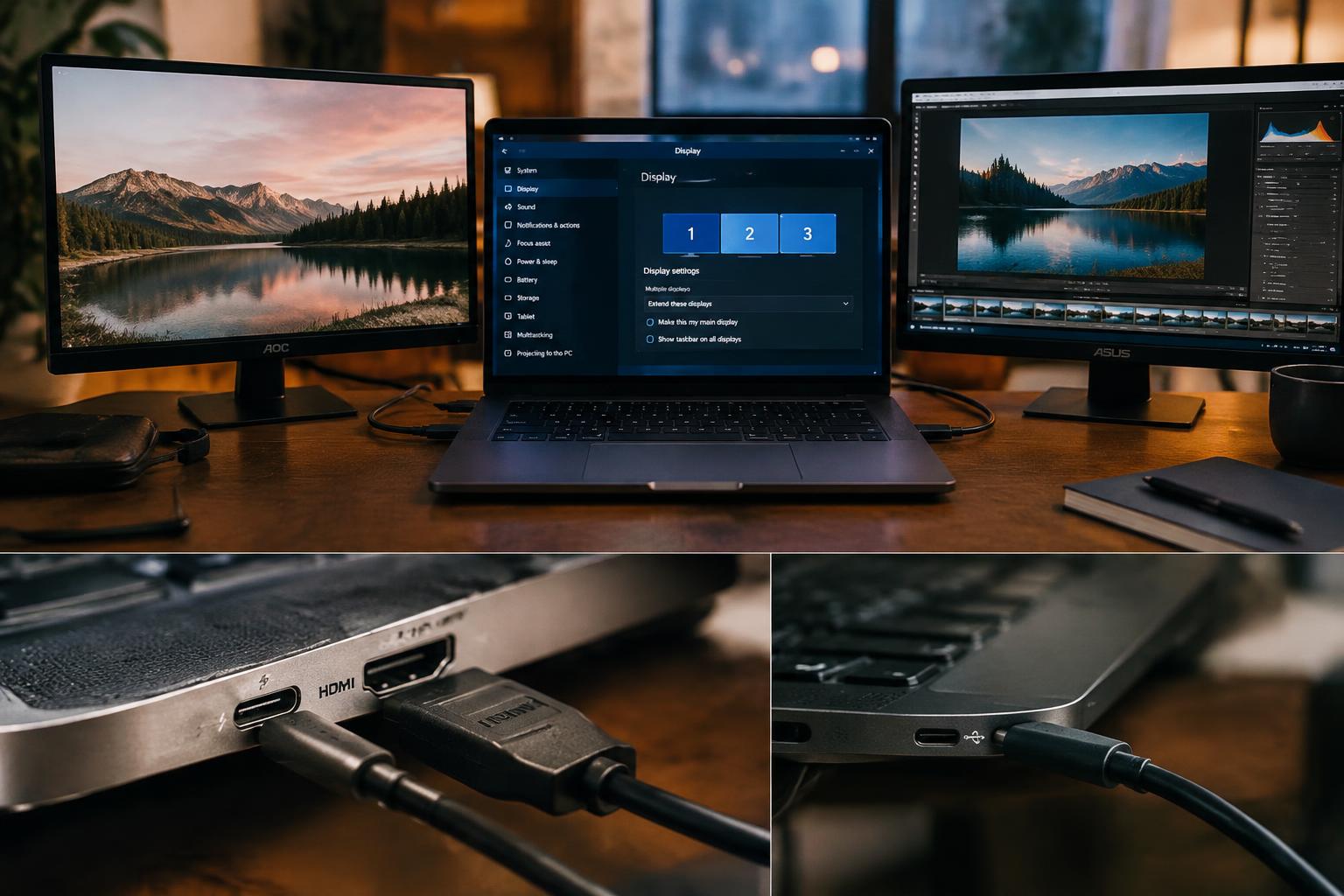
Two external monitors can expand your workspace, but a laptop’s ports alone do not tell you whether both screens will work at once. You need to account for the graphics hardware, supported display outputs, and any dock in the connection chain. Check the laptop’s maximum display support before buying monitors or adapters, since a USB-C port may not carry video.
Key Takeaways:
- Check the laptop’s specifications for the number of supported external displays, maximum resolution, and refresh rate; the graphics processor and USB-C or Thunderbolt capabilities affect what the system can drive.
- Identify the available video outputs, such as HDMI, DisplayPort, or USB-C with DisplayPort Alt Mode. Two physical ports do not always support two independent monitors, and a basic splitter usually mirrors one image rather than extending the desktop.
- Confirm the dock or adapter supports two extended displays with your laptop’s operating system, then connect both monitors and review Display settings in Windows or Displays settings in macOS to verify that each screen is detected.
Check Your Laptop’s Display Specifications
Start with the laptop’s exact model number, since display support can differ between configurations that share a product name. Look for the maximum number of active displays and the highest supported resolution in the manufacturer’s documentation, then verify those limits against the installed graphics processor. Treat the figures as system-wide limits: two monitors’ capabilities depend on what the laptop supports simultaneously, not just on the resolution listed for one screen.
Check the manufacturer’s specifications
Search the manufacturer’s support page using your full model or product number, then open its technical specifications or user manual. Look for language such as “maximum displays supported” and note whether the stated resolution applies to each external monitor or to all displays combined. A Windows laptop’s listing may distinguish between the built-in panel and external screens; use the simultaneous display count for your intended setup. For a practical example, see whether a Windows laptop can support two external monitors.
Find the graphics processor’s display limits
Identify the graphics processor in Windows through Device Manager, under Display adapters, or in System Information. Then consult its manufacturer’s specifications for the supported display count and maximum resolution, including any limits at higher refresh rates. Your laptop maker can impose a lower cap than the processor itself, so use the lower stated limit when the two specifications differ. Note the exact GPU model, since similarly named processors can have different display capabilities.
- Record the laptop’s complete model identifier.
- Note the graphics processor’s exact name.
- Write down the maximum simultaneous display count.
- Capture the supported resolution and refresh-rate details.
Identify Your Laptop’s Video Connections
Start with the physical outputs on your laptop, since their shape and labeling narrow down which display signals it can send. Check the sides and rear for built-in ports, then compare each port with the input sockets on your monitors. Port shape alone is not proof of supported video features, so note the exact port type and any adjacent symbols or printed labels before matching connections.
| Port | What to look for | Video clue |
|---|---|---|
| HDMI | Wide, tapered socket | Dedicated display output |
| DisplayPort | Rectangular socket, often with one angled corner | Dedicated display output |
| USB-C | Small, reversible oval socket | Video support varies by port |
| Thunderbolt | USB-C-shaped socket with a lightning symbol | Supports video through compatible connections |
Inspect HDMI, DisplayPort, USB-C, and Thunderbolt ports
Look for HDMI and DisplayPort sockets first; each is a direct video output when the laptop provides one. A USB-C port has an oval opening, while Thunderbolt commonly uses the same shape with a lightning-bolt mark beside it. USB-C does not guarantee video output, and identical-looking ports on one laptop can have different capabilities. Record each port’s label and location, such as “USB-C, left side, lightning symbol.”
Confirm which USB-C ports support video
Check the laptop maker’s specifications or user manual for terms such as DisplayPort Alt Mode, USB-C video output, or Thunderbolt. A port marked with a DisplayPort symbol supports video over USB-C; a lightning-bolt icon typically identifies Thunderbolt, which also carries display signals. Data-only USB-C ports cannot drive a monitor, even if the connector fits. Match the documented video-capable port to the monitor’s input, not simply to the nearest USB-C socket.
Choose the Right Connection Setup
Plan the physical signal path from your laptop to each display before connecting anything. Two independent video outputs offer the most direct arrangement, while a compatible USB-C adapter or dock can route signals through one laptop port. Each display needs its own supported video stream; a splitter that duplicates one signal produces the same image on both monitors rather than extending the desktop. Check the connectors and intended use of each device.
Check adapter and dock display support
Read the adapter or dock specifications for the number of independent displays it supports, not just the number of video sockets. Some USB-C hubs mirror one video signal across two HDMI ports, while other docks use DisplayLink software to provide additional outputs. Two ports do not guarantee two screens. Confirm the supported display count, resolution, refresh rate, and required connection standard for your exact laptop and dock model.
Verify bandwidth and port-sharing limitations
USB-C ports can share bandwidth with data devices, and a laptop may route multiple sockets through one graphics output. High-resolution monitors also require more video bandwidth, so a dock’s specifications might limit the available resolution or refresh rate when both outputs are active. Port labels alone do not reveal shared lanes. Check the laptop manual for notes about simultaneous HDMI and USB-C use, then match that guidance to the dock’s dual-display mode.
- Use separate laptop outputs when both support independent displays.
- Match HDMI and DisplayPort cable ends to the dock’s labeled outputs.
- Connect a powered dock to its supplied power adapter.
Test Two Monitors in Your Operating System
Once both screens are connected, use your operating system’s display controls to confirm that each monitor receives a signal and that the desktop is arranged as intended. Windows uses Display settings, while macOS uses Displays settings; both show detected screens and provide controls for placement and output quality. A two-display desktop should show each external monitor as a separate screen, with its position matching the physical arrangement on your desk.
Connect the monitors and detect displays
Connect both monitors, turn them on, and open Windows Display settings or macOS Displays settings. Windows lists detected screens in the display diagram; select Identify to show a number on each screen and match it to the diagram. On macOS, open the Displays controls to view connected displays. If a screen is not listed, use the operating system’s detect displays command where available, then confirm each monitor appears before arranging the desktop.
Set resolution, refresh rate, and extended desktop mode
For each listed monitor, select its entry and choose the display’s recommended resolution, which keeps text and images sharp at the panel’s native size. Set a refresh rate supported by that monitor, then choose Extend these displays in Windows or disable mirroring in macOS to create one continuous desktop. Drag the display icons to reflect their left-to-right physical positions, and align their top or bottom edges to match your desk setup.
| Setting | Windows | macOS |
|---|---|---|
| Display detection | Display settings, Identify | Displays settings |
| Desktop mode | Extend these displays | Disable mirroring |
| Screen placement | Drag display icons | Arrange display icons |
Troubleshoot Common Limitations
A second display that stays blank, mirrors the first, or drops to a lower resolution often points to a connection or system constraint rather than a faulty screen. Narrow down the cause by changing one variable at a time, such as the cable, port, or display setting, and note when the behavior changes. Test one connection at a time so you can distinguish a laptop limitation from a problem with a specific dock or adapter.
Check graphics-driver and firmware updates
Outdated graphics drivers can prevent Windows or macOS from detecting a display correctly, or leave supported refresh rates unavailable. Install graphics updates through your laptop maker’s support utility or the graphics vendor’s official software, then restart and reconnect both screens. Check the manufacturer’s release notes for dock firmware updates as well, since a USB-C or Thunderbolt dock depends on its own controller software. Use official update sources, especially when updating BIOS or system firmware.
Look for bandwidth, adapter, or hardware limits
Display bandwidth is shared across some USB-C docks and adapters, so two screens running at high resolution or refresh rates can exceed what one connection supports. A basic USB-C hub may also lack video output, even if its connector fits the laptop. Check whether the adapter uses DisplayPort Alt Mode, Thunderbolt, or DisplayLink, then verify its supported monitor modes. Native video outputs avoid USB graphics conversion, while a laptop’s graphics hardware may still cap the number of active displays.
- Reseat each cable at both ends.
- Test each monitor directly on the laptop.
- Confirm the monitor’s selected input source.
Tips for Choosing a Compatible Setup
Build your purchase around what you actually run across both screens, since a spreadsheet workspace has different demands from high-frame-rate gaming or video editing. Check that the laptop’s supported display output covers each monitor’s resolution and refresh rate at the same time, not just one display in isolation. Then weigh the available ports, cable lengths, and desk layout against your daily use; a pair of 4K monitors at 60 Hz places different demands on a setup than two 1080p office displays.
Match monitor specifications to laptop capabilities
Read the laptop’s graphics and display-output specifications alongside each monitor’s native resolution and refresh rate. A laptop that supports two external displays may still limit their combined resolution or refresh rate, especially when both use a single video output. For office work, two 1080p panels are often less demanding than dual 4K screens; for gaming or motion-heavy editing, prioritize the refresh rate your laptop can drive at the resolution you intend to use. Check the combined display limits before choosing panels.
Confirm dock and adapter compatibility before buying
Match a dock or adapter to the laptop’s exact port capabilities, because a USB-C connector does not automatically support video, and Thunderbolt support does not guarantee every dock configuration will drive two displays at your preferred settings. Check the manufacturer’s specifications for the number of independent displays, supported resolutions, refresh rates, and operating-system restrictions. Verify dual-display support for your laptop model, then select a dock with the required HDMI or DisplayPort outputs rather than relying on connector shape alone.
| Setup detail | What to match | Purchase implication |
|---|---|---|
| Monitor resolution | Combined output supported by the laptop | Higher resolutions require compatible graphics and ports |
| Refresh rate | Target rate at each monitor’s resolution | Confirm both displays can run at the intended rate |
| Dock or adapter | Independent displays and video-output standards | Choose outputs that match the monitors and laptop |
To wrap up
To confirm that your laptop supports two external monitors, check its display specifications, identify the capabilities of each video port, and verify whether a dock or adapter supports two independent displays. Then connect both monitors and confirm that your operating system detects them as separate screens at their intended resolutions and refresh rates. If the displays mirror unexpectedly or one remains blank, review the laptop’s graphics limits and dock requirements. Your final setup should show two distinct external displays in Windows Display Settings or macOS Displays.
FAQ
How can I tell if my laptop can run two external monitors?
Check the laptop’s specifications for its maximum number of supported displays and the resolution and refresh rate limits. Also confirm that the available ports, adapters, or dock can carry video to both monitors, since two physical ports do not always mean two independent displays are supported.
How much does it cost to connect two monitors to a laptop?
The cost depends on whether the laptop already has suitable video ports and whether you need an adapter or dock. A basic adapter may be relatively inexpensive, while a dock that supports two displays can cost more; check its display limits and compatibility before buying.
How long does it take to set up two external monitors?
A straightforward setup usually takes a few minutes to connect and configure in the operating system. Allow more time if you need to check port capabilities, install a driver, adjust display settings, or troubleshoot a dock or adapter that is not detecting both monitors.
Why does my laptop only detect one of two monitors?
A laptop may detect only one monitor because of graphics limits, port-sharing rules, insufficient dock or adapter support, or a connection that does not carry video. Check the laptop and accessory specifications first, then verify that the ports support the intended display setup and that drivers and firmware are current.
Is a dock better than connecting two monitors directly?
A dock can simplify cabling and connect both monitors through one laptop connection, but direct connections may be simpler if the laptop has enough suitable video ports. The better option depends on the laptop’s display limits and the dock’s support for your monitors’ resolutions and refresh rates.