
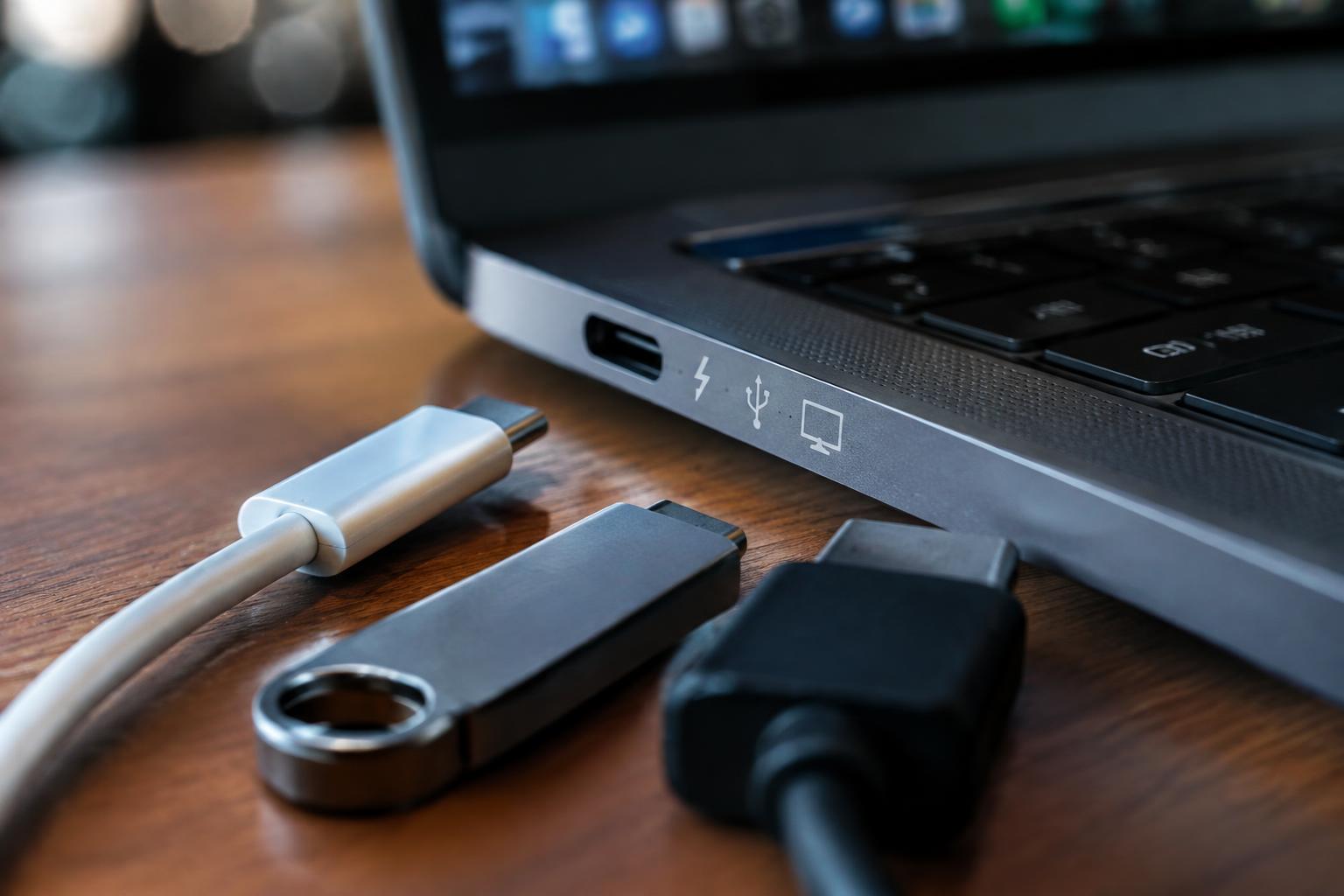
A USB-C connector’s shape doesn’t tell you what it can do: one laptop port may transfer files but not output video, while another supports all three functions. Port capabilities vary by model and port, so identify the symbols and specifications before plugging in a charger or display. For video clues, see how to know if your USB-C ports can support video.
Key Takeaways:
- A USB-C connector’s shape does not reveal its capabilities. Check the laptop’s specifications or port markings to confirm whether it supports USB Power Delivery charging, and note any wattage limits.
- Data speed depends on the port’s USB standard, such as USB 3.x or USB4. The laptop’s specifications identify the supported standard, while the cable and connected device also affect transfer speed.
- Video output requires DisplayPort Alt Mode or Thunderbolt support, along with a compatible cable or adapter. Look for a DisplayPort or Thunderbolt symbol beside the port, then verify the feature in the laptop’s documentation.
Identify Your USB-C Port
Start with a physical inspection of the laptop’s edges, since a USB-C connector can look identical to ports with different functions. Note how many USB-C ports you find and whether each sits beside a symbol, label, or small indicator light. Inspect each port separately, because a laptop may assign different capabilities to ports that share the same shape. A flashlight makes faint markings easier to see near the hinge or on a dark chassis.
Look for icons and labels
Examine the area immediately beside each connector for printed symbols or molded marks. A lightning-bolt icon, display symbol, or charging label can identify a port’s intended role, but manufacturers do not use one universal marking system. Do not treat the USB-C shape itself as proof of any feature. Check the underside of the laptop and the port’s inner edge too, where a tiny icon or short label may be less visible.
Check your laptop’s manual or manufacturer’s website
Find your exact laptop model name or product number on its case, system settings, or original packaging, then use that identifier to locate the manufacturer’s support page. Open the official user manual and look for the port diagram or connector labels, which often distinguish ports by position. Match the model precisely, since product families can share a name while using different layouts. A diagram naming “USB-C 1” can help you identify the corresponding port on the laptop’s left edge.
- Use a soft light rather than a metal tool to inspect the connector.
- Photograph faint symbols so you can zoom in without touching the port.
- Record whether each port is on the left or right side.
Verify Charging Support
Charging support depends on whether the laptop routes incoming power through that specific USB-C port, not simply on the connector’s shape. Look for a charging symbol beside the port, then confirm the port’s capabilities in the laptop manual or manufacturer’s specifications. Pay attention to the stated input range and maximum wattage, since a port rated for lower-power charging may not keep up with demanding tasks. A clear model-specific rating provides the most useful evidence of power input support.
Check power-delivery specifications
Find the laptop’s exact model number, then search its official specifications for USB-C power input, USB Power Delivery, or charging wattage. A listed rating such as 65 W indicates the maximum power the port is designed to accept under supported conditions, not a guaranteed charging rate in every situation. Some laptops accept charging through only one USB-C port. Manufacturer documentation is more reliable than connector icons alone, which can vary by brand.
Compare charger and cable requirements
Match the charger’s USB-C Power Delivery output to the laptop’s required voltage and wattage; a phone adapter with a lower output may charge slowly or fail to power the laptop during use. The cable must also be rated for the power level involved, since not every USB-C cable supports high-wattage charging. Check its printed rating or product specifications, and use a compliant cable with a charger that meets the laptop’s stated requirement, such as 65 W input.
| Item | What to check | Why it matters |
|---|---|---|
| Laptop port | Charging support and maximum input wattage | Confirms the port accepts power |
| Charger | USB-C Power Delivery output and wattage | Must meet the laptop’s power requirement |
| Cable | Rated power capacity | Must safely carry the required charging power |
Check Data Transfer Capabilities
Data support depends on the USB standard implemented by the port, not the connector’s shape. Identify the standard to learn its maximum transfer rate, then test with equipment that supports the same standard. USB-C describes the connector, while USB 2.0, USB 3.2, and USB4 describe data capabilities. A cable, drive, or adapter with a lower rating can limit the connection, so account for each link between your laptop and storage device.
Find the USB version or Thunderbolt rating
Start with the laptop’s technical specifications or support page, searching its exact model number alongside “USB-C,” “USB4,” or “Thunderbolt.” Device Manager on Windows and System Information on macOS can provide clues, but manufacturer documentation is usually clearer about the port’s supported standard. Look for a stated speed, such as 5 or 10 Gbps, rather than relying on labels like “high speed.” Thunderbolt 3 or 4 indicates a specific interface rating, not just a USB-C connector.
Test with a compatible storage device
Connect an external SSD or USB flash drive rated for the port’s standard, using a cable that supports the same data rate. Copy a large file and monitor the transfer with your operating system’s file manager; small files often produce misleading results because drive performance and processing overhead affect speed. A slower result does not prove the port is limited, since the cable or drive may be the bottleneck. Use a direct connection, without a hub, to reduce variables.
- Inspect the USB-C cable’s printed specifications.
- Check the external drive’s interface rating.
- Close other transfers before measuring performance.
Confirm Video Output Support
Video output depends on the port’s supported protocol, not simply its USB-C shape. Look for DisplayPort Alt Mode or Thunderbolt in the laptop’s technical documentation, then confirm that the monitor connection uses compatible hardware. A USB-C port limited to data and power will not send a display signal, even with a suitable-looking cable. The specification identifies whether video output is supported and which connection standard the port uses.
Check display-output specifications
Search the laptop manufacturer’s specifications or service manual for “DisplayPort over USB-C,” “DisplayPort Alt Mode,” or a Thunderbolt version. A Thunderbolt port supports display output, while USB-C alone does not confirm it. Check the documentation for the exact model and configuration, since ports can differ across models in the same product line. A USB-C port symbol is not conclusive unless the manufacturer identifies its video function.
Verify monitor, cable, and adapter compatibility
Match the monitor’s input to the laptop’s supported output standard. For a USB-C monitor, use a cable rated for video, since some USB-C cables carry power and data without supporting DisplayPort signals. For an HDMI or DisplayPort monitor, choose an adapter that explicitly converts the laptop’s DisplayPort Alt Mode or Thunderbolt output to that input. Protocol compatibility matters: a passive USB-C-to-HDMI adapter cannot create video output on a port that lacks it.
| Port specification | Video support | What to verify |
|---|---|---|
| USB-C only | Not established | Manufacturer’s port specifications |
| DisplayPort Alt Mode | Supported | Video-rated cable or compatible adapter |
| Thunderbolt | Supported | Compatible Thunderbolt or display connection |
Test the Port and Troubleshoot
Run each test with a cable and accessory known to work, then change one connection at a time. Watch for distinct signs of success: a charging indicator, a completed file transfer, or a stable image on an external display. Record which port, cable, and device you used, since USB-C cables can look identical while supporting different functions. A repeatable result makes it easier to distinguish a port limitation from a faulty cable or accessory.
Test each function with known-compatible accessories
For charging, connect the laptop to a USB-C power adapter rated for its needs and confirm the operating system shows it is charging. For data, attach a USB-C flash drive with a known-good cable, then open a file and copy it. For video, connect a USB-C monitor or a USB-C-to-DisplayPort adapter to a display set to the correct input. Confirm each function separately, using accessories that support the required standard.
Resolve common connection problems
Loose plugs, lint in the port, damaged cables, and outdated drivers can cause intermittent results. Disconnect power before inspecting the port, and remove visible debris with a dry, nonmetallic tool; never insert metal or liquid. Try another compatible cable and accessory, restart the laptop, and install available system or USB controller updates. If the connector feels loose, the port becomes unusually hot, or testing fails across multiple known-good accessories, stop using it and seek service.
- Check that a monitor is set to the correct input.
- Unlock your laptop before testing file access.
- Inspect both cable ends for bent or damaged connectors.
Tips for Choosing the Right USB-C Port
Choose a port by tracing the connection you actually need, from the laptop to each device on your desk or in your bag. A phone that only needs overnight power has different requirements from an external SSD used for large project files or a monitor connected for a full workday. Prioritize the feature that matters most, then account for any shared use, such as charging your laptop while driving a display through a dock with Power Delivery.
| Everyday device | Port capability to prioritize | Practical detail |
|---|---|---|
| Phone or tablet | USB-C charging | Match the charger’s power needs |
| External SSD | Fast data transfer | Check the drive and cable ratings |
| USB-C monitor | Video output | Confirm display support and resolution |
| Dock with several devices | Charging, data, and video | Account for simultaneous connections |
Consider your charging, transfer, and display needs
List the devices you connect most often and note what each connection must do. A phone charger needs power delivery, while a portable SSD benefits from a port and cable rated for its transfer speed. For an external display, verify that the port supports video output, such as DisplayPort over USB-C. If a dock must charge your laptop and run a monitor and storage device at once, choose a port that supports all three functions.
Avoid assuming all USB-C ports support the same features
USB-C describes the connector shape, not a guaranteed set of functions. One port may support charging and basic data, while another on the same laptop also carries video or faster data through Thunderbolt or USB4. Look for the laptop maker’s port specifications and symbols beside each connector, then match them to your cable and accessory. Inspect each port separately, since a charging icon does not confirm display output or high-speed transfers.
Summing up
To identify what your laptop’s USB-C port supports, consult the manufacturer’s specifications for the exact model, then confirm the port’s symbols and test it with compatible equipment. A USB-C connector alone does not guarantee charging, high-speed data, or video output. Check charging with a suitable USB-C Power Delivery charger, data with a known-compatible storage device, and video with a USB-C display or adapter that supports DisplayPort Alt Mode or Thunderbolt. These checks reveal the capabilities of the specific port you plan to use.
FAQ
How can I find out whether my laptop USB-C port supports charging, data, and video without special tools?
Check the laptop’s manual or manufacturer’s specifications for each USB-C port, then compare the listed features with the port’s icons. A compatible charger, storage device, or display can confirm a function in practice, but testing alone may not reveal the port’s maximum speed or power capacity.
Can I charge my laptop through any USB-C port?
No, a USB-C port can support data or video without accepting power for charging. Check the laptop specifications for USB Power Delivery input and the supported wattage, since a charger or cable with insufficient capacity may charge slowly or not at all.
Can a USB-C port connect my laptop to an external monitor?
Only if the port supports video output, commonly through DisplayPort or Thunderbolt. The monitor, cable, and any adapter must also support a compatible video standard, so the USB-C connector’s shape alone does not confirm that a display will work.
Could testing a laptop’s USB-C port damage the laptop or my accessories?
Testing with reputable, undamaged accessories that meet the laptop’s specifications is generally safe. Avoid forcing plugs, using visibly damaged cables, or connecting unknown power equipment, and stop if a port or accessory becomes unusually hot or behaves abnormally.
What is the most common mistake when choosing a USB-C port for a dock?
Assuming that every USB-C port supports charging, high-speed data, and video is a common mistake. Before buying a dock, check the laptop’s specifications for the functions and standards the dock requires, because a compatible connector shape does not guarantee compatible features.