
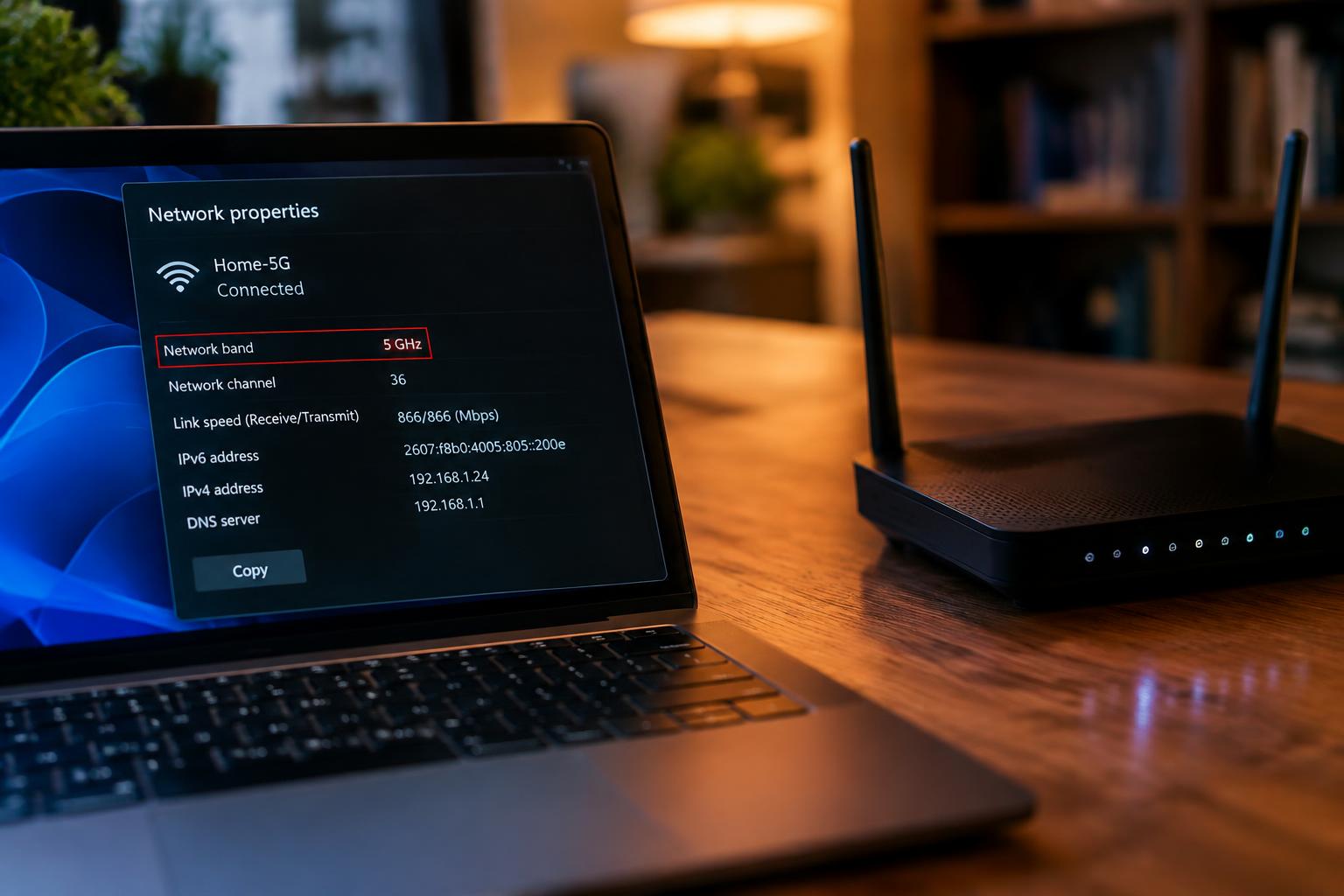
Your laptop’s WiFi band affects its connection range, speed, and ability to reach a router through walls. The network name alone often does not reveal whether you are using 2.4 GHz or 5 GHz, especially when both bands share one name. Checking the connected frequency band gives you a clear view of your laptop’s current wireless connection.
Key Takeaways:
- Windows shows the connected WiFi band in the network adapter’s connection details, while macOS lists the channel in Wireless Diagnostics; channels 1-14 indicate 2.4 GHz, and higher channels typically indicate 5 GHz.
- A router’s administration page or WiFi app often identifies the band used by each connected laptop, especially when the router combines both bands under one network name.
- Network names such as “Home-5G” offer a clue, but the laptop’s connection details are more reliable because routers can use the same name for both 2.4 GHz and 5 GHz networks.
Check Your WiFi Band on Windows
Windows provides two built-in ways to identify the band your laptop is using: the Settings app and the network details shown in Command Prompt. The Settings route is easier to follow, while Command Prompt displays the connection’s frequency directly. Both report the current WiFi connection, so check while your laptop is connected to the network you want to identify. The result distinguishes 2.4 GHz from 5 GHz without installing extra software.
| Method | Where to look | Band indicator |
|---|---|---|
| WiFi properties | Settings app | Network band |
| Network details | Command Prompt | Frequency |
| 2.4 GHz | Either method | 2.4 GHz or 2,400 MHz range |
| 5 GHz | Either method | 5 GHz or 5,000 MHz range |
Check the band in WiFi properties
Open Settings, select Network & internet, then choose WiFi and your connected network’s properties. Windows displays the connection details, including the network band, on that page. Read the value beside Network band: it identifies whether the active connection uses 2.4 GHz or 5 GHz. On some Windows versions, the properties link appears under the connected network name, so confirm that you have opened the network marked as connected.
Find the frequency in network details
For a direct frequency reading, open Command Prompt and enter netsh wlan show interfaces, then press Enter. In the output, find the Radio type and Channel fields. The channel number indicates the band: channels 1 through 14 are used for 2.4 GHz, while 5 GHz uses higher channel numbers. Check the interface showing State as connected if your laptop lists more than one wireless adapter.
Check Your WiFi Band on macOS
On a Mac, use the built-in WiFi information to identify the band currently carrying your connection. The displayed frequency or channel distinguishes 2.4 GHz from 5 GHz, even when both networks share the same name. Start with System Settings for the connection details, then use the WiFi menu’s diagnostic information if you need the channel number. These macOS readings describe your active connection, not every band your router broadcasts.
View WiFi details in System Settings
Open the Apple menu, choose System Settings, then select WiFi in the sidebar. Find your connected network and click Details to view its connection information. Depending on your macOS version, the panel may show the band or frequency directly; look for a value expressed in GHz. Use the active network’s details, since nearby networks listed elsewhere do not indicate which band your Mac is using.
Check the channel or frequency
For a channel reading, hold Option and click the WiFi icon in the menu bar. The expanded menu displays connection details, including the channel on supported macOS versions. Channels 1 through 14 indicate the 2.4 GHz band; channels numbered 36 and above are used by 5 GHz WiFi. If macOS shows frequency rather than channel, a value near 2.4 GHz or 5 GHz identifies the band directly.
- Keep the Option key held while opening the WiFi menu.
- Read the channel beside the connected network’s connection details.
- Check that the menu identifies your current network.
Use Your Router or WiFi App
Router tools report the connection details recorded at the access point, including the frequency band assigned to your laptop. Open the manufacturer’s app or sign in to the router’s admin page, then locate the laptop in the connected-device list. Look for a band, radio, or frequency field; entries such as 2.4 GHz or 5 GHz identify the active connection. Some interfaces show only the radio name or channel instead.
Find the Connected Device in the Router App
Open your router’s app and select a section labeled Devices, Clients, or Connected Devices. Choose your laptop from the list, using its device name or network address to distinguish it from phones and other computers. The detail screen may display connection band, signal information, or the access point serving the device. If the band is not shown, note the listed WiFi network or radio name, since router apps differ in which connection details they expose.
Check the Band in the Router’s Admin Page
Sign in to the router’s local admin page and open its wireless client, station, or network map view. Select your laptop’s entry and inspect fields named Band, Radio, Frequency, or Channel. A frequency near 2.4 GHz or 5 GHz confirms the corresponding connection; channel numbers can also identify the band, but their ranges differ by region. Use the laptop’s device entry, not the router’s general WiFi settings, which describe available networks rather than its current connection.
| Router tool | Where to look | Useful detail |
|---|---|---|
| Router app | Devices or Connected Devices | Band or radio name |
| Admin page | Wireless clients or network map | Frequency or channel |
| Either interface | Your laptop’s device entry | Confirms the active connection |
Tips for Identifying 2.4 GHz and 5 GHz
Read the frequency value shown in your laptop’s WiFi details as a band indicator, not as a measurement of signal strength or internet speed. Network names offer clues, but labels such as “5G” are chosen by whoever configured the router and are not definitive proof. For a quick reference to common naming patterns, see how to tell if you have a 2.4 GHz or 5 GHz WiFi network, while treating the displayed frequency as the stronger evidence.
Match frequency to the band
Frequency numbers identify the band directly: values near 2.4 GHz indicate the 2.4 GHz band, while values around 5 GHz indicate the 5 GHz band. WiFi channel numbers are a separate detail, so a channel number alone does not always identify the frequency without its band context. For instance, channel 36 belongs to the 5 GHz band, while channel 6 is commonly used on 2.4 GHz networks.
Know that one WiFi name can use both bands
Routers with band steering often broadcast a single network name for both frequencies. In that setup, the name shown in your laptop’s WiFi list does not reveal which band the laptop is using; the connection details must show the active frequency. Separate names such as “Home” and “Home-5G” suggest distinct bands, but SSID labels are configurable and may not match the router’s actual settings.
- “SSID” means the WiFi network name shown on your device.
- “5G” in a WiFi name usually refers to 5 GHz, not cellular 5G.
- Some routers let you rename each band independently.
Factors That Can Affect Your WiFi Band
Your laptop’s connection is shaped by decisions made by both the wireless router and its network adapter, so the displayed band can change as conditions shift. Some operating systems expose only the network name or connection status in their standard settings, leaving band details unavailable there. Band choice is dynamic, and a saved network name does not necessarily identify a single frequency if the router combines its bands.
Router band steering and laptop settings
With band steering enabled, your router broadcasts one network name and directs compatible laptops between 2.4 GHz and 5 GHz according to signal quality and network conditions. Your laptop’s driver and wireless settings also affect which band it accepts, while a preferred-band option may influence selection without guaranteeing it. One network name can cover both bands, so seeing the same name after reconnecting does not prove the laptop stayed on the same frequency.
Distance, obstacles, and adapter support
As you move farther from the router, walls, floors, and metal fixtures weaken 5 GHz signals more quickly than 2.4 GHz signals, so a laptop may shift to the band with stronger reception. Your wireless adapter also sets a limit: older or low-cost adapters may support 2.4 GHz only, while dual-band models can use both. Adapter capability sets the ceiling, and a 2.4 GHz-only adapter cannot connect to a 5 GHz network.
| Factor | Effect on band choice | What you may notice |
|---|---|---|
| Router band steering | Moves compatible devices between bands | One network name, changing connection frequency |
| Laptop wireless settings | Influences the adapter’s preferred band | Behavior differs by driver or setting |
| Distance and obstacles | Reduce signal strength, especially at 5 GHz | Connection may shift farther from the router |
| Adapter support | Limits available frequency bands | A 2.4 GHz-only adapter cannot use 5 GHz |
To wrap up
Knowing whether your laptop uses 2.4 GHz or 5 GHz starts with its WiFi status details: Windows shows the band in the connection properties, while macOS identifies it through the Option-click WiFi menu. Your router’s device list or companion app offers another way to confirm the connected band. Keep in mind that a dual-band network name alone does not reveal which frequency your laptop selected; the connection details do.
FAQ
How can I check whether my laptop is connected to 2.4 GHz or 5 GHz WiFi?
Check the connected network’s frequency in your laptop’s WiFi settings, or look up the laptop in your router’s connected-device list. The exact menu names depend on your operating system and router, and some devices show the channel rather than the frequency.
How long does it take to find out which WiFi band my laptop is using?
It usually takes only a few minutes to check in your laptop’s WiFi settings. If those settings do not show the frequency or channel, you may need to sign in to your router’s app or admin page, which can take longer if you do not have the login details.
Can I tell whether my laptop is using 2.4 GHz or 5 GHz from the WiFi network name?
Not always, because a single network name can serve both 2.4 GHz and 5 GHz connections. Separate names may identify each band if the router has been set up that way, but checking the connection details or router app is more reliable.
Why does my laptop switch between WiFi bands?
A laptop may switch bands when the router uses band steering or when signal strength and connection conditions change. The available bands also depend on the laptop’s WiFi adapter and settings, so moving closer to the router will not always force a particular band.
Do I need to pay for an app to check my laptop’s WiFi band?
Usually, no, because your laptop’s WiFi settings or your router’s app or admin page can show the connected band without a paid tool. The information available varies by device, and a router may show a channel instead of naming the band directly.