
Bluetooth LE Audio can deliver efficient wireless sound and features such as Auracast broadcasts, but a Bluetooth connection alone does not prove your computer supports it. You need compatible hardware, operating-system support, and suitable drivers for the feature to work. Checking each layer matters because Bluetooth LE Audio is not the same as a standard Bluetooth audio connection.
Key Takeaways:
- Bluetooth LE Audio requires compatible hardware, operating-system support, and drivers; a Bluetooth icon or standard Bluetooth connection alone does not confirm compatibility.
- Check your adapter model and the computer’s Bluetooth settings for LE Audio support, then install current drivers from the computer or adapter manufacturer.
- Confirm support with an LE Audio headset connected: available options such as the LC3 codec or Auracast depend on the computer, software version, and headset.
Understand Bluetooth LE Audio Requirements
Bluetooth LE Audio depends on a newer Bluetooth audio standard, compatible radio hardware, and software that can use its audio features. A Bluetooth logo alone does not confirm support, because many adapters handle older Bluetooth audio profiles without LE Audio. Look for support across the full chain, including the controller, operating system, drivers, and headphones. The LC3 audio codec is part of the standard, while features such as Auracast depend on additional device and software support.
| Component | Role in LE Audio | What to know |
|---|---|---|
| Bluetooth LE Audio standard | Defines how compatible devices exchange audio | Different from classic Bluetooth audio profiles |
| Bluetooth controller | Provides the radio and protocol support | A Bluetooth connection alone does not confirm LE Audio |
| LC3 codec | Encodes audio for LE Audio | Requires support from the relevant devices and software |
| Operating system and drivers | Expose and manage LE Audio functions | Support depends on the system configuration |
How Bluetooth LE Audio Differs from Classic Bluetooth
Classic Bluetooth audio commonly uses profiles such as A2DP for playback and HFP for calls, while LE Audio uses Bluetooth Low Energy isochronous channels to carry synchronized audio. Its LC3 codec is designed for efficient audio transmission, and the standard supports features such as broadcast audio through Auracast. Your computer must support the LE Audio protocols, not simply pair with Bluetooth headphones, for these newer capabilities to work.
Key Hardware and Software Factors
Support depends on a compatible Bluetooth controller, firmware, operating system, and driver working together; a single unsupported layer can prevent LE Audio from appearing or functioning. Your headphones or headset must also support LE Audio, including the relevant codec and profiles. A USB Bluetooth adapter that handles classic audio profiles is not necessarily suitable. End-to-end compatibility means both the computer and audio device support the required LE Audio features.
Check Your Computer’s Bluetooth Adapter
Your computer’s Bluetooth adapter is the hardware link between the operating system and wireless audio devices. Its exact model matters because LE Audio depends on specific adapter capabilities, not merely the presence of a Bluetooth connection. Identify the installed component first, then use its manufacturer documentation to confirm whether it supports the relevant features. A laptop’s built-in adapter and a separately installed USB Bluetooth device can have different capabilities, even on the same computer.
Find the Adapter Model in Windows or macOS
On Windows, open Device Manager, expand “Bluetooth,” and note the adapter’s full name; the “Details” tab can also show its hardware IDs. On macOS, choose Apple menu, “About This Mac,” then “More Info” and “System Report,” and inspect the Bluetooth entry. Record the model identifier rather than relying on a generic label such as “Bluetooth Radio.” A USB adapter’s product name is usually printed on its casing or listed in its packaging.
Look Up LE Audio Support in the Manufacturer’s Specifications
Search the adapter maker’s official product page or technical specification sheet using the exact model number. Look specifically for LE Audio, Bluetooth LE Audio, and support for the LC3 codec; a Bluetooth version number alone does not confirm these capabilities. Specifications for built-in laptop adapters may appear under the computer manufacturer’s support page rather than the chipset maker’s site. Treat vague wording such as “Bluetooth 5.x” as insufficient evidence of LE Audio support.
- Record the computer’s full model name.
- Distinguish an internal adapter from a USB dongle.
- Check whether the adapter appears enabled in the device list.
Verify Operating System and Driver Support
Software compatibility depends on more than the computer’s Bluetooth adapter: the operating system must include the relevant LE Audio support, and the installed driver must expose it correctly. Check the exact Windows version and build, then review the Bluetooth driver supplied for your computer model. Current system software reduces compatibility problems, but an update alone does not add support that the hardware or operating system lacks.
Check Your Operating System Version
Open Settings > System > About in Windows and note the edition, version, and OS build shown under Windows specifications. Compare those details with Microsoft’s current documentation for LE Audio support, since availability depends on the Windows release and compatible hardware. On another operating system, use its system information page to identify the exact release, then consult the computer maker’s compatibility guidance. A version number alone does not confirm support.
Update Bluetooth Drivers and System Software
Use Windows Update to install available system updates, including optional driver updates, then check your computer manufacturer’s support page for a Bluetooth driver matched to the exact model and Windows version. Prefer manufacturer-approved drivers over third-party driver tools, which can install incorrect software. Restart after installation and verify that Device Manager no longer reports an error for the Bluetooth adapter. Record the installed driver provider and version if you need to investigate compatibility further.
| Check | Where to look | What to record |
|---|---|---|
| Windows release | Settings > System > About | Version and OS build |
| System updates | Windows Update | Installed updates and pending restarts |
| Bluetooth driver | Device Manager or manufacturer support page | Provider and driver version |
Confirm LE Audio Support in Settings
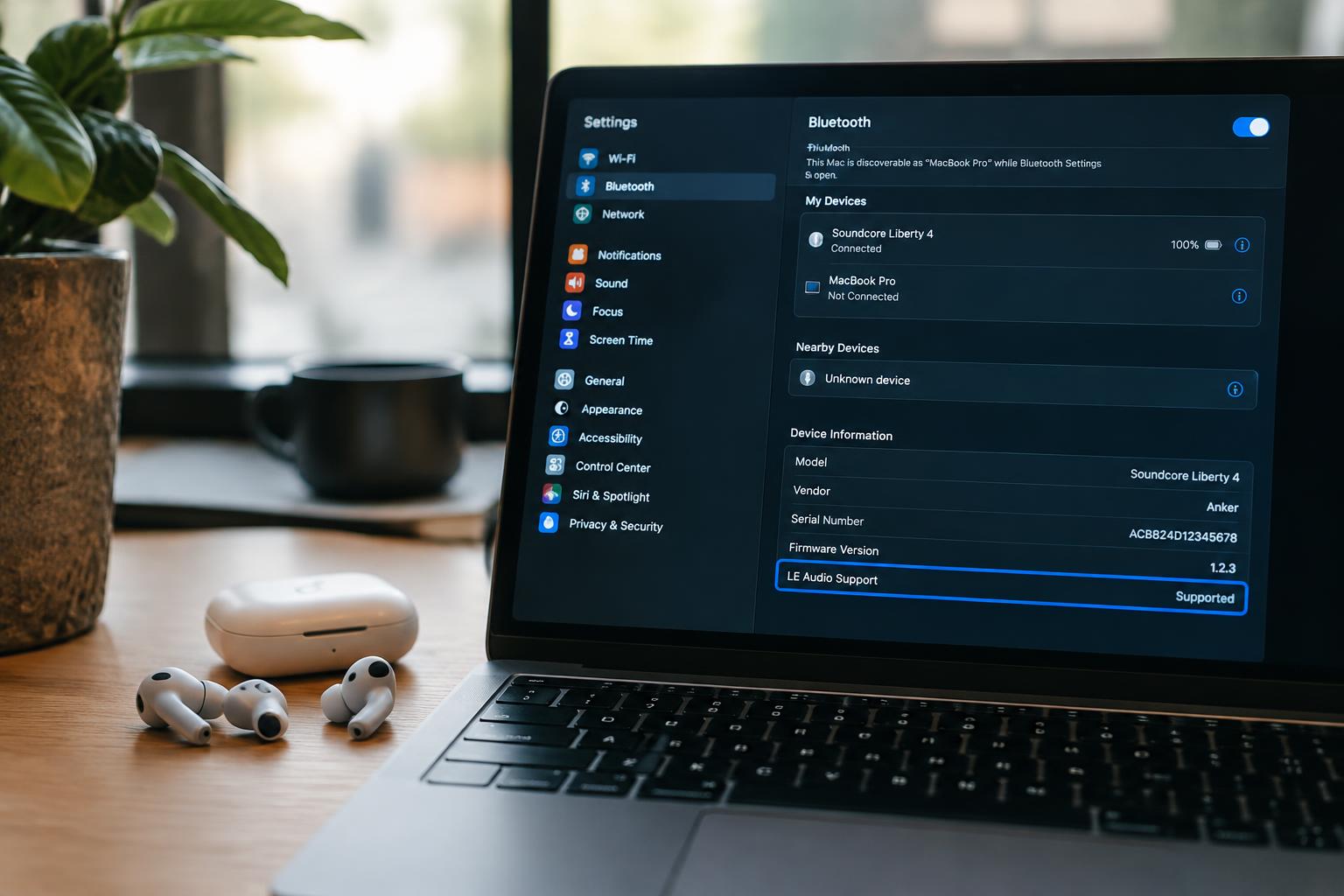
Windows and other desktop systems expose Bluetooth capabilities through their settings pages and the details shown for paired hardware. Review both the computer’s Bluetooth options and the connected headset’s listing, since a generic Bluetooth status does not confirm support for LE Audio. Look for explicit references to LE Audio or supported audio codecs, and distinguish them from ordinary Bluetooth Low Energy entries, which describe radio capabilities rather than audio support.
Look for LE Audio or Bluetooth Low Energy Audio Options
Open Windows Settings, select Bluetooth & devices, then inspect the device details and any advanced Bluetooth options available on your PC. An explicit LE Audio setting or “Use LE Audio when available” control is a strong indication that the system exposes the feature. Bluetooth Low Energy listed only as a connection type is not equivalent; it identifies low-energy radio support, not the isochronous audio functions required for LE Audio.
Check for Compatible Audio Devices and Codecs
Open the paired earbuds or headset entry and look for an LE Audio designation or codec details that identify LC3 support. Device listings vary by operating system and driver, so a product name alone does not establish compatibility. A headset that reports only SBC, AAC, or another Classic Bluetooth codec is not showing LE Audio operation. Review the audio device’s properties for an explicit LE Audio profile or LC3 codec entry.
- Check whether the device appears as an audio output, not only as a Bluetooth accessory.
- Look for separate entries for left and right earbuds.
- Inspect the manufacturer’s device utility for firmware and connection-mode labels.
Troubleshoot and Apply Practical Tips
Missing LE Audio indicators often result from a driver issue, an unsupported combination of computer and headset, or a setting that has not refreshed after an update. Work through these causes in order, noting the adapter model, Windows version, and headset model as you go. Support depends on the full device chain, not just the Bluetooth label in a product listing. A community discussion of Windows 11 supports Bluetooth LE Audio can provide additional context.
| Symptom | Practical step | What to verify |
|---|---|---|
| Headset absent | Restart and pair again | Device appears in Bluetooth settings |
| LE Audio option missing | Update the adapter driver | Driver matches the adapter model |
| Bluetooth 5.x shown | Check LE Audio documentation | Codec and profile support are specified |
Restart, Re-pair, and Recheck Devices
Restart Windows after installing a Bluetooth driver, then remove the headset from Bluetooth settings and pair it again. This refreshes device discovery and can clear stale pairing data that hides newly available options. Keep the headset charged and close to the computer during pairing, with other paired devices temporarily disconnected. Recheck the audio device properties after connection, since an LE Audio setting may appear only when Windows recognizes a compatible headset and adapter together.
Distinguish LE Audio Support from Bluetooth 5.x
Bluetooth 5.x identifies a Bluetooth Core specification generation, but it does not by itself confirm LE Audio support. Check the computer maker’s adapter specifications and driver notes for explicit references to LE Audio or LC3; a generic Bluetooth version listing is not enough. The headset must also support LE Audio, and Windows needs compatible hardware and software. If product documentation lists only Bluetooth 5.2, treat support as unconfirmed until the manufacturer names the LE Audio features.
To wrap up
Confirming Bluetooth LE Audio support requires more than finding a Bluetooth adapter: you need compatible hardware, an operating system and driver that expose LE Audio, and settings that show the relevant capability. Device Manager can identify your adapter, while Windows Bluetooth settings and the manufacturer’s driver information can clarify software support. Even then, a compatible headset is also required to use LE Audio features. Check each component separately, and treat the absence of an LE Audio option as a sign to verify your driver and system compatibility.
FAQ
How can I tell whether my computer supports Bluetooth LE Audio?
Check the computer’s Bluetooth adapter specifications, operating system and driver support, and available audio settings for LE Audio compatibility. Support also depends on the headphones or other audio device, so a compatible computer alone does not guarantee an LE Audio connection.
Does Bluetooth 5.0 mean my computer supports LE Audio?
No, a Bluetooth 5.0 label by itself does not confirm LE Audio support. LE Audio requires compatible hardware and software, and support should be verified in the adapter’s specifications and the computer’s operating system or audio settings.
How long does it take to check Bluetooth audio compatibility on a computer?
A basic check usually takes a few minutes if you can find the adapter model and its specifications. It may take longer if the model is unclear, drivers need updating, or you need to test the computer with a compatible audio device.
Can I add Bluetooth LE Audio support to a computer that does not have it?
A compatible Bluetooth adapter may provide LE Audio support, but replacing or adding an adapter is not a guaranteed fix. The operating system, drivers, and audio device must also support LE Audio, and external adapters should be checked for explicit compatibility before purchase.
Is it worth upgrading my computer for Bluetooth LE Audio?
An upgrade may be worthwhile if your computer and audio devices both support LE Audio and its features meet your needs. If your current setup works well, first check whether the limitation is a missing driver or setting, since changing hardware may not solve a software or audio-device compatibility issue.