
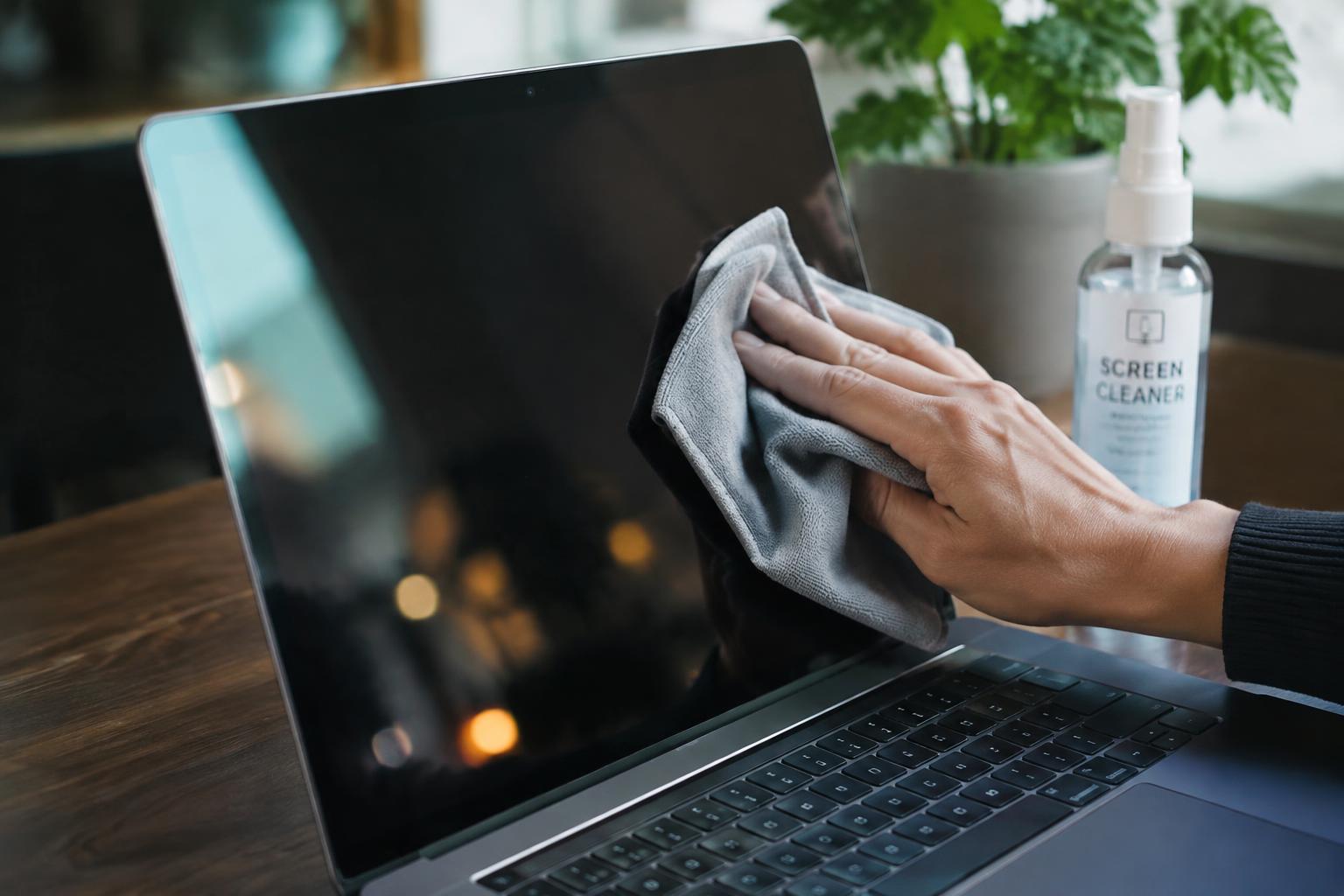
Fingerprints and dust can make a laptop display harder to read, but the wrong cleaner can wear away its anti-glare or oleophobic coating. To remove grime safely, use a clean, soft microfiber cloth and keep liquids away from screen edges. Harsh solvents, including ammonia-based glass cleaners, can damage the display’s surface.
Key Takeaways:
- Use a clean, soft microfiber cloth and gentle pressure; rough paper towels and abrasive fabrics can scratch the display or wear its protective coating.
- For fingerprints or smudges, lightly dampen the cloth with water, never spray liquid directly onto the screen, and keep moisture away from the bezel and ports.
- Avoid ammonia, bleach, window cleaner, and harsh solvents, which can damage anti-glare or oleophobic finishes; follow the laptop maker’s cleaning instructions for the specific display.
Understand Your Laptop Screen’s Protective Coating
Your screen’s outer surface is engineered, not bare glass or plastic. Its coating changes how light reflects, how fingerprints appear, or how a touch panel responds, and abrasion can wear that layer unevenly. Because the coating is only a thin surface treatment, pressure and repeated friction can leave visible marks even when the display underneath still works. Knowing which finish you have clarifies why its surface needs gentle care.
Common coating types and their purpose
Anti-reflective coatings reduce glare by limiting reflected light, while oleophobic treatments make skin oils less likely to cling to a touchscreen. Some displays combine these finishes, and matte panels use a textured surface to scatter reflections rather than a glossy layer. Your laptop’s design determines which features are present, so a matte finish is not necessarily a separate film. Manufacturer specifications can identify the intended surface treatment.
Signs a coating may be vulnerable
Patchy sheen, fine scuffs, or areas that look different when viewed from an angle can signal a coating that is wearing or already damaged. On a glossy screen, uneven reflection may stand out around frequently touched spots; on a matte panel, polished-looking patches can replace the original texture. Peeling or cloudy marks deserve particular caution, since rubbing them may enlarge the affected area. Distinguish surface changes from ordinary dust by their persistence when the display is off.
- Fingerprints gather most often near touchscreen controls.
- Bezel edges can reveal whether a separate screen protector is fitted.
- Some laptop displays have no touch input.
Choose Safe Cleaning Supplies
Your screen’s coating is most at risk from rough fibers and chemicals that dissolve or weaken surface treatments. Choose supplies labeled for coated electronics, with no grit, strong solvents, or unnecessary additives. A suitable cloth and a compatible solution provide low-abrasion contact without exposing the panel to harsh ingredients. Check the laptop maker’s care guidance, since coating materials and manufacturer recommendations vary across models.
Recommended microfiber cloths and cleaning solutions
Use a clean, soft microfiber cloth designed for eyeglasses or screens, with a smooth, lint-free weave and no stitched or abrasive edges. For a solution, choose one specifically labeled as safe for laptop displays, or follow the manufacturer’s stated recommendation. Some makers permit distilled water, while others specify a different product, so manufacturer-approved ingredients take priority. Keep cloths used for keyboards or household surfaces separate to prevent trapped grit from scratching the coating.
Products and materials to avoid
Avoid paper towels, tissues, napkins, and rough cotton fabric, whose fibers can abrade a delicate screen finish. Household glass cleaner, ammonia, acetone, bleach, and products containing alcohol can damage certain coatings; use them only if your laptop manufacturer explicitly approves them. Skip aerosol sprays, abrasive powders, and premoistened wipes with undisclosed ingredients, since residue or concentrated chemicals can harm the surface. Never use abrasive pads or cleaners meant for windows.
| Supply | Typical screen suitability | Key concern |
|---|---|---|
| Clean screen microfiber | Suitable | Grit trapped in the cloth |
| Display-safe solution | Suitable when approved by the maker | Ingredients vary by product |
| Paper towel or tissue | Unsuitable | Coarse fibers can abrade |
| Household glass cleaner | Unsuitable unless explicitly approved | Potentially damaging chemicals |
How to Clean Your Laptop Screen Safely
Use a light touch and follow the screen maker’s cleaning guidance, since coatings and panel surfaces differ. Keep your supplies limited to a clean microfiber cloth and, only when needed, a small amount of suitable screen cleaner. Never spray liquid directly onto the display or let moisture reach the bezel, hinges, or openings. A careful sequence keeps grit away from the surface and limits contact with the coating.
Power down and prepare the screen
Start by shutting down the laptop, unplugging its charger, and disconnecting any attached devices. Let the display cool, then open it to a comfortable angle on a stable surface. A dark, powered-off screen makes smudges and dust easier to see, while disconnecting power reduces risk if moisture is used later. Keep drinks and cleaning bottles away from the keyboard as you prepare a dry microfiber cloth.
Remove dust before wiping
Before touching the panel, lift loose particles with a clean, dry microfiber cloth, using short strokes without pressing down. Dust and grit can act as abrasives when dragged across the coating, so do not rub visible particles into the display. If debris remains near an edge, use a hand-operated air blower from a short distance, directing airflow away from the screen rather than pushing particles beneath the bezel.
Wipe gently without applying excess liquid
For fingerprints that remain, lightly dampen a corner of the microfiber cloth with screen-safe cleaner, never wet enough to drip. Wipe in gentle, overlapping strokes, then use a dry portion of the cloth to remove any remaining moisture. Keep liquid off the panel’s edges, where it can seep into the frame. Avoid paper towels, rough fabric, household glass cleaner, and forceful circular scrubbing on the coated surface.
- Use a separate cloth for the keyboard and screen.
- Keep the cloth’s stitched edges away from the panel.
- Do not use canned air held close to the display.
Tips for Preventing Screen Damage
Small handling habits limit the contact that leaves fingerprints or wears the display’s surface. Keep the screen clear of loose items, close the lid gently, and avoid pressing on the panel while moving the laptop. Light, even handling matters because pressure applied to a thin display can mark or stress it, especially when an object is trapped between the screen and keyboard.
Keep fingers and abrasive objects away from the display
Touch the display only when your laptop has a touchscreen, and use a clean fingertip rather than a fingernail. Oils from your skin leave smudges, while rings, pens, and gritty cloths can scratch the coating. Keep food, cosmetics, and paper clips away from the open laptop, and lift dust with a soft microfiber cloth instead of rubbing it with a sleeve. Avoid direct pressure on the panel, particularly near its edges.
Store and transport the laptop safely
Before closing the lid, remove anything resting on the keyboard, including earbuds, cables, and crumbs. Carry the laptop in a padded compartment that fits its size, with no hard objects pressed against the lid. Keep the display protected from keys, chargers, and other items in a crowded bag; even a slim USB drive can leave a pressure mark if it sits between the screen and a rigid case.
| Situation | Safer habit | Screen risk reduced |
|---|---|---|
| Using the display | Keep fingers and objects off the panel | Smudges and scratches |
| Closing the lid | Clear the keyboard first | Pressure marks |
| Transporting the laptop | Use a fitted padded compartment | Impacts and abrasion |
Factors That Affect Cleaning and Coating Care
Your cleaning choices depend on more than visible dirt: display construction, coating condition, and the type of residue all influence how a surface responds. Identify whether the panel has a matte or glossy finish, then distinguish loose dust from oily fingerprints or dried spots. Match the method to the surface, since a technique suited to one finish can leave streaks or abrasion on another. Be especially cautious around exposed edges and pressure-sensitive layers.
Matte versus glossy displays
Matte panels scatter reflected light through a textured surface, so a rough cloth or vigorous rubbing can affect that finish more readily than smooth glass. Glossy displays show fingerprints and streaks more clearly, while their coating can still be sensitive to abrasive contact. Use a clean, soft microfiber cloth and light, even passes on either type; avoid circular scrubbing, which can leave visible marks under angled light.
Existing wear and stubborn marks
Faint cloudy patches, uneven sheen, or fine scratches indicate that the coating may already be worn, making aggressive cleaning a poor choice. Residue also matters: skin oil usually lifts with a lightly dampened microfiber cloth, while dried adhesive or sugary spills can require more patience. Do not scrape bonded residue with a fingernail or plastic card; pressure can catch at a worn spot and widen the affected area.
- Inspect the panel with the display turned off.
- Keep cloth seams and tags away from the viewing area.
- Do not use paper towels, tissues, or facial wipes.
What to Do If the Coating Looks Damaged
Visible changes to the display deserve a cautious response, since cleaning a worn coating can make the affected area harder to assess. Stop wiping if you notice persistent blotches, peeling edges, or a patch that looks different from the surrounding screen. Avoid solvents and abrasive tools, which can worsen surface damage. Record the location and appearance of the mark before seeking help, especially if it sits near the center of the display or continues to spread.
Distinguish residue from coating wear
Residue often shifts or fades when you make one gentle pass with a clean, dry microfiber cloth, while coating wear tends to remain fixed and may appear as an irregular dull or shiny patch. Inspect the screen with the laptop powered off and viewed under diffuse light; reflections can make smudges resemble bare coating. Stop if the patch stays unchanged after that light pass, and do not test it with a fingernail or stronger cleaner.
When to contact the manufacturer
Contact the laptop manufacturer or an authorized service provider when peeling, discoloration, or a persistent patch appears under normal use, particularly if the device is still covered by warranty. Share the model and serial number, purchase details, and clear photographs taken with the screen off. Ask before attempting further cleaning, since some service terms depend on the cause of damage. A technician can assess whether the display needs repair or replacement.
| Screen appearance | Likely indication | Next step |
|---|---|---|
| Mark shifts after a dry pass | Surface residue | Stop if it persists |
| Fixed dull or shiny patch | Possible coating wear | Photograph the area |
| Peeling or spreading discoloration | Possible display damage | Contact authorized support |
Conclusion
Keep your laptop screen’s protective coating intact by using a clean microfiber cloth, gentle pressure, and a small amount of water applied to the cloth rather than the display. Avoid glass cleaners, paper towels, abrasive materials, and spraying liquid directly onto the screen. Power down your laptop before cleaning, and let the display dry fully before closing the lid. For stubborn residue or visible coating damage, follow the manufacturer’s care instructions instead of scrubbing the affected area.
FAQ
How often should I clean my laptop screen?
Clean the screen when you can see dust, fingerprints, or smudges rather than following a fixed schedule. Frequent wiping can add unnecessary friction, so use a clean microfiber cloth and avoid cleaning a screen that is already free of visible residue.
How long does it take to clean a laptop screen safely?
A routine screen cleaning usually takes only a few minutes. Allow extra time if residue needs several gentle passes, and stop if a mark does not lift rather than scrubbing or applying more liquid.
Can I use glasses cleaner on my laptop screen?
Use glasses cleaner only if its label says it is safe for laptop screens or the laptop manufacturer approves it. Some formulas contain ingredients that may harm a display coating, so a clean, dry microfiber cloth is the safer first choice.
What is the biggest mistake when cleaning a laptop screen?
Pressing hard or spraying liquid directly onto the screen can cause damage. Apply any screen-safe solution sparingly to a microfiber cloth instead, and check the manufacturer’s instructions because some displays require dry cleaning only.
Can a damaged laptop screen coating be repaired at home?
A worn or peeling screen coating generally cannot be restored safely with household cleaning products. Stop wiping if the display looks cloudy or uneven after residue is removed, and ask the manufacturer or a qualified repair provider about service options.