
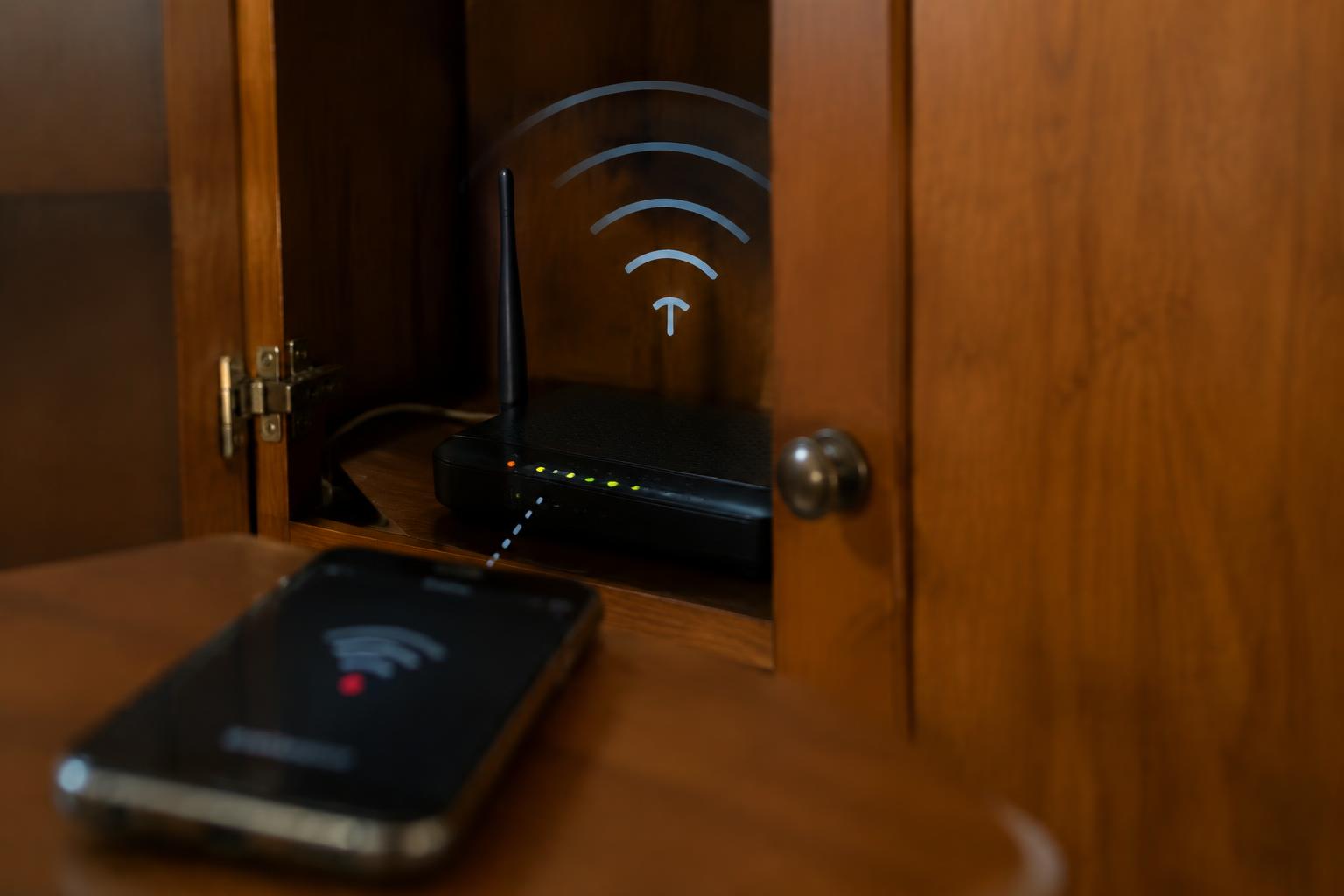
A router tucked behind cabinet doors may look tidy, but the enclosure can weaken the WiFi signal reaching your rooms. Wood, metal, and dense materials affect radio waves differently, while the cabinet’s location and ventilation also matter. A metal cabinet, in particular, can block more signal than an open wooden shelf.
Key Takeaways:
- A cabinet can weaken WiFi signals, especially if it has a metal body, foil lining, or thick solid-wood panels. Metal is particularly effective at blocking radio waves.
- Signal loss depends on the cabinet material and location, the router’s frequency band, and the distance to connected devices. A router enclosed in a cabinet at one end of the home is more likely to leave distant rooms with weak coverage.
- Placing the router in an open, central spot usually improves coverage and airflow. If it must stay in a cabinet, an open shelf with ventilation and minimal surrounding material is preferable to a closed metal compartment.
How Cabinets Affect WiFi Signals
Cabinet materials and internal barriers alter how radio waves travel between your router and connected devices. Some surfaces absorb part of the signal, while others reflect it or scatter it in different directions, creating uneven coverage across nearby rooms. The effect depends on the cabinet’s construction and the router’s surroundings, so a device close to the cabinet may still receive a weaker connection than one with a clearer path. Signal paths can change across the same room.
Signal loss from wood, metal, glass, and dense materials
Wood usually attenuates WiFi less than metal, but thick panels and dense engineered boards still reduce the signal passing through them. Metal blocks and reflects radio waves strongly, while coated or tinted glass can also weaken transmission; ordinary clear glass tends to have a smaller effect. Stone, concrete, and other dense materials absorb more energy than thin wood, particularly when several layers sit between your router and a device.
Effects of cabinet doors, shelves, and enclosed spaces
Closed doors add another barrier, and hinges, handles, or metal frames can reflect radio waves instead of letting them pass evenly. Shelves packed with books, dishes, or storage boxes further interrupt the path from the router’s antennas. Inside a compact enclosure, reflections create dead spots where signals cancel or arrive unevenly, so a phone beside the cabinet can show fewer bars than one positioned just outside it.
- Metal-backed insulation can block signals through a cabinet’s rear panel.
- Mirrored surfaces can redirect radio energy toward unexpected areas.
- Water-filled containers absorb WiFi energy and add local attenuation.
What Determines the Impact on Coverage
Your cabinet’s effect on coverage depends on the router’s frequency band, the distance to each device, and the materials between them. Metal panels and dense contents can attenuate radio signals more than an open wooden shelf, while nearby electronics can add interference. These factors interact, so a weak connection in one room does not necessarily mean every device will lose speed. Linksys explains why where you place your router matters more than you think, especially when signal paths are obstructed.
Differences between 2.4 GHz and 5 GHz signals
At 2.4 GHz, your WiFi signal generally travels farther and passes through walls more effectively than 5 GHz, though the band often faces more congestion from neighboring networks and household devices. A 5 GHz connection typically offers more bandwidth nearby, but cabinet walls and distance can weaken it sooner. If a device loses its 5 GHz connection inside a back room, it may switch to 2.4 GHz, where range is often stronger but throughput can be lower.
Distance, walls, and nearby sources of interference
Every added barrier between your router and a device reduces received signal strength, with concrete, brick, and metal generally causing greater loss than drywall or wood. Distance compounds that attenuation, so a router at the far end of a home may struggle to reach a device through several walls. Microwave ovens and crowded 2.4 GHz networks can also interfere with nearby connections. A cabinet’s metal door adds another obstacle, particularly for devices located behind multiple barriers.
| Coverage factor | Typical effect | What it means for your connection |
|---|---|---|
| 2.4 GHz band | Longer reach, greater congestion | More tolerant of distance and walls |
| 5 GHz band | Higher bandwidth nearby, shorter reach | More easily weakened by barriers |
| Dense walls or metal | Greater signal attenuation | Devices beyond them may receive a weaker signal |
| Nearby electronics or networks | Added radio interference | Connections may become less reliable |
Signs Your Router Is Being Obstructed
Look for a consistent pattern before blaming the internet service: problems that worsen farther from the cabinet or behind walls point to a local wireless issue. A phone’s WiFi indicator is a rough clue, while a signal-reading app can show whether reception drops between rooms. Repeatable location-based changes are more telling than a single speed test, especially if the connection improves when you move into the same room as the router.
Weak signals or dead zones in particular rooms
Bedrooms or offices with thick walls between them and a closed cabinet often show fewer WiFi bars, dropped video calls, or devices switching to mobile data. Walk the same route with a phone and note where reception falls; a signal app can reveal a sharp drop near metal shelving or a cabinet with a metal door. Room-specific dead zones, while nearby rooms remain connected, point to a physical obstruction rather than a whole-home outage.
Slow speeds, buffering, and unstable connections
Streaming that repeatedly drops resolution, downloads that crawl, or video calls that freeze can indicate weak WiFi between your device and the router. Run a speed test beside the cabinet, then repeat it in the affected room using the same device and network band; a marked difference in results points toward local signal loss. Brief disconnections under load are another clue, particularly when several devices compete through a closed cabinet door.
- Inspect whether the cabinet door contains metal mesh or a solid metal panel.
- Check that the router’s antennas are upright and not pressed against a wall.
- Look for a microwave oven or cordless phone near the router.
- Note whether problems persist when only one device is connected.
Better Router Placement and Cabinet Alternatives
Changing the router’s position often improves coverage without changing your internet plan or equipment. Choose a location that keeps the access point clear of dense materials and distributes its signal across the rooms you use. Open placement is generally preferable to enclosing the router behind cabinet doors, while a practical alternative, such as a ventilated shelf, can keep it accessible and visible. Match the position to your home’s layout and the devices that need a reliable connection.
Choosing a central, elevated, and unobstructed location
Place your router near the center of the area you want to cover, rather than at an exterior wall or in a far corner. A shelf or tabletop above floor level gives the antennas a clearer path through the space. Keep the unit away from large metal objects, appliances, and thick masonry, which can block or weaken radio signals. Clear, central placement is especially useful when bedrooms or work areas sit on opposite sides of the router.
Using an open shelf or ventilated cabinet
An open shelf keeps the router accessible while avoiding the signal barrier created by a closed cabinet door. If furniture is the only practical location, choose a cabinet with broad openings or mesh panels, and leave space around the router rather than pushing it against a wall. Open sides and mesh generally interfere less with WiFi than solid wood or metal panels. A living-room bookshelf with an unobstructed front is one practical option.
| Placement option | Signal path | Practical detail |
|---|---|---|
| Central shelf | Open in several directions | Keep it above floor level |
| Exterior-wall location | Coverage favors one side | May leave distant rooms weaker |
| Open or mesh cabinet | Less obstructed than solid panels | Leave space around the router |
How to Test Signal Strength and Coverage
Use the same phone or laptop, measurement app, and test locations each time you assess router placement. Record both received signal strength in dBm and download speed, since a strong signal does not always mean fast service. Keep other conditions steady, including the device’s orientation, network band, and nearby household activity. A repeatable test routine gives you a clear basis for judging whether the cabinet changes performance.
Checking signal strength and speeds in key rooms
Start near the router, then take readings in rooms where you regularly stream, work, or make calls. A WiFi analyzer app reports signal strength in dBm; speed-test apps measure download and upload performance. Stand in the same spot, hold your device at a consistent height, and pause large downloads on other devices. Log the room-by-room readings alongside the room name and test time, such as “office, desk.”
Comparing results before and after moving the router
Before moving the router, capture several readings at each chosen location, then repeat the process after the move using the same device and network band. Test at similar times and keep doors, windows, and connected-device activity as consistent as practical. Compare the median signal and speed for each room rather than relying on one result; a consistent change across readings is more meaningful than a single unusually high speed-test result.
- Record the router’s selected WiFi band.
- Note whether room doors are open or closed.
- Keep the testing device’s case and settings unchanged.
Heat, Ventilation, and Router Performance
Cabinets restrict the space through which a router releases heat, and sustained warmth can make its processor or radio components less reliable. Your router needs open air around its vents, especially during heavy use such as video calls, large downloads, or multiple active devices. Heat buildup can contribute to dropped connections or unexpected restarts, so cabinet ventilation and the router’s operating temperature matter alongside its placement.
Allowing airflow around the router
Place the router on a firm shelf with its vents unobstructed, leaving clearance around the case rather than pressing it against a cabinet wall. Keep power adapters, books, and stored items away from intake and exhaust openings, since they can impede circulation. A cabinet with an open back or ventilation slots usually releases heat more effectively than a sealed enclosure. Clear space around the vents gives warm air a route out instead of trapping it above the router.
Recognizing signs of overheating
Repeated restarts, connection drops during busy periods, or a case that feels unusually hot can indicate poor heat dissipation, though each symptom can have other causes. Check whether the cabinet feels warm and whether dust has collected over the router’s vents. If the device shuts down or its status lights cycle after extended use, move it to a cooler, ventilated location and consult the manufacturer’s temperature guidance. Recurring shutdowns warrant prompt attention.
| Cabinet condition | Likely effect | Practical detail |
|---|---|---|
| Sealed enclosure | Heat can accumulate | Warm air has little room to escape |
| Blocked vents | Air circulation is restricted | Keep objects clear of openings |
| Open back or vent slots | Heat can disperse more readily | Leave space around the router |
| Repeated restarts | Possible overheating symptom | Check temperature and ventilation |
Conclusion
A WiFi router inside a cabinet generally provides weaker signal strength and narrower coverage than one placed in the open, because wood, metal, and enclosed space impede radio waves. The effect depends on the cabinet material, router position, and distance to connected devices. Place your router on an open shelf near the center of your home, with its antennas unobstructed, and use a phone’s WiFi signal indicator to assess rooms where connections drop. A metal cabinet is particularly likely to block coverage.
FAQ
Does placing a WiFi router inside a cabinet affect signal strength?
Yes, a cabinet can weaken or redirect WiFi signals, especially if it is made of metal or has dense walls. The effect depends on the cabinet material, how enclosed it is, and the distance and obstacles between the router and your devices.
Is it worth moving my router out of a cabinet?
It is worth trying if you have weak signals, dead zones, or unstable connections. An elevated, open location often distributes signals better, but the improvement depends on your home layout and other sources of interference.
How long does it take to test a new router location?
A basic comparison can take a few minutes once you choose the rooms and device locations to test. Measure signal strength or speed in the same spots before and after moving the router, since changing conditions can affect results.
Can a closed cabinet make a router overheat?
Yes, a poorly ventilated cabinet can trap heat and affect router reliability. Keep airflow around the device, and move it to a more open spot if it feels unusually hot or connections become unreliable.
What should I try if moving the router does not fix weak WiFi?
Try a different open, central location and check whether walls, distance, or nearby electronics are interfering with the signal. If coverage is still poor, a mesh WiFi system or access point may help, depending on your home’s layout.