
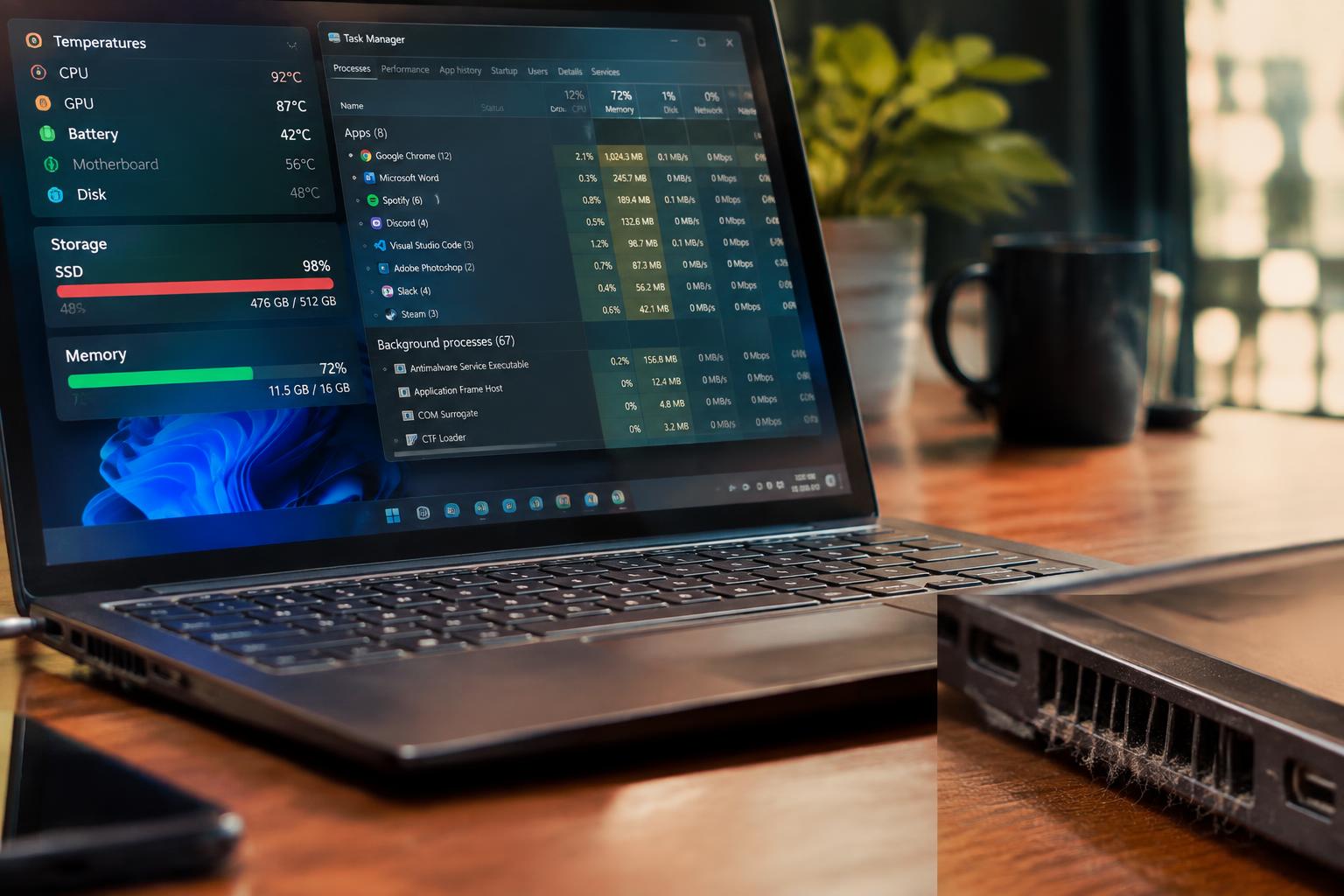
A laptop that slows down during a video call or takes minutes to open a file is signaling a specific performance bottleneck. Heat, full storage, and background apps affect speed in different ways, so the timing and pattern of each slowdown matter. A hot chassis paired with a loud fan, for instance, points to a different problem than a nearly full drive.
Key Takeaways:
- Heat-related slowdowns often coincide with loud fans, a hot chassis, and reduced performance during demanding tasks; monitoring CPU temperatures and clock speeds can reveal thermal throttling.
- A nearly full drive can slow file operations and system updates. Check free space and drive activity in File Explorer on Windows or Storage settings on macOS.
- Background apps consume CPU, memory, and disk resources even when they are not in use. Task Manager on Windows and Activity Monitor on macOS show which processes are using those resources.
Check for Overheating
Heat-related slowdowns tend to appear under sustained workloads, such as video calls, gaming, or exporting a large file. Track whether lag begins after several minutes and eases once the laptop cools; that pattern points toward thermal throttling, where the processor reduces speed to control temperature. Record the task, timing, and any visible warning, then repeat it under similar conditions. A repeatable heat pattern is more useful than a single brief slowdown.
Notice fan noise, hot surfaces, and sudden performance drops
Listen for fans running loudly for long periods during ordinary tasks, and note whether the keyboard deck or underside becomes unusually hot. A sudden drop in frame rate, sluggish response, or stuttering during a demanding task can accompany thermal throttling, especially after the fan noise rises. Place the laptop on a hard surface and check that its exhaust vents are not blocked; warm air should move freely from the openings.
Review temperatures and improve airflow with practical tips
Use a hardware monitoring utility, such as the manufacturer’s diagnostic app or a trusted temperature monitor, to observe CPU and GPU readings while the slowdown occurs. Compare those readings with the device maker’s published operating limits, since safe ranges vary by model. For a practical airflow test, set the laptop on a firm desk, clear lint from exterior vents, and retest the same workload. Persistent high temperatures or shutdowns warrant professional inspection.
| Observation | Likely significance | Practical check |
|---|---|---|
| Fan stays loud | Cooling system is under sustained load | Repeat the task and monitor temperatures |
| Performance drops as heat builds | Possible thermal throttling | Note timing and processor readings |
| Vents feel blocked or airflow is weak | Restricted cooling airflow | Clear exterior openings and use a hard surface |
Identify Storage Bottlenecks
Storage limits often show up as long startup times, delayed file searches, or pauses when opening large projects. A drive that is nearly full has less room for temporary files, updates, and working data, while a drive with slow or failing hardware can stall routine tasks. Look for a consistent link between sluggish response and disk activity, rather than relying on one slow launch. The distinction matters: low free space and declining drive health require different fixes.
Check free space, drive health, and disk activity
Start with File Explorer on Windows or Storage Settings on macOS to see how much space remains on the system drive. A nearly full drive can disrupt updates and leave little room for temporary data; remove files only after confirming they are backed up. Then inspect SMART status with a reputable drive utility, and watch Task Manager or Activity Monitor for sustained disk activity during pauses. Warning signs include read errors, unusual noises from an HDD, or a drive that repeatedly disconnects.
Compare HDD and SSD factors that affect responsiveness
Mechanical hard disk drives rely on moving platters and read heads, so scattered files and repeated small reads often take longer than they do on solid-state drives. An SSD has no moving parts, but low free space, wear, or a connection problem can still reduce responsiveness. Check the drive type in your system’s storage or device information, then note whether delays occur during file access or across all tasks. Drive type sets a useful baseline for startup and loading times.
- Check whether the system drive is the one running short on space.
- Review the Recycle Bin and Downloads folder before deleting files.
- Confirm that backups open before removing original files.
Find Performance Drain from Background Apps
Unnecessary background processes compete with the applications you are actively using, making routine tasks feel sluggish even when no single program appears busy. Identify which processes belong to software you recognize, then match their activity to symptoms such as delayed typing, stuttering audio, or slow app switching. A browser with many active tabs, a cloud-sync client, or an updater can consume resources unnoticed. Treat unfamiliar process names cautiously, and verify the publisher before ending a task or changing its settings.
Use system tools to review CPU, memory, and disk usage
Open Task Manager on Windows with Ctrl+Shift+Esc, then sort the Processes list by CPU, Memory, or Disk to find resource-heavy applications. On macOS, Activity Monitor provides the same per-process view, with separate tabs for CPU, Memory, and Disk. Check repeated activity during a slowdown rather than relying on a single reading; an installer can briefly spike CPU, while a browser may steadily occupy memory. For additional context on heat-related symptoms, see How to Fix Laptop Overheating and Rescue Your Data?
Disable unneeded startup apps and limit background activity
Review the Startup apps list in Task Manager or Login Items in macOS settings, and disable software you do not need immediately after signing in. Keep security tools, touchpad utilities, and essential system services enabled; removing them can impair protection or device controls. Turn off only recognized apps, such as a game launcher or meeting client that rarely runs, then restart and confirm your usual workflow still works. Windows users can also restrict background permissions for supported apps through Settings.
- Sort Task Manager by CPU to spot a process that remains busy while idle.
- Use Activity Monitor’s Memory Pressure graph to see whether apps are straining available memory.
- Check an app’s publisher and file location before ending an unfamiliar process.
- Record any startup item you disable so you can restore it if needed.
Apply a Step-by-Step Diagnostic Routine
Start with the conditions you can observe, then change one setting or behavior before moving to the next suspected cause. Note whether the slowdown appears during a specific task, such as video calls or file transfers, and record any fan noise, storage warnings, or unexpected app activity. A consistent test sequence prevents one fix from masking another. Keep the laptop connected to its usual power source and repeat the same task for each test.
| Step | What to do | What to observe |
|---|---|---|
| Set a baseline | Repeat a familiar task | Load time and responsiveness |
| Test one cause | Change one condition | Any immediate difference |
| Recheck | Repeat the same task | Whether the change persists |
Test one suspected cause at a time
Choose the symptom that best matches the slowdown, such as heat and loud fans, delayed file access, or high CPU use in Task Manager or Activity Monitor. Change only one variable: close a resource-heavy app, free space on the system drive, or let the laptop cool before repeating the task. Record the result before testing another cause. Changing one variable makes it easier to identify whether an app, storage pressure, or heat affected the result.
Recheck performance after each change
After each adjustment, repeat the same workload under similar conditions, using the same files, browser tabs, or video call task. Give the system time to settle, then compare startup delay, app response, fan behavior, and activity in the relevant system monitor. If performance improves only while a particular app is closed, reopen it to confirm the pattern. Repeatable results distinguish a lasting improvement from a brief change, such as a faster file opening after a restart.
Prevent Recurring Slowdowns
Keep performance steady by making laptop care part of your routine rather than waiting for a slowdown to return. A brief weekly review of airflow, available storage, and automatic app launches catches small changes before they disrupt work. Use your operating system’s built-in settings to manage startup behavior and storage, and keep a simple note of unusual temperature spikes or recurring alerts. Consistent maintenance gives you a clear baseline for spotting changes.
Keep vents clear and review temperatures
Place your laptop on a hard, flat surface so its intake and exhaust vents remain unobstructed; bedding and soft cushions can trap heat against the chassis. Clear dust around vent openings with a soft brush, following the manufacturer’s cleaning guidance, and avoid inserting tools into the case. Review CPU or GPU temperatures with a reputable monitoring utility during your usual workload. Persistent high temperatures under light use warrant attention, especially if the fan runs loudly or performance drops.
Schedule storage cleanup and startup-app checks
Set a recurring calendar reminder to remove temporary files, uninstall software you no longer use, and empty the recycle bin after confirming its contents. Keep adequate free space on the system drive for updates and temporary working files; Windows Storage settings and macOS Storage Management show where space is being used. Review startup apps after installing new software, disabling only programs you recognize and do not need at login. Retain security tools and other essential utilities.
| Maintenance task | Routine | What to check |
|---|---|---|
| Vent care | Weekly visual check | Clear airflow around intake and exhaust vents |
| Temperature review | During typical workloads | Recurring heat spikes, loud fans, or performance drops |
| Storage cleanup | Recurring calendar reminder | Temporary files, unused software, and system-drive space |
| Startup-app review | After software installations | Unneeded launches while retaining essential utilities |
Summing up
Reliable diagnosis starts with matching symptoms to evidence: rising temperatures and fan noise point toward cooling trouble, slow file access suggests a storage bottleneck, and sluggishness that eases after closing programs points to background activity. Use Task Manager or Activity Monitor to identify resource-heavy processes, and review drive health and free space before replacing hardware. Once you isolate the cause, apply the corresponding fix and retest the same workload, such as opening your usual applications while monitoring CPU, memory, and disk use.
FAQ
How can I tell whether laptop overheating, storage, or background apps are causing slow performance?
Check temperatures, available storage, drive activity, and CPU and memory use in your system tools to identify the likely cause. Change one thing at a time and check performance again, since several issues can occur together and a single symptom may not identify the cause.
How long does it take to diagnose a slow laptop?
A basic check of temperatures, storage space, and active processes can take a few minutes, while testing changes may take longer. The time depends on how many possible causes you need to rule out and whether you need to check drive health or restart the laptop.
Can fixing laptop slowdowns delete my files or damage the computer?
Checking system activity, clearing unneeded files, and disabling unnecessary startup apps generally do not require deleting personal files or opening the laptop. Be cautious before removing files you do not recognize, changing system settings, or attempting hardware repairs, and back up important data before risky changes.
Should I replace my laptop’s hard drive with an SSD if it feels slow?
An SSD can improve responsiveness when an older hard drive is the main bottleneck, especially during startup and file loading. It will not resolve slowdowns caused by overheating, insufficient memory, or background apps, so check drive activity and health before paying for an upgrade.
What are the most common mistakes when troubleshooting a slow laptop?
The most common mistakes are changing several settings at once, disabling unfamiliar processes, and assuming every slowdown means the laptop needs new hardware. Test one likely cause at a time, and check temperatures, storage, and resource use before deciding on repairs or upgrades.