
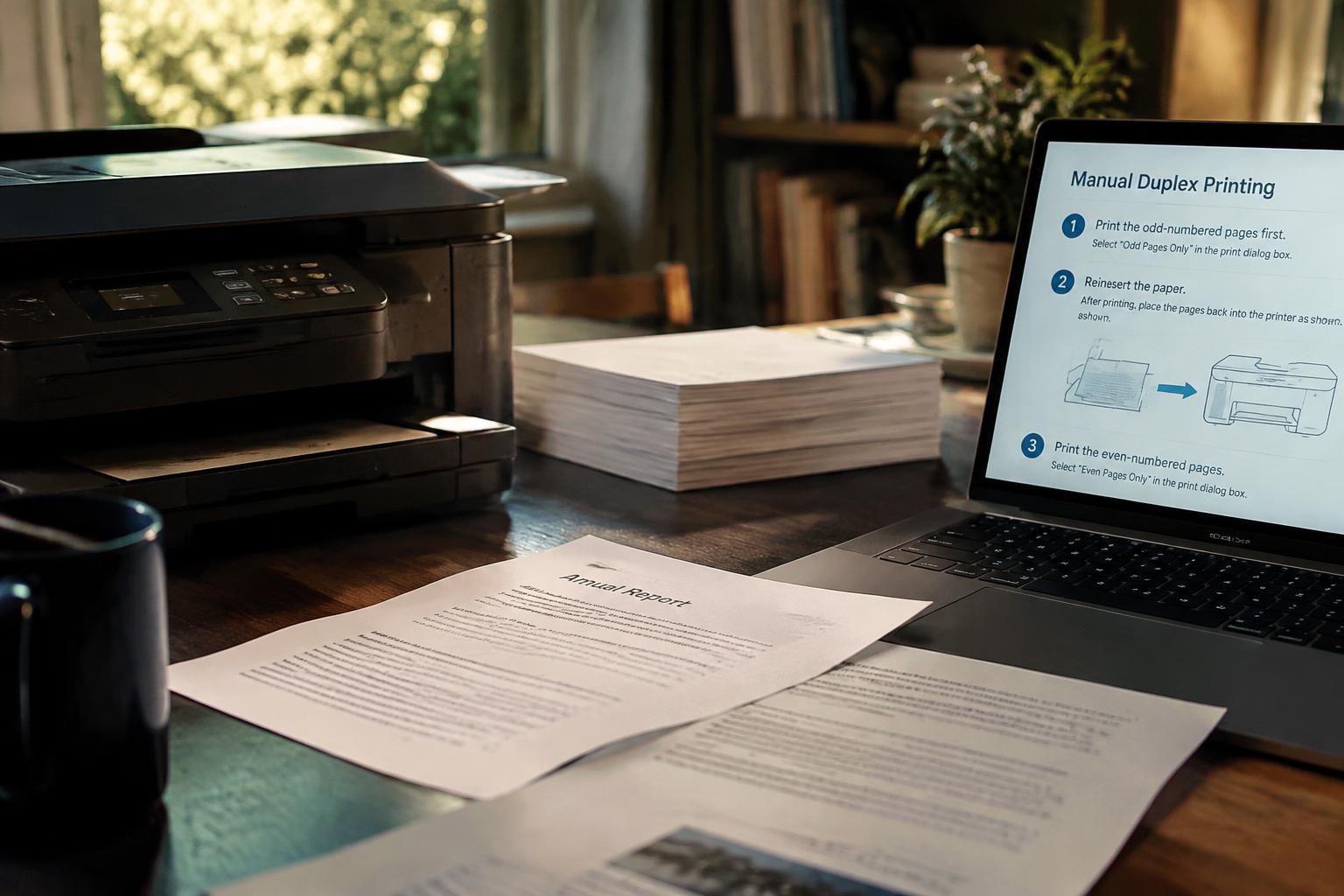
Printing on both sides does not require an automatic duplexer: you can print one side, reload the pages, then print the reverse. The key is preserving page order and orientation, since a misplaced stack can put the second side upside down or pair pages incorrectly. Your printer’s paper path determines how to reload each sheet.
Key Takeaways:
- Manual duplexing prints one side of each sheet first, then requires you to reload the paper and print the reverse sides.
- Use your printer’s paper-path instructions to determine the correct stack orientation and feed direction before printing the full document.
- For reliable page order, print odd-numbered pages and even-numbered pages as separate passes, adjusting the even-page order if your printer feeds sheets differently.
Prepare Your Printer and Documents
Before opening the print dialog, confirm that the printer is loaded with the correct paper size and that the document’s page dimensions match it. Use clean, uncreased sheets, and check the tray guides so the stack feeds squarely rather than at an angle. Review the printer’s paper type and quality settings, since heavy stock behaves differently from ordinary copy paper. A short test run on plain paper can reveal scaling or alignment problems before you use a full stack.
| Item | What to check | Why it matters |
|---|---|---|
| Paper size | Tray and document use the same size | Prevents clipping or unexpected scaling |
| Paper condition | Sheets are clean, flat, and dry | Reduces skew and feed problems |
| Print settings | Paper type and orientation match the job | Keeps layout and output consistent |
Confirm the printer’s paper-feed direction
Check the printer manual or tray markings to identify which side of a sheet faces up and which edge enters first. Feed direction differs across models, including printers with rear slots and front-loading trays, so do not assume the printed side faces the same way on every device. Mark one corner of a spare sheet, run a single-sided test, and inspect where the mark appears. That result confirms the printer’s feed orientation before you print the document.
Set page order, orientation, and print range
Open the document’s print preview and verify that portrait or landscape orientation matches the page design. Choose the intended paper size, confirm that scaling is set appropriately, and inspect pages with wide tables, images, or footnotes for clipping. Set the required page range rather than sending unwanted blank or cover pages to the printer. For a selected range, verify the first and last page numbers in the dialog, then review the preview for correct page order.
Choose a Manual Duplexing Method
Your choice depends on how much control your document and printer software provide. Odd-and-even-page printing sends each page group as a separate job, while selecting pages individually gives you finer control over unusual layouts or printer limitations. Both methods require a clear page order and attention to the document’s orientation. Before printing, identify whether the file has an even page count and whether its pages use portrait, landscape, or mixed layouts.
Use the printer’s odd-and-even-page options
Many print dialogs offer settings labeled Odd pages only and Even pages only, which divide a document into two predictable print jobs. Choose this method for a straightforward report or handout with consistent page orientation, since the software handles page selection automatically. Confirm the option applies to the full document rather than only the current selection. A 12-page file, for instance, produces six odd-numbered pages and six even-numbered pages.
Print selected pages manually
For mixed page sizes, chapter inserts, or software without odd-and-even controls, enter page numbers directly in the print dialog. Print one set, then specify the remaining pages as a second job, using a comma-separated list or page ranges supported by your application. Explicit page lists give you control over order, but a missed or repeated number can leave a page blank on one side. A six-page file can be split into pages 1, 3, 5 and pages 2, 4, 6.
- Check whether the print dialog accepts commas and hyphens in page ranges.
- Exclude cover pages if they should remain single-sided.
- Keep a written record of each page set for long documents.
Print Both Sides in the Correct Order
Manual duplexing depends on a sequence that matches your document’s page order to the way your printer feeds paper. Print one side, keep the sheets in their original order, then reload the stack with the correct face and edge toward the feed rollers before sending the remaining pages. Keep the stack in order throughout, and use a single test sheet if your printer’s paper path is unfamiliar. The table summarizes the sequence from first-side output to the completed document.
| Stage | What you do | What to preserve |
|---|---|---|
| First side | Print the odd or first-side pages | Page order |
| Reload | Return the stack to the paper tray | Face and feed edge |
| Reverse side | Print the remaining pages | Correct page pairing |
Print the first side and note the page order
Start by printing the first-side pages in the order specified by your chosen manual duplex method, often odd-numbered pages such as 1, 3, and 5. As the sheets leave the output tray, keep them stacked without turning or rearranging them. Record the output order, including whether page 1 is on top or at the bottom, because that determines how you reload the stack for the reverse pass.
Reload the stack with the correct side and edge
Place the printed sheets back in the input tray with the blank side positioned for printing, then align the edge that the printer feeds first. The required face-up or face-down orientation depends on the printer’s paper path, so follow the feed direction shown in its tray markings or manual. Keep the original sheet order as you reload, and avoid rotating the stack unless your printer feeds paper from the opposite edge.
Print the reverse side and check the finished document
Send the remaining pages to print in the order that pairs each reverse side with its corresponding first side. After the output tray is empty, gather the sheets in page order and turn through the document from cover to final page. Confirm that each page’s text reads upright and that page 2 sits behind page 1, with subsequent pairs following in sequence. Check the page pairing before fastening the finished stack.
Tips for Avoiding Common Duplexing Errors
Consistent handling prevents the most common manual duplexing problems: misfeeds, upside-down backs, and sheets that fail to print. Keep the pages in their original order, use the same orientation throughout, and pause if the printer pulls more than one sheet. Handle the stack gently rather than tapping or flexing it aggressively, which can separate sheets unevenly. A quick inspection before the second pass can catch a curled corner or shifted page before it jams the feed path.
Test with a small page range
Before printing a long document, send a short range that includes at least two pages on each side of the paper. Mark the top edge of the test sheets lightly in pencil, then reload them exactly as you plan to handle the full stack. Inspect both sides in reading order to confirm orientation and sequence. If a page is inverted or missing, correct the reload position before printing the remaining pages.
Keep the stack aligned and use consistent paper
Square the sheets against a flat surface before returning them to the input tray, and keep their top edges facing the same direction. Use paper of one size and weight throughout the job; mixed or curled sheets can feed at different angles or cause a pickup failure. Set the tray guides snugly against the paper without bending it, and remove damaged sheets. A flat, uniform stack should sit below the tray’s fill line.
- Remove paper clips, staples, and sticky notes.
- Fan fresh paper lightly before loading it.
- Keep the output tray clear between passes.
- Wait for the printer to finish ejecting every sheet.
Factors That Affect Print Quality and Efficiency
Paper, page arrangement, and batch size shape how reliably you can handle a manual duplex job. Keep the layout consistent across both passes, and choose a batch you can turn and reload without mixing page order. A short test run on the same stock reveals whether the sheet handles the printer’s feed path as expected. For PDF workflows, Microsoft Print to PDF won’t print automatic duplex explains the software’s duplex limitation.
Paper weight and printer feed path
Choose paper within the weight range listed for your printer, since heavier stock can feed differently and may resist a tight turn through the rollers. Keep each stack square and load it according to the tray’s orientation marks, with the same edge leading on every pass. Consistent feed direction reduces the chance of skewed backs, while ordinary copier paper is generally easier to turn and reload than thick cardstock.
Page count, orientation, and ink coverage
Set the document’s orientation before splitting the job, because a portrait stack and a landscape stack require different handling during the return pass. Divide large documents into manageable batches, keeping each batch’s page order intact as you flip and reload it. Pages with heavy ink coverage can remain damp or curl more than text-only sheets, so allow them to dry before stacking; dry, flat pages feed more evenly on the second pass.
| Factor | Manual-printing consideration | Practical effect |
|---|---|---|
| Paper weight | Stay within the printer’s specified range | Supports reliable feeding and turning |
| Orientation | Keep portrait or landscape settings consistent | Preserves front-to-back alignment |
| Batch size | Use stacks you can turn without disturbing order | Reduces page-mixing risk |
| Ink coverage | Let heavily printed sheets dry before stacking | Limits smearing and curl |
To wrap up
Manual duplexing lets you print on both sides even when your printer lacks automatic two-sided printing. Print the odd-numbered pages first, return the stack to the input tray in the correct orientation, then print the even-numbered pages. A short test with a few sheets reveals how your printer feeds paper and prevents reversed backs or pages out of order. Once you confirm the reloading direction, use the same steps for the full document.
FAQ
How long does it take to print double-sided documents manually?
Manual double-sided printing usually takes longer than automatic duplexing because you must reload the paper between sides. The time depends on the number of pages, printer speed, and how carefully the stack needs to be checked; a short test run can help prevent reprinting.
Can I print double-sided if my printer does not support automatic duplexing?
Yes, you can print double-sided by printing one side, reloading the paper, and printing the other side. The correct way to reload the stack depends on how your printer feeds and outputs paper, so test a few pages first to confirm the orientation.
What mistakes should I avoid when printing on both sides manually?
The most common mistakes are reloading the stack with the wrong side or edge first, changing its order, and choosing an incorrect page orientation. Run a small test, keep the pages aligned, and verify the printed side and order before printing a long document.
Is manual double-sided printing worth the extra time?
Manual double-sided printing can be worthwhile when you need to use less paper and your printer lacks automatic duplexing. It takes extra handling and can require reprinting if the stack is reloaded incorrectly, so single-sided printing may be more practical for urgent or high-volume jobs.
What can I do if manual duplex printing keeps causing paper jams or misaligned pages?
Use paper that feeds reliably, keep the stack neat, and reload only the amount your printer can handle comfortably. If jams continue, print smaller page ranges and check the printer’s feed path for obstructions; thick or curled paper can also make manual feeding less reliable.