
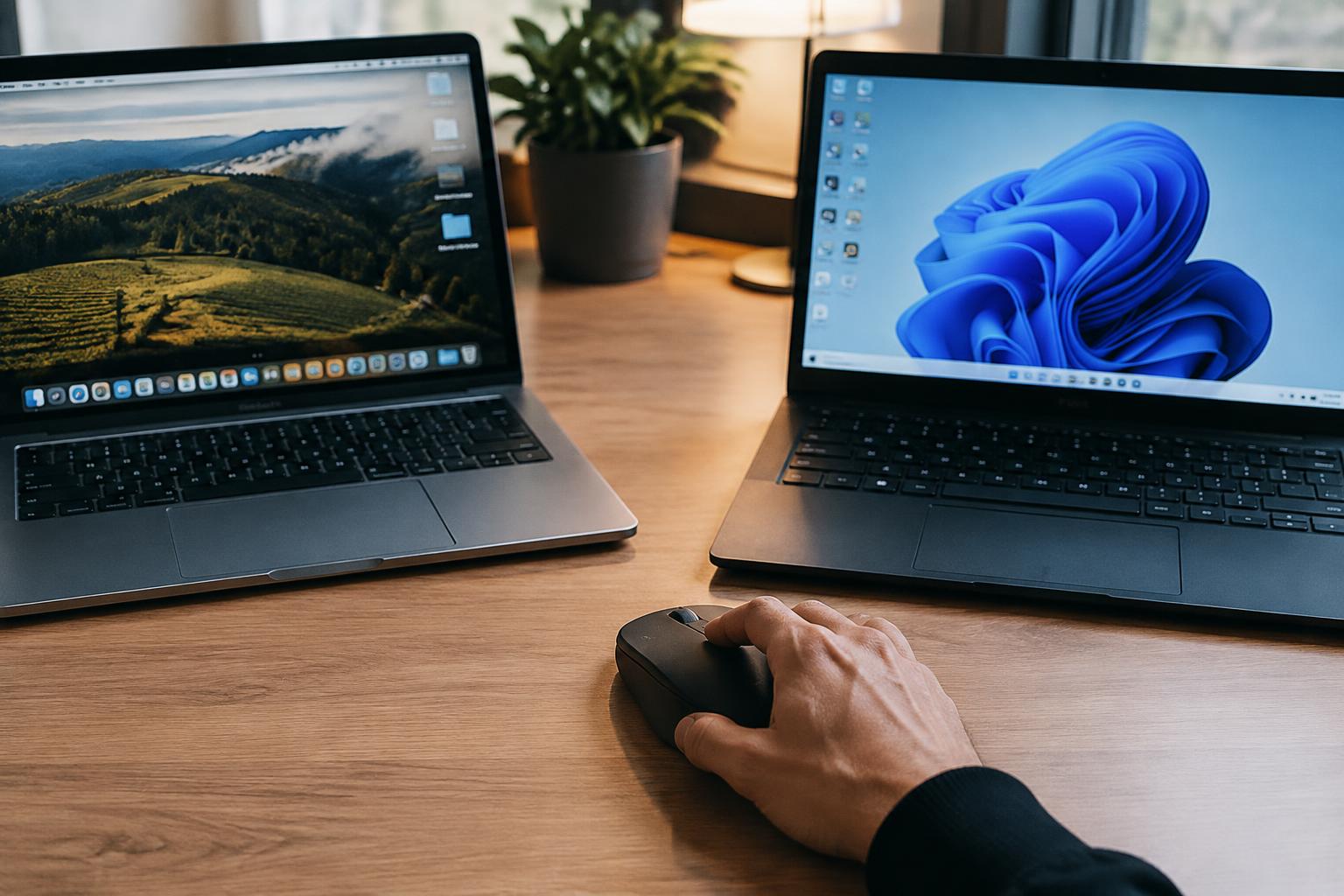
Switching a Bluetooth mouse between your work laptop and home computer does not always require pairing it again. Many mice store connections to multiple devices, but typically connect to only one at a time, so you need a way to select the active computer. Stored pairings keep each computer recognized, while a dedicated device-switch button makes changing hosts straightforward.
Key Takeaways:
- A Bluetooth mouse can be paired with two computers, but most models connect to only one computer at a time.
- Switching between computers without pairing again requires a mouse with multiple device slots, usually selected with a button on the mouse.
- A mouse with a single Bluetooth device slot must be disconnected from one computer and paired with the other before switching.
How Bluetooth Mouse Pairing Works
A Bluetooth mouse and a computer establish trust through a pairing exchange, then use a separate connection to carry pointer movement and button presses. The computer stores a pairing record that identifies the mouse and retains the information needed to recognize it again. That record is not the same as an active connection: the distinction explains why a mouse can remain paired even when it is not currently controlling the computer.
Pairing, reconnecting, and active connections
During pairing, your computer and mouse exchange identification and security information, then save matching records. On later use, the computer can authenticate the mouse from its stored record rather than repeating the initial setup. Reconnection uses that saved identity, while an active Bluetooth connection carries current input reports. A paired mouse can therefore appear in your computer’s device list while disconnected, and its pointer will not move until the connection is active.
Limits of standard Bluetooth mouse profiles
Standard Bluetooth mouse profiles describe how a mouse sends input, including movement and button events, to a host computer. They do not require the mouse to maintain independent active connections to multiple computers or to transfer one connection between hosts. Your operating system manages its own pairing record, so a record saved by one computer is not automatically available to another. Pairing compatibility does not mean shared control; each host recognizes the mouse through its own Bluetooth settings.
- Bluetooth settings display the mouse’s discoverable name.
- Pairing confirmation may appear as a system notification.
- Low batteries can interrupt radio communication.
Sharing One Mouse Between Two Computers
For two computers on the same desk, your best approach depends on whether you need to move the pointer between screens or switch control manually. A mouse with multiple device profiles changes hosts at the press of a button, while network software transfers control across connected computers. A USB switch takes a different route by redirecting a receiver between machines. These methods differ in how they handle screen transitions, network access, and the mouse’s existing Bluetooth connections.
| Method | How control changes | Typical requirement |
|---|---|---|
| Multi-device mouse | Press a device button | Mouse with stored host profiles |
| Network sharing software | Move the pointer across screens | Computers on a compatible network |
| USB switch | Redirect a connected receiver | USB receiver or wired mouse |
Multi-device mice with a switching button
With a multi-device mouse, you pair each computer with a separate device profile, then press the mouse’s host-switch button to change control. The pointer does not travel between displays; you select the active computer directly, which suits desks where the machines run separate networks or operating systems. Switching usually takes only a moment, though the mouse controls just one host at a time. A laptop and desktop can each retain their own saved Bluetooth pairing.
Software-based sharing over a network
Network sharing software lets you move the pointer from one computer’s screen to another, much like crossing between extended monitors. You install and configure the software on both machines, then connect them through a shared local network. This can feel natural when the computers sit side by side, but access permissions and firewall rules matter because the application communicates between hosts. Depending on the tool, you may also share a keyboard or clipboard alongside the mouse.
USB switches and Bluetooth adapters
A USB switch redirects a connected USB device, such as a mouse receiver, from one computer to another when you press its button. This is distinct from changing Bluetooth pairings: a standard Bluetooth adapter plugged into one computer does not automatically let the mouse control a second host. For a Bluetooth mouse, the switch must support the connection path you intend to share, or you can use a dedicated USB receiver if the mouse supports one. Expect manual host changes rather than pointer movement between screens.
Choosing a Reliable Switching Method
Choose a switching method based on how you use both computers, not just how quickly the mouse changes targets. A dedicated hardware button is convenient at a shared desk, while software switching can suit computers used together on one network. The best fit depends on whether both operating systems support the mouse’s features and whether you can tolerate brief pauses or occasional reconnects. Give priority to consistent control over extra features you will rarely use.
Computer and operating-system compatibility
Check the mouse manufacturer’s compatibility details against each computer’s operating system and Bluetooth version. A mouse with onboard device profiles typically switches between paired computers without relying on a particular desktop utility, while software-based switching depends on supported applications and permissions. Feature support can differ across Windows, macOS, and Linux, even when basic pointer movement works on all three. Confirm that each computer supports the mouse’s multi-device function, not merely standard Bluetooth input.
Switching speed and reliability
Hardware switching usually gives you a direct, predictable change because a button selects the stored device profile. Software tools can move the pointer between computers without a button press, but their performance depends on active network communication and application behavior. Watch for delays after a computer wakes from sleep, since its Bluetooth adapter may need time to reconnect. Stable reconnection matters more than a near-instant switch if you frequently resume work on a laptop.
Security and network requirements
Bluetooth device switching and network-based software switching have different security requirements. A hardware button changes the mouse’s selected Bluetooth connection, so it does not require the computers to share a network. Software that passes input between machines often needs local network access, and some workplace firewalls or privacy settings can block that traffic. Review network permissions before using such a tool on managed computers, especially if its configuration allows clipboard sharing alongside mouse control.
- Check whether the mouse stores device profiles internally.
- Look for a clear channel indicator on the mouse.
- Confirm that a USB receiver is included if Bluetooth is unavailable.
Setting Up the Mouse Without Repeated Pairing
Set up each computer with its own saved Bluetooth connection before relying on the mouse’s switching controls. A multi-device mouse stores separate host pairings, while compatible software can associate each host with a profile or button assignment. Keep the computers’ Bluetooth settings available during setup, and follow the manufacturer’s pairing sequence; devices differ in how they enter pairing mode. For a general explanation of shared Bluetooth connections, see Can a single Bluetooth device be connected with multiple devices?
Pair the mouse with each computer
Start with the mouse’s first device slot, then open Bluetooth settings on your first computer and select the mouse when it appears. Confirm the connection before moving to another slot. Put the mouse into pairing mode again, choose its next host channel, and pair it from the second computer’s Bluetooth menu. Use a separate slot for each computer, rather than removing the first saved connection; the computer should retain the mouse in its paired-device list.
Assign devices to mouse profiles or software
Open the manufacturer’s configuration utility after both computers have saved their pairings. On models with onboard host channels, assign each channel to the matching computer and save the selection in the mouse’s memory if that option is available. Software-based profiles instead associate settings with a detected host, so install the utility and grant requested permissions on each computer. Keep channel assignments consistent, such as slot one for your desktop and slot two for your laptop.
Switch between computers
Use the mouse’s device button or channel selector to move between its saved hosts. Press the control once to select the slot assigned to the other computer, then allow the mouse to reconnect; the computer’s Bluetooth menu should still list the original pairing. Some models show the active channel with an indicator light, while others use a brief on-screen notification from their utility. Switch by saved slot, not by pairing the mouse again.
| Setup item | Computer one | Computer two |
|---|---|---|
| Mouse channel | First saved slot | Separate saved slot |
| Bluetooth pairing | Pair from system settings | Pair from system settings |
| Switching control | Mouse device button | Mouse device button |
Troubleshooting Connection and Switching Problems
Failed reconnections usually trace to a stored Bluetooth connection, an outdated pairing record, radio interference, or an inconsistent power state. Work through these causes separately, changing one setting at a time so you can identify whether the mouse, computer, or wireless environment is responsible. A mouse that appears connected but does not move the pointer often needs a fresh connection, while repeated dropouts point more often to signal or power problems.
Mouse reconnects to the wrong computer
When your mouse returns to the wrong computer, its firmware is usually reconnecting to the last active host rather than the one you intend to use. Turn Bluetooth off on the unintended computer, then select the correct host with the mouse’s device button or pairing control. If the mouse has no dedicated switching control, remove its connection from the unwanted computer before pairing again; otherwise, that computer may reclaim the connection as soon as it wakes.
Pairing records or device slots are lost
A missing pairing record can follow a mouse reset, a Bluetooth settings cleanup, or an operating system update that removes saved devices. Put the mouse into pairing mode and add it again through the computer’s Bluetooth settings, rather than selecting an old, inactive entry. For a multi-device mouse, confirm that the intended computer is assigned to the correct device slot; resetting the mouse can erase stored host details and require fresh pairing on each computer.
Bluetooth interference and power issues
Dropouts often occur when a mouse sits far from the computer, behind a metal monitor stand, or near a busy 2.4 GHz wireless device. Move the mouse closer and place the computer’s Bluetooth antenna away from USB 3.0 hubs, which can create radio noise. Check the battery level or charge the mouse, then disable power-saving settings that suspend Bluetooth during idle periods. A low battery can make reconnection unreliable even when the operating system still lists the mouse as connected.
- Remove duplicate mouse entries from Bluetooth settings.
- Install the computer maker’s current Bluetooth driver.
- Keep the mouse sensor and underside free of dust.
Alternatives and Practical Limitations
Switching depends on what your mouse supports and how each computer handles its Bluetooth connection. A model with only one stored host cannot independently move between two computers without reconnecting, while a multi-device mouse can switch among saved hosts using a button or dial. Operating-system settings and workplace security policies can also restrict Bluetooth access. These limits make device compatibility as relevant as the mouse’s advertised switching features.
| Option | How switching works | Practical limitation |
|---|---|---|
| Separate mice | Each mouse stays paired to one computer | Requires desk space for both |
| Multi-device mouse | Switches among saved host profiles | Depends on supported device slots |
| USB sharing switch | Routes one receiver between computers | Requires a compatible receiver |
Using separate mice or a shared keyboard-and-mouse system
Separate mice give each computer a dedicated connection, so you avoid switching delays and pairing changes; the tradeoff is extra desk space and another device to charge or maintain. A USB sharing switch offers a different arrangement when your mouse uses a USB receiver: connect the receiver to the switch, then select which computer controls it. For broader desk sharing, a hardware KVM can route a keyboard and mouse together, but Bluetooth-only mice do not connect directly to every KVM.
When repeated pairing may still be necessary
Repeated pairing is still necessary when your mouse stores only one Bluetooth host and you move it between computers, because disconnecting does not add a second saved profile. You may also need to pair again after clearing the mouse’s memory, replacing its battery if its settings reset, or removing it from a computer’s Bluetooth device list. A computer that blocks new Bluetooth devices through security policy can prevent reconnection until an administrator permits pairing.
Final Words
You can use one Bluetooth mouse with two computers without repeatedly pairing it when the mouse supports multiple device profiles. Select the stored computer with its device-switch button, or use a compatible software feature such as Logitech Flow when both machines meet its requirements. A mouse limited to one Bluetooth profile generally needs to be paired again when you move it between computers. Check the model’s specifications for multi-device support before relying on a switching workflow.
FAQ
Can two computers share the same Bluetooth mouse without repeated pairing?
Yes, if the mouse supports multiple device profiles, you can pair it with both computers once and switch between saved profiles. A standard single-device mouse may need to disconnect and reconnect, and some models require pairing again if a saved profile is cleared.
How long does it take to set up one mouse for two computers?
Setup usually takes a few minutes when the mouse has a device switch and both computers have Bluetooth enabled. Software-based sharing can take longer because it requires installing and configuring compatible software on both computers, and network settings may need adjustment.
Can sharing a Bluetooth mouse between two computers create security risks?
A Bluetooth mouse paired directly with each computer generally does not expose files between them. Network-based sharing software sends input across the network, so use trusted software and a secure network, especially if either computer handles sensitive information.
Why does my mouse keep connecting to the wrong computer?
The mouse may be reconnecting to the last computer it used or switching to a different saved device profile than expected. Select the intended profile on the mouse, and temporarily turn off Bluetooth on the other computer if it keeps taking the connection.
Is a multi-device mouse better than using a USB switch?
A multi-device mouse is often the simplest option if it supports both computers and lets you switch reliably. A USB switch can suit a mouse that lacks device profiles, but it switches a connected USB receiver rather than making one Bluetooth mouse independently control two computers.