
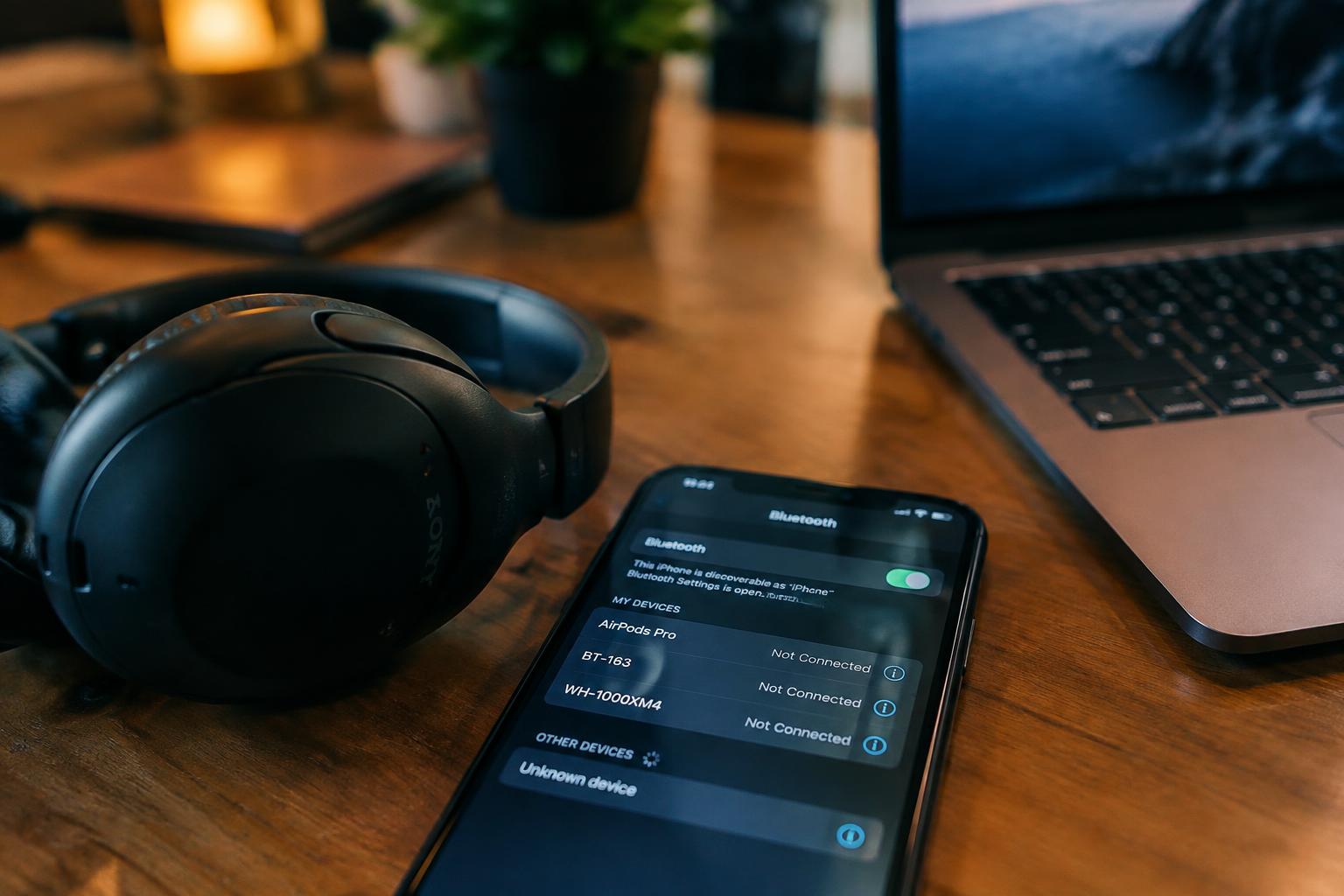
Your headphones connect to a laptop just as a call starts on your phone, sending audio to the wrong place. This usually happens because both devices have saved pairing details or the headset supports multipoint connections. You can regain control by adjusting Bluetooth settings and removing outdated pairings, while preserving access to your preferred device.
Key Takeaways:
- Bluetooth headphones often connect to the wrong device because they automatically reconnect to a previously paired phone, tablet, or computer, especially when several are nearby.
- Turn off Bluetooth on the unwanted device, disconnect the headphones in its Bluetooth settings, or disable multipoint and automatic switching in the headphone app to stop an unwanted connection.
- If the headphones keep reconnecting to the wrong device, remove their pairing from each device, reset the headphones using the manufacturer’s instructions, then pair them with the intended device first.
Why Headphones Connect to the Wrong Device
Your headphones choose connections from a changing set of signals, not from a simple rule that favors the device you used last. A phone, laptop, and tablet can all remain eligible after earlier pairings, while automatic switching responds to whichever device becomes active. The result is familiar: audio moves to a work laptop as a call starts, or playback pauses on your phone when a tablet wakes. Saved pairings and switching behavior explain why the handoff can feel unpredictable.
How Bluetooth Multipoint and Pairing Memory Work
With Bluetooth multipoint, your headphones maintain connections to two or more devices at once, though the model determines how many and how it handles audio. Pairing memory is different: it stores devices your headphones have previously paired with, so they can reconnect without a fresh setup. A headset might remember your phone, laptop, and television but actively connect to only two. When one remembered device requests a connection, it may take priority over the audio you are already hearing.
Factors That Influence Which Device Connects First
Recent activity often shapes the connection order: an incoming call, resumed playback, or a newly opened laptop audio session can prompt a handoff. Headphone firmware and the device operating system also affect how connection requests are handled, and some models prioritize the last-used source while others favor calls. Range matters as well, since a nearby paired phone can reconnect before a laptop in another room. A laptop waking from sleep may reclaim the headphones when its audio service starts.
| Factor | What it affects | Typical example |
|---|---|---|
| Multipoint | How many devices stay connected | Phone and laptop remain linked |
| Pairing memory | Which devices can reconnect | A previously paired tablet requests access |
| Recent activity | Which source requests audio | A laptop call interrupts phone playback |
| Range | Which eligible device is reachable | A nearby phone reconnects first |
How to Stop Headphones From Switching Automatically
Control the connection behavior on both your headphones and the devices they remember. Manufacturer apps and Bluetooth settings often provide separate controls for simultaneous connections, automatic switching, and active audio routing, so a single change may not cover every device. Make adjustments while your headphones are connected, then test with the phone, computer, or tablet you use most. Keeping the preferred source active and limiting automatic connection behavior reduces unexpected audio handoffs.
Turn Off Multipoint or Automatic Device Switching
Open your headphone maker’s companion app and look for settings labeled Multipoint, Connect to two devices, or Auto switch. Disable the feature if you want audio to stay with one source; on some models, multipoint can remain enabled while you choose a preferred device. Apple users can also review automatic switching for AirPods in Bluetooth settings on each device. After changing the setting, play audio on your preferred source and confirm device switching is off.
Disconnect or Pause Bluetooth on Other Devices
Pause audio and disconnect your headphones from nearby devices that are not in use, especially a laptop that automatically reconnects after waking from sleep. On that device, open Bluetooth settings and select Disconnect, or turn Bluetooth off temporarily if you do not need wireless accessories. Closing a media app alone may leave the connection active. Keep the intended source connected while testing, and watch its Bluetooth panel for the headphones’ connected status.
- Disable Bluetooth on a spare phone during setup.
- Close conferencing apps that may claim audio output.
- Check whether a laptop reconnects after sleep.
How to Reset Pairings and Reconnect
Clearing stored Bluetooth connections gives your headphones a clean pairing setup, especially when several phones, tablets, or computers have been used with them. Work through the saved connections on each unwanted device, then pair the headphones only with your preferred device. Keep the headphones close to that device during setup, and use the manufacturer’s pairing instructions because button combinations differ by model. A fresh pairing record replaces the stale connection that was directing audio elsewhere.
| Step | Where to act | What it changes |
|---|---|---|
| Forget headphones | Unwanted device | Removes its saved pairing |
| Clear headphone pairings | Headphones, if supported | Erases stored device records |
| Pair again | Preferred device | Creates a new Bluetooth connection |
Forget the Headphones on Unwanted Devices
Open Bluetooth settings on each phone, tablet, or computer that should no longer claim the headphones. Select the headphone name and choose Forget This Device, Unpair, or the equivalent command; menu labels vary by operating system. Remove duplicate entries if the headphones appear more than once. Keep Bluetooth settings open until the saved entry disappears, so you can confirm the stale pairing is gone from that device.
Reset and Pair Headphones With Your Preferred Device
Check the headphone manual for its factory pairing reset, since the control sequence differs across models and may erase every saved device. After the reset, put the headphones into pairing mode and select their name in Bluetooth settings on your preferred device. Confirm the status reads connected before playing audio. Pair only with the intended device during setup, and verify the listed headphone model rather than a similarly named accessory.
Tips for Keeping Headphones Connected to the Right Device
Consistent connection habits reduce the chances that a phone, laptop, or tablet will claim your headphones unexpectedly. Turn off Bluetooth on devices you are not using, and disconnect the headphones before handing them to someone nearby. Check which device is active before starting a call or video, since audio routing can change when a second paired device wakes. For background on repeat switching, read Why Does My Bluetooth Keep Connecting to Other Devices?
Set Your Preferred Device as the Primary Connection
Choose your everyday phone or computer as the headphones’ preferred device in the manufacturer’s app, if that setting is available. On multipoint models, review the connected-device list and remove old tablets or work laptops you no longer use. Keep the preferred device’s Bluetooth enabled before powering on the headphones, and avoid opening audio apps on a secondary device during connection. A shorter saved-device list makes the intended phone easier to identify in the Bluetooth menu.
Keep Firmware and Bluetooth Settings Up to Date
Check the headphone maker’s app for firmware updates, then install them while the headphones have a stable charge and connection. Update your phone or computer through its normal system settings, since Bluetooth compatibility depends on both ends of the connection. After an update, confirm that multipoint settings and saved device priorities remain as intended; some apps restore defaults. Keep automatic connection enabled only on devices you regularly use, such as your primary phone and personal laptop.
- Give each paired device a clear name, such as “Work laptop.”
- Close unused video-call apps that may claim audio output.
- Store headphones away from devices you do not want them to connect to.
Troubleshooting Persistent Connection Problems
When unwanted switching continues, isolate the fault before changing several settings at once. Check whether the connection follows a particular phone, computer, or headphone behavior, and note any error message shown in Bluetooth settings. One change at a time makes the cause easier to identify, while testing near the devices rules out a weak or unstable signal. Record which device connects first and whether the headphones stay connected after playback pauses.
Restart Devices and Check for Software Updates
Restart both the headphones and the device they keep connecting to, since a fresh Bluetooth session can clear a temporary connection error. Then open the phone or computer’s system update page and install any available operating system updates; check the headphone maker’s app for firmware updates as well. Use the manufacturer’s update tool rather than an unofficial file, and keep the headphones charged during installation to avoid an interrupted firmware update.
Test With One Device at a Time
Turn Bluetooth off on every nearby device except the one you want to test, then pair or connect the headphones to that device. Play audio, pause it, and reconnect after briefly turning the headphones off. A stable single-device test points toward competing saved connections or device switching, while a drop in this controlled setup suggests a fault with the headphones, their firmware, or the test device’s Bluetooth hardware. Note the exact point at which the connection fails.
| Test | What to do | What the result suggests |
|---|---|---|
| Restart | Power-cycle headphones and target device | A temporary connection error may clear |
| Software | Check system and headphone firmware updates | Outdated software may be involved |
| Single device | Disable Bluetooth on other nearby devices | Stability points to competing connections |
Final Words
Bluetooth headphones usually reconnect to a device they have paired with before, so controlling saved pairings and automatic switching is the most reliable fix. Remove unwanted devices from the headphone’s memory, disable multipoint or auto-switching when available, and select the intended headphones in your phone or computer’s Bluetooth settings. If the connection still goes to the wrong device, reset the headphones and pair them again, starting with the device you use most often.
FAQ
How do I stop Bluetooth headphones from connecting to the wrong device automatically?
Disable multipoint or automatic device switching in the headphone app or device settings, then disconnect the headphones from devices you do not want them to use. The exact controls depend on the headphone model and operating system, and some headphones do not offer automatic switching settings.
Can I stop my headphones switching devices without resetting them?
Yes, turn off multipoint or automatic switching, or disconnect the headphones from the other device. A reset is usually unnecessary unless the headphones keep reconnecting because of stale pairings or the settings changes do not solve the problem.
Will forgetting a Bluetooth pairing delete anything from my headphones?
Forgetting a pairing removes the saved connection between the headphones and that device, not audio files or other personal data. You will need to pair them again to reconnect, and some headphones may require you to clear saved devices using their app or controls.
How long does it take to reset and pair Bluetooth headphones again?
Resetting and pairing commonly takes a few minutes, but the time depends on the headphone model and how you access its reset controls. Check the manufacturer’s instructions first, since a reset may erase saved connections and the button sequence varies.
What should I try if my headphones still connect to the wrong device after I remove old pairings?
Restart the headphones and both devices, check for software or firmware updates, and test the headphones with one device at a time. If they still connect incorrectly, the cause may be a device setting or a headphone fault, so consult the manufacturer’s troubleshooting guidance.