
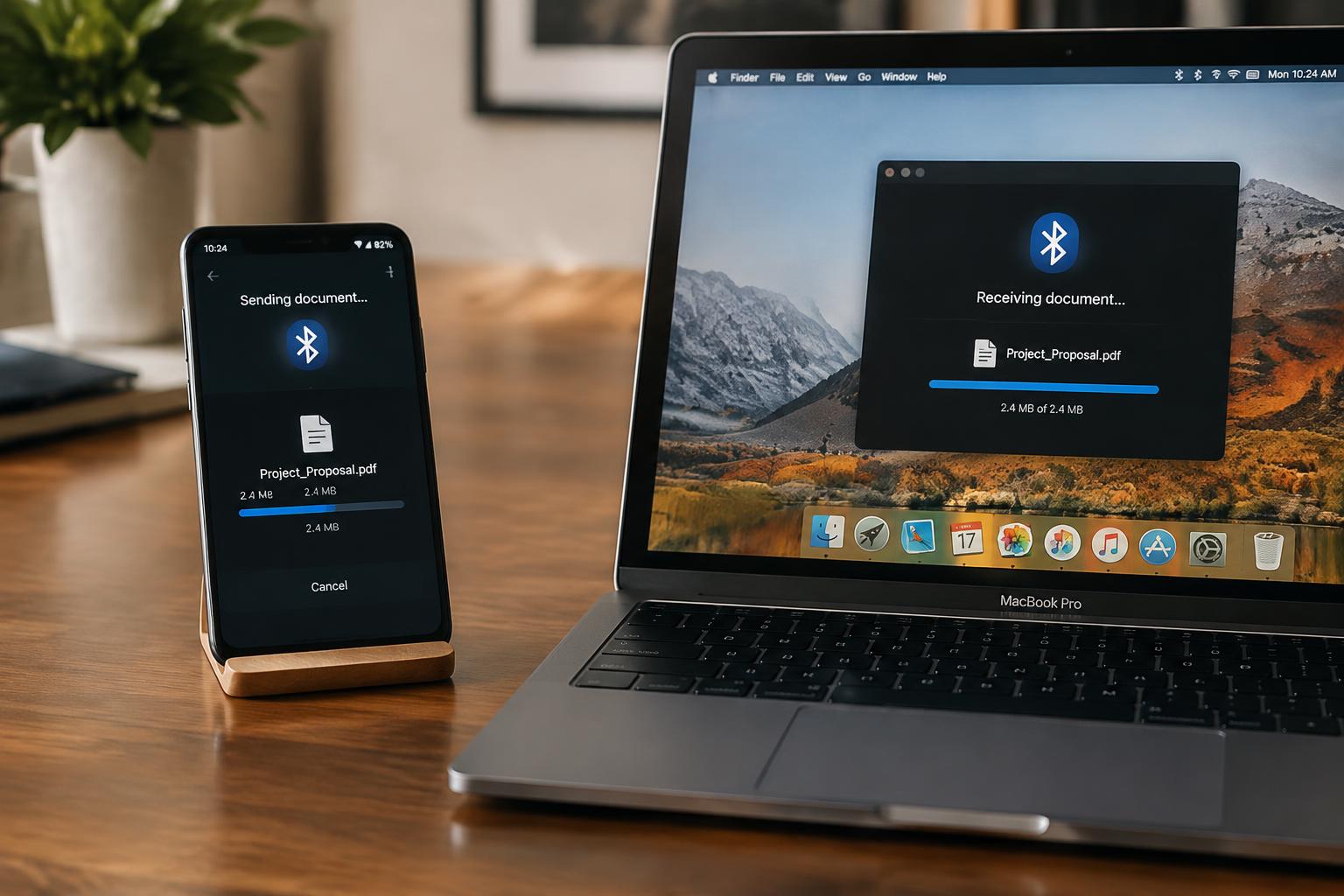
Moving a photo from an Android phone to a Windows laptop is usually straightforward, but cross-platform Bluetooth support varies, especially between Android, iOS, macOS, and Windows. Before you pair the devices, confirm that both operating systems support Bluetooth file transfer, not just audio or accessories. That distinction determines whether a file can move directly between them.
Key Takeaways:
- Bluetooth file transfer depends on operating system support, not just successful pairing. Android commonly uses Bluetooth file sharing, while iPhone and iPad do not support general Bluetooth file transfers to Android or Windows devices.
- For compatible devices, enable Bluetooth, pair them, then select the file and choose the receiving device. Keep both devices unlocked and accept the incoming transfer prompt.
- When the operating systems do not support direct Bluetooth transfers, use a method both devices accept, such as a local Wi-Fi transfer app, cloud storage, or a USB cable.
Check Compatibility Before You Transfer
Bluetooth appearing in both devices’ settings does not guarantee that they can exchange files. Your phones or computers must support a compatible file-transfer profile, and the operating systems must permit that function. Bluetooth availability alone is not enough, particularly when one device restricts file sharing to its own ecosystem. Confirm that each model supports sending and receiving files before preparing a transfer, rather than assuming that a successful Bluetooth connection includes file exchange.
Identify each device’s operating system and Bluetooth capabilities
Start with the exact operating system and device model on each side, since Bluetooth features differ across Android, iOS, Windows, and macOS. Look for file-sharing support in the manufacturer’s specifications or operating-system help, not just a Bluetooth toggle. Bluetooth file transfer support is distinct from audio, keyboard, or wearable-device connections. An iPhone, for example, does not offer general-purpose Bluetooth file exchange with Windows in the way some Android phones do.
Check supported file types, size limits, and transfer permissions
Confirm that the sender’s sharing feature accepts the file type and that the receiving device can store and open it. Operating systems or manufacturer tools can impose size restrictions, while storage settings may block incoming files when space is low. Permission to receive files also matters: managed work devices can disable Bluetooth sharing through administrator policies. Check access to the destination folder and available storage before selecting documents, photos, or archives.
- Verify that Bluetooth is enabled on both devices.
- Check that neither device is in airplane mode.
- Confirm the receiving device has free storage.
Pair Devices and Prepare Files
Before sending anything, place both devices close together and keep them awake until the transfer finishes. Bluetooth file sharing depends on a live connection, not just a saved pairing, so clear any pending prompts and close unrelated sharing windows. Check that the receiving device has enough free space for the selected items, then keep sensitive files private by approving requests only from the device you intend to use. Microsoft’s guidance on how to get a computer to send and receive files through Bluetooth offers a useful reference.
Turn on Bluetooth and make devices discoverable
Open Bluetooth settings on both devices and switch the radios on; keep each device’s screen active while they search. Set the intended recipient to discoverable or visible to nearby devices, since some systems stop advertising after a short interval. Avoid public or crowded locations when possible, and turn visibility off after pairing. Confirm that the names shown in the nearby-device list match the phone and computer you have in hand.
Pair devices and confirm the connection
Select the recipient’s name from the sender’s Bluetooth list, then compare the displayed pairing code on both screens before approving it. Accept the request on each device, and reject it if a code differs or an unfamiliar device appears. A successful pairing should show the other device as connected or saved, but file transfer still requires the receiver to accept incoming items. For more background, see how to get a computer to send and receive files through Bluetooth.
Choose files and check available storage
Open the file manager or gallery, select only the documents, photos, or other items you intend to send, and verify their names before sharing. Check the combined file size against the recipient’s available storage, especially for large videos or folders containing many images. Bluetooth transfers individual files more reliably than entire folder trees, so package a folder as an archive if the receiving device supports it. Keep the originals until the recipient confirms the files arrived intact.
| Preparation step | What to verify | Security check |
|---|---|---|
| Enable discovery | Both devices appear by name | Hide the receiver afterward |
| Pair devices | Codes match on both screens | Reject unexpected requests |
| Select files | Names and storage space are correct | Share only intended items |
Follow the Transfer Steps for Each Operating System
Transfer controls differ by operating system, so use the sending device’s sharing command and follow the receiving device’s on-screen approval prompt. Bluetooth file transfer is not supported in the same way on every platform, particularly on iPhone, where standard Bluetooth sharing from Windows or macOS is unavailable. Use a supported transfer route for each device pair, and confirm the file name and destination before accepting a transfer.
Transfer files from Windows to Android or iPhone
From Windows, open Bluetooth & devices in Settings, choose Devices, then select Send or receive files via Bluetooth and start a send. Pick the paired Android phone from the device list, browse to the file, and send it; on Android, accept the incoming transfer and choose where to save it. iPhone does not accept standard Bluetooth file transfers from Windows, so use a supported app or another sharing method for that pairing.
Transfer files from macOS to Android or Windows
On a Mac, open Bluetooth File Exchange from Applications, select the file, and choose the paired Windows PC or Android device as the recipient. On Android, approve the incoming request; on Windows, accept the transfer prompt and select a save location if asked. macOS Bluetooth File Exchange does not provide standard file sending to iPhone, so use an iPhone-compatible sharing app or service instead. Keep the Mac’s Bluetooth settings available while the transfer runs.
Receive files and approve transfer prompts
On the receiving device, keep the screen unlocked and approve the request only after verifying the sender and displayed file name. Android shows an incoming Bluetooth transfer notification, while Windows presents a prompt to accept the file and select its destination. Decline unexpected requests, especially when the sender is unfamiliar, and do not open files you did not ask to receive. Check the saved file in Downloads or the destination folder shown in the prompt.
- Send one file at a time when the platform’s picker does not support multiple selections.
- Keep both devices close together during the transfer.
- Leave the receiving device’s Bluetooth settings visible until it appears to the sender.
Troubleshoot Common Transfer Problems
Transfer failures usually stem from a mismatch in device visibility, pairing state, or the receiving system’s access rules. Check the Bluetooth status on both devices first, then use the steps below to isolate the fault before starting the transfer again. Error messages also provide useful clues: a pairing request that never appears points to discovery settings, while a transfer that stops after file selection often indicates a permission or connection issue. Identify where the process stops to narrow the fix.
| Symptom | Likely cause | First check |
|---|---|---|
| Device is not listed | Bluetooth visibility is off | Open Bluetooth settings on both devices |
| Pairing request fails | Stale pairing record or mismatched code | Remove the saved device and pair again |
| Transfer stops midway | Connection dropped or access denied | Check Bluetooth status and file permissions |
Fix devices that cannot find or pair with each other
Start by keeping both devices on their Bluetooth settings screens, since some systems stop advertising once you leave the discovery page. Confirm that each device is visible and close enough for a direct connection, then turn Bluetooth off and back on if the other device remains absent. Remove any old saved pairing on both sides and retry; approve the same pairing code on each screen, rather than dismissing the request on one device.
Restart interrupted transfers and check permissions
After a transfer stops, confirm that both devices still show an active Bluetooth connection, then resend the file from its original location rather than relying on a partial copy. Check the receiving device’s prompts and grant access to files or downloads if its operating system requests permission. On a computer, verify that the Bluetooth file-transfer window is still open; on a phone, keep the transfer notification visible. Inspect the destination folder for a complete file before opening it.
Tips for Faster, Safer Transfers
Transfer speed and file security depend on how you manage the connection, the files, and the receiving device. Keep both devices available for the full session, watch for operating system prompts, and avoid interrupting a transfer while files are being written. Confirm the destination before accepting incoming data, then review the received files for the expected names and formats. These simple checks reduce avoidable delays and help prevent misplaced or unwanted files.
Keep devices close and minimize interference
Place the sending and receiving devices near each other, ideally on the same desk, with their Bluetooth radios unobstructed. Walls, metal furniture, and nearby wireless equipment can weaken the connection or trigger retries, so move away from crowded areas if progress stalls. Keep both devices awake and Bluetooth enabled until the transfer completes. Stable proximity matters most when you are sending a large folder or several high-resolution photos.
Send smaller batches and verify received files
Break a large transfer into smaller groups, such as a few documents or images at a time, rather than selecting an entire mixed folder. Smaller batches are easier to retry if the connection drops and make it simpler to spot a failed item. After each batch, open the destination folder and confirm the files appear with usable names and sizes. Check file integrity by opening important documents or playing transferred media before deleting the originals.
Transfer sensitive files only to trusted devices
Before sending private documents, check the receiving device’s name on both screens and accept requests only when you initiated them. Set Bluetooth visibility to a limited or temporary mode where the operating system offers that option, and decline unexpected transfer prompts. Avoid sending confidential files in public places where nearby devices can request pairing. Verify the recipient carefully, especially when several phones or computers appear with similar device names.
- Close unused apps that are actively scanning or syncing files.
- Keep the receiving device’s storage from running out during the transfer.
- Pause audio streaming or other Bluetooth activity on either device.
Know When to Use Another Transfer Method
Bluetooth becomes impractical when the transfer involves large video files, many items, or a deadline, because its short range and modest throughput make progress slow and interruptions costly. It also requires both devices to stay nearby with Bluetooth enabled, which is inconvenient for remote transfers. For sensitive documents, assess where the data will travel and who controls the connection; an unfamiliar public network can introduce risks that a direct cable avoids.
| Method | Best suited to | Trade-off |
|---|---|---|
| Cloud storage | Remote access across operating systems | Requires an internet connection and account access |
| USB cable | Large transfers between nearby devices | Requires compatible ports and sometimes an adapter |
| Local sharing | Nearby devices on a trusted network | Availability and setup vary by operating system |
Consider cloud storage, cable connections, or local sharing
Cloud storage suits files you need to retrieve on different devices or in different locations: upload from one system, then download through the other device’s app or browser. A USB cable is often more practical for a large folder when both devices support data transfer, though you may need a USB-C adapter or a file-transfer utility. For nearby devices on the same trusted Wi-Fi network, local sharing avoids uploading files to a cloud account.
Compare speed, file size, and privacy needs
Choose based on the file’s size, your connection, and the sensitivity of its contents. A cable generally offers a steadier route for large media files, while cloud storage depends on your upload and download speeds. Local sharing keeps the transfer on your network, but its security depends on that network’s configuration. For confidential work documents, a direct cable connection avoids storing a copy with a cloud provider; a short text file rarely warrants that setup.
Conclusion
Bluetooth file transfers across operating systems work best when you confirm compatibility, pair both devices, and use the receiving system’s file-sharing tool. Android and Windows commonly support direct transfers, while iPhone and Mac workflows depend on Apple’s sharing features and may not interoperate with Bluetooth file transfer. For a large file or an unsupported device pairing, use a trusted alternative such as a cable or cloud storage. Before sending, verify the recipient and keep both devices unlocked until the transfer finishes.
FAQ
Can I transfer files over Bluetooth between devices with different operating systems?
Yes, you can transfer files over Bluetooth between different operating systems if both devices support Bluetooth file transfer and accept compatible file types. Some devices, especially iPhones and Macs, restrict transfers with non-Apple devices, so a cloud service, cable, or local sharing method may be needed instead.
How long does it take to send a file over Bluetooth?
The transfer time depends on the file size, Bluetooth versions, distance, and interference. Small files may transfer quickly, while large videos or batches can take much longer; keep devices nearby and use another method if speed matters.
Is it safe to send files over Bluetooth to another device?
Bluetooth file transfers are generally suitable for trusted devices when you confirm the recipient before accepting a file. Avoid accepting unexpected transfers, and do not leave a device discoverable longer than needed, especially in public places.
Why does my Bluetooth file transfer keep failing?
A transfer can fail if devices are out of range, not properly paired, low on storage, or blocking the file type or transfer permission. Keep the devices close, check available space and prompts, then retry; large files may be more reliable over a cable or network.
What is the best alternative to Bluetooth for sending large files between different devices?
A cable, cloud storage, or local network sharing can be a better choice for large files or faster transfers. The right option depends on which methods both devices support and whether you have reliable internet or prefer to keep the files off cloud services.