
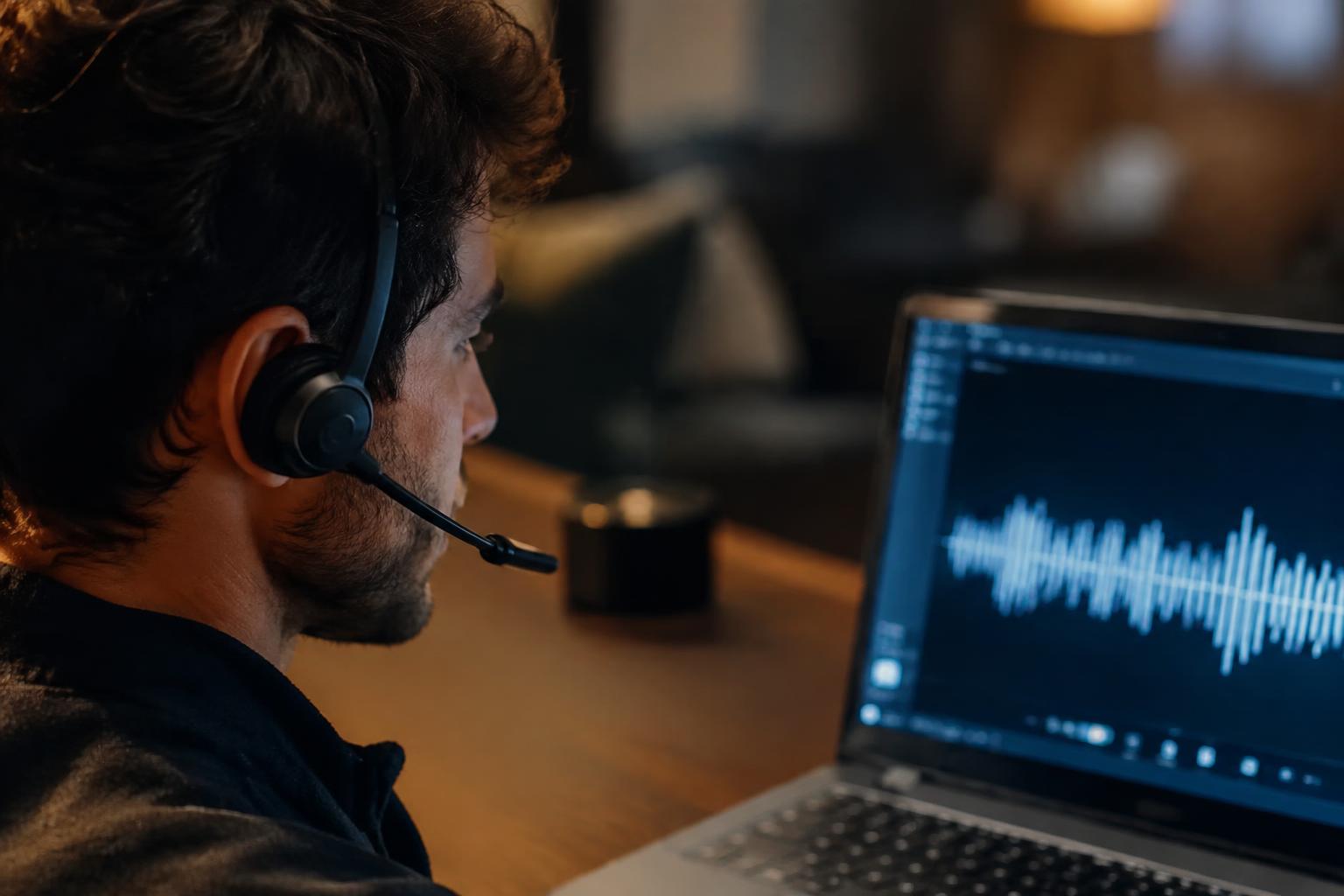
Your Bluetooth headset sounds clear during music playback, then turns thin and compressed as soon as you join a call. That change usually reflects the connection switching to a two-way audio mode, which carries microphone input and headset output with tighter bandwidth limits than music playback. The result is a noticeable drop in stereo detail and frequency range.
Key Takeaways:
- Bluetooth headsets often switch from a stereo playback profile to a bidirectional call profile when their microphone is active, reducing playback bandwidth and audio fidelity.
- The drop comes from Bluetooth profile and codec limits, not necessarily a faulty headset; the exact sound depends on the headset, operating system, and connected device.
- For higher-quality playback during calls or gaming, use a separate microphone with the headset in stereo mode, or connect the headset by USB or a wired audio connection.
Bluetooth Audio Profiles and How They Handle Headsets
Your headset uses Bluetooth profiles to define which audio functions are active, with each profile serving a distinct role in the connection. Playback and microphone roles differ: A2DP carries stereo audio from your device to the headset, while HFP and HSP support two-way communication for calls. The selected profile reflects whether the connection is handling music playback or microphone input, rather than a single mode that treats both tasks identically.
| Profile | Primary role | Audio direction |
|---|---|---|
| A2DP | Stereo playback | Device to headset |
| HFP | Calls and microphone | Two-way voice |
| HSP | Headset voice connection | Two-way voice |
A2DP for high-quality stereo audio
For music, video, and other media, A2DP sends audio from your phone or computer to the headset as a stereo playback stream. The profile is designed for one-way media audio, so it does not provide the headset microphone path used for calls. Your device can use a supported codec, such as AAC or aptX, when both the source and headset support it; the chosen codec depends on their compatibility and configuration.
HFP and HSP for calls and microphone input
During a call or voice chat, HFP or the older HSP profile connects your headset microphone to the device and carries incoming voice back to the headset. That two-way voice link is built for conversation, not the same media-playback role as A2DP. Your operating system or calling app typically selects one of these profiles when it needs headset microphone input, with HFP supporting additional call-control functions such as answering and ending calls.
Why Headset Microphone Use Reduces Playback Quality
Once your headset microphone becomes active, Bluetooth must carry incoming sound to your ears and outgoing speech back to the device at the same time. Many headsets handle that demand by changing to a two-way call mode with less capacity for playback audio than music listening uses. The change reflects the limits of the Bluetooth audio path, not necessarily a fault in your headset, phone, or computer.
The switch from playback mode to call mode
Starting a voice call or joining a meeting opens a two-way audio connection: your headset receives playback while sending microphone audio to your device. Bluetooth commonly switches from a music-oriented mode to a call-oriented mode designed to keep speech flowing in both directions. The transition is often audible as soon as an app activates the microphone, even if the call is quiet and you are listening mainly to music.
Lower bandwidth and reduced stereo fidelity
In call mode, Bluetooth shares its available transmission capacity between the microphone and playback streams. With less room for incoming audio, the connection typically uses a lower-bandwidth format than music playback, reducing detail and often narrowing the sound from stereo to less distinct channels. Cymbals, reverberation, and fine texture may sound softened, while a podcast or spoken instructions remain intelligible because speech needs less audio detail.
Mono audio, compression, and altered sound processing
Many Bluetooth call paths deliver playback in mono, so left and right channels no longer provide separate spatial cues. Speech-oriented compression also prioritizes intelligibility over the full range and texture you hear in music mode. Your headset may apply processing such as noise suppression or echo control as part of the two-way path, changing the sound further. A wide stereo mix can therefore become narrow and compressed while your microphone is active.
- Microphone activation can trigger the mode change without an audible call ringtone.
- Music and games often reveal the loss of stereo separation more clearly than speech.
- Ending voice capture generally releases the two-way audio connection.
How Devices and Operating Systems Affect Bluetooth Audio
Your headset, computer or phone, and operating system jointly determine how Bluetooth audio changes when an app requests microphone access. Their handling of profile switching, codec support, and audio routing explains why the same headset can sound different across devices. A support discussion titled Whenever I use my headphones as a Mic, the audio quality drops illustrates how users encounter this behavior. Device-specific routing matters as much as the headset itself.
Bluetooth versions, codecs, and headset capabilities
Bluetooth version alone does not determine call quality; the supported audio profiles and codecs on both devices shape the available modes. When an app opens your headset microphone, the connection typically shifts to a two-way profile designed for speech, rather than maintaining a high-quality music stream. A headset’s firmware and Bluetooth chipset also affect how that transition sounds. Two headsets paired with the same laptop can therefore deliver different microphone and playback results.
Operating-system audio routing and application settings
Windows, macOS, Android, and iOS manage Bluetooth endpoints differently, and an application can select its input and output separately. If your meeting app chooses the headset microphone but routes playback through a distinct output, the system may keep a different audio path than when both devices use the headset. Per-app device selection and system-level communication settings determine which endpoint is active; a browser call and a desktop meeting app can route the same headset differently.
Differences between computers, phones, and headsets
Phones typically prioritize call routing and may switch profiles automatically as soon as you answer. Computers expose more audio endpoints, so you might see separate headset and headphone choices in the sound settings or application menu. The headset’s own controls and firmware add another layer, especially when multipoint pairing connects it to a laptop and phone at once. Host-device behavior explains why a headset can sound clear on one device and compressed on another.
| Component | What it controls | Typical effect |
|---|---|---|
| Bluetooth chipset and profiles | Available two-way audio modes | Speech-focused playback when the mic is active |
| Operating system | System audio endpoints and routing | Different behavior across a phone and computer |
| Application | Selected microphone and playback device | App-specific routing choices |
| Headset firmware | Device features and connection handling | Variation between headset models |
Ways to Improve Audio Quality While Using a Microphone
Changing the audio path can keep high-quality playback separate from the microphone’s call-mode connection. Start by identifying which device supplies your voice and which handles listening, then choose a connection that lets each serve its role without forcing a single Bluetooth headset into a lower-bandwidth mode. Separate input and output is often the simplest configuration to test, while your computer’s available ports and the calling app determine which alternatives are practical.
Use a separate microphone and Bluetooth headphones
Pair Bluetooth headphones for playback, then select a built-in laptop microphone, USB desktop microphone, or webcam microphone as the input device. With the voice input coming from another source, the headphones can often remain in a stereo playback mode instead of switching to headset call mode. Set devices independently in your operating system and in the calling app, since an app-specific input selection can override the system default. A laptop across the desk is a typical microphone source.
Choose a wired or USB audio connection
Connect a wired headset through the computer’s headphone and microphone jacks, or use a USB headset or USB microphone for a direct digital audio path. These connections avoid relying on a Bluetooth headset’s call-mode profile for both voice and playback. USB audio devices usually appear as separate input and output choices in system sound settings; a single-plug analog headset may require a combo jack or a compatible splitter to expose both channels.
Check headset, app, and system audio settings
Open your operating system’s sound panel and select the intended microphone and playback device, then verify the same choices in the meeting or voice-chat app. Some apps switch to a headset’s hands-free endpoint as soon as microphone access begins, even if another output was selected system-wide. Disable automatic switching where the app offers that option, and confirm the selected output remains the stereo headphones during a test call.
- Grant microphone permission only to the app you are using.
- Close voice-chat apps that retain control of the headset.
- Check the input meter before joining a live call.
Choosing the Right Setup for Calls, Gaming, and Recording
Your setup should match the task: choose microphone convenience for routine communication, or prioritize playback quality and timing when sound details matter. A wireless headset keeps your desk uncluttered and makes it easy to answer calls from a laptop or phone. For games that depend on precise audio cues, and recordings that need clean voice capture, separate playback and microphone equipment gives you more control over each part of the signal chain.
| Use | Practical setup | Main priority |
|---|---|---|
| Everyday calls | Bluetooth headset with built-in microphone | Convenience |
| Gaming | Wired headphones and a separate microphone | Low latency and fidelity |
| Recording | Dedicated microphone and separate headphones | Clean capture and monitoring |
Prioritize convenience for everyday calls
For work calls, voice chats, and quick replies, a Bluetooth headset offers a single-device setup you can carry between your phone and computer. Its built-in microphone keeps your voice close without requiring a desk stand or cable, which suits walking meetings and shared workspaces. Choose a model with comfortable fit and physical mute controls, then use its companion app to confirm the microphone is selected before joining a meeting in Zoom or Teams.
Prioritize low latency and fidelity for gaming
Competitive play benefits from consistent timing and clear positional cues, so use wired headphones with a separate USB or analog microphone when your system supports them. A wired connection avoids the delay that can distract you from footsteps, reload sounds, or dialogue, while keeping the mic available for team chat. On a console or PC, verify that game audio routes to the headphones and voice input to the intended microphone.
Use dedicated audio equipment for recording
For voiceovers, podcasts, or music, record through a dedicated microphone rather than a headset mic, and monitor through separate headphones. A USB microphone is straightforward for a single-person narration setup; an audio interface and XLR microphone provide hands-on gain control for a more developed recording chain. Close other recording apps, select the intended input in your software, and keep monitoring headphones from feeding sound back into the microphone.
Final Words
Bluetooth playback often loses fidelity when you activate a headset microphone because many devices switch from a high-quality stereo profile to a two-way call profile with narrower bandwidth. The change comes from Bluetooth’s profile and bandwidth limits, not necessarily a fault in your headset. For music, use the device’s built-in or an external microphone while keeping stereo output active; for calls, expect the headset to prioritize clear speech. On a computer, the selected input and output devices determine which Bluetooth profile is used.
FAQ
Why does Bluetooth audio quality drop when I use my headset microphone?
Bluetooth audio often switches to a call profile when the headset microphone is active, reducing playback bandwidth and stereo fidelity to support two-way sound. The exact change depends on the headset, operating system, and app, so some devices may sound less degraded than others.
Can I use Bluetooth headphones and a separate microphone to keep better sound?
Yes, using Bluetooth headphones for playback and a separate microphone can let the headphones stay in a higher-quality playback mode. The app and operating system must route input and output to the separate devices correctly, and Bluetooth playback may still have some latency.
Is it worth buying a new Bluetooth headset to fix poor sound during calls?
A new headset may help if it supports better call audio or works more reliably with your device, but it cannot always avoid the limits of Bluetooth call mode. Before buying, check whether a separate microphone, wired connection, or changed audio settings would meet your needs.
Why does my Bluetooth headset sound worse in one app or on one device?
Apps and operating systems can choose different audio routes and settings, so a headset may sound different across devices or applications. Check the selected input and output devices, app audio settings, and system Bluetooth settings before assuming the headset is faulty.
What is the best alternative to Bluetooth for gaming or recording with a microphone?
A wired or USB headset is often a practical choice when stable playback quality and low latency matter during gaming or recording. For higher recording quality, a dedicated microphone and separate headphones offer more control, though they require extra setup and equipment.