
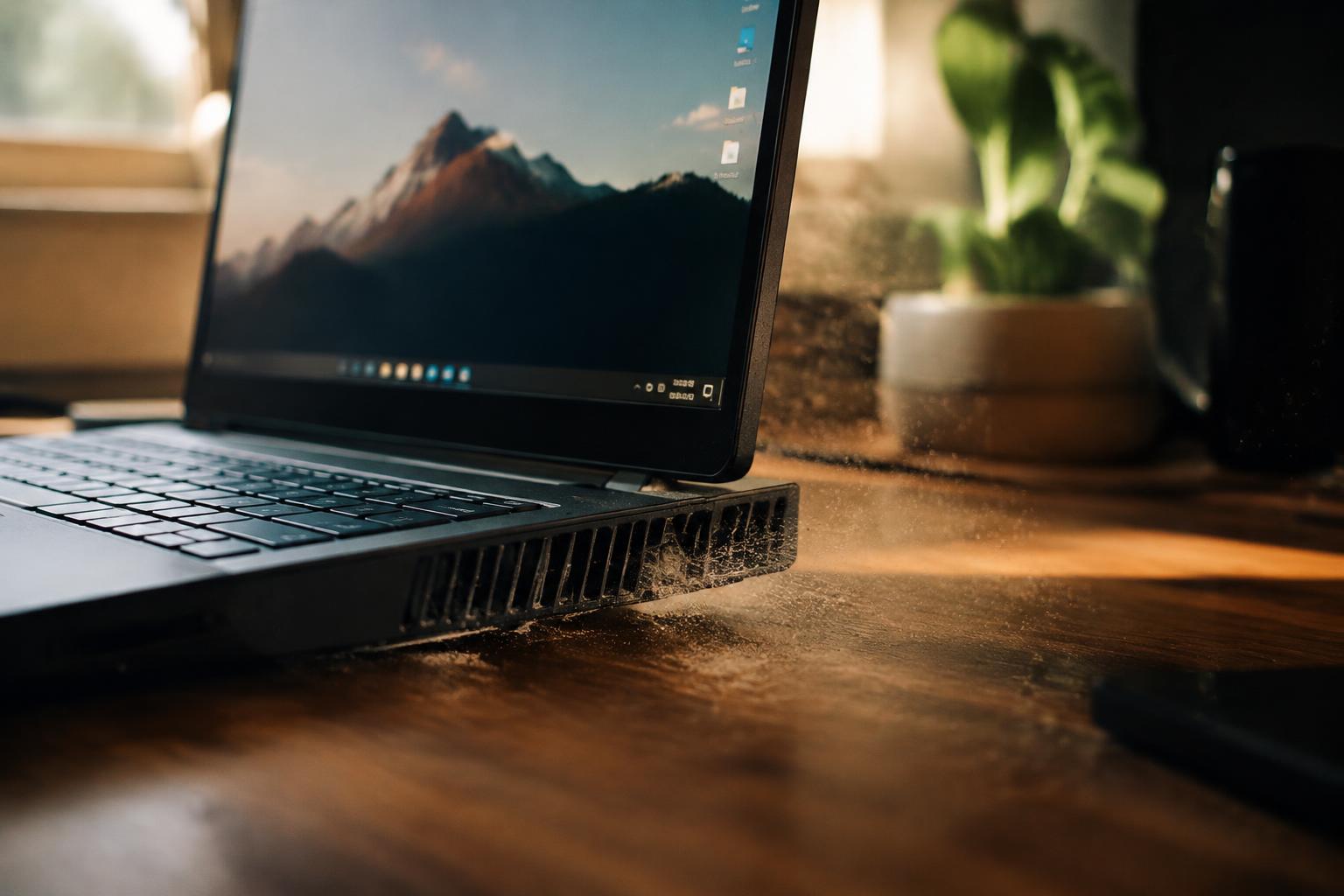
A laptop fan that roars while your screen shows only a browser can signal more than demanding software. Background updates, blocked vents, dust, or a struggling battery can raise internal temperatures and keep the fan spinning. Persistent heat deserves attention, especially if the case feels unusually hot or the laptop shuts down unexpectedly.
Key Takeaways:
- A laptop fan responds to internal temperature, not just the program on screen. Background tasks such as operating-system updates, cloud syncing, or browser tabs can keep the processor busy.
- Dust in the intake vents or heatsink, blocked airflow, and dried thermal paste can make cooling less effective, causing the fan to run loudly during light use.
- Task Manager on Windows or Activity Monitor on macOS can reveal sustained processor activity; warm exhaust with little visible activity points toward airflow or cooling-system trouble.
How Laptop Fans Respond to Heat and Workload
Your laptop’s fan responds to internal temperature and system activity, not simply to the programs visible on screen. The processor and graphics chip generate heat while handling background tasks, video playback, or display output, and the fan controller adjusts airflow as sensor readings change. A quiet desktop therefore does not guarantee low hardware demand; the cooling system reacts to what the components are doing inside the case.
As temperatures rise, the fan usually spins faster to move more air across the heatsink. Fan speed can also change in short bursts as the processor shifts between low-power and higher-performance states, so a brief increase in noise does not necessarily signal a fault. Your laptop’s power mode, fan-control settings, and thermal design affect how quickly those changes become audible.
- CPU temperature sensors track heat near the processor.
- GPU activity can raise cooling demand during video playback.
- Power mode affects processor performance and heat output.
Hidden Software Activity That Keeps the Fan Running
Operating system updates often install files, verify packages, or index content after you close the apps you were using. Those tasks can keep your processor busy, while cloud synchronization and browser extensions add smaller workloads in the background. Open Task Manager on Windows or Activity Monitor on macOS and sort processes by CPU use to identify the activity; an update service near the top can explain a sustained fan surge. Temporary update work usually falls after installation finishes.
| Activity | Typical sign | Where to look |
|---|---|---|
| System update | CPU use during installation or indexing | Update settings or process list |
| Cloud sync | Repeated file processing | Sync app status and CPU use |
| Background app | Persistent activity after closing a window | Task Manager or Activity Monitor |
| Malware | Unknown process using CPU or GPU | Security software scan results |
Unknown processes deserve closer attention, particularly if their CPU or GPU use remains high without a clear task. Malware can run hidden workloads such as cryptomining, keeping the processor active even when your desktop appears idle. Run a scan with reputable, up-to-date security software, and avoid ending unfamiliar system processes at random. Persistent unexplained usage is a warning sign, especially when the process name or publisher cannot be verified.
Heat and Airflow Problems That Increase Fan Noise
Blocked intake grilles restrict the cool air reaching your laptop’s heatsink, while dust on the fan blades and exhaust fins slows heat removal. Your fan then spins harder to move air through the obstruction, producing a persistent whir even during light use. Check the underside and side vents for lint buildup, and keep fabric away from the chassis; unrestricted airflow is essential for steady cooling.
- Use a flashlight to inspect each intake and exhaust grille.
- Place the laptop on a hard, flat surface.
- Keep the rear exhaust clear of walls and monitor stands.
Placement and Vent Clearance
Soft surfaces such as blankets, cushions, and carpet can cover bottom intakes, trapping heat beneath the case. A crowded desk setup can also block side or rear exhaust vents, sending warm air back toward the laptop. Raise the machine on a firm surface and leave space around its outlets; clear exhaust paths prevent hot air from recirculating. For a similar airflow-related complaint, see Laptop fan is randomly sustainably loud when doing nothing.
How to Identify the Source of the Noise
Start with Task Manager on Windows or Activity Monitor on macOS to see whether a background process is keeping the processor busy. Sort processes by CPU use, then note whether the fan gets louder as a specific app or system task runs. Persistent CPU activity while your main programs are closed points to software load, such as a stalled update or browser tab, rather than an unexplained fan fault.
| Check | What to observe | What it suggests |
|---|---|---|
| Task Manager or Activity Monitor | High, sustained CPU use | A background process is generating heat |
| Temperature monitor | High CPU temperature at idle | Heat is driving fan speed |
| Listening test | Rattle, scrape, or clicking | The fan or a nearby component may be obstructed or worn |
Temperature readings add context because fan speed responds to heat, not just visible app activity. Use your laptop’s built-in diagnostics or a reputable hardware monitor, and check CPU temperature after the computer has been idle on a hard surface. Unusually high idle temperatures suggest heat is accumulating; a steady airflow sound differs from a rattle, scrape, or repeated click, which can indicate a mechanical issue.
Practical Ways to Quiet the Fan
Reduce Background Work
Close unused browser tabs and applications, then use Task Manager on Windows or Activity Monitor on macOS to find processes consuming CPU time. Pause unnecessary cloud syncing, downloads, and software updates until you need them. Lower background activity reduces heat generated by the processor, which can bring fan speed down. Set demanding apps to quit when you finish, rather than leaving them active in the background.
Improve Airflow
Place your laptop on a hard, flat surface so its intake vents are not blocked by bedding, clothing, or your lap. Keep space around the exhaust vents, and avoid using the computer inside a bag or enclosed stand while it is running. A laptop stand can raise the base and leave clearance beneath the chassis, giving air a path to the underside vents.
- Choose a stand with open sides rather than a solid base.
- Move the laptop away from direct sunlight.
- Reduce screen brightness when full brightness is unnecessary.
Clear vent space and lighter background activity address two common sources of extra heat without changing system settings or opening the laptop. After closing resource-heavy processes, allow the device to sit idle on a clear desk and listen for the fan to slow.
When Cleaning or Professional Repair Is Needed
Persistent fan noise while your laptop is idle can signal dust packed into the heatsink, a worn fan bearing, or a damaged blade. A brief rise in fan speed differs from continuous loud operation, especially when the case stays hot despite light use. If the sound is grinding, rattling, or uneven, shut the laptop down and arrange inspection; a failing fan can stop cooling the processor effectively.
Know When to Seek Repair
Blocked vents and visible dust may call for internal cleaning, but opening a laptop can damage delicate fan cables or affect warranty coverage. A repair technician can inspect the fan, heatsink, and thermal interface, then identify whether cleaning or a replacement part is needed. Overheating with shutdowns, a burning smell, or a fan that no longer spins warrants prompt professional service.
| Symptom | Possible issue | Appropriate response |
|---|---|---|
| Persistent airflow noise | Dust buildup or restricted heatsink | Internal cleaning |
| Grinding or rattling | Worn bearing or damaged blade | Fan inspection and possible replacement |
| Excess heat or unexpected shutdowns | Cooling failure or another hardware fault | Prompt professional diagnosis |
To wrap up
A loud laptop fan does not always mean you are running a demanding program; background updates, browser tabs, blocked vents, dust, or aging thermal paste can also raise internal temperatures. Check Task Manager or Activity Monitor for sustained CPU use, then inspect the vents and listen for grinding or rattling that suggests a mechanical fault. If the fan stays loud after idle activity settles and airflow is clear, a technician can assess the cooling system before heat damages nearby components.
FAQ
Why does my laptop fan run loud when I’m not doing anything?
A laptop fan can run loudly at idle because background tasks, blocked vents, dust, or warm surroundings are making the computer hotter. Check whether a process is using significant CPU or GPU resources, and make sure the vents have clear airflow. Fan noise that persists after activity stops may need further inspection.
How much does it cost to fix a loud laptop fan?
The cost depends on whether the cause is dust, a worn fan, or another hardware problem. Cleaning may cost little if you do it yourself, while professional service or parts can add expense; ask for a diagnosis and estimate before approving a repair.
Can I keep using my laptop if the fan is making a grinding noise?
A grinding fan may have a damaged bearing or another mechanical fault, so continued use can risk overheating. Save your work and arrange an inspection, especially if the laptop also gets unusually hot, shuts down, or slows down; avoid opening the case unless you know how to do so safely.
How long does it take to clean dust from a laptop fan?
Cleaning time varies with the laptop’s design and how much disassembly is needed. Clearing accessible vents may be quick, but opening the case can take longer and may be unsuitable for inexperienced users; check the manufacturer’s guidance or use a repair professional if access is difficult.
Is a cooling pad worth buying for a noisy laptop fan?
A cooling pad may help if the laptop is overheating because its intake vents are blocked by a soft surface or airflow around it is poor. It will not fix heavy background activity, internal dust, or a failing fan, so identify the cause before buying one.