
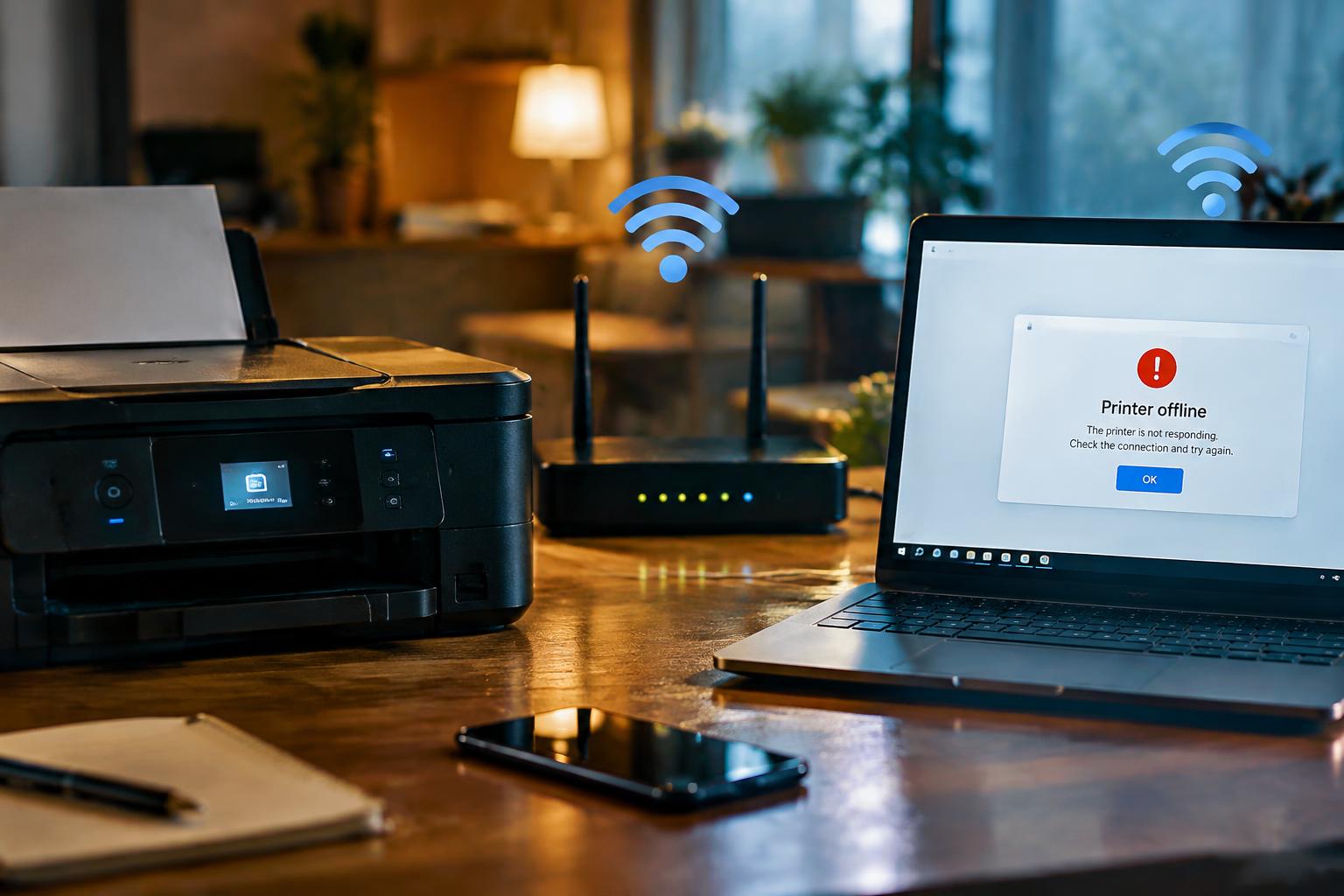
A router restart can assign your wireless printer a different IP address, leaving your computer’s saved connection pointing to its old network location. The printer may still be connected to Wi-Fi, yet print jobs stall because device discovery no longer matches. Knowing the difference between a lost Wi-Fi connection and a changed address helps you identify why the printer vanishes from your device list.
Key Takeaways:
- A router restart can assign the printer a new local IP address. Computers that rely on the printer’s old address may then show it as offline or fail to find it.
- Network separation often causes discovery problems: the printer and computer need to connect to the same Wi-Fi network, not separate guest and main networks.
- Reconnect the printer to the correct Wi-Fi network, then remove and add it again in the computer’s printer settings if it remains missing. A reserved IP address in the router can reduce address changes after future restarts.
How a Router Restart Can Make a Printer Disappear
During a restart, your router drops active connections and rebuilds its local network as connected devices request access again. Your printer may reconnect with a different network address, or remain offline while your computer resumes searching for its previous address. A changed connection state can make a working printer appear unavailable without any change to its hardware. The key distinction is between the printer losing network access and your computer no longer locating it at its current address.
What changes when the router reconnects devices
After power returns, your router’s DHCP service assigns local addresses as devices reconnect, and the order can differ from before the restart. Your computer might regain Wi-Fi before the printer finishes joining the network, leaving the printer temporarily absent from the device list. If the printer does not rejoin, its wireless status can remain disconnected even while the router and computer are online. A changed connection state is separate from a printer fault or a failed print job.
How IP addresses and network names affect printer discovery
Computers often locate network printers through an IP address or a saved device entry tied to that address. If DHCP gives your printer a new address, a computer still targeting the old one may report it as offline. A different Wi-Fi network name also matters: a printer connected to a guest network may be isolated from a computer on your main network. The printer’s assigned address and the computer’s selected network name determine whether discovery can succeed.
| Router change | Printer effect | Computer effect |
|---|---|---|
| DHCP assigns a new address | Printer reconnects at a different IP | Saved entry may point to the old IP |
| Printer reconnects slowly | Wireless status stays offline briefly | Printer may not appear in the device list |
| Printer joins another network name | Printer is reachable on a different network | Discovery may fail across network isolation |
Diagnose the Printer’s Network Connection
Start by checking the printer and computer while both are powered on and connected to Wi-Fi. A router restart can leave the printer attached to a network name that no longer matches the one your computer uses, even if both devices appear online. Focus on the active network name, not just the presence of a wireless signal. The printer’s status screen and your computer’s Wi-Fi settings provide the details needed to identify a mismatch.
Check the printer’s Wi-Fi status and network name
Open the printer’s wireless settings or network status page and read the SSID, the name of the Wi-Fi network it joined. A wireless icon alone only confirms a radio connection, not that the printer is on your current home network. Note whether the panel reports a connection and whether the SSID matches the router’s active network name. Some printer menus also show an IP address; an address beginning with 169.254 indicates the printer did not receive one from the router.
Confirm the computer is connected to the same network
On your computer, open the Wi-Fi menu or network settings and read the connected SSID rather than relying on the network name saved in the device’s list. Compare it with the name displayed by the printer, including any suffix such as “_5G” or “Guest.” A computer connected by Ethernet can also use the same router, but a separate access point or isolated network may place it on a different segment. Record both connection names before assessing printer visibility.
Check for guest networks, mesh networks, or changed Wi-Fi bands
Guest Wi-Fi commonly blocks communication with devices on the main network, so a printer on the guest SSID may be unreachable from your computer even when internet access works. Mesh systems can broadcast one network name through several nodes, while some routers expose separate names for 2.4 GHz and 5 GHz bands. Check the router’s Wi-Fi settings for the exact SSIDs and any device-isolation option. Many printers support 2.4 GHz Wi-Fi but not 5 GHz.
- Look for a printer status page in its control-panel menus.
- Check whether the computer uses a VPN connection.
- Note whether either device connects through a Wi-Fi extender.
Restore Printer Discovery
Once the printer has joined the router’s network again, refresh discovery in the order your devices communicate: reconnect the printer, restart its network connection, then update the computer’s printer list. Keep both devices on the same Wi-Fi network, including the same band or guest network where applicable. The steps below distinguish a temporary discovery delay from a stale printer entry, so you can choose the right fix without changing unrelated settings.
Reconnect the printer to the router
Use the printer’s control panel to open its wireless or network setup menu, select your router’s Wi-Fi name, and enter the current password. If the printer has no display, start its wireless setup mode and complete the connection through the manufacturer’s setup app or software. A successful connection should show a connected status or a network address on the printer’s screen or configuration page. Confirm that address belongs to the router’s local network before proceeding.
Restart the printer and refresh the computer’s printer list
After reconnecting, power the printer off, wait until its display and wireless indicator go dark, then turn it back on and allow its network status to settle. On your computer, open the operating system’s printer settings and use its add or refresh control to search for nearby devices. Select the printer’s current network entry, not an old offline copy. Verify the printer name against its control panel or configuration page before sending a test document.
Remove and re-add the printer when discovery remains broken
If a fresh search still shows no usable printer, remove its stale entry from your computer’s printer settings, then add it again through the operating system’s device discovery tool. Choose the network printer listed with the address currently shown by the printer, rather than selecting a disconnected duplicate. If discovery does not find it automatically, use the operating system’s option to add a printer by IP address and enter that current address. Do not remove unrelated printers or shared queues.
| Step | Where to act | What to confirm |
|---|---|---|
| Reconnect | Printer network setup | Connected to the correct Wi-Fi |
| Restart and refresh | Printer and computer settings | Current printer entry appears |
| Remove and re-add | Computer printer settings | Entry matches the current network address |
Prevent Repeat Disconnections
Once the printer is visible again, make its network identity predictable and keep its connection on the same local network as your computer. Router settings that assign changing addresses or isolate wireless clients can interrupt discovery after a restart. Use the router’s administration page to keep the printer’s address consistent, and record its Wi-Fi network name and connection details. For additional troubleshooting ideas, see how to fix a wireless printer that keeps going offline.
Reserve an IP address for the printer
In your router’s DHCP settings, create an IP address reservation for the printer using its MAC address, which appears in the printer’s network settings or status report. The reservation keeps the router assigning the same local address after a reboot, rather than giving the printer a new one that the computer has not discovered. Choose an address within the router’s managed range and confirm the saved entry identifies the printer’s MAC address correctly.
Keep the printer on a consistent Wi-Fi band and network
Connect the printer and computer to the same home network, not a guest network that blocks communication between devices. If your router combines 2.4 GHz and 5 GHz under one network name, use the printer’s supported band and avoid switching its saved connection between bands. Many printers support 2.4 GHz but not 5 GHz, so confirm the printer’s specifications before changing the router’s band settings.
Update router firmware and review settings that affect device isolation
Install router firmware updates through the manufacturer’s administration app or web interface, since outdated software can cause wireless devices to reconnect inconsistently after a restart. Review settings named AP isolation, client isolation, or wireless isolation; these can prevent your computer from communicating with a printer on the same Wi-Fi network. Keep isolation disabled on your main home network, while leaving it enabled on a guest network if visitors should not access your devices.
- Write down the printer’s MAC address from its network report.
- Save the router’s Wi-Fi password in a secure password manager.
- Keep the printer away from enclosed cabinets and large metal objects.
Check Drivers, Firewalls, and Operating-System Settings
When the printer is online but absent from your computer’s device list, focus on software that controls how the computer recognizes network devices. A stale driver, a blocked discovery request, or a changed operating-system setting can interrupt visibility even while the printer remains connected to Wi-Fi. Check these computer-side components before changing network configuration, and note the printer’s model and your operating system version so you can select compatible software and settings.
| Computer-side item | What to inspect | Relevant clue |
|---|---|---|
| Printer driver | Model compatibility and installation status | Printer is absent or listed as unavailable |
| Firewall | Printer software and discovery permissions | Device is blocked on a private network |
| Operating system | Recent updates and printer support | Problem began after a system update |
Update or reinstall the printer driver
Open your computer’s printer settings and confirm that the installed driver matches the printer’s exact model and operating system. A generic driver can expose basic printing while failing to discover the device over the network. Download the current package from the printer manufacturer’s support page; if the existing entry remains unavailable, remove it and install the package again. Use the exact model number, including any series suffix, when selecting the driver.
Review firewall permissions and network-discovery settings
Check your firewall’s allowed-app list for the printer software and enable access on your private network profile. A public profile can block discovery traffic, even when your computer and printer use the same Wi-Fi. On Windows, confirm that Network Discovery is enabled for the active private network; on macOS, review firewall options for blocked printer services. Do not disable the firewall as a routine fix; permit the identified printer app instead.
Check for operating-system updates that changed printer support
Review your operating system’s update history if the printer disappeared soon after an update. A system upgrade can replace a manufacturer driver, reset privacy permissions, or alter support for older printer software. Install available maintenance updates, then verify that the printer driver remains installed and that device discovery is allowed. On Windows, inspect Windows Update’s optional driver updates; on macOS, check Software Update and the printer’s entry in Printers & Scanners.
Conclusion
A router restart can change your printer’s network address or interrupt its connection to Wi-Fi, leaving your computer unable to find it. Confirm that both devices are connected to the same network, then restore discovery by reconnecting the printer or updating its port settings. If the problem returns, a reserved IP address in the router’s DHCP settings can keep the printer’s address consistent, while updated drivers and firewall permissions support communication with your computer.
FAQ
Why does my wireless printer disappear from my computer after the router restarts?
A router restart can change the printer’s network address or leave it disconnected, so the computer no longer finds it. Check that both devices are connected to the same active network, then refresh the computer’s printer list. If the printer is online but still missing, computer settings or the driver may be blocking discovery.
How long does it take to get a printer back online after a router restart?
It often takes only a few minutes to reconnect the printer and refresh the computer’s printer list. The time depends on whether the printer joins Wi-Fi automatically or needs its network connection set up again. Removing and re-adding the printer can take longer, especially if you need to install its driver.
Can a router restart damage my wireless printer or erase its settings?
A routine router restart generally does not damage a wireless printer or erase its saved settings. The printer may lose its connection or receive a different network address, which can make it appear offline. If its Wi-Fi network name or password changed, you may need to connect it to the updated network.
Is reserving an IP address for my printer worth it?
Reserving an IP address can help keep the printer’s network identity consistent and reduce discovery problems after router restarts. It is most useful when the router supports address reservations and the printer is connected to the same network consistently. It will not fix a printer that is offline or blocked by computer settings.
What should I try if my computer still cannot find the printer after reconnecting it to Wi-Fi?
Confirm that the computer and printer are on the same network, then refresh the printer list or remove and re-add the printer. If the printer is online but still missing, check the driver, firewall permissions, and network-discovery settings. Guest networks or device-isolation settings can prevent the computer from reaching the printer.