
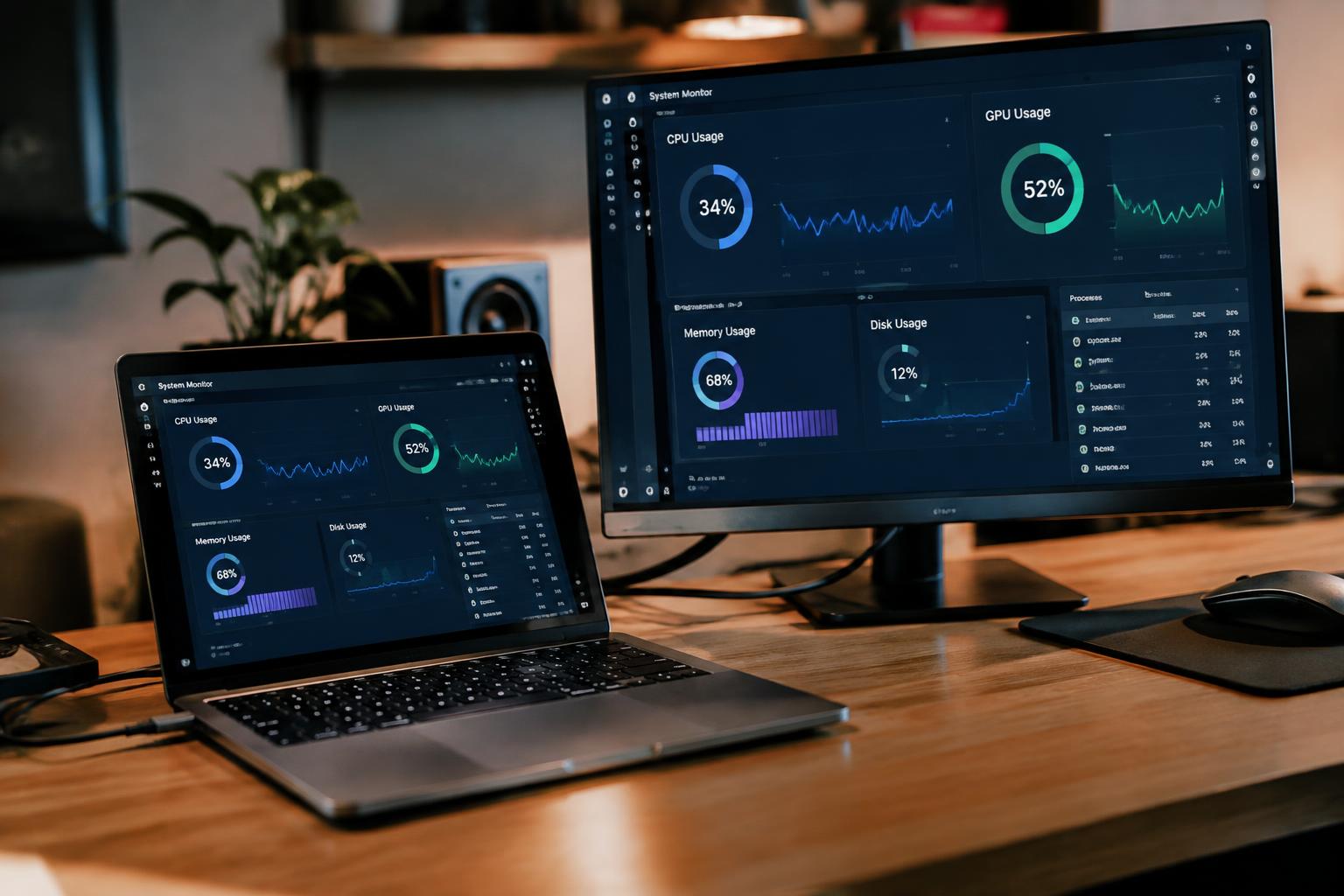
Plugging in a second screen can make your laptop feel sluggish, especially during video calls, gaming, or other graphics-heavy work. Your graphics processor must render the external display as well as the built-in screen, and higher resolutions demand more from it. The slowdown often becomes most noticeable when both screens run at high resolution and refresh rates.
Key Takeaways:
- An external monitor increases the graphics processor’s workload, especially at high resolutions and refresh rates, which can raise heat and trigger performance throttling.
- Docking stations, adapters, and USB-C bandwidth limits can affect display output; a direct connection to the laptop’s HDMI or DisplayPort output can help isolate a connection bottleneck.
- Lowering the external display’s resolution or refresh rate reduces graphics demand, while checking Task Manager or Activity Monitor can show whether the GPU, CPU, or memory is under pressure.
Why an External Monitor Can Slow Your Laptop
Connecting an external display adds work for your laptop’s graphics processor and, in some setups, its main processor. The added load depends on how the display is driven, what you are doing on screen, and whether the laptop shares graphics resources with other tasks. Video calls, browser animations, and high-resolution editing can compete for those resources, making windows feel less responsive while the built-in screen and external monitor are active together.
Higher resolution and refresh rates
Running a monitor at a higher resolution or refresh rate requires the graphics processor to prepare more detailed frames, more often. A 4K display at a high refresh rate places a heavier demand on the system than a basic 1080p display at a standard refresh rate, particularly during gaming or animation. Each frame adds work, even when the laptop’s internal panel remains on, and the combined displays can push an integrated GPU closer to its limits.
More pixels for the graphics processor to render
Every active display contributes pixels that the graphics processor must compose and send to the screen. Extending your desktop across a laptop panel and an external monitor increases the total desktop area, while duplicating the image still requires output to both displays. Moving video, scrolling pages, and animated interfaces keep those pixels changing. More active pixels mean more rendering work, especially when both displays use high resolutions or show motion-heavy content.
| Display setup | Graphics demand | Typical effect |
|---|---|---|
| One laptop screen | Lower total pixel load | Fewer display frames to render |
| Laptop screen plus external display | More pixels and output activity | Higher graphics workload |
| High-resolution, high-refresh external display | More detailed frames at a faster rate | Greater demand during motion |
How to Identify the Source of the Slowdown
Start by observing the laptop during the same workload with and without the external display connected. Note whether lag appears when you move windows, play video, or run demanding software, then use system monitoring to see which resource changes at that moment. A repeatable slowdown paired with a rise in graphics load, memory pressure, or temperature points to a measurable cause rather than a vague sense of sluggishness.
Checking CPU, GPU, and memory usage
Open Task Manager on Windows or Activity Monitor on macOS while reproducing the lag. Watch CPU activity alongside GPU utilization, dedicated video memory, and system memory pressure; a graphics spike during window movement suggests display work is taxing the GPU, while sustained memory pressure can cause pauses as apps compete for RAM. Sort processes by resource use to identify the application responsible, and note whether GPU load rises only when the external screen is active.
Looking for overheating and performance throttling
Heat-related slowdown often appears after the laptop has been under load for several minutes, rather than immediately after connecting a display. Use the manufacturer’s monitoring utility or a reputable hardware sensor tool to track CPU and GPU temperatures, clock speeds, and fan behavior during the same task. A temperature rise followed by falling clock speeds indicates thermal throttling, while warm exhaust alone is not proof; record the temperature and clock-speed change together.
- Record the active display resolution and refresh rate.
- Note whether the laptop is charging during the test.
- Check which graphics processor is assigned to the affected app.
Display Settings That Affect Performance
Your display configuration determines how much work the laptop does to draw and position everything on screen. A higher pixel count, faster refresh rate, or extended desktop changes the amount and pattern of that work, even when the applications remain unchanged. Resolution and refresh rate set the display’s rendering demands, while arrangement affects cursor movement and window placement across screens. These settings are adjustable, so matching them to your actual work can reduce unnecessary display activity without changing how you use your apps.
Choosing an appropriate resolution and refresh rate
Set the external monitor to its native resolution for crisp text, then lower it only if the added rendering load is affecting responsiveness and image softness is acceptable. A high refresh rate redraws the screen more often, which increases display activity even during routine desktop work. In Windows Display settings or macOS Displays, choose a lower refresh rate when you do not need smooth motion for scrolling, animation, or video, and avoid selecting a rate above the monitor’s supported setting.
Configuring scaling and multiple displays
Display scaling changes the size of text and interface elements, not the monitor’s physical resolution, though apps may need to redraw content when scaling differs between screens. Extended desktop mode gives you separate work areas, while mirroring presents the same image on both displays; choose the mode that fits your task. In Display settings, arrange the screens to match their physical positions, since accurate alignment makes pointer movement between monitors predictable and avoids awkward window placement.
| Setting | Performance effect | Practical choice |
|---|---|---|
| Resolution | More pixels require more rendering work | Use native resolution unless responsiveness calls for a lower setting |
| Refresh rate | Higher rates redraw the image more often | Select a supported rate suited to your motion needs |
| Display scaling | Apps may redraw when scaling differs between screens | Choose readable interface sizing for each monitor |
| Display mode and arrangement | Extended and mirrored modes present screens differently | Match the mode and screen positions to your workspace |
Hardware and Connection Limits
Your laptop’s display output depends on a chain of hardware, from the graphics processor to the port, cable, and any dock between the computer and screen. A weak link can limit resolution, refresh rate, or the number of displays the system can drive, increasing the load on available graphics resources. Hardware bandwidth also varies by laptop model, so two computers with the same processor name may behave differently when connected to the same monitor.
Integrated versus dedicated graphics
Integrated graphics share memory and power limits with your laptop’s processor, so driving a high-resolution external display while running graphics-heavy applications can leave fewer resources for other work. A dedicated GPU has separate graphics memory and generally handles rendering more comfortably, though the laptop’s design still sets its power and cooling limits. Shared memory is especially relevant when you keep several demanding windows open beside a 4K display.
USB-C, HDMI, adapters, and docking stations
USB-C describes the connector, not the display capabilities: your laptop’s port must support video output, often through DisplayPort Alt Mode or Thunderbolt. HDMI versions, cable quality, adapters, and dock chipsets also determine supported resolution and refresh rate; a dock using DisplayLink relies on software-based display processing rather than a direct GPU output. Unsupported bandwidth can cap a monitor at a lower refresh rate or cause unstable output, particularly through a multiport dock.
- Check the laptop manual for the exact video capabilities of each port.
- Use a cable rated for the monitor’s resolution and refresh rate.
- Connect directly to the laptop to isolate a dock or adapter.
Fixes to Restore Laptop Performance
Start with software changes that reduce unnecessary work for your processor and graphics chip. Install current, compatible updates, then close applications that compete for memory or GPU time while the external display is active. Make one change at a time and test the same workload, such as a game or video call, so you can identify what improves responsiveness. For a reported gaming example, see a report that a game keeps lagging when a laptop is plugged into an external monitor.
Updating graphics drivers and operating-system software
Use your laptop maker’s support page or its graphics vendor’s official utility to install a driver that matches your exact model and operating system. Updated graphics drivers can address rendering faults, while operating-system updates may include fixes for display handling and power management. Choose model-specific drivers rather than third-party driver-download sites, and restart after installation so the new components load. If the slowdown began immediately after an update, use Device Manager or the vendor utility to roll back the graphics driver.
Adjusting power settings and closing resource-heavy applications
Set Windows to Best performance while plugged in, or select the equivalent performance mode in your laptop’s power utility. Then open Task Manager and sort Processes by CPU, memory, or GPU use; close unnecessary launchers, browser tabs, video editors, and overlays. Keep essential security software running, and save work before ending an application. A game stuttering beside a browser stream, for example, may respond once the stream and unused tabs are closed.
| Step | Where to act | What to target |
|---|---|---|
| Update graphics driver | Manufacturer support page or official utility | Model-specific display driver |
| Update operating system | System update settings | Display and power-management fixes |
| Set performance mode | Power settings or laptop utility | Plugged-in performance profile |
| Close background load | Task Manager | Unneeded high-CPU, memory, or GPU processes |
To wrap up
An external monitor adds work for your laptop’s graphics processor, particularly at a high resolution, refresh rate, or when driving multiple displays. Background applications, heat, limited memory, and a bandwidth-constrained port can add to the slowdown, so the cause is not always the screen itself. You can narrow it down by observing CPU and GPU activity in Task Manager or Activity Monitor, then testing a lower display resolution or refresh rate. A suitable cable, port, and power setting often restore smoother performance.
FAQ
Why does my laptop feel slower when connected to an external monitor?
An external monitor can make a laptop feel slower because the graphics processor must render images for more pixels, especially at high resolutions or refresh rates. The effect depends on the laptop’s graphics hardware and what you are doing, so basic tasks may remain smooth while games or demanding applications slow down.
Can lowering my external monitor’s resolution make my laptop faster?
Lowering the monitor’s resolution can reduce graphics workload and improve responsiveness in demanding applications. The benefit depends on whether graphics processing is the bottleneck, and text and images may look less sharp at a non-native resolution.
Will connecting an external monitor damage my laptop?
Using a compatible external monitor should not damage a laptop, but sustained heavy workloads can increase heat and may cause the system to reduce performance to control temperatures. Keep vents clear and use compatible ports, cables, and docks, particularly when connecting through USB-C.
Do I need a new laptop to run an external monitor smoothly?
Not necessarily, since changing display settings, updating graphics drivers, or reducing background tasks may improve performance. A newer laptop may be needed if its graphics hardware cannot handle your monitor and workload comfortably, but check system usage and connection limits before replacing it.
How long does it take to fix laptop lag with an external monitor?
Simple checks, such as lowering the refresh rate or closing resource-heavy apps, usually take only a few minutes. Driver updates or troubleshooting a dock can take longer, and the right fix depends on whether the slowdown comes from graphics load, heat, memory, or the connection.