
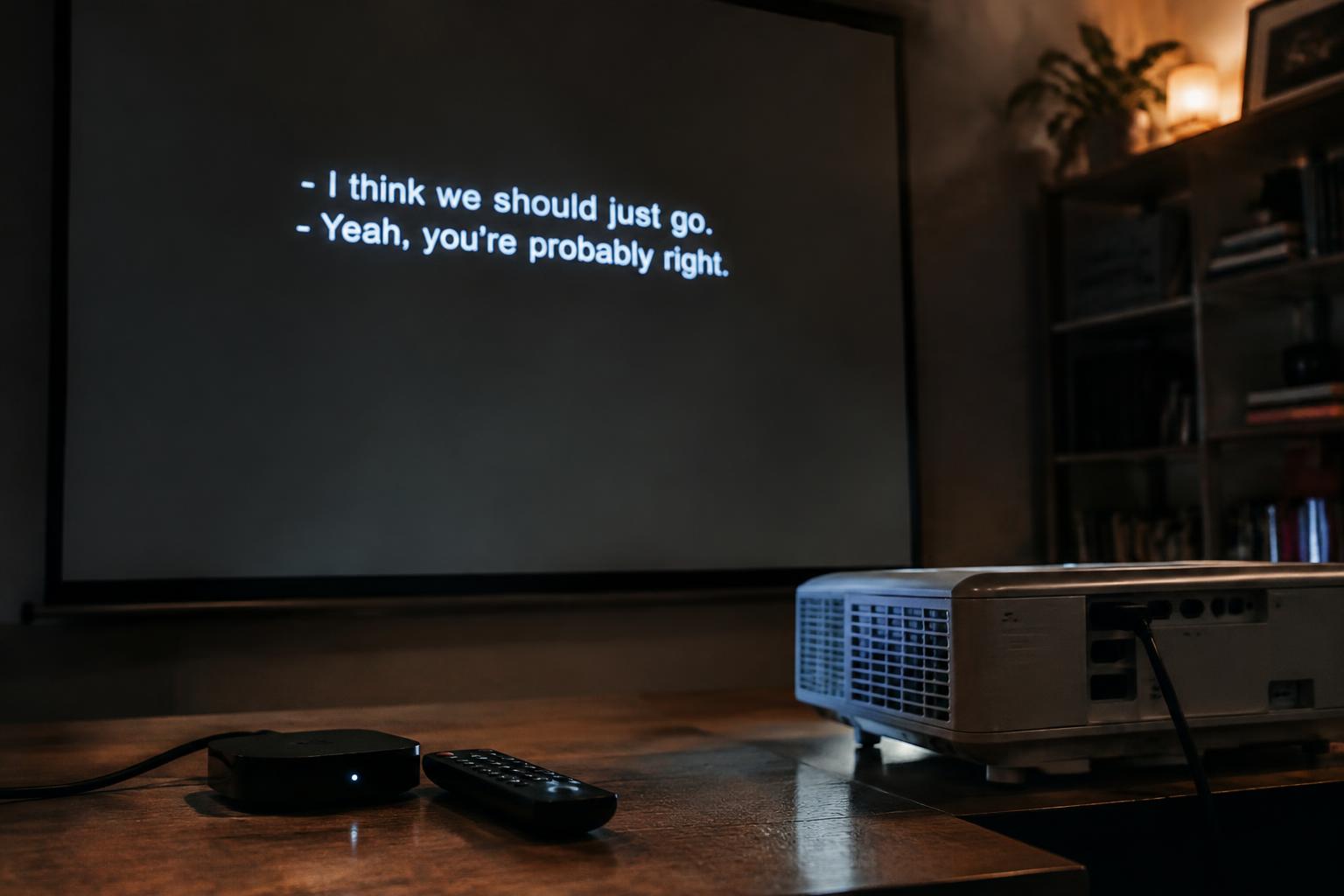
Seeing subtitles on a blank projector screen points to a split in the signal: text may remain visible while protected video is blocked or the HDMI picture fails. HDCP authentication, the copy protection used by streaming devices, is a common cause; a loose HDMI connection or unsupported resolution can also leave you with captions but no image.
Key Takeaways:
- Subtitles can remain visible when a streaming device’s video signal is blocked, often because of an HDCP handshake or an app’s content-protection requirements over HDMI.
- Start troubleshooting at the signal path: confirm the projector’s selected HDMI input, reseat the cable, and connect the streaming device directly to the projector to rule out an incompatible receiver, splitter, or adapter.
- Match the streaming device’s output to the projector’s supported resolution and refresh rate, then restart both devices to renew the HDMI connection before reopening the streaming app.
How Subtitles Can Appear Without Streaming Video
Your projector can show captions even when the streaming picture is missing because text and video do not always travel through the same rendering path. Captions may be drawn by the streaming device’s interface or app, while the program’s moving images pass through a separate video-decoding and output process. Seeing readable text therefore confirms that part of the device’s display is active, but it does not confirm that video playback is working or that the full image is being rendered.
How streaming devices deliver captions and video
Streaming devices typically decode a video stream into frames, then send those frames to the display while handling captions as a separate text or graphics layer. Your device may render that layer within the app or composite it with the picture shortly before output. Menus and subtitles can therefore appear even if the video frames are absent. Closed captions may also arrive as timed text data, while the program itself is delivered as compressed video.
Why captions can work when video playback fails
Caption text uses little processing compared with decoding and displaying a moving image, so the app’s interface can remain visible when video playback stalls or fails. Your projector may show subtitles over a black screen because the caption layer is being drawn while the video decoder produces no usable frames. The distinction is especially clear when menus remain visible but the program area stays blank; captions alone do not establish that the stream’s picture is playing.
- Closed captions often include timing and speaker labels.
- Subtitle tracks may be selectable separately within the app.
- Device menus are generated independently of program footage.
Check the Projector’s HDMI Connection and Input
Start with the signal path between your streaming device and projector, since a wrong source selection or an unsuitable HDMI connection can leave menus visible while the picture remains blank. Confirm that the device is powered on and that the projector is set to the input receiving its signal. Then inspect the connection from end to end, including any receiver or adapter between the two devices. Follow the full HDMI path rather than focusing only on the projector.
Verify the selected source and HDMI port
Use the projector remote’s Source or Input button to select the exact HDMI port where your streaming device is connected. If the projector has several inputs, HDMI 1 and HDMI 2 are separate sources, even when their sockets look identical. Check the port label on the projector, then match it to the on-screen input name. Select the connected port, and confirm that the device’s home screen appears before opening a streaming app.
Test the cable, adapter, and connection
Reseat both ends of the HDMI cable, pressing each plug firmly into its socket, and look for a loose fit or damaged connector. Connect the streaming device directly to the projector if an HDMI switch, receiver, or extension is in the path; this isolates the component interrupting the signal. Test with a known-working HDMI cable rated for the device’s output, and inspect any USB-C-to-HDMI adapter for a secure connection. Remove intermediate equipment during the test.
| Connection point | What to verify | Useful test |
|---|---|---|
| Projector input | Selected source matches the labeled HDMI socket | Cycle through HDMI inputs |
| HDMI cable | Plugs fit securely and cable has no visible damage | Substitute a known-working cable |
| Adapter or switch | Connectors are seated and intermediate devices are powered | Connect the streamer directly |
Check for HDCP and Streaming-App Compatibility Issues
Streaming services protect licensed films and shows with High-bandwidth Digital Content Protection, or HDCP, and the video signal must pass through a compatible chain from the streaming device to the projector. Captions can remain visible because they use a separate on-screen display path, even when protected video is blocked. A warning, black picture, or audio without video often points to a content-protection or support mismatch rather than a failed subtitle setting.
Confirm HDCP compatibility across connected devices
Every device carrying the picture, including an HDMI switch, AV receiver, adapter, or projector, must support the HDCP version required by the service and content. A single incompatible component can interrupt the protected video while the streamer still draws captions over the output. Connect the streaming device directly to the projector to isolate intermediary equipment; if the picture returns, the HDMI chain is the likely cause, such as an older receiver between the source and display.
Check app, device, and firmware support
Streaming apps do not support every projector or playback device equally, and an app may restrict protected video on an unsupported platform even as its interface and captions appear normally. Confirm that the service lists your streaming device as supported, then install available app and projector firmware updates. A sideloaded app or outdated operating system can lack the required playback protections; testing the same title in the service’s official app on a supported streaming stick can distinguish an app limitation from a projector fault.
- Note any HDCP or unsupported-device message shown by the app.
- Test a second title from the same service.
- Remove unnecessary HDMI splitters and adapters during testing.
Match the Streaming Device’s Video Settings to the Projector
Your streaming device and projector must agree on a video format the projector can display. Subtitles use little bandwidth, so they can remain visible even when the main picture’s resolution, refresh rate, or color format exceeds the projector’s capabilities. Open the device’s display settings and select an output supported by the projector’s specifications. A matching signal, such as 1080p at a supported refresh rate, gives the projector a format it can decode.
Set a supported resolution and refresh rate
Start with the projector’s manual or on-screen information to identify its supported resolutions and refresh rates, then set the streaming device to a matching option. An output set to 4K or an unsupported rate can produce a blank picture while menus or subtitles remain visible. Choose a standard mode listed by the projector, such as 1080p at 60 Hz if that mode is supported. Use a listed format, not the device’s highest available setting.
Test HDR and other advanced video settings
HDR output can cause a black image when the projector does not support the selected HDR format, even though text overlays appear. In the streaming device’s display menu, turn HDR off or choose automatic output, then test the same video. Also disable advanced options such as deep color or variable refresh rate if the projector does not list support for them. Match HDR capability to the projector’s specifications, including formats such as HDR10 or Dolby Vision.
- Check the projector’s native resolution, not just its maximum input resolution.
- Use the projector’s specifications to confirm supported HDR formats.
- Look for refresh-rate options in the streaming device’s display or video menu.
Troubleshoot the Signal Step by Step
Change one part of the playback chain at a time, then replay the same scene so each result points to a cause. A subtitles-only display does not, by itself, prove the projector is at fault; the failure may lie in the streaming device, HDMI path, or app. Track whether menus and video appear on another display, and note any on-screen error. One change at a time keeps the diagnosis clear.
Restart devices and reconnect HDMI
Power off the projector and streaming device, then unplug both briefly before restarting them; this clears temporary handshake faults without changing video settings. Reseat the HDMI plug at each end and select the projector input that matches the connected port. If the picture returns after reconnecting, the issue was likely a loose connection or stalled HDMI negotiation. Reconnect with devices off, then test the same stream from its opening screen.
Test another cable, port, or display
Swap in a known-good HDMI cable and try another projector input, changing only one connection at a time. A picture on the new port but not the original points to an input problem; failure across both ports warrants testing the streaming device on a television or monitor. If that display shows video, the projector or its compatibility with the source is implicated. Use a direct connection, without an adapter or receiver, to isolate the cable path.
Try a different streaming app or video
Open another streaming app, then play a different title in the original app. If menus and previews display but protected video fails in one app, the problem is more likely app-specific than a general projector fault. If every app loses video, test the streaming device’s home screen and system playback, then compare the result on another display. Keep the same device and cable during this test so the app or content remains the variable.
| Test | Change | What the result indicates |
|---|---|---|
| Restart and reseat | Power cycle, reconnect HDMI | A restored picture points to a temporary connection fault |
| Cable or projector port | Replace cable or switch input | Success on one path isolates the failed connection |
| Alternate display | Connect the streamer to a TV or monitor | Video there points back to the projector or its input path |
| Different app or title | Keep hardware fixed | Failure limited to one app or title points to its playback path |
Prevent Recurring Streaming Video Problems
Reduce repeat playback failures by keeping the full signal path current and using equipment rated for your projector and streaming device. Firmware changes can address HDMI handshake and copy-protection compatibility, while a suitable cable or adapter prevents avoidable signal interruptions. Update both ends of the connection, since a current streaming stick paired with outdated projector firmware can still produce inconsistent results. Record your projector model and HDMI port specifications before replacing accessories.
| Component | What to verify | Typical action |
|---|---|---|
| Streaming device | Operating system and app updates | Install available updates |
| Projector | Firmware for your exact model | Follow the manufacturer’s update instructions |
| HDMI cable | Supported resolution and bandwidth | Use a certified cable suited to the signal |
| Adapter | HDCP and HDMI compatibility | Choose an explicitly compatible model |
Keep device software and firmware updated
Install updates for the streaming device, its apps, and the projector using each manufacturer’s supported process. Software updates can correct playback bugs, while projector firmware can improve HDMI negotiation with newer streamers. Use the exact model’s firmware, and do not interrupt a projector update, since an incomplete installation can leave the device unusable. After updating, restart both devices and confirm the streaming app and projector are running their current supported versions.
Choose compatible HDMI cables and adapters
Select an HDMI cable rated for the resolution and refresh rate your streaming device outputs, and avoid unnecessary converters in the signal path. For a USB-C or other video adapter, verify support for the required HDMI standard and HDCP copy protection, which streaming services use for protected video. A cable that works at a lower resolution may fail at a higher one, so match its specifications to the projector’s HDMI input and the streamer’s output settings.
Final Words
When subtitles appear but the picture does not, your projector is receiving some signal, but the video path may be blocked by an HDMI, HDCP, app, or resolution mismatch. Trace the connection from the streaming device through any adapter or receiver to the projector, then test a direct HDMI connection and compatible video settings. Once the projector displays the device’s menus and playback image, you can identify whether the remaining fault lies with the streaming app or the original signal chain.
FAQ
Why does my projector show subtitles but not the video from my streaming device?
Subtitles can appear while video is blocked because captions and protected video may use different display paths. If the picture is black only during playback, check whether the streaming device, projector, and any adapter support the copy-protection requirements used by the app.
How long does it take to troubleshoot a projector that shows captions but no picture?
A basic check of the input, cable, and device settings can often be completed in a few minutes. The process may take longer if you need to test another display or cable, update software, or identify an incompatible adapter.
Can an HDMI adapter cause a black screen while subtitles still show?
Yes, an adapter can pass captions or interface graphics while failing to pass protected video. Try a direct HDMI connection if possible, and confirm that any adapter in the signal path supports the required video resolution and copy protection.
Should I lower my streaming device’s resolution to fix a black projector screen?
Yes, testing a resolution and refresh rate supported by the projector can help restore the picture. If the video appears only after disabling HDR, the projector or an adapter may not support the selected HDR format across the full connection.
Do I need to replace my projector if streaming video stays black?
Not necessarily; a faulty cable, incompatible adapter, unsupported video setting, or app issue can cause the same symptom. Before replacing the projector, test the streaming device with another display and test a different source on the projector.