
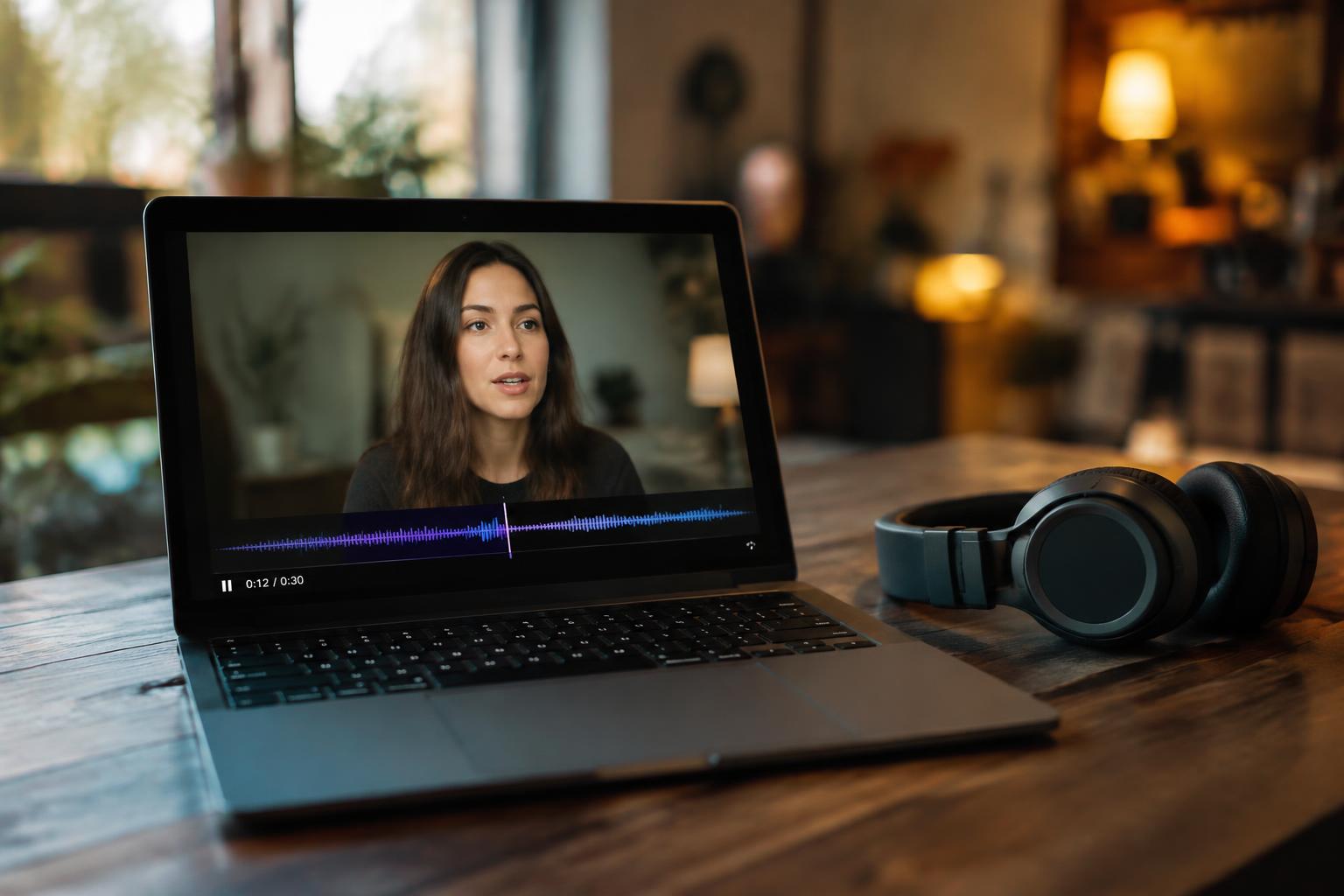
You press play on your laptop, but the dialogue reaches your Bluetooth headphones after the actor’s lips move. That lag comes from the time needed to encode, transmit, and decode audio, along with delays from software or a busy wireless connection. Bluetooth codec processing is one part of the chain, and video calls or games make even brief delays especially noticeable.
Key Takeaways:
- Bluetooth audio delay comes from encoding, wireless transmission, and decoding. The laptop’s Bluetooth codec and the headphones’ buffering both affect how long the sound takes to reach your ears.
- Video apps often compensate by delaying the picture, but games and live calls expose the lag because their audio must stay synchronized with immediate actions.
- Choosing a low-latency codec helps only when both the laptop and headphones support it; a wired connection avoids Bluetooth’s audio transmission delay.
How Bluetooth Audio Travels from Laptop to Headphones
Your laptop’s sound moves through a chain of software and wireless hardware before it reaches your ears. The operating system supplies audio to a Bluetooth profile, the laptop’s radio sends encoded data, and the headphone receiver turns that data back into sound. Each handoff takes time, so the audio you hear follows the video or application audio by a short interval. Playback is a sequence of stages, not a direct, instantaneous link.
| Stage | What happens | Where time is added |
|---|---|---|
| Audio output | The laptop sends sound to its Bluetooth audio service | Audio processing and profile handling |
| Encoding | Sound is converted into a Bluetooth codec format | Codec processing |
| Transmission | The radio sends audio packets to the headphones | Wireless packet delivery |
| Playback | The headphones decode and play the received audio | Buffering and synchronization |
Audio encoding and transmission
Before transmission, your laptop’s Bluetooth audio service compresses digital sound using a codec supported by both devices. That encoded stream is divided into packets and sent over the 2.4 GHz radio link; the headphone receiver collects the packets and decodes them into audio. Encoding precedes radio transmission, so the sound must pass through both stages before playback begins. The exact codec depends on the laptop and headphone connection.
Buffering and playback synchronization
Once packets arrive, your headphones hold a small amount of audio in a buffer before decoding and playing it. That reserve gives the receiver time to assemble packets in order and maintain continuous playback if delivery varies. The laptop and headphones also coordinate timing so the stream plays at a steady rate rather than as soon as each packet arrives. Buffering adds playback time, while synchronization keeps the audio stream consistent.
Why Bluetooth Audio Becomes Delayed
Sound from your laptop passes through several stages before reaching your headphones, and each stage can add a small wait. The delay you hear reflects the combined time spent encoding, transmitting, buffering, decoding, and processing audio. Because these tasks happen in sequence, even brief pauses can become noticeable when dialogue no longer matches lip movement. The main contributors are codec timing, device processing, and the conditions affecting the Bluetooth connection.
Bluetooth codecs and latency
Before transmission, your laptop encodes audio into a Bluetooth codec that your headphones can decode. Codec design and device support affect how much time that conversion takes; a codec optimized for sound quality may introduce more delay than one designed for low-latency playback. The two devices must also agree on a supported codec, so the codec available on your laptop may differ from the one used with another source. Encoding and decoding add to the end-to-end delay.
Laptop and headphone audio processing
Your laptop and headphones each process audio after the codec stage. Operating-system audio effects, virtual surround, equalization, and noise reduction can add processing time, while headphones may apply their own digital signal processing before playback. A playback buffer stores incoming audio to prevent gaps, but a larger buffer also means sound waits longer before you hear it. Video players and conferencing apps can add further delay through their own audio and synchronization pipelines.
Wireless interference and connection quality
Bluetooth shares the 2.4 GHz band with devices such as Wi-Fi routers, wireless mice, and some cordless peripherals. When radio traffic or obstacles weaken the link, your headphones may receive packets unevenly; buffering and retransmission can then increase perceived delay or cause brief dropouts. Distance, a laptop inside a metal enclosure, and crowded USB connections near the Bluetooth antenna can all affect signal quality. A stable link carries audio more predictably than a congested one.
- Video calls often expose lip-sync mismatch more clearly than music playback.
- Game audio makes short delays noticeable in timing-sensitive actions.
- Battery-saving modes can change how a laptop schedules wireless activity.
How to Reduce Bluetooth Audio Delay
Start with changes to the laptop’s audio settings and Bluetooth connection before adjusting anything else. Close and reopen the playback app after changing an option, since some programs retain the previous audio route until restarted. For video calls and games, keep the headphones selected as both the output and, when needed, the microphone device. These steps address common software and connection delays; a stable audio route is the first detail to verify.
Check codec and Bluetooth settings
Open your operating system’s sound settings and confirm that playback is routed to the headphones rather than a monitor, dock, or secondary device. If your laptop and headphones offer a low-latency codec, select it in the manufacturer’s app or supported system controls; codec options vary by device and operating system. Disable unnecessary audio enhancements, then reconnect the headphones to refresh the stream. For additional troubleshooting steps, see How to Fix Bluetooth Audio Delay? and verify the selected playback codec.
Update drivers and firmware
Install Bluetooth and audio driver updates through your laptop maker’s support utility or operating system update settings, then restart the computer to load the new drivers. Check the headphone manufacturer’s app for firmware updates, keeping the headphones charged and connected during installation. Outdated drivers can disrupt device communication, while firmware updates may address connection or synchronization faults. Avoid interrupting an update in progress; afterward, remove the headphones from the laptop’s paired-device list and pair them again to establish a fresh connection.
Reduce interference and background load
Move the laptop closer to the headphones and keep the signal path clear of walls, metal enclosures, and crowded USB hubs. Nearby wireless devices, especially active 2.4 GHz equipment, can compete for airtime, so move a wireless mouse receiver or Wi-Fi adapter away from the laptop’s Bluetooth antenna. Close demanding background tasks that cause audio dropouts or delayed processing, including heavy video rendering. Testing in a quieter radio environment helps distinguish wireless interference from a software workload.
| Change | Where to check | What to verify |
|---|---|---|
| Audio routing | Operating system sound settings | Headphones are the active output |
| Codec and enhancements | System controls or headphone app | Supported low-latency codec is selected |
| Drivers and firmware | Laptop support utility and headphone app | Updates finish before you reconnect |
| Signal conditions | Physical setup and running apps | Devices are nearby and competing tasks are closed |
When Hardware Limits Are the Cause
Some audio delay is set by the Bluetooth hardware at each end of the connection, not by the audio file or video player. Your laptop’s Bluetooth adapter, operating system, and headphones must support compatible transmission features to reduce buffering. Older adapters often lack newer latency-focused options, while headphone designs prioritize stable playback over tight synchronization. In those cases, hardware sets a floor on delay that software settings cannot remove, especially during video playback.
Codec compatibility between laptop and headphones
Bluetooth codecs determine how audio is encoded and buffered before your headphones play it. Your laptop and headphones must both support a codec, and the connection typically uses a shared option rather than whichever codec has the lowest latency in theory. Standard SBC support is widespread, while options such as aptX Low Latency require compatible hardware at both ends. Codec mismatch matters: headphones supporting a faster codec still use another format if the laptop cannot transmit it.
Low-latency modes and dedicated transmitters
Some headphones offer a low-latency mode that reduces internal processing or buffering, but the feature must be supported by the laptop’s Bluetooth transmitter and active codec. A USB Bluetooth transmitter designed for a matching low-latency codec can provide that link when a built-in adapter lacks support. Both endpoints must match; pairing a transmitter with headphones that use a different codec does not activate the faster mode. Gaming headsets may instead use a dedicated 2.4 GHz USB receiver.
- Bluetooth version alone does not guarantee low latency.
- Operating-system codec support varies by laptop.
- Headphone firmware can affect available audio modes.
Troubleshooting Common Delay Scenarios
Match the delay pattern to the part of the audio path most likely to be responsible. A growing mismatch between sound and picture points to playback synchronization, while sluggish game effects or choppy call audio often indicate a different active Bluetooth mode or a competing connection. Note whether the problem affects one app or every app, then check the relevant playback setting, microphone use, or device connection before changing several laptop settings at once.
| Symptom | First check | What to look for |
|---|---|---|
| Video and sound drift apart | Player or browser sync setting | Consistent offset across clips |
| Game effects feel late | Headphone gaming or low-latency mode | Delay limited to gameplay |
| Call audio worsens | Selected microphone and Bluetooth profile | Quality change when the mic activates |
Delay during video playback
Check whether the mismatch appears in one video player or across browsers and streaming apps. If only one player is affected, use its audio synchronization control to shift sound against the picture; a consistent offset across multiple sources points instead to the laptop’s playback path. Pause and resume the video, then test a downloaded clip to distinguish streaming or buffering problems from Bluetooth timing. Watch for lip-sync drift that stays steady rather than increasing during playback.
Delay during gaming and calls
During gameplay, test the headphones’ low-latency mode and confirm that the game is outputting to the same Bluetooth device shown in your laptop’s sound settings. In calls, activating the headset microphone can switch Bluetooth profiles, changing audio quality and responsiveness. Select a separate laptop or USB microphone, then listen for a change in call audio. If the delay occurs only while the microphone is active, profile switching is the specific symptom to investigate.
Conclusion
Bluetooth delay comes from the time your laptop spends encoding and transmitting audio, followed by your headphones decoding and playing it. Video calls, games, and streamed video expose that lag more than music because speech and action must stay synchronized. Selecting a low-latency codec helps only when both devices support it; otherwise, updated Bluetooth drivers, a direct connection, or wired headphones are more dependable fixes. For precise timing, your laptop’s headphone jack avoids the Bluetooth encoding and decoding path.
FAQ
Why does Bluetooth audio become delayed with wireless headphones on a laptop?
Bluetooth audio can be delayed because the laptop and headphones encode, buffer, transmit, and process sound before playback. The amount depends on their codec support, device processing, connection quality, and whether the app can synchronize audio with video.
How long does it take to fix Bluetooth headphone delay on a laptop?
Simple checks, such as reconnecting the headphones, reducing interference, or changing an audio setting, can take a few minutes. Driver or firmware updates may take longer, and the steps depend on the laptop, headphones, and operating system.
Can Bluetooth audio delay damage my headphones or laptop?
Audio delay by itself does not damage headphones or a laptop. Avoid installing drivers or firmware from untrusted sources, since incompatible or unsafe software can cause separate problems.
What is the best alternative if Bluetooth headphones lag during gaming?
Wired headphones usually avoid Bluetooth transmission delay, while a compatible low-latency transmitter may reduce it without a cable. A transmitter helps only if it supports a low-latency codec that the headphones also support.
Is it worth buying new headphones to reduce Bluetooth lag?
New headphones may help if they support a low-latency mode compatible with the laptop, but replacing them is not always necessary. Check codec compatibility and try connection or software fixes first, because the laptop or app may be contributing to the delay.