
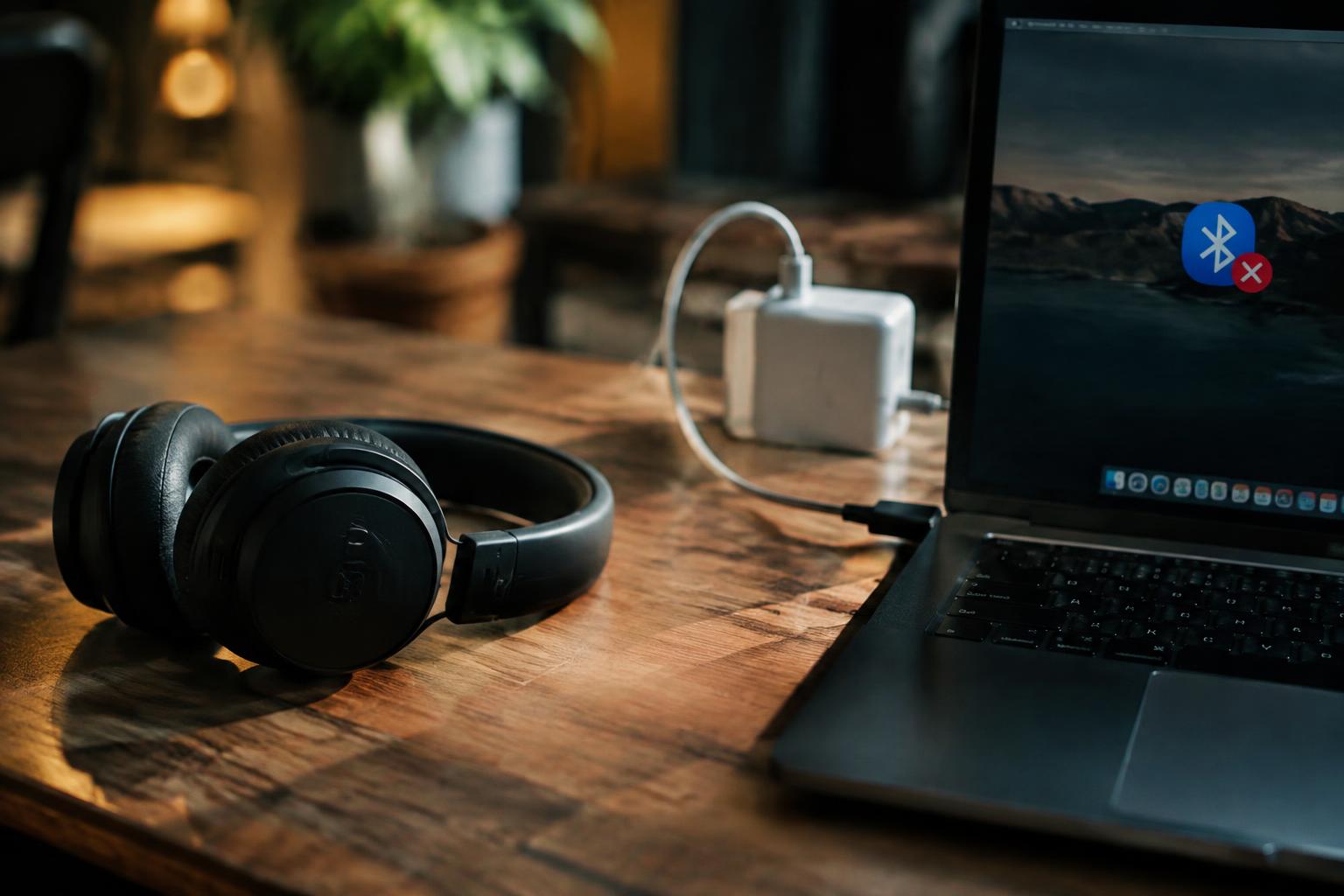
Your Bluetooth headphones or mouse may disconnect only when your laptop is charging, pointing to interference or a change in power management rather than a faulty accessory. A charger’s electrical noise can disrupt the 2.4 GHz radio band Bluetooth uses, while laptop settings may also limit wireless performance. Identifying whether the drops follow a particular charger is a useful first clue.
Key Takeaways:
- A Bluetooth connection that drops only while a laptop is charging often points to electrical interference from the power adapter or cable, especially near a USB Bluetooth dongle.
- Power-management settings, outdated Bluetooth or Wi-Fi drivers, and a faulty charger can also cause disconnects; whether they are responsible depends on the laptop and adapter.
- Notice whether the problem stops on battery power, changes with a different outlet, or affects multiple Bluetooth devices. These patterns help distinguish charger interference from a device-specific fault.
How Laptop Power Can Affect Bluetooth
Connecting your laptop to its charger changes both its power state and the electrical environment around its wireless hardware. Operating systems can apply different energy policies on AC power, while a charger or cable can introduce electrical noise near the Bluetooth antenna. Either change can affect connection stability, though the cause depends on the laptop’s design and setup. Understanding these two mechanisms helps explain why an audio device or mouse might disconnect only while your laptop is plugged in.
Power-saving settings and Bluetooth adapters
Windows and other operating systems manage wireless components through power controls, and those controls can behave differently on battery and AC power. A Bluetooth adapter may enter a low-power state during inactivity, then take longer to resume communication with a connected device. In Device Manager, the adapter’s Power Management tab may offer an option allowing the computer to turn off the device to save power. Adapter sleep behavior can interrupt a steady audio stream or mouse connection.
Charging-related electrical interference
Some charging circuits and poorly shielded power adapters generate electrical noise that can interfere with nearby radio signals. Bluetooth shares the 2.4 GHz band with Wi-Fi and other devices, so interference near a laptop’s antenna can weaken its link even when the charger supplies power normally. A frayed cable or an off-brand adapter is not automatically faulty, but a change in connection behavior near the charging hardware points to possible electrical noise, rather than a Bluetooth setting alone.
Differences between battery and plugged-in performance
On battery, a laptop may reduce processor speed or limit background activity to extend runtime; on AC power, it can switch to a higher-performance profile and change how system resources are allocated. Those shifts do not inherently disable Bluetooth, but they can expose timing or driver issues that were less noticeable under a lighter workload. If disconnections coincide with plugging in, note whether they also occur during demanding tasks such as video calls, when CPU activity rises alongside charging.
- Note whether the laptop is charging through USB-C or a barrel connector.
- Record whether the disconnect affects audio, input devices, or both.
- Check whether the charger cable runs beside the laptop’s antenna area.
Identifying When and Where Disconnections Occur
Track each drop against a specific change in your setup, such as connecting the charger, moving to another outlet, or switching on nearby equipment. Record the time, location, laptop power state, and Bluetooth device involved; a brief note is more useful than a general impression. Look for a repeatable pattern, such as audio cutting out only at a desk or a mouse disconnecting whenever the power cable is attached.
Testing Bluetooth with the charger connected and disconnected
Run the same Bluetooth task twice, once on battery and once with the charger connected, while keeping your laptop and device in the same positions. Play audio or move a mouse continuously, and note whether the connection drops, stutters, or remains stable. Repeat each condition to distinguish a consistent trigger from an isolated glitch. A matching workload makes the comparison meaningful, such as playing the same audio track at the same volume.
Checking whether one or multiple devices disconnect
Pair a second Bluetooth device, such as headphones alongside a mouse, and observe whether both lose connection during the same interval. If only one device drops, note its model, battery level, and distance from the laptop; if several disconnect together, record that shared timing. These patterns separate a device-specific interruption from a broader connection issue. Write down whether each device reconnects on its own or requires manual pairing.
Noting changes with outlets, chargers, and nearby equipment
Repeat the connection test at another outlet and, if available, with the laptop’s original charger, keeping the Bluetooth device in a fixed position. Note nearby equipment that changes between tests, such as a powered USB hub, external display, or wireless router. Record the exact setup whenever a drop occurs; a location-specific pattern, such as failures only beside one hub, is more informative than a vague note about interference.
| Test condition | What to keep constant | What to record |
|---|---|---|
| Charger connected or disconnected | Bluetooth task and device position | Drop timing and connection behavior |
| One device or multiple devices | Laptop location and power state | Which devices disconnect and reconnect |
| Different outlet or charger | Device distance and test task | Outlet, charger, and nearby equipment |
Checking Drivers, Settings, and System Updates
Software configuration determines how your laptop manages Bluetooth during changes in power state, so a disconnection that begins after you connect the charger deserves a settings check. Start with Windows’ Bluetooth controls or macOS System Settings, then review device-specific options and recent system changes. Keep track of the exact time a headset or mouse drops, since that detail can help you match the interruption to a driver event or an operating-system notification.
Reviewing Bluetooth power-management options
Open Device Manager in Windows, expand Bluetooth, and inspect the adapter’s Properties for a Power Management tab. If Allow the computer to turn off this device is selected, clear it and test the connection with the laptop plugged in. The setting is not available for every adapter, and macOS presents power controls differently, so avoid changing unrelated options. Also review any manufacturer utility that applies a separate Bluetooth or battery-saving profile.
Updating Bluetooth and chipset drivers
Use your laptop manufacturer’s support page to identify Bluetooth and chipset packages for the exact model and operating-system version. Install the matching driver rather than relying on an unrelated package from a generic download site; chipset software coordinates system-level power and device behavior. In Windows, Device Manager can show the adapter name and driver version, while macOS updates these components through system updates. Restart after installation, then test the same Bluetooth device on AC power.
Checking operating-system updates and event logs
Pending operating-system updates can include Bluetooth fixes, so review Windows Update or macOS Software Update and install applicable releases. In Windows, open Event Viewer and inspect the System log around the recorded dropout time for Bluetooth, USB, or driver warnings; note the event source and code. Match timestamps against the connection failure rather than treating every warning as related. On macOS, Console can reveal Bluetooth process messages near the same time.
- Record the adapter’s name and driver version before changing software.
- Create a restore point before installing a driver package in Windows.
- Restart the laptop after an operating-system or driver installation.
Ruling Out Charger, Signal, and Hardware Problems
Power-related disconnects do not always originate in Bluetooth settings: a poorly regulated adapter, crowded radio spectrum, or a failing component can interrupt the link. Note whether drops coincide with plugging in, moving the laptop, or using a particular accessory, then compare those observations with what happens on battery power. Reports such as Solved! – Bluetooth Keeps Cutting Out illustrate how connection symptoms can vary, while repeatable timing helps narrow the cause.
Testing with the original or a compatible charger
Start with the laptop maker’s original adapter or a manufacturer-approved replacement matching the required voltage, wattage, and connector. A low-quality or damaged charger can introduce electrical noise, especially if disconnections begin as soon as it is connected. Inspect the cable and plug for fraying, heat damage, or a loose fit, and note whether another compatible adapter changes the symptom. Avoid using a charger with exposed wiring or a damaged casing.
Reducing interference and improving device proximity
Bluetooth shares the 2.4 GHz band with many Wi-Fi networks and wireless peripherals, so a busy desk can make an otherwise sound connection unstable. Keep the headset, mouse, or speaker within clear range, and move USB 3 devices, hubs, and external drives away from the laptop’s Bluetooth antenna area. A metal laptop stand or a wall between devices can also weaken reception; note whether the connection steadies when the accessory is close and unobstructed.
Checking the Bluetooth adapter, antenna, and connected device
Test the laptop with a second Bluetooth accessory, then pair the original accessory with another computer or phone. If only one pairing fails, the connected device’s radio or battery is a stronger suspect; if several accessories drop, inspect the laptop’s adapter and antenna. A loose internal antenna connection can follow a drop or repair, while a USB Bluetooth dongle that disconnects when touched may have a worn port. Record which device combinations reproduce the fault.
| Possible cause | What to compare | Useful clue |
|---|---|---|
| Charger interference | Original adapter versus compatible adapter | Drops begin only when one charger is connected |
| Radio interference | Near, unobstructed placement versus crowded placement | Connection improves close to the laptop |
| Bluetooth accessory fault | Accessory paired with another computer or phone | Same accessory drops across devices |
| Laptop adapter or antenna fault | Multiple Bluetooth accessories on the laptop | Several accessories lose connection on this laptop |
Fixing Bluetooth Disconnections When Plugged In
Make one targeted change at a time so you can identify whether the disconnects come from Windows power controls, a stale pairing, or electrical interference from the charging setup. Start with the setting tied most closely to the symptoms, then test the same Bluetooth device while the laptop remains plugged in. Keep a note of the setting you changed and whether audio or input stayed connected, since that result narrows the next troubleshooting step.
Changing power-management settings
Open Device Manager, expand Bluetooth, and inspect the adapter’s Properties for a Power Management tab. If Windows offers the option, clear Allow the computer to turn off this device to save power, then restart the laptop and test the connection on AC power. Some adapters do not expose this tab; in that case, review the active power plan’s wireless adapter settings rather than changing unrelated sleep controls.
Reconnecting devices and resetting Bluetooth
Remove the affected accessory from Windows Bluetooth settings, switch Bluetooth off briefly, then turn it back on and pair the device again using its pairing mode. For a wider reset, restart the Bluetooth Support Service through Services, or restart Windows before pairing. Forget the device on both ends when the accessory stores old laptop pairings, since headphones and keyboards can reconnect to a previously saved host instead of the current laptop.
Trying another outlet, charger, or USB port
Move the charger to a different wall outlet and test with the laptop’s original, correctly rated adapter; a damaged or poorly shielded charger can introduce interference near wireless components. If a USB Bluetooth dongle is involved, move it from a USB 3.x port to a USB 2.0 port or use a short extension cable to place it away from the laptop and charger. Stop using any adapter that becomes unusually hot, smells burnt, or has a damaged cable.
- Keep a USB dongle clear of metal desk supports.
- Disconnect unused USB hubs during the test.
- Use the laptop manufacturer’s charger specification.
Preventing Future Connection Drops
Once your Bluetooth connection is stable, consistent maintenance makes repeat drops less likely. Set a regular time to install operating system, driver, and device firmware updates, and use a charger that meets your laptop manufacturer’s power specifications. After each change, observe the connection during ordinary tasks, such as streaming audio while the battery charges. Change one factor at a time, so you can identify whether an update, charger, or placement adjustment affects stability.
Keeping drivers and firmware current
Use Windows Update or your laptop maker’s support utility to install Bluetooth and chipset drivers intended for your exact model; generic packages can omit device-specific power fixes. Check the Bluetooth accessory maker’s app or support page for firmware instructions, and keep the laptop connected to reliable power during installation. Restart after driver updates, then confirm the Bluetooth adapter appears without a warning icon in Device Manager.
Using compatible chargers and minimizing interference
Choose the original adapter or a certified replacement that matches the laptop’s required voltage and power delivery, since an underpowered or poorly shielded charger can create electrical noise. Route the charging cable away from the Bluetooth mouse, headset, or USB receiver, and avoid placing the laptop beside a USB 3 hub or external drive. Keep the accessory close, with no metal enclosure or cable bundle between it and the laptop.
Monitoring connection stability after changes
After installing updates or changing chargers, test the same accessory while plugged in during normal use, such as a video call or music playback. Note the time, battery state, adapter, and whether other wireless devices are active whenever a dropout occurs; a short log can reveal a repeatable pattern. Change only one variable between tests, and record the charger model alongside any interruption.
| Maintenance step | What to do | What to record |
|---|---|---|
| Drivers and firmware | Install model-specific updates and restart | Adapter status and update date |
| Charger | Use a correctly rated, certified adapter | Charger model and connection behavior |
| Device placement | Separate Bluetooth accessories from hubs and cable bundles | Accessory position and active USB devices |
| Stability test | Repeat a normal plugged-in task after each change | Time, battery state, and any dropouts |
Summing up
Bluetooth disconnections that begin when your laptop is plugged in often point to power settings, electrical interference, outdated drivers, or a charger that affects the wireless signal. You can narrow down the cause by testing on battery power, trying another compatible charger, and checking Bluetooth and wireless adapter settings in Device Manager. Once the connection stays stable under the same conditions, note which change made the difference, such as disabling USB selective suspend or replacing a faulty power adapter.
FAQ
Why does my Bluetooth device keep disconnecting when my laptop is plugged in?
A laptop may change Bluetooth power settings while charging, or its charger may create electrical interference that affects the wireless connection. If several devices disconnect only with one charger or outlet, test a compatible charger and another outlet before changing Bluetooth settings.
How long does it take to fix Bluetooth disconnections when charging?
Basic checks, such as reconnecting the device or trying another outlet, usually take a few minutes. Driver updates or troubleshooting a faulty adapter can take longer, and the time depends on the laptop, operating system, and cause of the drops.
Can a laptop charger damage a Bluetooth device?
A charger that causes connection drops does not necessarily mean the Bluetooth device is being damaged. Stop using a charger that is damaged, unusually hot, or incompatible with the laptop, and test with the original or a compatible charger.
Is it worth replacing my Bluetooth adapter if connections drop only while charging?
Replacing the adapter is usually not the first step if Bluetooth works reliably on battery power. Test another compatible charger and outlet, check power-management settings, and consider replacement if the problem persists across chargers or the adapter fails with multiple devices.
What is a common mistake when troubleshooting Bluetooth dropouts?
Changing several settings at once makes it harder to identify what fixes the connection. Test one change at a time, and compare behavior with the charger connected and disconnected while keeping the Bluetooth device and its distance from the laptop consistent.