
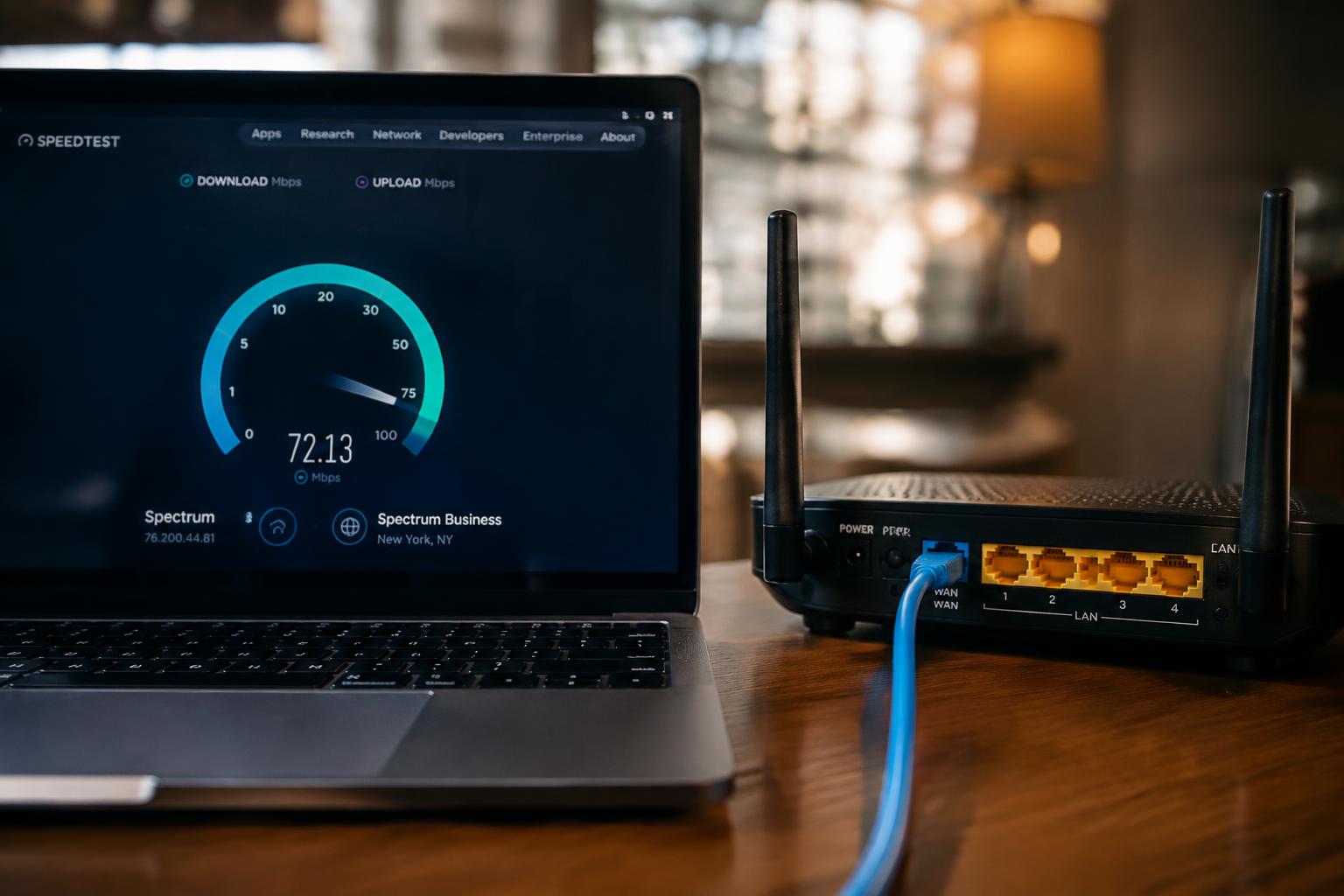
A fast internet plan can still feel sluggish if your router’s Ethernet ports cap wired connections below your plan’s speed. Check the port’s rated link speed and the connection negotiated by your device, since a 100 Mbps port can bottleneck a faster service even with a suitable cable. A wired speed test reveals the throughput reaching your computer.
Key Takeaways:
- Check the router’s specifications or the labels beside its Ethernet ports to identify their link speeds. A Gigabit Ethernet port tops out at 1 Gbps, while a 100 Mbps port can bottleneck a faster internet plan.
- Run a wired speed test with a computer that supports the expected Ethernet speed, using a known-good cable. A 100 Mbps link often points to a port, cable, or device limit rather than the internet connection itself.
- Test the same computer and cable on each router port, then inspect the negotiated link speed in the computer’s network settings. If one port consistently links more slowly, that port is the likely bottleneck.
Identify Your Router’s Ethernet Port Speeds
Start with the router’s model number, then identify the Ethernet rating assigned to its LAN ports. Manufacturers commonly list speeds as 10/100, Gigabit, or 2.5 Gigabit, rather than describing them as a general performance tier. Each port’s rated speed sets its maximum wired link rate, though the exact labeling varies by model. Record the rating and whether it applies to every LAN port or only specific sockets.
Read the router label and manual
Look for the model number on the router’s underside, rear panel, or product label, and use it to find the matching manual. In the specifications or hardware section, search for terms such as “LAN,” “Ethernet,” “10/100 Mbps,” and “10/100/1000 Mbps.” Gigabit Ethernet means a rated link speed of up to 1 Gbps. Check port diagrams too, since a router can assign different ratings to individual sockets.
Check the router’s specifications online
Search the manufacturer’s support site for the exact model number, including any hardware revision printed on the label. Open the official product specifications or technical datasheet and locate the LAN interface entry; marketing pages may list Wi-Fi speeds prominently while omitting wired-port details. Use the matching revision, because models with similar names can have different hardware. A listing of “4 × Gigabit LAN” identifies four ports rated at 1 Gbps each.
| Where to look | What to find | What the rating means |
|---|---|---|
| Router label | Model number and hardware revision | Identifies the exact device version |
| Manual | LAN or Ethernet specification | Lists rated port speeds |
| Manufacturer’s website | Official specifications or datasheet | Confirms ratings for each LAN port |
Check Your Ethernet Cable and Connected Device
Your internet connection passes through both the cable and the device’s Ethernet adapter before reaching an app or speed test. Either component can impose a lower link rate than the service you receive, even when the connection appears stable. Check the specifications at both ends of the cable, then confirm the adapter’s negotiated speed in your operating system. A laptop connected through a USB Ethernet dongle, for example, depends on the dongle’s supported rate as well as the cable.
Confirm the cable’s category and condition
Read the printing along the cable jacket to identify its category: Cat 5e and Cat 6 commonly support Gigabit Ethernet over standard home cable runs, while older or damaged cable can negotiate a slower link. Inspect the plugs for bent contacts and make sure each clip holds firmly in its socket. A loose connector or damaged pair can cause errors or a reduced negotiated rate, even if the cable’s label specifies a higher category.
Verify the device’s Ethernet adapter speed
Open your device’s network settings and find the Ethernet link speed or connection status. A reading of 100 Mbps indicates that the active link is operating at Fast Ethernet, while 1.0 Gbps indicates a Gigabit link; the displayed rate is the local connection speed, not a measurement of your internet plan. Check the adapter’s specifications too, especially if you use a USB hub or docking station, since a 10/100 Mbps adapter caps traffic at 100 Mbps.
- Disable Wi-Fi during a wired speed test.
- Disconnect VPN software before testing.
- Close large downloads and cloud backups.
Test Each Router Port
Use the same wired device and test service to measure each Ethernet port, changing only the port connection between runs. Record the result for every port, including repeated readings if speeds fluctuate. A consistent setup makes a port-specific difference easier to identify than switching devices or cables mid-test. Keep the cable fully seated in each socket, and note which port produced each result in a simple comparison table.
| Test detail | Keep consistent | Record |
|---|---|---|
| Router connection | Change only the port | Port label |
| Test service | Use the same service | Download and upload results |
| Repeated runs | Use the same procedure | Each reading |
Run a wired speed test on each port
Connect your computer to the first LAN port, run a wired speed test, then repeat the same steps on each remaining port. Use the same test server when the service lets you select one, and record download and upload results with the port number. Repeat a run if the reading is unusually erratic. A clear, repeatable difference between ports is more useful than a single isolated result, such as one port repeatedly showing a lower transfer rate.
Keep the device, cable, and test conditions consistent
Keep your computer, Ethernet cable, speed-test service, and background activity unchanged as you move between ports. Pause downloads and close network-heavy apps so they do not alter one run more than another. Inspect the cable ends and seat the connector firmly, since a damaged or poorly connected cable can affect readings; Yes, Ethernet cables can slow your connection. Record each result beside the router port label.
Account for Other Speed-Limiting Factors
Ethernet port ratings describe a possible connection speed, not the throughput you will see in every test. Your measured result reflects the entire path from your provider’s network through the modem and router to the device, along with current network demand. A slower reading therefore does not, by itself, identify a faulty router port. Keep the test conditions consistent, including the same device and measurement service, so differences are meaningful rather than caused by changing network conditions.
Compare results with your internet plan
Start with the speed tier listed in your provider account, distinguishing download and upload rates from the router’s Ethernet link speed. A plan’s advertised rate is generally an upper limit under suitable conditions, not a guarantee that every speed test will match it. Run a wired test while other household devices are quiet, then compare the result with the plan and any provider-specific terms. A gigabit Ethernet connection cannot deliver more internet bandwidth than your subscribed service provides, even with a fast router port.
Consider modem, traffic, and software limitations
Beyond the router, your modem must support the service technology and speed tier; an older cable modem, for instance, can constrain throughput before data reaches the router. Active downloads, video calls, cloud backups, and congestion on your provider’s network also affect test results. On the test device, a VPN, security scan, outdated network driver, or background update can reduce measured speed. A VPN test, in particular, reflects the encrypted route through its server, not just your local Ethernet connection.
- Check whether the modem is operating in bridge mode or router mode.
- Look for bandwidth limits set by parental controls or quality-of-service rules.
- Note whether the speed test uses a nearby or distant server.
Fix or Work Around a Slow Ethernet Port
Once testing identifies a slow port, use the least disruptive remedy first: restart the router, install any available firmware update, then test a different port with the same cable and device. A port that remains slow while others perform normally may have a hardware fault, so avoid opening the router or attempting a board-level repair. Keep the router ventilated, and record which port limits the connection before contacting the manufacturer.
| Option | Best suited to | What to verify |
|---|---|---|
| Restart router | Temporary connection faults | Speed after reboot |
| Update firmware | Known software issues | Correct model and firmware |
| Use another port | One port tests slower | Same cable and device |
| Add a gigabit switch | Too few suitable ports | Gigabit speed on every link |
Restart and update your router
First, save any active work, then restart the router through its administration page or power cycle it according to the manufacturer’s instructions. After it reconnects, repeat the wired speed test using the same computer and cable. Check the router’s support page for firmware built for your exact model and hardware revision; never interrupt an update, since a failed installation can leave the router unusable. Record the firmware version and test result.
Try another port or a suitable network switch
Next, move the Ethernet cable to another LAN port and retest without changing the device or cable. If one port consistently negotiates at a lower link rate, use a faster working port for your main computer and label the faulty one. For more connections, attach an unmanaged gigabit switch to a gigabit router port; confirm both ends report a gigabit link, because a fast switch cannot overcome a slower router uplink.
Summing up
To determine whether your router’s Ethernet ports are limiting your internet speed, compare their rated link speeds with your internet plan, then test a wired connection using a known-good cable and gigabit-capable device. Run the same speed test on each port, keeping other network activity steady, and inspect the negotiated link rate in your device’s network settings. A port rated at 100 Mbps will cap a faster connection near that rate, even when your modem and service support higher speeds.
FAQ
How can I tell whether my router’s Ethernet ports are limiting my internet speed?
Compare the speed ratings of the router ports with the Ethernet adapter in your device, then test each port using the same cable and conditions. A port may be faster than your internet plan, so a speed test alone cannot confirm its maximum link speed.
How long does it take to test every Ethernet port on a router?
Testing usually takes a few minutes per port, plus time to move the cable and run repeat speed tests. Results can take longer to interpret if internet traffic varies or the modem, computer, or test server is limiting throughput.
Could testing or switching router ports damage my equipment?
Simply connecting a computer to a standard Ethernet port and running a speed test should not damage either device. Avoid forcing connectors, and use a suitable Ethernet switch if you need more ports; a switch cannot overcome a slower router port or internet connection.
Is a network switch a good alternative to replacing a slow router?
A network switch can add ports or provide a faster connection for wired devices when the router supports the switch’s speed. It will not increase internet speed beyond the router port, modem, or service plan that forms the bottleneck.
Do I need to buy a new router if one Ethernet port is slow?
Not necessarily; try another port and check the cable, connected device, router settings, and firmware before replacing the router. Replacement may make sense if the router’s ports are below the speed your devices and internet service can use.