
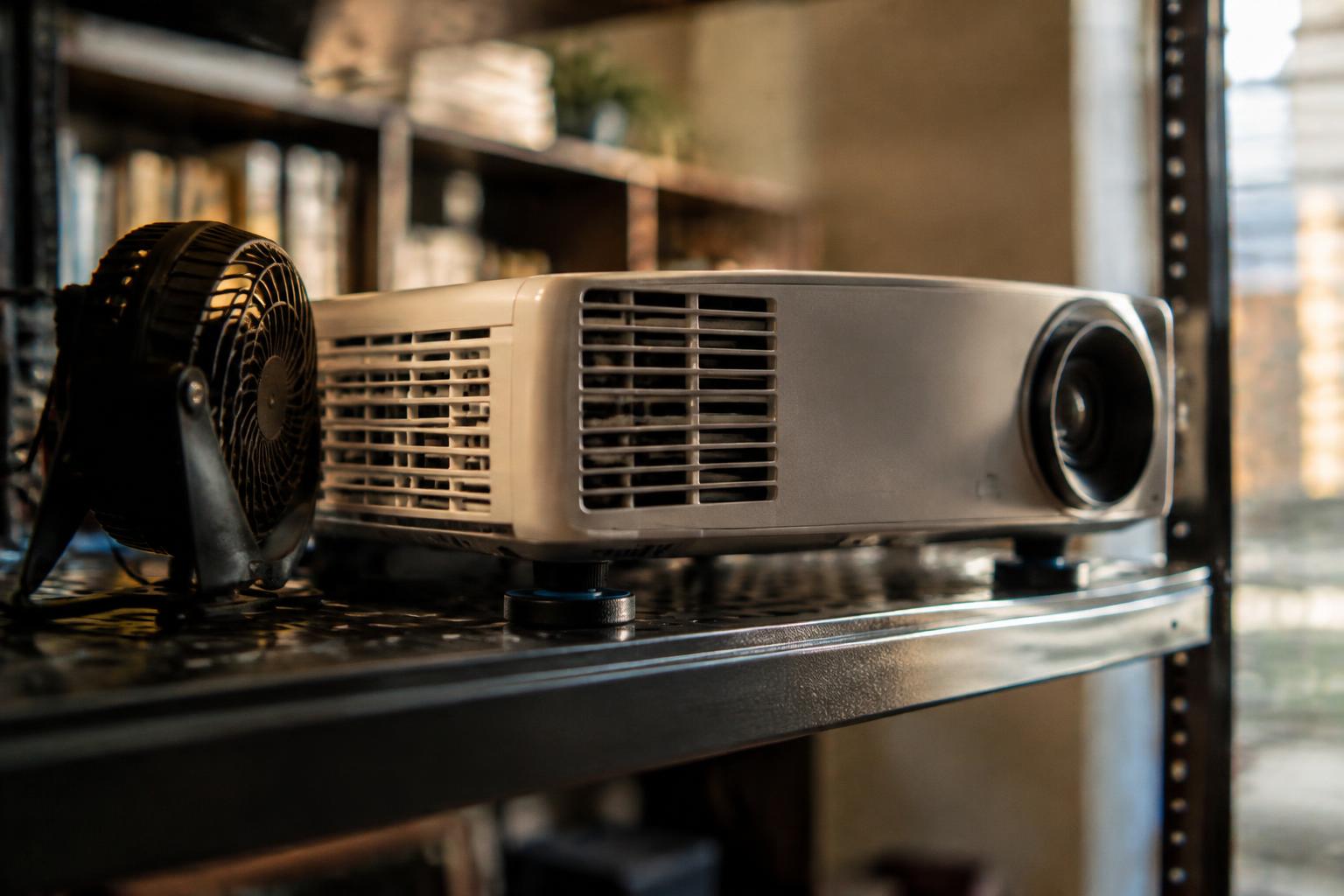
A loud projector fan can distract from dialogue, but covering an intake or exhaust vent risks overheating the lamp, laser, or internal components. Keep every air vent unobstructed while reducing noise at its source: dust buildup, high-output settings, or a projector placed too close to listeners. Even a small change in placement can make fan noise less intrusive.
Key Takeaways:
- Keep every intake and exhaust vent clear. Reduce fan noise with a clean, correctly sized air filter and unobstructed airflow, never foam, fabric, or a vent cover.
- Use the projector’s Eco or low-lamp mode when the image remains bright enough. Lower lamp output reduces heat, so the cooling fan often runs less aggressively.
- Place the projector on a stable, ventilated surface away from walls and heat sources. If the fan stays unusually loud after safe cleaning and setting changes, have a technician inspect the fan and filter.
Understand Why Your Projector Fan Is Loud
Your projector’s fan responds to the heat its internal components produce, so louder operation often signals that the cooling system is working harder than usual. Dust buildup, restricted airflow, a warm room, and demanding picture settings can all increase fan speed. The sound’s timing offers a useful clue: a fan that grows louder during bright scenes points to workload, while noise that persists at startup can suggest airflow resistance. These solutions for projector fan noise and common causes provide further context.
Check for Dust, Obstructed Vents, and Poor Placement
Dust on an intake grille or exhaust opening restricts airflow, making the fan run faster to move heat out of the chassis. Inspect both vent areas for lint, pet hair, or objects placed close to the projector. A unit pressed against a wall, set inside a closed cabinet, or surrounded by stacked equipment can recirculate warm exhaust. Restricted vents raise fan load, and a hot-air outlet facing the intake can keep the projector cooling with already-warmed air.
Consider Room Temperature and Projector Workload
Room heat affects how efficiently the projector sheds internal heat, so fan noise often increases in a poorly ventilated room or during long viewing sessions. Bright picture modes, high lamp output, and demanding image processing also add thermal load. If the fan becomes louder during a bright presentation than during a dim menu screen, the change likely reflects workload rather than a fault. Higher output generates more heat, especially during sustained use at maximum brightness.
| Cause | Common clue | Effect on cooling |
|---|---|---|
| Dust on vents | Noise persists during operation | Reduced airflow |
| Blocked or poorly placed unit | Exhaust feels trapped or returns toward intake | Warm air recirculates |
| High room temperature | Fan runs faster in a warm room | Less effective heat removal |
| Bright settings or heavy workload | Noise rises during bright scenes | More internal heat |
Clean and Maintain the Projector Safely
Routine care keeps dust from restricting airflow and forcing the cooling system to work harder. Before you clean, turn off and unplug the projector, then let it cool according to the manufacturer’s instructions. Use only the tools and cleaning materials the manual permits, since delicate filters and internal components can be damaged by improvised methods. Keep liquids away from the housing, and do not open sealed sections to reach dust inside.
Clean Filters and Air Intakes According to the Manual
Follow the manual’s instructions for locating, removing, and cleaning each filter; designs differ, and some filters require replacement rather than washing. Use a soft brush or a vacuum attachment only if the manufacturer approves it, and avoid pressing on mesh or fan blades. Never reinstall a damp filter, because moisture can trap debris or damage components. After cleaning, seat the filter securely and confirm its cover is fully closed.
Keep Exhaust and Intake Vents Clear
Place the projector so furniture, cables, curtains, and dust buildup do not obstruct its intake or exhaust openings. Leave the clearances specified in the manual, including space behind the unit where warm air exits; pushing the projector against a wall can cause heat to recirculate. Do not cover any vent with fabric, foam, or a noise-dampening panel. Remove loose dust around vent grilles with a dry, soft brush.
- Wash your hands before handling a removable filter.
- Keep cleaning tools dry and free of oily residue.
- Store replacement filters in their sealed packaging.
Adjust Settings to Lower Fan Noise
Projector menus offer direct ways to reduce heat production, giving the cooling system less work to do during a presentation or film. Start with picture and power controls, then review features that keep the lamp or light source active between uses. Lower heat output generally means less fan demand, though the effect depends on the model and room conditions. Keep the projector within its stated operating limits, and avoid settings that trigger a warning or thermal shutdown.
| Control | Typical setting | Effect on cooling demand |
|---|---|---|
| Brightness or lamp power | Eco or reduced | Usually lowers heat output |
| Image processing | Disable unused enhancements | Reduces unnecessary processing |
| Sleep timer | Set for idle periods | Shortens powered-on time |
| Operating mode | Standard rather than high-output | Limits extra cooling demand |
Choose a Lower-Brightness or Eco Mode
Select Eco, Low Lamp, or a reduced light-output option in the projector’s picture or power menu. Lowering brightness reduces energy use and heat from the lamp or light source, which often lets the fan run more quietly. The image will appear dimmer, so choose this mode when the room is dark and the screen remains clear. Use the lowest comfortable brightness, and switch back to standard output if ambient light washes out details.
Reduce Unnecessary Processing and Operating Time
Turn off picture enhancements you do not use, such as frame interpolation, dynamic contrast, or high-output presentation modes, since some models draw more power to process or display them. Set a sleep timer for pauses and shut the projector down when the session ends; standby or a blank screen may still leave components running. Allow the full cool-down cycle after shutdown, because unplugging the projector early can interrupt its fan’s lamp-cooling routine.
Improve Projector Placement and Room Conditions
Room temperature and installation layout affect how quickly a projector sheds heat, which in turn influences how hard its cooling fan must work. Keep the unit in a cool, well-ventilated room, away from direct sunlight, radiators, and heat-producing electronics. A cabinet or shelf that traps warm exhaust can drive fan speed up even when the projector itself is clean. Aim for an arrangement where heated air can disperse into the room rather than recirculate around the chassis.
Provide Adequate Clearance Around Every Vent
Leave open space around both intake and exhaust vents, following the clearances specified in your projector’s placement guidance. A wall, curtain, or cabinet panel close to an outlet can force hot air back toward the intake, raising internal temperature and fan speed. Keep cables and nearby objects out of the airflow path, too. Unobstructed exhaust flow matters as much as intake space, especially when the projector sits near a rear wall.
Place the Projector on a Stable, Open Surface
Set the projector on a firm, level shelf or table with open space beneath and around the chassis. Soft furnishings, stacked papers, and enclosed compartments can restrict airflow or transmit vibration that makes fan noise more noticeable. A stable mounting surface also prevents the unit from shifting and keeps its vents aligned with the room’s air space. Avoid placing it on a speaker cabinet, where vibration from playback can add to the perceived noise.
- Keep curtains from hanging across the projector’s airflow path.
- Position the unit away from desk lamps that generate heat.
- Leave nearby storage boxes outside the exhaust stream.
Know When to Seek Service or Replace Parts
Projector fans run at different speeds as the unit manages heat, so a steady airflow sound alone does not point to a defect. Pay attention to changes from normal operation, especially if the noise persists across different operating conditions or comes with warning lights, overheating, or an unexpected shutdown. A fault becomes more likely when the sound is new, irregular, or accompanied by a visible error message on the projector’s display.
Identify Rattling, Grinding, or Sudden Changes in Fan Sound
A loose rattle, scraping, or grinding tone differs from the smooth rush of air produced by a working fan. Listen for a change that begins abruptly, grows louder, or continues after the projector has warmed up; these patterns can indicate a damaged bearing, loose internal part, or fan obstruction. Stop using the projector if you hear grinding or notice a burning smell, repeated overheating, or a fan that stops while the unit is running.
Consult the Manual or a Qualified Technician
Manufacturer service guidance identifies model-specific warning lights, temperature messages, and approved replacement parts. Check the manual before opening the case, since high-voltage components can retain charge after the projector is unplugged and some models require specialized disassembly. If the fan is failing, ask an authorized service technician to inspect its bearings, wiring, and control board; replace the fan only with a part specified for your projector model.
| Symptom | Possible concern | Response |
|---|---|---|
| Steady airflow sound | Normal cooling operation | Monitor for changes |
| Rattle or scraping | Loose part or fan damage | Arrange inspection |
| Grinding or stopped fan | Fan failure or overheating risk | Shut down and seek service |
| Warning light or temperature message | Cooling-system fault | Follow the model manual |
Conclusion
Quieting a projector starts with preserving airflow, not covering its vents. Clean the intake filter and exhaust grilles, select a lower lamp or eco mode when image brightness permits, and place the unit on a firm surface with clear space around each opening. If the fan remains unusually loud after routine maintenance, a worn fan or obstructed internal cooling path may require qualified service. Keep the projector’s ventilation unobstructed during every use.
FAQ
How can I reduce projector fan noise without blocking its air vents?
Reduce fan noise by keeping the vents clear, cleaning the filter as the manual directs, and using a lower-brightness mode if available. Make sure the projector has open space around its intake and exhaust, because restricting airflow can cause overheating and louder fan operation.
How long does it take to quiet a noisy projector?
Checking the placement and changing a setting usually takes only a few minutes, while filter cleaning depends on the model and how accessible the filter is. If the noise continues after routine checks, allow time for diagnosis, since a worn fan or other fault may need professional service.
Can a loud projector fan mean the projector is damaged?
A loud fan does not always mean the projector is damaged, since dust, warm room conditions, and demanding settings can increase cooling needs. Rattling, grinding, or a sudden change in sound can indicate a mechanical problem, so stop using the projector if it overheats and consult its manual or a qualified technician.
Is it safe to clean a projector filter myself?
Cleaning a projector filter is generally safe when you follow the manufacturer’s instructions and use only the recommended method. Unplug the projector and let it cool first, and do not wash a filter unless the manual says it is washable, because moisture or improper handling can damage it.
Does Eco mode make a projector quieter?
Eco or low-brightness mode can reduce heat and fan demand, so it may make a projector quieter. The effect depends on the model and room conditions, and the lower light output may not suit a bright room or a large screen.