
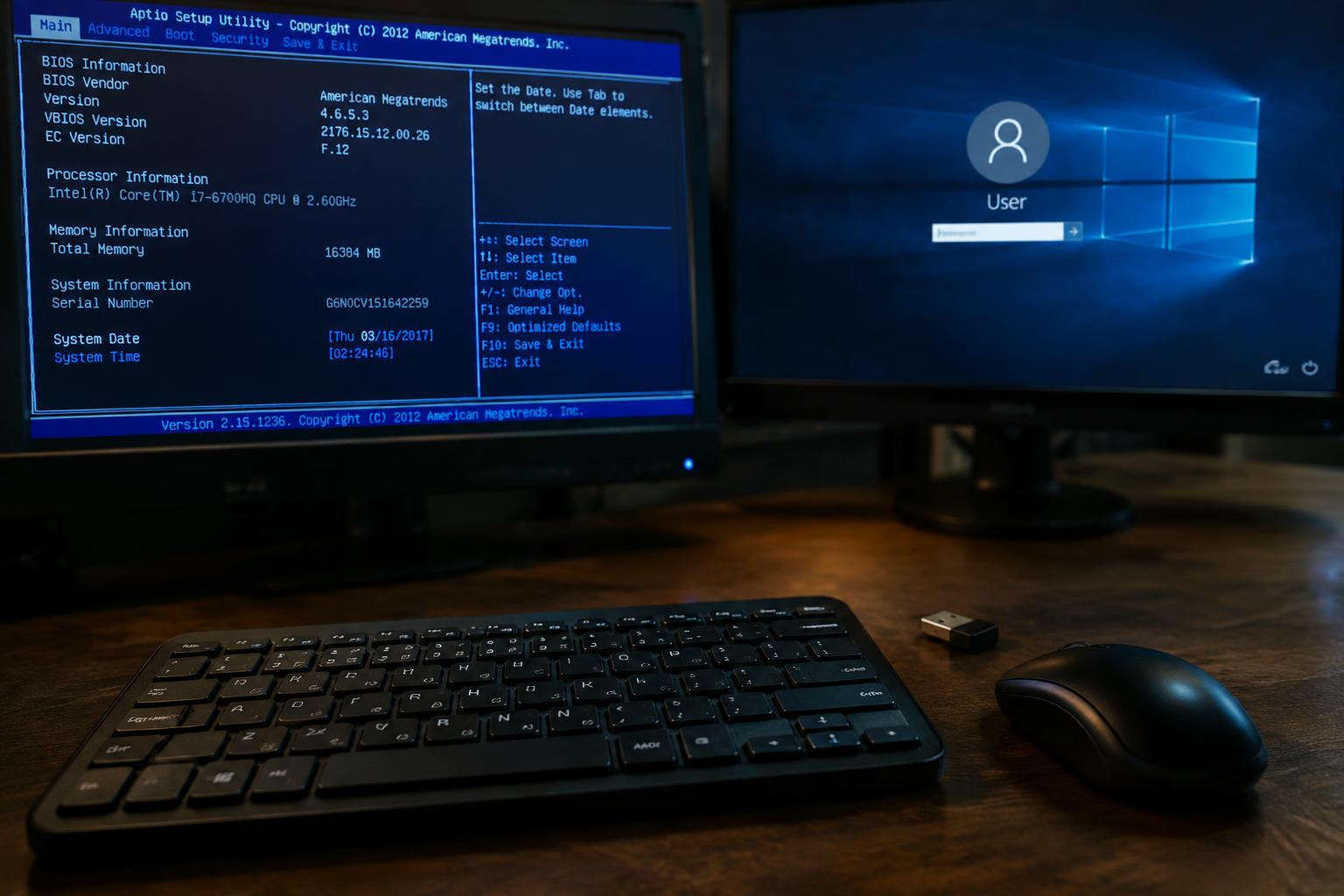
Your Bluetooth keyboard responds in BIOS, then stops working as Windows loads, because firmware and Windows use different input and Bluetooth drivers. BIOS access confirms that the keyboard can communicate during startup, but it does not prove Windows has loaded the right driver or restored its Bluetooth connection. The distinction matters when you need to enter a password or reach the desktop without a working keyboard.
Key Takeaways:
- BIOS and Windows use different keyboard support. A keyboard that works in BIOS may rely on basic firmware input, while Windows needs a functioning Bluetooth driver and device connection.
- Windows startup can interrupt the connection through a missing or faulty Bluetooth driver, failed pairing, disabled Bluetooth service, or power-management setting.
- Start diagnosis with the keyboard’s charge and pairing status, then inspect Bluetooth in Device Manager and reinstall or update the Bluetooth adapter driver if Windows does not detect the keyboard.
How BIOS and Windows Handle Bluetooth Keyboards Differently
Before Windows loads, your computer relies on firmware routines to accept basic input; after startup, Windows assigns device control to its own drivers and services. That transition changes which components interpret keystrokes and manage the wireless adapter. A keyboard that responds in the firmware setup is therefore not guaranteed to work at the sign-in screen. The distinction is between preboot input support and Windows’ broader device management.
Why a Keyboard Can Work Before Windows Loads
During startup, UEFI firmware handles only the input needed for tasks such as opening setup or choosing a boot device. Some systems support Bluetooth keyboards directly, while others accept input through a receiver that presents itself as a USB keyboard. In either case, the firmware uses a limited path rather than Windows’ full device stack. A working key in setup confirms preboot input, not that Windows has loaded a compatible Bluetooth driver.
How Windows Takes Over Bluetooth and Input Devices
Once Windows starts, its Bluetooth stack, device drivers, and Human Interface Device services take responsibility for translating keyboard input into keystrokes. The firmware’s basic support no longer controls that path, so a device can stop responding if Windows does not load the required components correctly. Device Manager identifies the adapter and keyboard under separate entries, and a warning icon on either one points to a Windows-level issue rather than a failure of firmware input.
- UEFI settings use firmware menus, not Windows Device Manager.
- Windows maintains separate entries for the Bluetooth adapter and keyboard.
- A USB receiver can appear as a standard HID keyboard.
Check Pairing, Power, and Basic Connections
Before changing Windows settings, verify that the keyboard is still using the connection you expect. Many Bluetooth models also support a USB receiver or multiple saved device slots, and switching between them can make the keyboard appear unavailable after startup. Check the selected channel and connection mode first, then inspect the keyboard’s status light for pairing or low-battery signals. Confirm the active connection before troubleshooting drivers or startup software.
Confirm the Keyboard Is Paired and Charged
Open Windows Bluetooth settings and look for the keyboard under your paired devices; a remembered name does not prove that the current connection is active. If it shows as disconnected, use the keyboard’s pairing button or documented key combination, then select it from Windows’ add-device screen. Replace or recharge its batteries when the indicator is dim or unresponsive, since low battery power can interrupt reconnection after login. Check the manufacturer’s instructions for the correct pairing mode.
Rule Out Interference and Connection Limits
Nearby wireless equipment, metal enclosures, and USB 3.0 devices can disrupt Bluetooth signals, especially when the PC’s antenna is behind a desk or tower. Move the keyboard closer and temporarily unplug nearby USB devices to test the connection. Also check whether it is still connected to a tablet or another computer; some models support several saved devices but connect to only one at a time. Disconnect competing devices and verify the selected channel before testing Windows again.
| Check | What to inspect | Useful result |
|---|---|---|
| Pairing | Windows Bluetooth device status | Keyboard appears connected |
| Power | Battery level or status light | Keyboard responds consistently |
| Connection mode | Bluetooth, receiver, or device channel | Keyboard uses the intended connection |
| Interference | Distance, nearby USB devices, other paired devices | Connection remains active near the PC |
Diagnose Windows Bluetooth and Keyboard Drivers
Windows must load the Bluetooth stack and expose the keyboard as an input device before your keystrokes reach applications. A driver fault can leave the keyboard paired yet unusable, while a stopped service can prevent the adapter from maintaining its connection. Use Device Manager and the Services console to identify the layer that has failed; error icons and service status provide concrete clues, such as a disabled HID device or a Bluetooth service that is not running.
Check Bluetooth and Human Interface Device Entries
Open Device Manager and expand both Bluetooth and Human Interface Devices. Look for warning symbols, disabled entries, or a keyboard listed as an unknown device; these point to a driver or enumeration problem. Right-click the affected entry, select Properties, and read the Device status message on the General tab. If the keyboard appears under HID but reports an error code, record that code before changing its driver.
Restart Bluetooth Services and Reinstall Drivers
Press Win+R, enter services.msc, and locate Bluetooth Support Service. Restart it, then test the keyboard; a stopped service can disrupt connections even when Device Manager shows the adapter without errors. If the problem persists, uninstall the keyboard or adapter from Device Manager, restart Windows, and let Windows reload its driver. For adapter-specific drivers, install the package supplied by your PC or Bluetooth adapter manufacturer rather than an unrelated driver utility.
- Check Device Manager for hidden devices through View, then Show hidden devices.
- Use the Hardware Ids property to identify an unknown Bluetooth component.
- Note the driver provider and version before uninstalling an entry.
Find Startup Settings and Software Conflicts
Windows can accept a keyboard during firmware setup yet stop responding after login because startup services, accessibility settings, or input-management software change how keystrokes are handled. Use the sign-in screen and Windows recovery options to isolate those causes before removing applications. Pay particular attention to recent configuration changes, such as a new keyboard utility, remote-access client, or update installed just before the problem began.
Review Fast Startup, Power Management, and Updates
Open Control Panel’s Power Options and temporarily clear Turn on fast startup under Choose what the power buttons do, then restart Windows rather than shutting down and turning it back on. In Device Manager, inspect the Bluetooth adapter’s Power Management tab and clear “Allow the computer to turn off this device to save power” if that option appears. Review Windows Update history for a Bluetooth, chipset, or cumulative update installed near the first failed login.
Test in Safe Mode and With Other Startup Apps Disabled
Start Windows in Safe Mode through Settings, System Recovery, then Advanced startup, or use the sign-in screen’s Restart option while holding Shift. If the keyboard works there, a third-party startup conflict is more likely than a Windows-wide input failure. In Task Manager, disable nonessential startup apps, restart normally, and re-enable them individually; keyboard remapping tools, gaming overlays, and remote-control software deserve early attention.
| Windows check | Where to look | What the result suggests |
|---|---|---|
| Fast Startup | Control Panel, Power Options | A change after restart points to startup-state behavior |
| Adapter power setting | Device Manager, Bluetooth adapter properties | Power saving may interrupt adapter availability |
| Recent updates | Windows Update history | A new driver or update may align with the failure |
| Safe Mode | Windows Recovery Environment | Working input points toward a startup app or service |
Isolate Keyboard, Bluetooth Adapter, and USB Issues
Separate the keyboard from the computer’s Bluetooth hardware before changing settings. BIOS input confirms that the keyboard can communicate during startup, but it does not identify which component stops working once Windows takes over. Test the keyboard independently, then examine the adapter and its USB connection. Keep each trial to one hardware change at a time, so a different result points to a specific part of the connection path rather than an uncertain combination of devices.
Test the Keyboard With Another Device
Pair the keyboard with a phone, tablet, or second computer and type in a text field. Successful input confirms the keys and Bluetooth radio work outside the original PC; failure on multiple devices points toward the keyboard, its battery, or its pairing state. Watch for dropped keystrokes and repeated disconnections, not just whether pairing completes. Test sustained typing for several minutes, since an intermittent fault can appear after the initial connection.
Try a Different Adapter or USB Port
Next, connect a known-working Bluetooth USB adapter to the PC, or test the existing adapter on another computer. If the keyboard works with the replacement, the original adapter is the likely weak link. Move a USB adapter between ports, preferably testing a rear motherboard port rather than a front-panel hub. Avoid USB hubs during this test, because a hub or extension cable adds another physical connection that can interrupt the adapter’s signal.
- Check the adapter for a bent USB plug or loose casing.
- Keep the adapter away from crowded USB 3.x ports during testing.
- Use fresh batteries if the keyboard has replaceable cells.
Apply Reliable Fixes and Prevent Recurrence
Choose repairs that match the failure rather than changing several settings at once. After each adjustment, restart Windows and test the keyboard at the sign-in screen and on the desktop; record which change restores input so you can reverse an unsuccessful fix. Keep a wired keyboard available before modifying startup or firmware settings, since Bluetooth support can differ between the preboot environment and Windows. For setup context, consult Why can’t I access BIOS with my Bluetooth keyboard?
| Repair | When to use it | Prevention step |
|---|---|---|
| Driver update or rollback | Failure began after a Windows or driver change | Keep the working driver version noted |
| Pairing reset | Windows no longer recognizes the keyboard reliably | Remove stale device entries |
| Firmware review | Vendor documents a relevant compatibility fix | Use the model-specific update instructions |
Update or Roll Back Windows and Device Drivers
Open Device Manager and update the Bluetooth adapter driver through Windows Update or the computer maker’s support page, matching the driver to your exact model and Windows version. If the keyboard stopped working immediately after an update, use the adapter’s Properties, Driver tab, and select Roll Back Driver when available. Avoid third-party driver bundles, which can install mismatched packages. Before changing drivers, note the adapter name and current version so you can restore the known-working configuration.
Reset Bluetooth Pairing and Review Firmware Options
Remove the keyboard from Bluetooth & devices, switch it off, then restart Windows and pair it again using the manufacturer’s pairing sequence. Clear an old connection on the keyboard itself if its manual provides that step, especially after switching between computers. Check the keyboard and PC manufacturer’s firmware notes for a release that addresses Bluetooth connectivity; install only the package listed for your exact model, with stable power and the keyboard connected as directed.
Conclusion
Your keyboard working in BIOS shows that its basic hardware and pre-boot connection function, but Windows uses its own Bluetooth services, drivers, and startup settings. If input stops once Windows loads, focus on the paired device entry, the Bluetooth adapter in Device Manager, and any driver or startup software conflict. Re-pairing the keyboard or reinstalling the adapter driver often addresses the difference, while testing a wired keyboard can preserve access during Windows troubleshooting.
FAQ
Why does my Bluetooth keyboard work in BIOS but not after Windows starts?
This usually happens because Windows has a Bluetooth, driver, service, or startup software problem, even though the keyboard works before Windows loads. If the keyboard also fails with another device, check its charge and hardware before changing Windows settings.
How long does it take to fix a Bluetooth keyboard that stops working in Windows?
A basic check of pairing, power, and Windows settings can take a few minutes, while driver repairs or testing another adapter may take longer. The time depends on whether the cause is a simple connection issue or requires troubleshooting startup software or hardware.
Can Fast Startup stop a Bluetooth keyboard from working after Windows boots?
Fast Startup or power management settings can contribute to Bluetooth devices failing after Windows starts, so testing with those settings changed may help. If the problem continues, check the Bluetooth and keyboard drivers, since startup settings are only one possible cause.
Is it safe to uninstall and reinstall a Bluetooth keyboard driver?
Reinstalling a Bluetooth or keyboard driver is generally safe, but the keyboard may remain unavailable until Windows reinstalls the driver or you reconnect another input device. Before removing anything, make sure you can navigate Windows with a built-in keyboard, wired keyboard, or mouse.
Should I replace my Bluetooth keyboard if it works in BIOS but not Windows?
Not necessarily, because working in BIOS suggests the keyboard can transmit input, while Windows may be failing to manage its connection. Test the keyboard with another device first; replace it only if it also fails there or shows a separate hardware problem.