
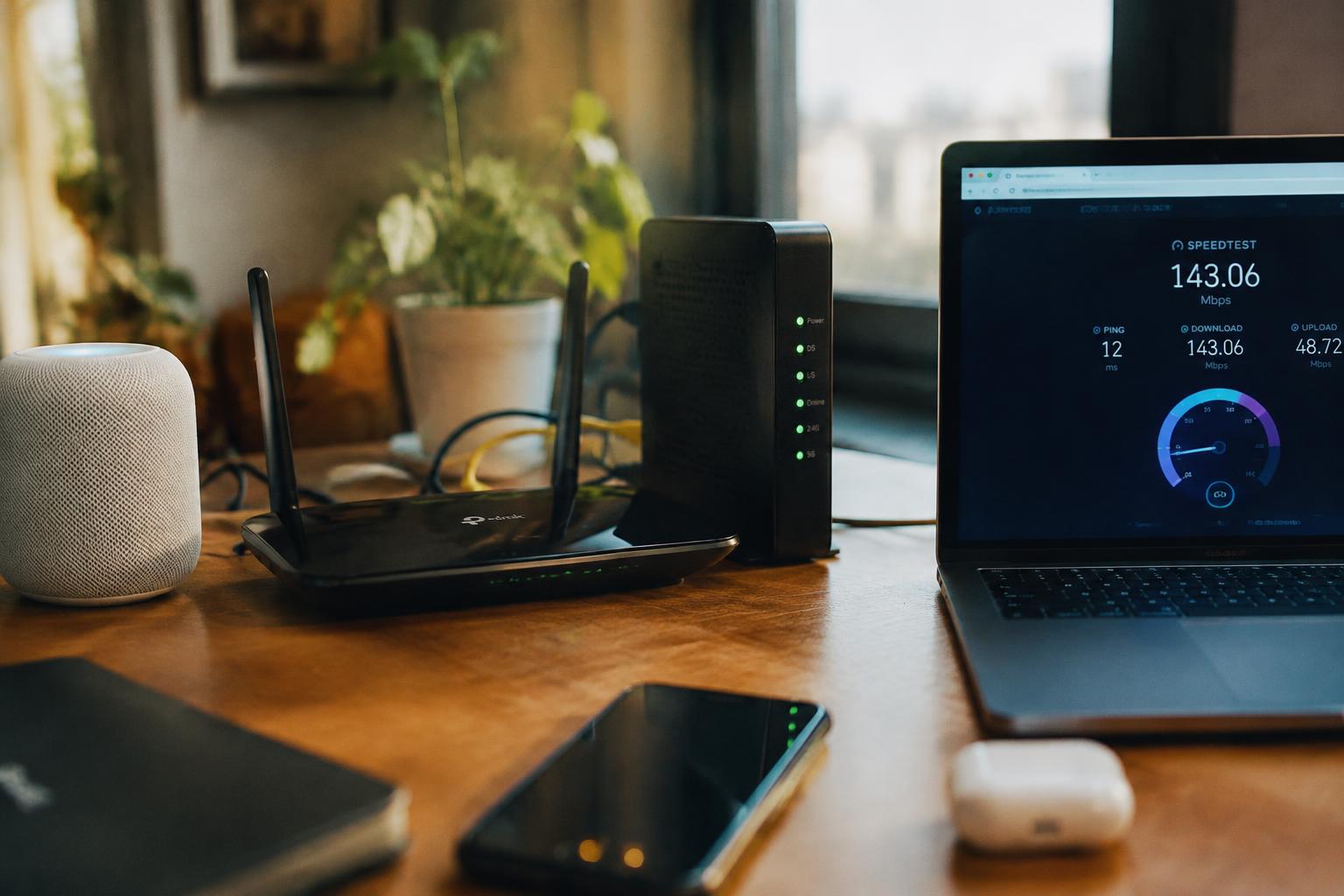
A video call that freezes beside your router but runs smoothly over a wired connection points to a different problem than slow service on every device. To separate WiFi interference from an ISP outage or line issue, note where performance drops and whether an Ethernet connection also stalls. That distinction starts with how your devices connect.
Key Takeaways:
- Test the same device near the router and over Ethernet. A wired connection that works normally while Wi-Fi remains slow points to a wireless problem, such as interference or weak signal.
- Run speed tests at different times and on more than one device. Slow results across wired and wireless connections, especially during repeated tests, point more strongly to an ISP or modem issue.
- Wi-Fi interference often changes by room, band, or nearby activity; ISP slowdowns tend to affect the whole connection. A router’s 2.4 GHz and 5 GHz networks provide a simple way to test whether band choice changes performance.
Check Whether WiFi Interference Is the Cause
WiFi performance changes with the signal’s path between your device and the router. Track one variable at a time, such as distance, a closed door, or an active Bluetooth speaker, and keep the device and task consistent. A repeatable drop tied to a specific change points to a local wireless condition; record the room, obstacle, and device involved, such as a laptop in a bedroom behind two walls.
Test your connection close to the router
Place your phone or laptop a few feet from the router, with a clear line of sight, then run the same speed test you used before. Keep the device on the same WiFi band and pause downloads or video streams on other devices. A marked improvement nearby suggests the signal weakens across distance or barriers; note whether the router is tucked inside a cabinet or behind a television.
Look for congestion and physical obstacles
Concrete walls, metal shelving, mirrors, and large appliances can weaken WiFi, while neighboring networks and active Bluetooth devices can add radio congestion. Repeat a speed test in the same spot with nearby wireless devices temporarily switched off, then restore them one at a time. Consistent changes linked to a particular obstacle or device indicate a local effect; a microwave operating near the router is one specific source to test.
- Keep the router upright and clear of floor-level clutter.
- Move cordless phone bases away from the router.
- Check whether a mesh node sits behind a metal object.
Check Whether Your ISP Is the Cause
A slow connection is not automatically a wireless problem: your provider, service tier, or a local network fault can limit every device in the home. Test the connection at the router with a wired computer, then match the result against your plan’s advertised speeds and the provider’s service notices. Look for a pattern across repeated tests, since a single low reading can reflect temporary congestion rather than a persistent ISP-side issue.
Run a speed test over Ethernet
Connect a computer directly to your router with an Ethernet cable, switch off any VPN, and pause downloads or streaming on other devices. Use a reputable speed-test service and run several tests, noting download speed, upload speed, and latency. Compare results with the plan’s stated speeds, keeping in mind that advertised rates are often maximums rather than guarantees. If wired results remain far below expectations, save the readings and test times as evidence for support.
Review your plan, outages, and peak-hour speeds
Check your account for the exact speed tier and any data cap, then consult your ISP’s outage map or service-status page for reported disruptions. Record Ethernet test results at different times, including busy evening hours, because neighborhood congestion can reduce throughput while off-peak speeds remain close to plan levels. Persistent shortfalls across multiple days, especially with no listed outage, give support staff useful details: your plan name, test timestamps, and wired speed readings.
| Check | What to record | What it indicates |
|---|---|---|
| Plan details | Speed tier and data limits | Your service’s stated capacity |
| Ethernet tests | Download, upload, and latency | Connection performance at the router |
| Outage status | Provider notices and affected area | A reported local service disruption |
| Test timing | Results during busy and quiet periods | Possible peak-hour congestion |
Use Simple Tests to Pinpoint the Problem
Keep each test controlled: change one condition, then repeat the same speed test so a single difference explains the result. Use a wired Ethernet connection as a reference, and run tests with the same device and test server when possible. Record download speed, upload speed, and latency, along with the connection type and time. A clear gap between wired and wireless results is a useful diagnostic clue, not a reason to alter several settings at once.
Compare devices, locations, and times
Start with one device near the router, then test that same device in the room where service feels slow. Keep the speed-test app and network unchanged; a sharp drop only in the distant room points toward a local wireless issue. Next, repeat the test on another device beside the router, then at a different time. Matching slow results across devices and locations suggest a broader connection problem, while a single-device result narrows the fault to that device.
Restart your modem and router, then retest
Record a baseline first, then unplug the modem and router from power. If they are separate units, reconnect the modem first and wait until its connection indicators settle before powering the router. Allow the WiFi network to return, then rerun the same test on the same device and location. A temporary improvement after rebooting is useful evidence, but one retest is not proof; note whether wired and wireless results both changed.
- Pause downloads and cloud backups on connected devices.
- Turn off any VPN on the test device.
- Use the same speed-test server each time.
Apply the Right Fix
Match the remedy to the evidence: a weak signal or improvement beside the router points to a home network issue, while slow wired results point toward your ISP or plan. Avoid buying new equipment before identifying the bottleneck, since a faster router will not correct a line fault. For help interpreting test results, see advice on testing and understanding Wi-Fi speed, then choose the fix that addresses the measured cause.
Improve router placement and reduce interference
Place your router in an open, central location, raised on a shelf and away from thick walls, metal cabinets, microwaves, and cordless phone bases. If nearby networks crowd the 2.4 GHz band, use your router’s settings to select a less congested channel or connect compatible devices to 5 GHz. Keep the router unobstructed, and avoid hiding it in a cupboard; a hallway shelf often provides a clearer path to rooms on both sides.
Contact your ISP or consider a plan change
For consistently slow wired speeds, contact your ISP with the test results, the time of each test, and whether you used Ethernet or Wi-Fi. Ask the provider to check for a line fault, service outage, or modem signal problem before upgrading. If the connection is healthy but your household regularly exceeds the plan’s capacity, compare available tiers and upload limits. Request a line check first, especially when every wired device shows the same slowdown.
| Evidence | Likely cause | Practical fix |
|---|---|---|
| Speed improves near router | Weak Wi-Fi signal | Move router to an open, central spot |
| Nearby networks crowd the band | Radio interference | Change channel or use 5 GHz |
| Wired devices are also slow | ISP or line issue | Ask the ISP to test the connection |
| Healthy line, insufficient capacity | Plan limitation | Review tiers and upload limits |
Conclusion
Speed tests become more useful when you compare a device on WiFi with the same device connected directly to your router by Ethernet. If the wired connection is steady but WiFi slows near neighboring networks, interference is the likelier cause; if both connections fall short of your plan, contact your ISP with test results and outage details. Keep notes on the connection type, time, and measured speed so support staff can distinguish a local signal problem from a service issue.
FAQ
How can I tell whether slow internet is caused by WiFi interference or my ISP?
Test the connection near your router, then compare it with a test over Ethernet. If Ethernet is fast but WiFi is slow, the problem is likely local wireless interference; if both are slow, check your plan, outages, and service performance.
How long does it take to find the cause of slow internet?
Basic checks usually take a few minutes, though testing at different times can take longer. Restarting equipment or changing one factor at a time helps, but avoid drawing a conclusion from a single speed test.
Can a speed test over WiFi show whether my ISP is delivering the speed I pay for?
A WiFi speed test cannot reliably separate ISP performance from wireless limitations. For a clearer comparison, connect a device to the router with Ethernet and pause other heavy internet use, since congestion in your home can also affect the result.
Will restarting my router fix slow internet, and is it safe?
Restarting your router and modem is generally safe and can clear temporary connection problems. It will not fix persistent WiFi interference or an ISP outage, and the connection will be unavailable briefly while the equipment reconnects.
Do I need to buy a new router or upgrade my internet plan?
Not necessarily; first identify whether slow speeds affect WiFi only or also a wired connection. Consider new equipment if the router cannot meet your household’s needs, and consider a plan change only if wired performance and usage show that your current service is insufficient.