
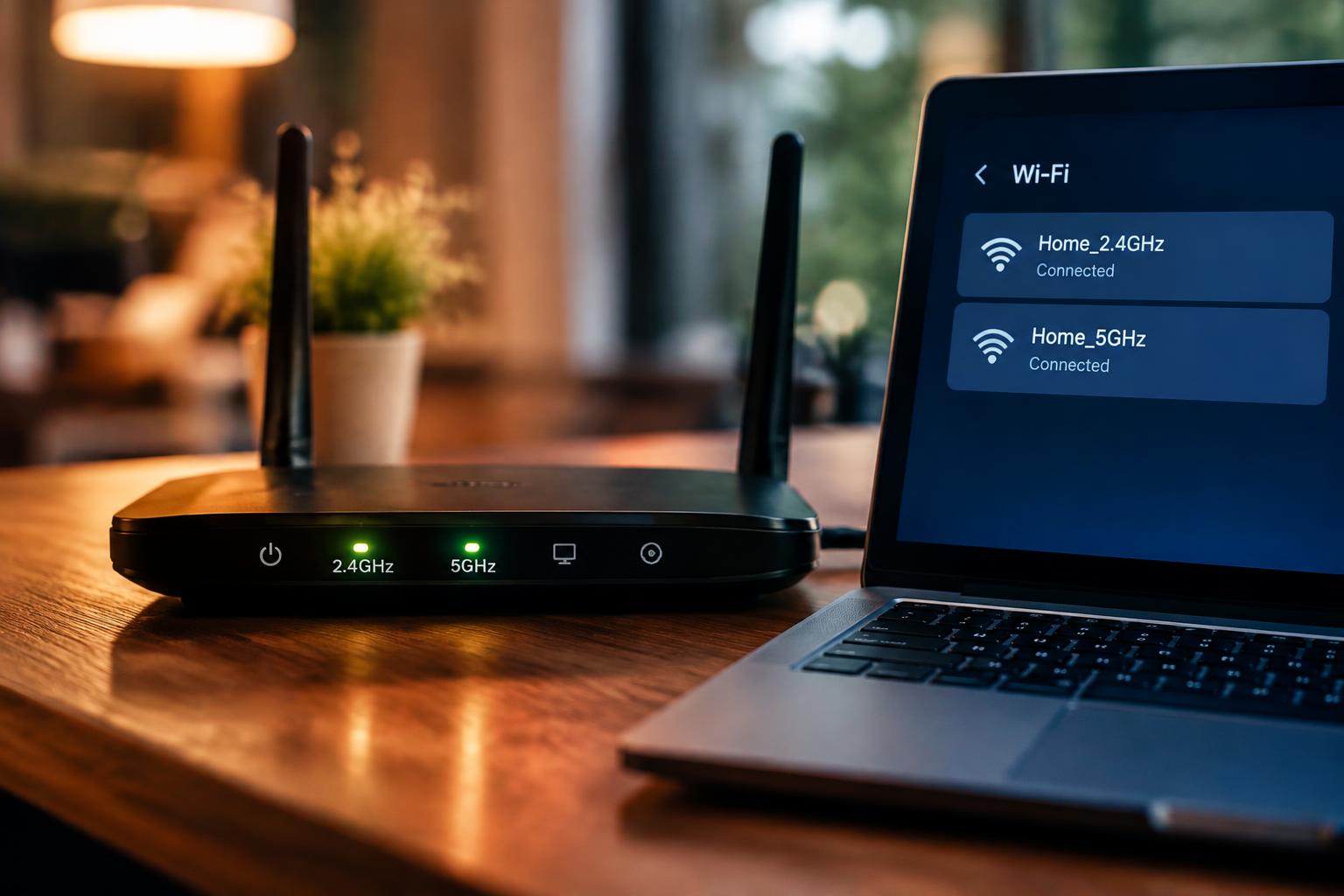
Your router’s 2.4 GHz and 5 GHz bands balance coverage and speed differently, but a shared network name can hide which band your devices use. Give each band a distinct name, and you gain direct control over that choice, while taking on the task of selecting a network on each device. The difference is especially noticeable with a distant smart plug or a nearby laptop.
Key Takeaways:
- Separate names, or SSIDs, make the 2.4 GHz and 5 GHz WiFi bands appear as distinct networks in a device’s WiFi menu, so you choose which band to join.
- The 2.4 GHz band generally reaches farther and passes through walls more effectively, while 5 GHz typically offers faster speeds at shorter distances. A device connected to one named band does not automatically switch to the other SSID.
- Different names give you direct control over band selection, which can help with older smart-home devices that require 2.4 GHz. A shared name lets a compatible router steer devices between bands, though the result depends on the router and device.
What Separate WiFi Network Names Mean
Giving each radio band its own network name, also called an SSID, makes the 2.4 GHz and 5 GHz connections appear as distinct choices in your device’s WiFi list. You can identify each band by its name, such as “Home_24” and “Home_5,” rather than seeing one shared entry. Separate, selectable networks are useful when a printer or smart device requires a particular band. For context on a shared name, read what happens if 2.4GHz and 5GHz have the same SSID.
How WiFi Bands Differ
Radio frequency shapes what each band is suited to: 2.4 GHz generally reaches farther and passes through walls more effectively, while 5 GHz typically offers higher speeds over shorter distances. Range and speed differ because the bands use different frequencies and available channels. Your router broadcasts them as separate wireless connections when you assign distinct names, making the band itself visible in the network list.
What an SSID Tells Your Devices
An SSID is the public name a WiFi network broadcasts, not a password or a label that guarantees a particular speed. With separate names, your phone or laptop displays each band as its own entry, and you select the one whose credentials your router accepts. The name identifies the network, while the router’s wireless settings determine which band that SSID represents.
- Use distinct, recognizable labels for each band.
- Avoid including your home address or family name in either SSID.
- Keep the network password separate from the broadcast name.
How Devices Behave When Bands Have Different Names
Separate network names put band selection in your hands: you choose the 2.4 GHz or 5 GHz SSID when connecting a device. That choice is useful when a device’s location or task makes one band a better fit, such as a printer in a distant room or a laptop near the router. Your device stores the selected credentials, giving you direct control over band choice at connection time.
Choosing a Network Manually
Open your device’s WiFi settings and select the SSID that matches your needs. Choose 2.4 GHz for a smart plug across the house, where its longer reach can matter; select 5 GHz for a nearby laptop streaming video, where greater available capacity is useful. You may need to enter the password separately for each name. A saved network preference makes that selection easier the next time your phone or computer reconnects.
Roaming and Switching Between Bands
Moving through your home does not automatically transfer a device between separately named bands. A phone connected to the 5 GHz SSID can remain on it as the signal weakens, rather than switching to the 2.4 GHz SSID on its own. To change bands, you generally need to select the other network in WiFi settings. That manual switch can briefly interrupt a call, download, or video stream.
- Confirm that both SSIDs are saved on the device.
- Keep each network’s password available during setup.
- Check the selected SSID before troubleshooting a connection.
Separate Names Versus One Shared Name
Choosing between separate WiFi names and one shared name comes down to how much control you want over band selection. Separate names let you direct a device to a specific band, while a shared name keeps the available network list simpler. Your preference depends on whether you value direct band control or simpler selection across the devices you use at home.
| Setup | Network list | Band selection |
|---|---|---|
| Separate names | One entry per band | You choose the band |
| Shared name | One entry | Router and device coordinate |
| Primary trade-off | More entries to manage | Less direct control |
Advantages of Separate Network Names
With separate names, you can select 2.4 GHz for a device that needs greater reach or 5 GHz for one close to the router that benefits from higher capacity. The distinction is useful when a device repeatedly joins a less suitable band, since you can connect it to the network name assigned to your preferred band. That gives you explicit control over which WiFi network a phone, laptop, or smart-home device uses.
Advantages of a Shared Network Name
A shared name presents one WiFi entry, so you do not have to decide between separate 2.4 GHz and 5 GHz listings each time you connect a device. The router and client device coordinate band selection, which keeps the network list simpler to manage for households with many phones, computers, and connected appliances. Your saved connection also uses one network name and password rather than separate credentials for each band.
How to Set Up Separate 2.4 GHz and 5 GHz Names
Your router’s wireless settings control both the names shown to devices and which frequency bands the router broadcasts. Sign in to the router’s administration page or app, then open the Wi-Fi, Wireless, or Network settings; labels vary by manufacturer. Look for separate controls for each band, since some routers hide them while a combined-network option is enabled. Band availability depends on the router, and older or provider-supplied models may not expose separate SSID fields.
Finding Band and SSID Settings
Start in the router’s web interface, commonly reached through its local gateway address, or use the manufacturer’s app if settings are managed there. Open the wireless section and locate the SSID or network name fields for 2.4 GHz and 5 GHz. If only one name appears, look for a setting such as Smart Connect or band steering, which combines band controls; available options vary by model and firmware version.
Naming Networks Clearly
Choose names that make each band easy to identify in your device’s Wi-Fi list, such as “Home-2.4” and “Home-5.” Keep the shared portion recognizable, but avoid including personal details such as your full name or apartment number. Enter each label in the matching SSID field, save the router settings, and confirm that the 2.4 GHz and 5 GHz names appear as intended. SSIDs are case-sensitive, so “Home-5” differs from “home-5.”
| Router setting | What to look for | Example |
|---|---|---|
| Band controls | Separate 2.4 GHz and 5 GHz options | Individual radio settings |
| SSID fields | A network name for each band | Home-2.4, Home-5 |
| Combined-band feature | Smart Connect or band steering | One shared network name |
Troubleshooting Common Issues
Start with the router’s device list and the affected device’s WiFi settings to pinpoint whether a failure involves discovery, authentication, or signal quality. Check the network name and password for typing errors, then confirm that the router is broadcasting the band you intend to use. A device that sees one name but not the other gives you a useful clue; band-specific checks narrow the fault to settings such as channel selection or security mode.
Devices That Cannot Find or Join a Network
First, verify that the missing network’s radio is enabled in the router’s wireless settings and that its SSID is not hidden. If a device finds the name but rejects the password, remove the saved profile and reconnect using the exact credentials, including capitalization. Check whether the router’s security mode is supported by the device, since older WiFi adapters may fail with newer settings. Confirm the band against the device’s specifications before changing channels.
Smart Home Devices and Compatibility
Many smart plugs, bulbs, and cameras support 2.4 GHz WiFi but not 5 GHz, so pair them with the compatible network during setup. Keep your phone connected to that same 2.4 GHz SSID while the manufacturer’s app discovers the device, and temporarily disable mobile data if the app switches connections. A failed pairing can also stem from WPA3-only security or a crowded channel. Check the device label or setup guide for its supported band and security requirements.
- Inspect router logs for failed authentication entries.
- Check whether MAC filtering blocks the device.
- Move close to the router during initial pairing.
Choosing the Best Setup for Your Home
Your preferred setup depends on how much control you want and how reliably your devices choose a band. Separate names suit households that need to assign specific equipment to a specific frequency, while one shared name reduces the number of network choices you manage. Account for older smart home products, guest devices, and household members’ tolerance for troubleshooting before changing router settings. The best fit reflects your actual mix of devices and your preference for manual control or simpler access.
| Setup | Useful when | Trade-off |
|---|---|---|
| Separate names | You need to choose a band for particular devices | You manage two network names |
| Shared name | You prefer one network choice for household devices | The router directs band selection |
When Separate Names Make Sense
Choose separate names if you want to keep a device on a particular band or troubleshoot inconsistent connections. A smart plug that only supports 2.4 GHz, for instance, can connect to that named network without your phone switching bands during setup. Separate names also suit homes where you deliberately reserve 5 GHz for nearby laptops or streaming devices. The added control comes with an extra network entry to manage on each device, including when you update the WiFi password.
When a Shared Name Is More Convenient
Households with phones, tablets, and laptops that move between rooms often prefer one shared network name. Your router manages which band each compatible device uses, so family members connect to a single entry rather than choosing between two. This setup is especially convenient if you rarely need to assign a device manually and your router’s band steering works well with your equipment. Guests see one familiar network name in the WiFi list, not separate 2.4 GHz and 5 GHz entries.
Summing up
Giving your 2.4 GHz and 5 GHz WiFi networks different names makes band selection visible: you choose which network each device joins instead of relying on your router’s band steering. The 2.4 GHz band generally reaches farther and supports older smart-home devices, while 5 GHz typically provides faster connections at shorter range. Separate names suit homes where you need this control; one shared name keeps setup simpler. Your choice determines whether a device’s network assignment is manual or managed by the router.
FAQ
Does giving my 2.4 GHz and 5 GHz WiFi networks different names cost anything?
No, using different names for your 2.4 GHz and 5 GHz WiFi networks does not add a cost by itself. You can usually change the names in your router’s settings, though your internet provider or router model may affect how those settings are accessed.
How long does it take to give my WiFi bands different names?
Changing the names usually takes only a few minutes once you can access your router settings. You may need extra time to reconnect devices, especially if you have many devices or need to update saved network details individually.
Can changing my WiFi network names disconnect my devices?
Yes, changing a WiFi network name can disconnect devices that have the old name saved. Reconnect them using the new name and password; devices that rely on the previous network details may need manual setup.
What is a common mistake when naming 2.4 GHz and 5 GHz WiFi networks?
A common mistake is giving the networks names that are too similar to tell apart when choosing one. Use clear labels, and keep the password the same if you want simpler setup, unless your router or security preferences call for separate passwords.
Is one shared WiFi name better than separate names for 2.4 GHz and 5 GHz?
A shared WiFi name is often more convenient because devices can select a band without requiring you to choose between separate network names. Separate names are useful if you want to control which band a device uses, though switching behavior with a shared name depends on the router and device.