
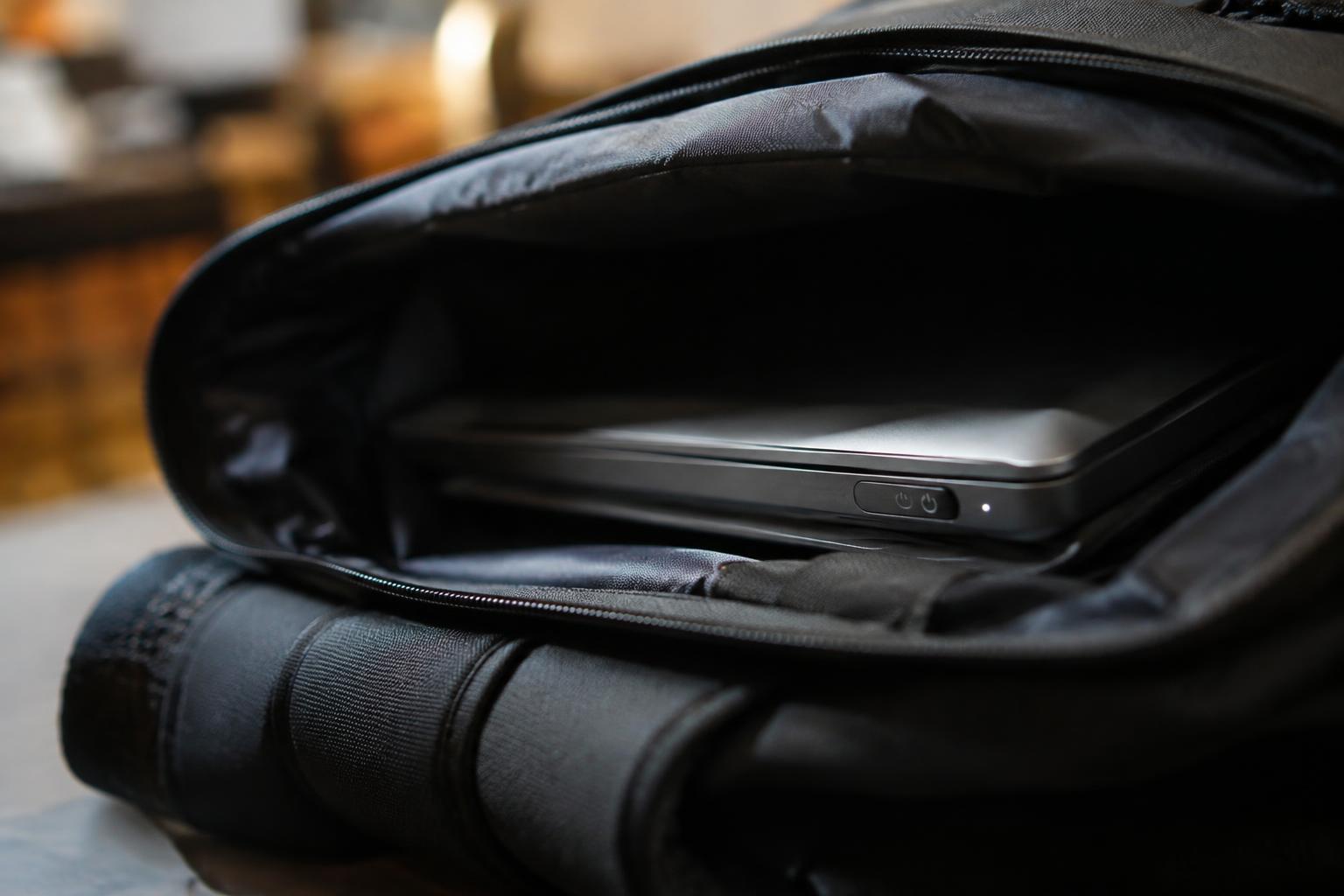
A laptop that wakes inside a closed backpack can build up heat, drain its battery, and strain components without giving you any warning. You can reduce that risk by checking sleep settings and preventing accidental input from the keyboard or trackpad. A fully shut-down laptop stays inactive during a commute, while a sleeping one remains ready to resume.
Key Takeaways:
- Set the laptop to hibernate or shut it down before packing; closing the lid alone often leaves it in sleep mode, where a wake signal can turn on the display and fan inside a backpack.
- Disable wake permissions for devices that do not need them, such as the laptop’s network adapter, mouse, or USB peripherals, and review Wake-on-LAN settings if the laptop starts during transport.
- Use a padded, ventilated laptop compartment and keep the power button clear of pressure from books or chargers; heat trapped in a zipped bag can build quickly when the laptop wakes.
How to Stop Your Laptop From Waking Up in a Backpack
Start with your operating system’s power controls: set a deliberate sleep state, prevent input devices from waking the laptop, and confirm that closing the lid triggers the action you expect. Menu names differ across Windows, macOS, and Linux, but the relevant controls are usually in power or device settings. A community walkthrough, [SOLVED] Laptop waking from sleep in backpack, provides a useful example of checking these settings. Test each change before packing the computer.
| Control | Setting to review | Expected result |
|---|---|---|
| Keyboard and mouse | Wake permission | Input does not resume the laptop |
| Network adapter | Wake permission | Network activity does not resume the laptop |
| Lid close | Sleep or hibernate | Closing the lid enters the selected state |
Disable wake-on-keyboard, mouse, and network
Open the device’s power-management settings and disable wake permission for the keyboard, mouse, and network adapter. On Windows, Device Manager lists wake controls under each device’s Properties, often on the Power Management tab; Linux offers related controls through system power settings or device wake configuration. Turn off wake-on-LAN if a network connection is resuming the laptop while it is packed. Keep wake access for devices you rely on, such as a dock, only when needed.
Set the lid-close action to sleep or hibernate
Choose the lid-close action in your operating system’s power settings, then verify the selected behavior while the laptop is unplugged. Sleep resumes quickly but continues to use some power; hibernate saves the session to storage and shuts down more fully, making it a safer choice for a long commute. Avoid “Do nothing” as the lid-close setting, since the display can turn off while the computer remains active. Confirm the chosen action takes effect when you close the lid.
Factors That Can Trigger a Wake-Up
Wake events often come from a combination of operating-system settings, peripherals, and physical contact with the laptop. A machine that appears asleep may still respond to a timer, a network signal, or input from an attached device. Hardware conditions matter too: pressure inside a bag can affect the lid sensor or keyboard, while trapped warmth can change how the system handles sleep. These triggers are distinct, but each can leave the display active and the computer generating unwanted heat.
Wake timers, scheduled tasks, and connected devices
Windows wake timers let maintenance tasks, such as updates or scheduled backups, bring your laptop out of sleep; macOS features such as Power Nap can also perform background work on supported models. A network adapter with wake-on-LAN enabled may respond to network traffic, while a USB mouse, keyboard, dock, or Bluetooth accessory can send an input signal. These software and device triggers are especially relevant when the laptop sleeps while still connected to a charger or peripheral.
Sensitive keys, a loose lid, and heat buildup
Pressure from books or other packed items can press a power or keyboard key, and a loose hinge or misaligned magnet can prevent the lid sensor from registering a closed screen. In a crowded bag, airflow is restricted; if the laptop wakes, its fan and processor may run against fabric or padding. That combination creates a heat and battery risk, particularly when vents are covered and the laptop remains powered in a padded compartment.
- Check whether the laptop is configured to sleep or hibernate when its lid closes.
- Look for a magnetic tablet cover near the laptop’s lid sensor.
- Note whether a dock or external display remains attached during sleep.
How to Troubleshoot and Test the Fix
Use a controlled sequence to identify which event is bringing the laptop out of sleep, then verify the relevant setting rather than changing several options at once. Start with the operating system’s wake records, review permissions for connected devices, and test sleep with the same power state you use before carrying the computer. A single-change test makes the result easier to interpret, especially when wake events are attributed to a network adapter, keyboard, or scheduled task.
Check wake history and device permissions
Open Windows Terminal or Command Prompt and run powercfg /lastwake to see the most recent wake source; use powercfg /waketimers to identify scheduled wake events. In Device Manager, inspect the network adapter, mouse, and keyboard under Power Management, then clear Allow this device to wake the computer for any device that should not resume it. On macOS, review scheduled wake settings with pmset -g sched and inspect connected peripherals if the log names an accessory.
Test sleep mode before placing the laptop in your bag
Save your work, select Sleep from the operating system’s power menu, and wait until the screen and keyboard indicators go inactive. Leave the laptop undisturbed for several minutes, then wake it with the power button and review the wake record again. Repeat after disabling one suspected device or timer; change one setting at a time so you can identify the source. A stable test ends with the expected wake event, not a spontaneous restart or sign of sustained fan activity.
| Check | Tool or setting | What to look for |
|---|---|---|
| Recent wake source | powercfg /lastwake | Device or event named as the cause |
| Scheduled wake | powercfg /waketimers or pmset -g sched | Active timer that can resume the laptop |
| Peripheral permission | Device Manager power settings | Wake permission enabled for an unnecessary device |
| Sleep stability | Controlled sleep test | Unexpected wake, restart, or sustained fan activity |
Tips for Safer Backpack Carrying
Before you shoulder your bag, set up a low-input carry routine: save your work, disconnect accessories, and confirm the laptop is fully asleep or shut down. Use a padded sleeve to limit movement, and place the computer in a compartment that keeps it from shifting against loose objects. A power bank, charging cable, or pen pressed against the lid can trigger controls or strain the chassis during a crowded commute.
Use hibernate for longer trips
For a long commute or a stretch of travel without access to a charger, choose hibernate instead of sleep. Hibernate saves your open session to storage and powers the laptop down, so brief keyboard or touchpad contact inside the bag cannot resume normal operation. Wait for the power light to go out before packing, and avoid closing the lid while the system is still saving; a pending hibernation can leave the machine warm in a tightly packed compartment.
Keep vents clear and prevent pressure on the keyboard
Place the laptop so its intake and exhaust vents are not pressed against a backpack panel, clothing, or the sleeve lining. Blocked airflow traps heat, especially if the computer wakes during transit. Keep hard objects in separate pockets, and avoid overfilling the main compartment, which can press the bag’s contents against the keyboard or power button. A slim, rigid laptop sleeve adds a barrier between the keys and nearby items such as a metal water bottle.
- Close the laptop’s ports with their dust covers, if fitted.
- Route charging cables through a separate pocket.
- Keep liquids upright in an external bottle holder.
Update Drivers and Firmware
Sleep and wake behavior depends on coordinated firmware, chipset, and operating-system components. An outdated driver can misreport a lid event or interrupt request, causing your laptop to resume even though you did not open it. Work through updates in a controlled order, using your laptop manufacturer’s support page or the operating system’s update utility. Prioritize model-specific packages, and avoid third-party driver tools that offer unverified replacements.
Update power-management and chipset drivers
Start with the laptop maker’s support page, enter your exact model or serial number, and install the current chipset and power-management packages for your operating system. These drivers coordinate sleep states, lid sensors, and device wake signals; an outdated chipset package can leave a network adapter or USB controller able to wake the system unexpectedly. Restart after installation, then inspect Device Manager for warning icons or failed devices. Use manufacturer-approved drivers rather than generic downloads.
Check BIOS or UEFI power settings
Open BIOS or UEFI setup using the key shown during startup, then review settings related to sleep, wake events, and lid behavior. Labels vary by manufacturer, but options such as Wake on LAN or USB wake can permit resume while the computer is closed. Install firmware only from the support page for your exact laptop model, and keep the charger connected during the update. A failed BIOS update can prevent startup, so do not interrupt its on-screen progress.
| Update area | Where to get it | Relevant setting or component |
|---|---|---|
| Chipset driver | Manufacturer support page | Device wake signals |
| Power-management driver | Manufacturer support page | Sleep and lid events |
| BIOS or UEFI firmware | Exact-model support page | Wake on LAN or USB wake |
Conclusion
Preventing backpack wake-ups starts with a reliable shutdown routine: save your work, close the lid, and confirm that your laptop is hibernating or fully powered off before packing it. Disable wake-on-lid-open or unnecessary wake timers in your operating system, and review which devices can wake the computer. A padded sleeve reduces pressure on the lid, while keeping the laptop separate from cables helps prevent accidental button presses. After changing settings, test the closed laptop in your packed bag before carrying it for a full day.
FAQ
How do I stop my laptop from waking up inside a backpack?
Disable wake permissions for the keyboard, mouse, and network adapter, and set the lid-close action to sleep or hibernate. Menu names vary by operating system, and a device or firmware setting may still allow wake-ups, so check wake history if the problem continues.
Is it safe to put a sleeping laptop in a backpack?
It is safer to hibernate or shut down a laptop before carrying it for a long time. Sleep still uses power and can be interrupted, and a closed bag can trap heat if the laptop wakes or its vents are blocked.
How long does it take to stop a laptop from waking in a bag?
Changing sleep and wake settings usually takes a few minutes, followed by a short test to confirm the laptop stays asleep. The process can take longer if you need to identify a wake source or update a driver or firmware.
Can disabling wake-on-keyboard or mouse cause problems?
Disabling wake permissions for a keyboard or mouse usually only prevents that device from waking the laptop from sleep. You may need to press the power button to resume, and the setting does not prevent wake-ups caused by timers, network activity, or other devices.
Should I use sleep, hibernate, or shutdown when carrying a laptop?
Hibernate or shutdown is generally more reliable than sleep for carrying a laptop in a backpack. Sleep is convenient for short breaks, but use a deeper power state for longer trips or if the laptop has repeatedly woken inside the bag.