
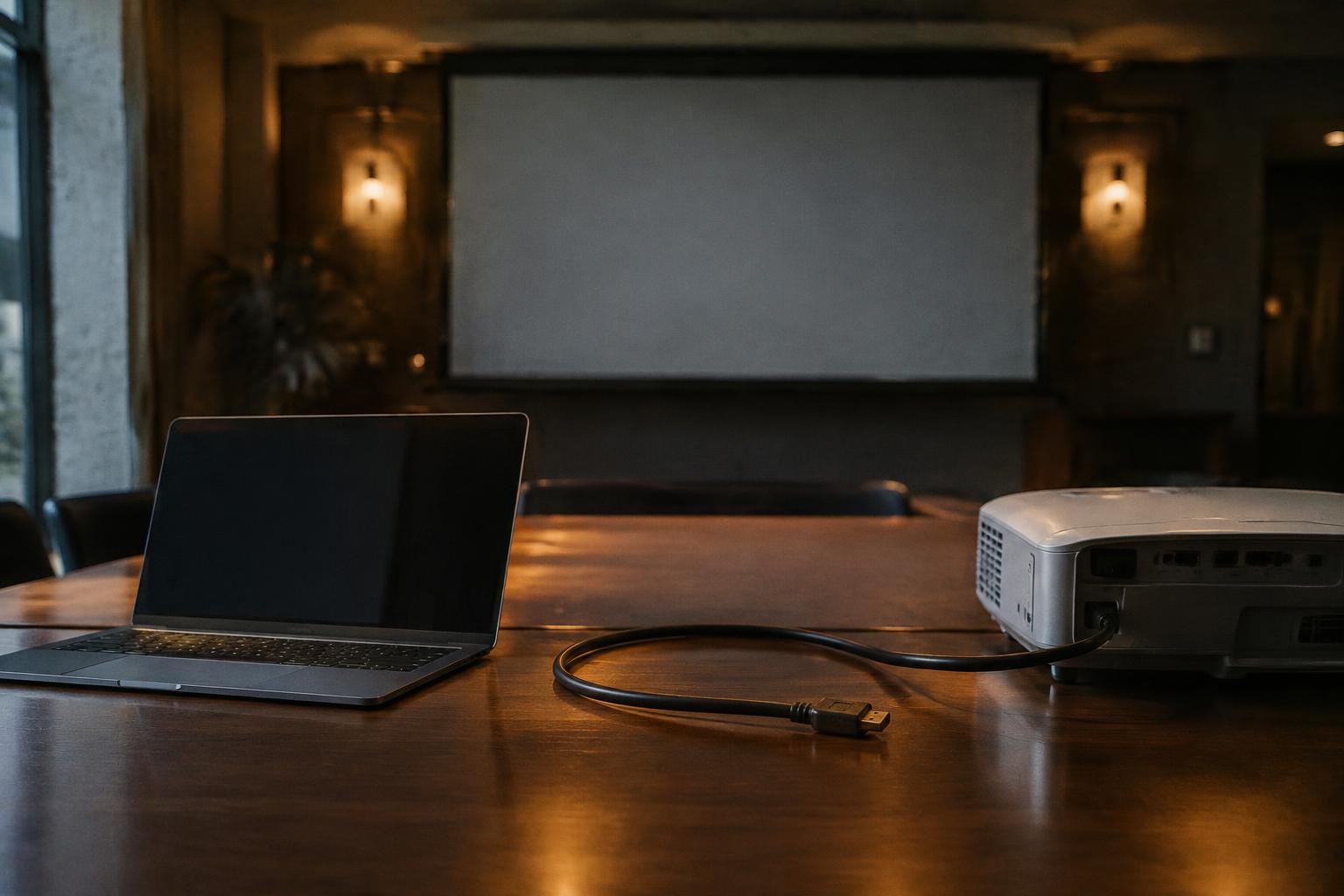
Your laptop wakes, but the projector stays blank or displays “No Signal.” This dropout often occurs because the laptop’s graphics system and the projector’s HDMI input fail to re-establish their connection at the same time. A handshake interruption can leave the display undetected until you reconnect the cable or reset the output.
Key Takeaways:
- A laptop waking from sleep can renegotiate its HDMI connection while the projector is still waiting for a video signal. The display may remain blank until the laptop detects the projector again.
- Start troubleshooting at the connection chain: reseat the HDMI cable, select the projector’s correct input, and reconnect any USB-C or DisplayPort adapter. Each added adapter introduces another link that can interrupt signal detection.
- To reduce repeat dropouts, update the laptop’s graphics driver and projector firmware where available, and set the laptop to detect the external display after waking. If the signal returns only after replacing a cable or adapter, that component is the likely fault.
How Sleep and Wake Cycles Interrupt HDMI
During sleep, your laptop reduces or suspends activity in its graphics processor and display controller, so the projector may stop receiving an active video signal. On wake, those components restart, but they do not always resume output in lockstep. The resulting timing gap can leave the projector showing “No Signal” even after the laptop desktop appears. This interruption reflects a change in the laptop’s power state and video output, rather than a deliberate shutdown of the presentation.
What changes when a laptop wakes
As your laptop wakes, its operating system restores the graphics driver and reactivates the display output. The system may initially prioritize the built-in screen, then detect the projector and rebuild the extended or mirrored desktop. During that transition, the projector can remain blank while the laptop finishes restoring its display configuration. The delay is more noticeable when the laptop was set to sleep with the projector connected and resumes with its lid closed.
How HDMI renegotiates the display connection
After wake, your laptop and projector exchange HDMI identification and capability information, including supported resolutions and refresh rates. The laptop reads the projector’s EDID data, then configures a video mode both devices support; protected content can also require HDCP authentication. Until those steps complete, the projector may show a blank screen or “No Signal.” A fresh handshake typically restores the image once the laptop resumes sending a compatible mode, such as 1920 × 1080 at 60 Hz.
| Wake-stage change | What your laptop does | What you may see |
|---|---|---|
| Graphics resume | Restores the graphics driver and display controller | Projector remains blank |
| Display detection | Reads the projector’s EDID information | “No Signal” persists briefly |
| Mode selection | Sets a supported resolution and refresh rate | Image appears at the selected mode |
| Content authentication | Completes HDCP checks for protected video | Protected playback starts after authentication |
Isolating the Source of Signal Loss
Track the signal path from your laptop’s HDMI output to the projector’s input, changing one component at a time. A controlled test separates a wake-related laptop problem from a fault in the cable, adapter, or port. Keep the same resolution and display settings during each test, and note whether the projector reports “No signal” or detects an input without displaying an image. Those details distinguish a missing connection from an incompatible video mode.
Checking cables, ports, and adapters
Inspect the HDMI cable for bent connectors, looseness, or visible damage, then reseat it at both ends while the equipment is powered down. Test a known-good cable directly between the laptop and projector, bypassing any dock or adapter. If the direct connection works, add the adapter back and test its HDMI socket; if it fails, try another projector input. Record which connection fails, such as the laptop’s built-in HDMI port or a USB-C adapter.
Testing with another display or video source
Connect your laptop to a monitor or television using the same cable and adapter, then connect a separate laptop or media player to the projector. These swaps reveal which device carries the fault: a laptop that fails with multiple displays points toward its output path, while a projector that rejects multiple sources points toward its input. Keep the same cable and adapter for each comparison, and record whether each test produces a stable picture.
- Write down the projector’s selected input label.
- Note any adapter model printed on its casing.
- Record whether the display detects an input signal.
Restoring the Projector Connection
After your laptop wakes, a blank screen does not always mean the HDMI connection has failed completely. The projector and computer can retain different output states, so restore the link in a controlled order: confirm the selected input, then reconnect the cable if needed. Allow a few seconds after each action for the display to respond. Change one connection point at a time, so you can identify whether the image returns after an input selection or a fresh HDMI handshake.
Re-selecting the projector’s HDMI input
Start with the projector’s remote or control panel and open its input or source menu. Select the exact HDMI port used by your laptop, such as HDMI 1 rather than Auto, then wait for the projector to reacquire the signal. If the screen remains blank, use your laptop’s display controls to choose duplicate or extend, depending on your setup. Match the selected port to the cable; a projector set to HDMI 2 cannot display a laptop connected to HDMI 1.
Reconnecting the cable and restarting the display handshake
When the correct input is selected but the image stays blank, disconnect the HDMI cable at the laptop or adapter, wait briefly, and plug it back in firmly. Keep the projector powered on so both devices can detect the reconnection. For a USB-C or HDMI adapter, reseat the adapter at the laptop as well. A direct cable reseat often prompts a new display handshake; watch for the laptop’s desktop or resolution indicator to appear on the projection surface.
| Step | Action | What to verify |
|---|---|---|
| Input selection | Choose the HDMI port in use | Projector shows the laptop image |
| Display mode | Select duplicate or extend on the laptop | External display is enabled |
| Cable reseat | Unplug and reconnect HDMI firmly | Image returns after handshake |
| Adapter reseat | Reconnect USB-C or HDMI adapter | Adapter is fully seated |
Preventing HDMI Dropouts After Sleep
A stable wake sequence depends on coordinated settings across the laptop, graphics driver, and projector. Set the computer to restore its external display when it resumes, and avoid power-saving options that shut down the HDMI output while the projector remains on. Keep the projector’s input selection fixed rather than relying on automatic source detection. These adjustments reduce renegotiation delays, especially when your laptop uses a USB-C dock or HDMI adapter. Consistent power states give the connection a predictable path back to the active input.
Adjusting laptop sleep and external-display settings
In Windows, open Power Options and review what happens when the lid closes and the system sleeps; on macOS, check Battery settings and the display behavior available for your model. Set the laptop to retain or promptly restore the external display, and disable aggressive USB power saving if a dock loses connection during sleep. Keep the projector awake during short laptop pauses, and select its HDMI input manually. Matching sleep behavior prevents the source and display from powering down out of sequence.
Updating drivers and projector firmware
Install graphics and USB-C dock drivers from your laptop or chipset manufacturer, rather than relying only on a generic driver utility. Check the projector maker’s support page for firmware notes addressing HDMI handshakes, standby, or input detection, and follow its update instructions exactly. Keep the laptop connected to reliable power during driver installation, and do not interrupt a projector firmware update. Current firmware and drivers can resolve wake-state compatibility faults between specific devices.
- Turn off HDMI-CEC if connected devices switch inputs unexpectedly.
- Choose a fixed refresh rate supported by both laptop and projector.
- Disable automatic input search when the projector offers that setting.
When an Adapter or Projector Needs Service
Persistent signal loss after basic troubleshooting points to a hardware fault or an incompatibility that ordinary reconnecting will not resolve. A replacement adapter or service inspection is appropriate when the failure follows one component across different laptops or displays. Record which combinations fail, along with any error messages, so a technician can isolate the fault; guidance on fixing a gaming monitor black screen after sleep offers a useful reference for recognizing related display symptoms.
Recognizing adapter compatibility problems
An adapter that works with one laptop but repeatedly fails with another may not support the required video mode or handshake behavior. Check the adapter’s specifications against your laptop’s output and the projector’s supported resolution and refresh rate, rather than relying on connector shape alone. USB-C ports do not all carry video, and some adapters require DisplayPort Alt Mode. A known-compatible replacement that restores the image identifies the adapter as the likely limitation.
Identifying signs of a failing HDMI port or projector
Intermittent picture loss that changes when the HDMI plug moves can indicate a worn port or damaged cable, while a loose socket or visibly bent connector calls for service rather than force. Test the projector with a known-working source and cable; if it still loses signal, the fault likely lies in its HDMI input or internal electronics. Stop using a port that feels loose, especially if it becomes warm or shows discoloration.
| Observed symptom | Likely issue | Service indicator |
|---|---|---|
| Failure follows one adapter | Adapter incompatibility or fault | Known-compatible adapter works |
| Signal changes when plug moves | Loose or damaged HDMI port | Connector does not seat firmly |
| Projector fails with a known-good source | Projector input or internal fault | Failure persists across sources |
To wrap up
After your laptop wakes, its graphics system, HDMI adapter, and projector must re-establish the video handshake; a delay or failed handshake can leave the projector showing “No Signal” even when the cable remains connected. You can often restore the picture by reconnecting HDMI, selecting the correct projector input, or restarting the display output. If dropouts persist, test another cable or port to isolate a faulty adapter, projector input, or graphics driver.
FAQ
Why does my projector lose its HDMI signal after my laptop wakes from sleep?
A laptop may briefly stop sending video during sleep, so the projector loses the HDMI handshake when the laptop wakes. The image often returns after the display connection is renegotiated, but a persistent blank screen can also point to a cable, adapter, or port problem.
How long does it usually take to get a projector working again after laptop sleep?
Restoring the image often takes a few minutes of checking the selected input and reconnecting the HDMI cable. If the projector still shows no signal after a restart, testing another cable or display can help identify a hardware or compatibility issue.
Can repeatedly reconnecting HDMI damage my laptop or projector?
Carefully unplugging and reconnecting an HDMI cable usually does not damage the devices. Avoid forcing the connector or pulling the cable at an angle, since rough handling can wear or damage the port.
Should I use a different adapter if my projector keeps showing no signal?
Trying a compatible adapter is worthwhile if the laptop uses one and the signal fails intermittently. Check that the adapter supports the laptop’s video output and the projector’s input, because an incompatible adapter can prevent a stable connection.
When should I have a projector HDMI port repaired?
Consider professional service if the projector repeatedly loses signal with known-good cables and video sources, especially if its HDMI port is loose or visibly damaged. If the failure happens only with one laptop or adapter, check that device’s compatibility before arranging projector repair.